
Our Top Picks
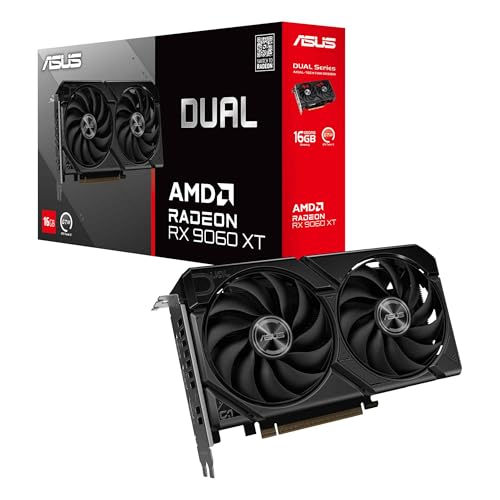 ASUS Dual Radeon RX 9060 XT 16GB GDDR6RX9060XT|16GB|Black8 x 4.7 x 1.9 inches1.3 poundsCheck on Amazon

Best overall: an NVIDIA GeForce RTX card with 12GB or more
For most video editors, the best graphics card is an NVIDIA GeForce RTX model with at least 12GB of VRAM. NVIDIA has the broadest support in editing software, strong hardware H.264, H.265 and AV1 encoding, and CUDA acceleration that remains useful in applications such as Adobe Premiere Pro, DaVinci Resolve and After Effects.
A midrange RTX card is usually a better purchase than a flagship model for editing. GPU effects, noise reduction, motion graphics and exports can all benefit from more graphics power, but your processor, system memory and storage also have major effects on performance. Spending every dollar on the GPU can leave you with a fast preview card attached to a frustratingly slow workstation.
Look at NVIDIA RTX graphics cards with 12GB or more if you want the safest all-round choice. A card in the RTX 4060 Ti 16GB, RTX 4070-class or newer equivalent range is enough for many 4K projects, depending on the effects and footage involved. Higher-end cards make more sense for complex Resolve timelines, heavy effects, 6K or 8K media, and frequent professional work.
What matters in a video-editing GPU
Video editing is not one workload. Scrubbing a timeline, applying color grades, rendering an effect and encoding a finished file may use different parts of the computer.
- VRAM: 8GB is workable for 1080p and lighter 4K projects, but 12GB is a more comfortable starting point. Large timelines, high-resolution source files and GPU-heavy effects can exceed 8GB, causing stutter, failed renders or a forced reduction in preview quality.
- Media engines: Dedicated video encode and decode hardware often matters more than raw gaming performance. Check support for the codecs you use, including H.264, H.265 and AV1.
- Software support: NVIDIA generally has the least friction. AMD has improved substantially, while Intel can be excellent for specific codecs but is less predictable as a general-purpose choice.
- Power and cooling: A large card can require a stronger power supply and more case airflow. Thermal throttling, fan noise and an undersized power supply can erase the benefit of buying a faster model.
NVIDIA, AMD and Intel compared
| Platform | Best for | Main strengths | Watch-outs |
|---|---|---|---|
| NVIDIA GeForce RTX | Most editors and mixed workloads | CUDA support, strong encoders, broad application compatibility, good effects performance | Often costs more than competing cards; VRAM can be limited at some prices |
| AMD Radeon | Value-focused buyers and VRAM-heavy builds | Competitive raster performance, often generous memory, good value in some price bands | Software acceleration can be less consistent; creator applications may favor CUDA |
| Intel Arc | AV1 work and budget systems | Strong media-engine feature set, attractive pricing, useful AV1 capability | Driver and application behavior can vary; platform support matters more |
When an AMD Radeon card is the better buy
AMD is worth considering when a Radeon card gives you substantially more VRAM or a lower price than the competing NVIDIA option. That extra memory can be useful in DaVinci Resolve, especially with high-resolution footage, multiple nodes, temporal effects and demanding Fusion compositions.
The trade-off is application support. Resolve can use AMD hardware effectively, but some workflows and plugins are better optimized for CUDA. If your work is mainly editing, color correction and standard exports, Radeon can be a sensible value choice. If you depend on CUDA-only tools, AI effects or a particular Adobe plugin, check compatibility before buying.
A 16GB AMD Radeon graphics card can be a strong alternative when it costs less than a similarly priced NVIDIA card. Do not buy it solely because the memory number is larger: usable performance still depends on the software and the specific effects in your projects.
When Intel Arc makes sense
Intel Arc cards deserve attention for editors who work with modern codecs, particularly AV1, and want to keep costs under control. Their media hardware can deliver excellent encode and decode capability for the money. This can help when you regularly create compressed deliverables for streaming, social media or web publication.
Arc is less suitable as a blind recommendation. Driver improvements have made it much more practical, but application behavior is still more dependent on the exact software version, motherboard platform and project type. Older systems may also need features such as Resizable BAR enabled for proper performance.
Choose Intel when you have confirmed that your editing software supports the card well and its media engines match your workflow. It is a good targeted purchase, not necessarily the safest choice for a studio that needs every plugin and effect to behave consistently.
Choose by resolution and workload
1080p editing: A current budget GPU with 8GB can be enough, particularly if your footage is compressed and you use modest effects. Integrated graphics may handle basic cuts, but a dedicated card gives you more reliable timeline playback and export acceleration.
4K editing: Aim for 12GB of VRAM if your budget allows. The cheaper 8GB option is fine for straightforward cuts and ordinary color adjustments, but it becomes a poor value if you routinely use noise reduction, advanced grading, Fusion or several high-resolution layers.
6K, 8K and professional effects: Prioritize VRAM, cooling and stability over small differences in gaming benchmarks. A 16GB-or-more card may be appropriate, but first make sure the system has enough RAM and fast storage. Otherwise, the GPU will spend much of its time waiting for media or system memory.
Common buying mistakes
Do not judge an editing card by gaming FPS alone. A faster gaming GPU may not export much faster if your project is CPU-limited or if the codec is not being handled by the GPU. Likewise, buying a professional workstation card is rarely necessary for ordinary editing; consumer GeForce, Radeon and Arc cards generally provide better performance per dollar.
Check the card’s physical size, power connector and recommended power supply before ordering. A three-slot card may block expansion slots, while a compact case may not provide enough intake airflow. Also verify your monitor outputs if you need several high-resolution displays.
For a new build, pair the GPU with at least 32GB of system memory for serious 4K work, a modern multicore processor and an NVMe SSD for active projects. A cheaper graphics card with a balanced system is often faster to use than an expensive card paired with 16GB of RAM and a nearly full hard drive.
The short buying recommendation
Buy an NVIDIA RTX card with 12GB or more if you want the least complicated choice across Adobe and Resolve. Choose AMD Radeon when you get clearly better VRAM or pricing and your software supports it. Choose Intel Arc when AV1 and media-engine capability are priorities and you have checked compatibility. For basic 1080p editing, save money: a midrange or budget card is sufficient, and the difference is better spent on RAM, storage or a quieter case.
FAQ
Is 8GB of VRAM enough for video editing?
Yes, for 1080p and lighter 4K projects. For demanding 4K timelines, heavy effects or high-resolution footage, 12GB is a safer minimum.
Is NVIDIA better than AMD for Premiere Pro?
Usually, NVIDIA is the safer choice because CUDA and creator-software support are broad. AMD can still be good value if your projects use effects and codecs that it supports well.
Do I need a high-end GPU for DaVinci Resolve?
Not for basic cutting and grading. A stronger GPU becomes worthwhile for noise reduction, Fusion, multiple nodes, high-resolution media and frequent professional exports.
Is AV1 important for an editing graphics card?
It matters if you publish AV1 files or want efficient modern exports. If your clients require H.264 or H.265, AV1 support is useful but not essential.



