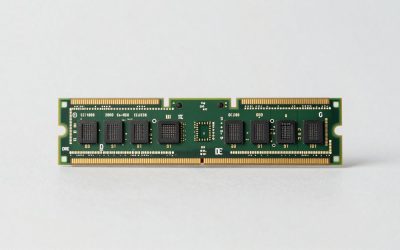
DRAM cache on an SSD is a small chip of fast memory that stores the drive’s address map, the table linking each logical location your PC asks for to the physical spot on the flash chips. It is not a buffer that holds your game files, which is the most common misunderstanding. For a typical gaming PC, a DRAM-less NVMe drive is fine as a game library, and DRAM becomes worth paying for when the drive is also your boot disk, scratch disk or heavy-write workhorse.
This guide explains what the mapping table does, how DRAM, DRAM-less and Host Memory Buffer designs differ, why small drives often skip the chip, and a checklist for confirming what a listing really offers. It relies on published specifications, manufacturer documentation and buyer reviews, so use it to ask better questions of a product page rather than as a measured ranking.
What the mapping table does inside an SSD
Flash memory cannot overwrite data in place. Cells are written in pages and erased in much larger blocks, so when your PC rewrites a file the controller usually places the new data in a fresh location and marks the old one as stale. Your operating system keeps using the same logical address the whole time. The component that hides this shuffling is called the flash translation layer, and its core data structure is a table mapping logical addresses to physical ones.
Every read starts with a lookup in that table, and every write updates it. If the table sits in fast DRAM next to the controller, the lookup takes a very short time. If the controller has to fetch the relevant slice of the table from the flash itself, each access carries an extra read before the real read can begin. That extra step is the whole story behind the DRAM debate.
The same layer handles wear leveling, which spreads writes across blocks so none wears out early, and garbage collection, which reclaims blocks full of stale pages. Both jobs consult and edit the table constantly, which is why a drive that is busy cleaning up behind itself benefits from a fast place to keep it.
DRAM, DRAM-less and Host Memory Buffer compared
Three designs show up on retail listings. A drive with onboard DRAM keeps all or most of the table in a dedicated chip. A DRAM-less drive keeps only a small portion in the controller’s own tiny memory and reads the rest from flash on demand. An NVMe drive with Host Memory Buffer, usually shortened to HMB, borrows a modest slice of your system RAM over the PCIe link to hold more of the table, giving a DRAM-less design a useful middle path. HMB is an NVMe feature, so SATA drives cannot use it.
| Design | Where the map lives | Typical strength | Typical weakness | Common in |
|---|---|---|---|---|
| Onboard DRAM | Dedicated chip on the drive | Steady random access and sustained mixed workloads | Higher cost, needs board space and extra power | Mid to high-end NVMe, many SATA drives |
| DRAM-less, no HMB | Small controller memory plus flash | Lowest cost and heat | Random performance drops when the drive is busy or full | Budget SATA and some budget NVMe |
| DRAM-less with HMB | Controller memory plus a slice of system RAM | Close to DRAM-class feel for light and moderate use | Depends on host support; weaker under long heavy writes | Budget to mid NVMe, compact drives |
The size of the HMB allocation is set by the drive’s firmware and the operating system’s driver, and it is usually small compared with total system memory, so it does not meaningfully compete with your games for RAM. The exact amount varies by model, which is another detail to look for in the documentation.
Why small and cheap drives drop the chip
Form factor is a large part of the answer. A compact M.2 2230 drive, the size used in handheld PCs and some thin laptops, has very little surface area. The controller, the NAND packages and a DRAM chip all have to share it, and something must give. Most designers drop the DRAM first because the table can be partly handled with HMB. If you are shopping that size class, the explainer on M.2 2230 SSDs and the devices they fit covers the physical constraints in more detail.
Cost is the second driver. DRAM is an extra bill-of-materials line and a second thing to route on the board. Removing it lets a maker hit a lower price tier, and it also trims power draw and heat slightly, which matters in sealed handhelds. For a buyer filling a game library, that trade is often sensible.
The third factor is capacity. Because the mapping table scales with drive size, a 4 TB drive needs roughly four times as much table as a 1 TB model. Large DRAM-less drives lean harder on HMB and can feel less consistent, so the higher the capacity, the more a DRAM chip tends to help.
Worked example: how big is the table?
You can estimate the size of the mapping table yourself. The assumptions below are common conventions, not figures from any particular product, so treat the result as an order-of-magnitude guide.
| Step | Assumption or formula | Result for a 2 TB drive |
|---|---|---|
| Mapping unit | One entry per 4 KB of flash | 2 TB divided by 4 KB is about 512 million entries |
| Bytes per entry | 4 bytes is typical | 512 million x 4 bytes is about 2 GB |
| Rule of thumb | About 1 GB per 1 TB | Roughly 2 GB of DRAM if the full table is cached |
| Cheaper alternative | Partial table in HMB | Tens of megabytes cached, the rest read from flash on a miss |
The comparison shows why HMB works for light use. Games and everyday software touch a small hot set of addresses repeatedly, so a small cached slice of the table covers most lookups. It also shows why a long, scattered workload hurts a DRAM-less drive more: the working set outgrows the cached slice and misses pile up.
When DRAM cache matters and when it does not
For a pure game library, DRAM rarely changes the experience. Loading a level is dominated by reading big asset files, decompression and CPU work, and many players switching from a DRAM drive to a DRAM-less one would struggle to feel a difference. The same goes for web browsing, office work and video playback.
The picture changes when the workload is write-heavy or scattered. Examples include video editing with large cache files, running virtual machines from the drive, compiling large projects, handling big photo libraries, or moving hundreds of gigabytes in a single session. In those situations the controller is updating the table constantly, and a DRAM-less drive can slow down sooner, especially when it is also near full.
| Your main use | DRAM priority | Why |
|---|---|---|
| Game library only | Low | Mostly sequential reads and a small hot set |
| Boot drive plus games | Medium | Mixed small reads and background writes add up |
| Streaming and recording to the same drive | Medium to high | Sustained writes while games read data |
| Video editing or scratch disk | High | Large, scattered, repeated writes |
| Handheld or thin laptop upgrade | Low (little choice) | Space limits mean HMB designs dominate |
Do not confuse this with the SLC cache. Many drives, with or without DRAM, write incoming data into a fast pseudo-SLC region first. When that region fills during a long copy, speed falls to the native NAND rate. That slowdown is common and is not evidence of a missing DRAM chip.
A buyer verification checklist
Retail pages are inconsistent about DRAM, and sellers sometimes use the word “cache” for the SLC region. Work through these steps before you commit.
- Search the spec sheet for the words “DRAM”, “DDR4”, “LPDDR4” or “HMB”. Absence of a mention usually means the maker does not want to advertise it.
- Read the manufacturer’s data sheet, not only the retail listing, and note any capacity-dependent differences.
- Look for reviews of the exact model and capacity. Components sometimes change between production runs, and a few product lines have swapped NAND or controllers while keeping the name.
- Check your PC supports what a DRAM-less NVMe drive needs. Recent Windows and Linux builds support HMB, but an old BIOS or very old operating system may not.
- Compare the warranty and rated endurance (TBW). A long warranty with a generous TBW is a better signal of design confidence than a DRAM claim alone.
- Plan to keep 10 to 20 percent of the drive free. Garbage collection works better with room to move data, and the habit helps every SSD design.
If speeds still feel odd after installation, the background reading in why an SSD outpaces a hard disk is a useful refresher on what normal behavior looks like before you suspect the drive.
When to stop shopping around and choose
Not every purchase deserves a deep dive. Pick a DRAM drive if your budget allows and the drive will do heavy writing, if you are buying 2 TB or larger for a single-disk system, or if the machine is a workstation that happens to run games. Pick a DRAM-less NVMe model with HMB if you are filling a secondary game library, building around a compact form factor, or want to save money that can go toward capacity instead.
Replace or return a drive rather than tuning it if write speeds collapse far below the rated figure after a short copy on a mostly empty disk, if the operating system reports SMART warnings or reallocated blocks, or if the drive disappears from the system at random. Those symptoms point to a defect or a failing controller, not a design choice.
Related guides
- Replacement Cables For Gaming Mice And Headsets
- Nvidia Control Panel Best Settings For Gaming
- How To Test Gpu Stability After Overclocking
Frequently asked questions
Is DRAM cache the same as the SLC cache on an SSD?
No. DRAM holds the lookup table that tells the controller where each logical block lives on the flash chips. The SLC cache is a stretch of NAND temporarily run in a faster one-bit-per-cell mode to absorb bursts of writes. A drive can have either, both or neither, and they fail in different ways: running out of SLC cache slows large copies, while lacking DRAM slows random access and sustained mixed workloads.
Will a DRAM-less NVMe drive make my games load slowly?
Usually not by an amount you would notice. Game loading is mostly large sequential and moderately random reads, and a DRAM-less NVMe drive with Host Memory Buffer support handles those well in most published reviews. The weak spot is heavy sustained writing, such as copying hundreds of gigabytes while the drive is nearly full. Check the reviews for your exact model rather than assuming.
How much DRAM does an SSD need?
A common rule of thumb is about 1 GB of DRAM per 1 TB of flash, because the mapping table needs roughly four bytes for every 4 KB chunk of storage. Manufacturers do not always follow the ratio exactly, and some drives hold only part of the table in DRAM. Treat the rule as an estimate and look at what the spec sheet or a teardown lists.
Can I add DRAM to a DRAM-less SSD?
No. The DRAM chip is soldered to the drive’s circuit board and the controller is designed around it. What you can do is choose a drive with a better controller, keep some free space on it, and make sure your motherboard and operating system support the Host Memory Buffer feature if you buy a DRAM-less NVMe model.
Does DRAM cache lose data when the power goes out?
DRAM is volatile, so anything held only there disappears at power loss. SSDs are designed to save their mapping information to the flash regularly and rebuild it after an unexpected shutdown. Some enterprise drives add capacitors to flush data safely, while most consumer drives rely on journaling. A backup routine matters more than the DRAM itself for protecting your files.