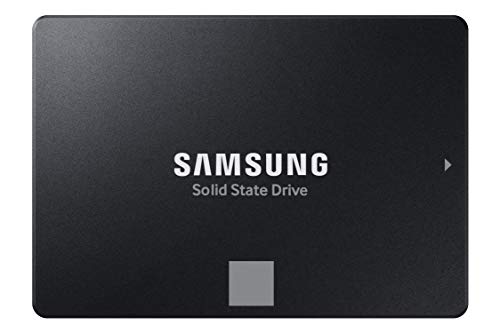
The Samsung 870 EVO 1TB is the best all-round SATA SSD for an older PC: it pairs a mature controller and DRAM cache with a long warranty, and a 1TB capacity holds Windows, a few years of programs and a decent game library without crowding. If you only need a quick boot-drive refresh, the smaller PNY CS900 models do the job for less capacity, and the Samsung 2TB or TEAMGROUP 1TB suit bigger libraries. “SATA” here means the 2.5-inch, 6 Gb/s interface that desktops and laptops built since roughly 2010 can use, which tops out near 550 MB/s no matter how new the drive is.
Our Top Picks


Top 3 picks at a glance
Quick List
- PNY CS900 250GB – best for a no-fuss boot drive on a basic office PC or aging laptop
- TEAMGROUP T-Force Vulcan Z 1TB – best for a roomy, simple game and media drive
- PNY CS900 500GB – best for a balanced everyday upgrade with space to spare
- Samsung 870 EVO 2TB – best for a single big drive that replaces a hard disk entirely
- Samsung 870 EVO 1TB – best overall pick for most older desktops and laptops
- SABRENT USB 3.0 to SATA cable – accessory for cloning your old drive and reusing it afterward (not an SSD)
Which One Is Right for You?
| If you… | Choose |
|---|---|
| want one dependable drive and have no strong preference | Samsung 870 EVO 1TB |
| are replacing a laptop hard drive and want to keep the old data | Samsung 870 EVO 1TB plus the SABRENT cable |
| only need Windows and a handful of programs | PNY CS900 250GB |
| want a mid-size drive without paying for terabytes | PNY CS900 500GB |
| keep a large game or video library on the machine | TEAMGROUP T-Force Vulcan Z 1TB or Samsung 870 EVO 2TB |
| want to retire the hard drive for good and never think about space | Samsung 870 EVO 2TB |
| need to copy your current drive to the new one before swapping | SABRENT USB 3.0 to SATA cable |
Older machines rarely benefit from the very fastest drive, because the SATA connection is the ceiling. That makes capacity, warranty length and whether the drive has its own DRAM cache the real differences. Pick the capacity you will need in three years, then choose between the brand-name option and the budget option.
All 6 Picks in Detail
1. PNY CS900 250GB – Best for a Basic Boot-Drive Swap
As an Amazon Associate we earn from qualifying purchases at no extra cost to you.

The smallest drive in this list is also the simplest answer for a machine that mostly browses, handles email and runs office software. Moving Windows from a spinning hard drive to any SATA SSD is the single biggest responsiveness upgrade an old PC can get, and 250GB is enough for the operating system and everyday programs if documents and photos live elsewhere. It suits a second-hand office desktop, a spare family computer or an older laptop that just needs to feel quick again.
One practical note: a 250GB drive leaves little spare room once Windows updates, a browser cache and a few installers pile up. If the older machine is also your only computer, keep documents on a separate drive or in cloud storage, and treat the SSD purely as the place where the system and programs live. Used that way, the drive stays fast for years.
- 2.5-inch SATA III (6 Gb/s) form factor, backward compatible with older SATA ports
- Listing states up to 535 MB/s read and 500 MB/s write
- 250GB capacity, best treated as a boot drive
- PNY describes it as 3D NAND flash; confirm the exact NAND type and endurance rating on the product page
- Three-year limited warranty or a TBW limit, whichever is reached first, per the maker’s documentation
Pros:
- Lowest capacity commitment, so it is the easiest drive to justify on an aging system
- Standard 2.5-inch size fits laptops and most desktop drive bays with a bracket
Cons:
- Fills up fast if you install more than a few modern games
- No brand-name DRAM-cache reputation like the Samsung drives, so sustained writes slow down sooner
Next to the PNY CS900 500GB, this model is the same drive family with half the space; step up unless you are certain 250GB will be enough.
2. TEAMGROUP T-Force Vulcan Z 1TB – Best for a Roomy Game and Media Drive

TEAMGROUP’s Vulcan Z is a straightforward 2.5-inch SATA drive built around 3D TLC flash and an SLC cache, which is the usual way budget drives deliver short bursts of fast writes. At 1TB it gives an older gaming PC room for a real library, and its cost-focused design makes it attractive when you want terabyte capacity but do not need a premium name. It fits readers who want a bigger drive than the PNY models and are comfortable with a more basic feature set than the Samsung.
The terabyte capacity is the real draw. A typical older gaming PC with a hard drive struggles with load times in open-world titles, and moving the library to any SATA SSD shortens them noticeably. Because the drive lists SLC caching, expect strong short bursts and slower speeds when you copy very large folders in one go, which is normal for this price class.
- 2.5-inch SATA III internal SSD, 1TB capacity
- Listing advertises SLC cache with 3D NAND TLC flash
- Rated by the maker at up to 550 MB/s read and 500 MB/s write
- Manufacturer information indicates a DRAM-less design and a three-year warranty; confirm on the product page
- Meant as a drop-in PC and laptop storage upgrade
Pros:
- A full terabyte in a drive aimed at value rather than brand premium
- Rated speeds sit at the SATA ceiling, so older platforms lose nothing
Cons:
- Without DRAM, long sustained writes (large game installs, big file copies) can slow once the cache fills
- Shorter warranty than Samsung’s five years on its comparable drives
Compared with the Samsung 870 EVO 1TB, it trades warranty length and cache hardware for a simpler, more budget-minded package.
3. PNY CS900 500GB – Best for a Balanced Everyday Upgrade
The 500GB CS900 hits the middle ground most older computers need: enough room for Windows, productivity software, a photo library and a few games, without paying for terabytes that will never fill. It is a good choice for a laptop that had a 500GB hard drive originally, since it matches the space you already use and removes the slowest part of the machine. Think of it as the sensible default when a 1TB drive feels like overkill.
A 500GB size also makes cloning easy. If your current drive holds less than 400GB of data, you can copy it across without trimming anything first, and you still have a cushion for updates. That convenience is a quiet advantage of the middle capacity, and it is why this model suits laptops that were bought with a 500GB hard disk.
- 2.5-inch SATA III (6 Gb/s) internal drive
- Listing states up to 550 MB/s read and 500 MB/s write
- 500GB capacity
- 3D NAND flash per PNY; confirm TBW rating and warranty terms on the product page
- Marketed for everyday users, creators and casual gamers
Pros:
- Capacity matches what many older machines already carry
- Same simple installation as any 2.5-inch SATA drive
Cons:
- Less headroom than the 1TB options if you add big games or video projects
- Entry-level class drive, so heavy write workloads are not its strength
It sits between the PNY 250GB and the TEAMGROUP 1TB, and for most people the extra space over the 250GB is worth it.
4. Samsung 870 EVO 2TB – Best for Replacing a Hard Drive Completely

For anyone who wants to remove the hard drive from an older machine and never worry about space again, the 2TB 870 EVO is the strongest option here. It is Samsung’s mainstream SATA drive, carrying the same controller and V-NAND design as the 1TB model with room for a large library, project files and a few years of growth. It suits a home-office desktop or a laptop that serves as the family media machine.
On a machine that will serve for several more years, the longer warranty and larger endurance rating that come with the bigger capacity add up. Samsung also offers management software that checks drive health and applies firmware updates, which helps when you want to keep an older system running without surprises. The upgrade is as simple as it gets: plug it into the existing SATA port and clone.
- 2.5-inch SATA III, 2TB capacity
- Up to 560 MB/s sequential read per the listing
- Samsung V-NAND TLC flash with an onboard DRAM cache and TurboWrite buffering, according to the maker
- Samsung’s data sheet lists a five-year limited warranty, with endurance rating scaled to capacity; confirm the exact TBW on the product page
- Supports hardware encryption features described in Samsung’s documentation
Pros:
- Large capacity from a brand with a long record in SATA drives
- Consistent write performance thanks to the DRAM cache
Cons:
- The most capacity to buy in this list, which is more than a light-use old PC will use
- Still limited by the SATA interface, so the speed gain over a 1TB drive is zero
If you do not need the second terabyte, the Samsung 870 EVO 1TB gives the same experience in daily use.
5. Samsung 870 EVO 1TB – Best Overall for Older Desktops and Laptops

This is the drive to buy when you do not want to think too hard. The 870 EVO 1TB gets the SATA interface to its limit, includes a 1GB DRAM cache according to Samsung’s documentation, and carries a five-year warranty with a stated endurance of 600 TBW. For a computer that is already several years old, that combination means the drive will likely outlast the rest of the system and can move to the next one.
It is also the easiest drive to recommend to someone who is not a hobbyist. Setup follows the same steps as any SATA drive, the software is mature, and the performance does not depend on a particular platform. If you ever replace the computer, the drive can move into a new build as a secondary disk or into a USB enclosure, so the purchase keeps its value beyond the old PC.
- 2.5-inch SATA III, 1TB capacity
- Up to 560 MB/s sequential read per the listing
- Samsung V-NAND TLC with DRAM cache and Intelligent TurboWrite
- Five-year limited warranty and 600 TBW per Samsung’s data sheet; confirm on the product page
- Samsung’s Magician software supports firmware updates and migration tools
Pros:
- Strong balance of capacity, endurance and warranty
- Works in any SATA II or III port, so older boards get the full benefit they can
Cons:
- Costs more per gigabyte than the budget drives in this list
- Does not use a faster interface, so an NVMe-capable machine could do better
It is the natural pick over the PNY CS900 500GB when you can stretch to the extra capacity and want the longer warranty.
6. SABRENT USB 3.0 to SATA Cable – Accessory for Cloning and Reusing Old Drives

This is not a solid-state drive. It is a USB-A to 2.5-inch SATA adapter cable, and it earns its place in the guide because it solves the most annoying part of an upgrade: moving your existing Windows install and files onto the new SSD. Connect the new drive to the old PC through the cable, clone the old drive onto it with cloning software, then swap the drives. Afterward the old hard drive can be reused as an external backup disk.
Keep expectations realistic: the cable is only as fast as the USB port you plug it into, so a USB 3.0 port is needed for full speed. If the old computer has only USB 2.0, cloning will work but take far longer. It is best used once, during the swap, and then stored for the next drive change or for recovering files from another disk.
- USB 3.0 Type-A to 2.5-inch SATA adapter, up to 5 Gb/s per the listing
- USB-powered for 2.5-inch drives, with no external power adapter mentioned in the listing
- UASP support for faster transfers with SSDs, if the host port supports it
- Works with 2.5-inch SATA hard drives and SSDs; it does not suit 3.5-inch desktop drives
- Confirm the SATA generation and included software on the product page
Pros:
- Makes cloning and data recovery possible without opening a second computer
- Turns a retired drive into portable storage
Cons:
- Not an SSD, so it adds no storage by itself
- A cable-only design leaves the drive exposed, so handle it carefully
Buy it alongside any of the five SSDs above if your laptop has only one drive bay.
Specs Compared
| Product | Capacity | Interface / form factor | Rated speed (listing) | Cache / NAND note | Warranty |
|---|---|---|---|---|---|
| PNY CS900 250GB | 250GB | SATA III, 2.5-inch | Up to 535 / 500 MB/s | 3D NAND; confirm on listing | Confirm on listing |
| TEAMGROUP T-Force Vulcan Z 1TB | 1TB | SATA III, 2.5-inch | Up to 550 / 500 MB/s | 3D TLC with SLC cache | Confirm on listing |
| PNY CS900 500GB | 500GB | SATA III, 2.5-inch | Up to 550 / 500 MB/s | 3D NAND; confirm on listing | Confirm on listing |
| Samsung 870 EVO 2TB | 2TB | SATA III, 2.5-inch | Read up to 560 MB/s | V-NAND TLC with DRAM cache | Confirm on listing |
| Samsung 870 EVO 1TB | 1TB | SATA III, 2.5-inch | Read up to 560 MB/s | V-NAND TLC with DRAM cache | Confirm on listing |
| SABRENT USB 3.0 to SATA cable | Not applicable | USB-A 3.0 to 2.5-inch SATA | Up to 5 Gb/s link | Not applicable | Confirm on listing |
How We Chose These
We built this list from the current catalog set for this topic rather than from a lab. For each product we read the manufacturer’s specification pages and the retailer listing, then compared capacity, interface, advertised speeds, cache design and stated warranty. We favored drives that fit the standard 2.5-inch SATA form factor, because that is what older machines can accept. We weighed brand support and warranty length alongside capacity, since an old PC makes endurance and software support more important than peak speed. Where a listing did not state a detail, we say to confirm it on the product page instead of guessing, and the cloning cable is labeled as an accessory because it is not a drive.
What to Look For
Confirm what your older PC actually has
Start by checking the port. SATA comes in three generations: SATA I at 1.5 Gb/s, SATA II at 3 Gb/s and SATA III at 6 Gb/s. A SATA III drive works in all of them, but the port sets the speed limit. SATA II caps near 300 MB/s and SATA III near 550 MB/s. Even the slower limit is several times faster than a hard disk, so the upgrade still feels dramatic. Look in the motherboard manual or BIOS to see what the port reports. If the machine is a laptop, check the drive height too: most 2.5-inch SSDs are 7mm, which fits nearly every laptop made in the last decade, while some very old ones used a 9.5mm bay that still accepts a 7mm drive.
Capacity: plan for three years, not three months
A practical rule of thumb: add up what you use today (Windows plus programs is often 60 to 120GB, plus personal files and games), then double it and round up to the next common size. That makes 250GB the floor for light use, 500GB the sweet spot for a general-purpose machine and 1TB the right call for anyone who installs games or edits video. SSDs also slow slightly as they near full, so leaving 10 to 20 percent free is a good habit. Larger SATA SSDs also tend to have higher endurance ratings, which matters on a machine you plan to keep.
DRAM cache, SLC cache and warranty
Two cache types matter. DRAM cache holds the drive’s mapping table and keeps performance steady under heavy workloads. SLC cache is a portion of the flash that temporarily acts like faster memory to absorb bursts of writes. Drives without DRAM, common in budget models, still feel fast for everyday use, but long copies can slow once the cache fills. Warranty and endurance (TBW) show how much data the maker expects the drive to take. For a boot drive, typical home use writes well under the rated limit, but a five-year warranty offers more peace of mind than three years on a machine you plan to keep through its second life.
Installing and migrating without losing data
Switching to an SSD requires three steps: connect the new drive, copy your data, and tell the system to boot from it. A USB-to-SATA cable lets you do the first two in the old computer. Use the maker’s migration software or any trusted cloning utility, check that the clone boots, then physically swap the drives. In a desktop, a 2.5-to-3.5-inch bracket usually fixes the size mismatch. After the swap, make sure the BIOS is set to AHCI mode for the SATA controller so the SSD operates properly, and enable TRIM (Windows does this by default for SSDs). A fresh Windows install is also a clean option if the old installation is cluttered. Worked example: a laptop with a 500GB hard drive using 220GB would be well served by a 500GB or 1TB SSD, giving at least double the used space and room for updates.
Mistakes that slow down an upgrade
The most common problem is leaving the BIOS in IDE or legacy mode, which hides some SSD features; switch the controller to AHCI before installing or cloning Windows 10 or 11, and do it in the right order to avoid a boot failure. The second is forgetting the bracket in a desktop, which leaves the drive loose and risks damage. The third is cloning a larger drive onto a smaller one without checking that used space fits. Finally, avoid defragmenting an SSD; Windows runs the correct optimization routine automatically, and old defrag habits only add wear without any benefit.
Questions
Will a SATA SSD work in an old computer with SATA II ports?
Yes. SATA III drives are backward compatible, so they run at the speed of the older port, around 300 MB/s on SATA II. That is still far faster than a hard drive in everyday use, particularly for boot times and application launches.
Is a SATA SSD still worth buying instead of NVMe?
If your motherboard or laptop has no M.2 NVMe slot, SATA is the only practical option, and it remains a large upgrade over a hard drive. If a compatible NVMe slot exists, it can be faster, but for the typical tasks of an older PC the difference is less noticeable than going from a hard drive to any SSD.
Do I need DRAM on my SSD?
It is helpful but not essential for light use. DRAM-equipped drives such as the Samsung 870 EVO keep steady performance during sustained writes, while DRAM-less drives are fine for booting, browsing and general work. Choose DRAM if you move large files often.
How do I move Windows to the new SSD?
Connect the SSD through a USB-to-SATA cable, run a cloning tool to copy the existing drive, then replace the old drive with the new one. Confirm that the computer boots from the SSD before wiping anything. A clean Windows install is the alternative if you prefer a fresh start.
Do I need a bracket for a desktop?
Many cases have dedicated 2.5-inch mounts, but older ones only have 3.5-inch bays. In that case an inexpensive 2.5-to-3.5-inch adapter bracket holds the drive securely. The SSD itself needs no special cooling.
Can I reuse the old hard drive afterward?
Yes. A USB-to-SATA cable lets you connect a 2.5-inch hard drive as external storage. Erase it securely if it held personal data and you plan to give it away.
Update History
- October 20, 2026 – Initial publication; product set drawn from current catalog listings.
- Check the product page for current specifications and availability before buying.
Sources
- Manufacturer product and specification pages for Samsung, PNY and TEAMGROUP
- Manufacturer and retailer documentation for the SABRENT USB-to-SATA adapter
- Retailer listing titles and specification fields
- Samsung SSD 870 EVO data sheet for endurance, cache and warranty figures