A mini PC earns its place in a business when the computer has to disappear. It mounts behind a monitor, sits under a counter, hides in a cabinet beside a router or runs a dashboard on a wall, and in all those spots it needs to wake up every morning without drama. That job description shapes the shopping list differently from a standard desktop: the number of display outputs, the network ports, the quality of the support behind the brand and the ease of swapping a failed unit matter as much as processor speed.
The market splits into two camps. One is established business hardware from HP and Dell, often sold renewed, with a long record in offices. The other is newer value brands such as BOSGAME, ACEMAGIC and KAMRUI, which pack current processors, extra display outputs and dual network ports into small cases. This guide covers both, using only what the listing titles state, and points out where each camp asks for a leap of faith in 2026. Check the details on the product page before ordering.
Our Top Picks
Top 3 picks at a glance
Quick Picks
As an Amazon Associate we earn from qualifying purchases at no extra cost to you.






| Product | Best for | Key spec from the title |
|---|---|---|
| KAMRUI AK1PLUS Mini PC | Light tasks with a lot of memory | Celeron N5095, 16GB RAM, 256GB SSD, dual 4K |
| HP ProDesk Mini PC | Two-monitor desks in a 1L case | Intel i5, 8GB RAM, 256GB SSD, 2 DisplayPort |
| Dell OptiPlex 7070 Micro (Renewed) | Proven micro form factor with Windows 11 Pro | Core i5-9500T, 16GB RAM, 256GB NVMe |
| HP EliteDesk 800 G4 Mini | Steady office workstation | Hexa-Core i5-8500T, 16GB DDR4, 256GB NVMe SSD |
| HP EliteDesk 800 Mini (32GB) | Heavy multitasking in a tiny case | Core i5, 32GB DDR4, 1TB PCIe SSD |
| BOSGAME E7 Mini PC | Networking and multi-screen duty | Core 3 100U, 16GB, 512GB SSD, triple 4K, dual Gigabit LAN |
| ACEMAGIC K1 Mini PC | Efficient AMD option | Ryzen 7330U, 16GB, 256GB SSD, 4 cores 8 threads |
The 7 Best Options
Two listings were left out to keep the guide manageable. The older HP EliteDesk 800 G2 mini overlaps with the G4 model below, which has a newer processor, and the BOSGAME E5 sits close to the ACEMAGIC K1 on its AMD four-core class. Both are reasonable products; they simply repeat roles already covered.
KAMRUI AK1PLUS Mini PC
The AK1PLUS is the value entry. The title lists an Intel Celeron N5095 with a boost of up to 2.9GHz, 16GB of RAM, a 256GB SSD, dual 4K output, support for 2.5-inch SSD expansion and Windows. Sixteen gigabytes of memory at this level is unusually generous, and the ability to add a second drive makes it more flexible than the usual sealed mini box.
The Celeron class is an entry-level processor, so manage expectations. It handles web apps, documents, point-of-sale software and digital signage, while large spreadsheets or many video calls will push it. Think of it as a dependable appliance more than a workstation.
Picture the roles where it fits: a shop-floor terminal that shows one web dashboard, a lobby screen rotating announcements, or a back-office box that runs a single accounting program all day. In each case the tasks are predictable, the memory is ample and the second-drive option gives room for local logs or media files without replacing the whole unit.
- 16GB of RAM is plentiful for light business software.
- 2.5-inch SSD expansion is a rare convenience in a mini PC.
- Dual 4K output supports two screens for dashboards or signage.
- Celeron N5095 is an entry-level chip with modest speed.
- Less established as a business brand than HP or Dell.
Skip it if staff run several demanding programs at once. Compared with the HP ProDesk next, you get more memory and an easy storage upgrade, while the HP offers the stronger Core i5 class.
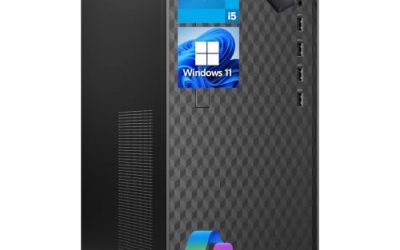
HP ProDesk Mini PC (1L, Intel i5)
This HP is the compact two-monitor machine. The title lists an Intel i5, 8GB of RAM, a 256GB SSD, two DisplayPort outputs, Wi-Fi, Bluetooth and a wired keyboard and mouse, in a 1L compact computer. For a clerk, receptionist or call-center seat, that covers the essentials in a box small enough to vanish behind a screen.
The title does not state the processor generation, so look for the model number on the product page. The 8GB of memory is the main limit; it suits light office use, but a heavy browser user will feel the ceiling.
Because the keyboard and mouse come in the box, the whole seat can be set up by plugging in two monitors and a power cable. That matters for businesses that hire seasonal staff or open temporary desks, where the goal is to hand someone a working station within minutes.
- Two DisplayPort outputs make a dual-monitor desk simple.
- Wired keyboard and mouse are included in the package.
- A 1L case saves space on crowded counters.
- 8GB of RAM is on the low side for busy users.
- The processor generation is not stated.
Skip it if you multitask heavily. Against the Dell OptiPlex Micro next, the HP is simpler and includes accessories, while the Dell has more memory and a named processor.
Dell OptiPlex 7070 Micro PC (Renewed)
The OptiPlex 7070 Micro is a widely used corporate small-form-factor machine. The title lists an Intel Core i5-9500T, 16GB of RAM, a 256GB NVMe drive, Windows 11 Pro and a Renewed condition. The i5-9500T is a ninth-generation part, which falls inside Microsoft’s official Windows 11 processor list, so the Windows 11 Pro claim sits on firmer ground than it would with a sixth-generation chip.
As a renewed unit, its value depends on the seller. Look for a clear statement about inspection, any included warranty and the power adapter, since micro PCs rely on an external brick that must match the machine.
One more thing to confirm is the operating system license. A renewed machine sold with Windows 11 Pro should have the edition activated and supported, and the seller should state whether recovery media or a restore option is available. A good listing makes this clear in the description.
- A named ninth-generation processor gives clear expectations.
- 16GB of RAM and an NVMe SSD feel quick for office tasks.
- Windows 11 Pro supports domain joining and drive encryption.
- Renewed condition means warranty terms vary by seller.
- 256GB of storage fills quickly if you save files locally.
Skip it if you want a brand-new unit with a manufacturer warranty. It is a near cousin of the HP EliteDesk 800 G4 next, so the decision often comes down to which brand’s support ecosystem you prefer.
HP EliteDesk 800 G4 Mini
The EliteDesk 800 G4 is the steady office pick. The title lists an Intel hexa-core i5-8500T that boosts up to 3.5GHz, 16GB of DDR4 RAM, a 256GB NVMe SSD, dual-monitor support, Wi-Fi and Bluetooth. Six cores in a mini chassis is a strong showing for general office work, and the eighth-generation chip is the point from which Windows 11 is officially supported.
The EliteDesk line is built for corporate fleets, so manuals, drivers and spare parts tend to be easy to find. That support depth is a quiet benefit when you are managing several machines.
The dual-monitor line in the title is worth noting for accountants and analysts, who often keep a ledger on one screen and a browser on the other. Six cores give the machine enough breathing room to keep both screens responsive while background updates run.
- Six cores handle multitasking better than the quad-core minis.
- 16GB of DDR4 and an NVMe drive give a responsive feel.
- Dual-monitor support suits a typical office desk.
- 256GB of storage is small for local archives.
- An eighth-generation platform is not the newest.
Skip it if you need more than 16GB of RAM or large local storage. The next listing is the same family with more memory and storage.
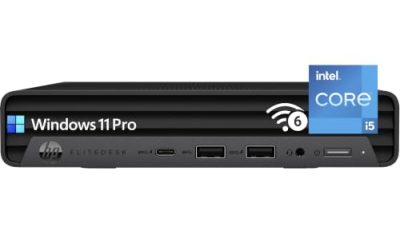
HP EliteDesk 800 Mini (32GB, 1TB)
This is the high-capacity version of the same idea. The title lists an Intel Core i5, 32GB of DDR4 RAM and a 1TB PCIe SSD in an ultra-compact case, described as suited to office work and light photo and video editing. Thirty-two gigabytes of memory in a mini PC is a real asset for anyone running many applications at once.
The title does not state the processor generation or the exact model, so check the product page before assuming how recent the chip is. The large SSD removes the usual storage worry for local files.
A realistic use case is a small design or marketing desk where staff edit images, manage large presentations and keep dozens of tabs open. The title’s mention of light photo and video editing sets expectations: it is not a workstation for long renders, but it is comfortable with everyday creative tasks.
- 32GB of DDR4 supports heavy multitasking and virtual machines.
- A 1TB PCIe SSD holds a large local archive.
- Light photo and video editing is named as an intended use.
- Processor generation is not stated in the title.
- Costs more than the lower-spec minis because of its memory and storage.
Skip it if your tasks are light and a modest machine would do. Compared with the BOSGAME E7 next, this HP prizes capacity and brand pedigree while the BOSGAME prizes ports.
BOSGAME E7 Mini PC
The E7 is the networking and display specialist. The title lists an Intel Core 3 100U, 16GB of RAM, a 512GB SSD, triple 4K display output and dual Gigabit LAN. Two network ports are uncommon in small PCs and open up uses such as a small router or firewall box, a bridge between two networks or a redundant connection, in addition to ordinary office duty.
The Core 3 100U is a recent low-power Intel chip, suitable for office work, web apps and multi-monitor dashboards. The 512GB SSD is a comfortable size for a mini PC.
If you plan to use the dual network ports for anything beyond ordinary office use, install and configure the software carefully and keep it updated. Network roles raise the stakes for security, so a business without technical staff may prefer to use the second port only as a backup connection.
- Dual Gigabit LAN suits network-focused tasks.
- Triple 4K display outputs support dashboards and multi-screen desks.
- 16GB of RAM and a 512GB SSD form a balanced base.
- A low-power 100U chip is not built for heavy workloads.
- BOSGAME is a newer name in business hardware, so check the warranty terms.
Skip it if you want a long-established corporate brand. Next to the ACEMAGIC K1, the BOSGAME offers more ports and storage while the ACEMAGIC offers an AMD alternative.
ACEMAGIC K1 Mini PC
The K1 brings AMD to the group. The title lists a Ryzen 7330U with 4 cores and 8 threads, 16GB of memory, a 256GB SSD, a 28W power class, Windows 11 Pro and triple display output. The 28W figure signals an efficient chip aimed at quiet, low-power operation, and eight threads help with background tasks and multitasking.
The title includes comparisons with older processors, which are promotional claims and not a substitute for specifications. Rely on the core count, thread count and memory instead, and confirm the boost clock and warranty on the product page.
Efficiency is the quiet selling point. A 28W-class chip generates less heat than a standard desktop processor, which helps in cramped spots such as under a counter or behind a monitor. Lower heat also means less fan noise, which matters in a reception area or a consulting room.
- Four cores and eight threads suit office multitasking.
- Triple display output serves dashboards and busy desks.
- Windows 11 Pro is listed for business management.
- A 256GB SSD is small for local storage.
- Promotional comparisons in the title are not reliable guides.
Skip it if you want an Intel platform or a corporate fleet brand. It closes the list as the efficient AMD choice, a sensible alternative to the Intel-based minis above.
Why Buy a Mini PC for Business
A mini PC makes sense when space, power and tidiness matter more than expansion. Compared with a tower, it uses a fraction of the desk, draws less electricity and is easy to move or replace. A failed unit can be swapped in minutes, which reduces downtime.
Cost of ownership deserves a mention. Electricity use over a year is small for a mini PC, but across twenty desks it adds up, and the lower heat output also eases the load on air conditioning in a crowded room. Add the time saved by swapping a unit instead of repairing it on site, and the small machine often wins on total cost even when its purchase cost is similar to a larger one.
Offices that need tidy, standard desks
When every desk looks the same, support gets easier. A small box behind each monitor leaves room for paperwork and makes cleaning simple. The HP EliteDesk and Dell OptiPlex are the natural picks for this approach.
Standard desks also make life easier for whoever does IT support. With one model everywhere, a technician can keep one spare unit, one set of drivers and one setup guide, and fix problems by swapping hardware rather than debugging on site.
Retail, hospitality and signage
Counters, menu boards and digital signs need a quiet machine that stays out of view and drives one or more screens. The KAMRUI, BOSGAME and ACEMAGIC models offer display outputs that suit these jobs.
These installations often run for long hours without a person nearby. A reliable restart after a power cut is valuable, so check the BIOS option for powering on after a power loss. It is a small setting that can save a manager a morning of confusion.
Small server and network roles
A mini PC with two network ports can act as a small file server, a print server or a lightweight network appliance. The BOSGAME E7’s dual Gigabit LAN is the clearest match for these roles.
If you go this way, keep the role simple and documented. A single-purpose machine that shares a printer or stores a nightly backup is easy to maintain, while a box that does five jobs becomes a worry whenever one of them needs an update. Write down the settings and keep a copy off the machine.
How to Choose a Business Mini PC
Processor class and generation
For office work, a Core i5 from the eighth generation or newer, or a modern low-power chip such as the Core 3 100U or Ryzen 7330U, is a safe target. Celeron class chips suit single-purpose roles. Avoid sixth-generation parts for long-term use, as they sit outside Microsoft’s official Windows 11 list.
Efficiency matters as much as speed in a small case. Low-power chips with a U or T suffix run cooler, which keeps fan noise down and reduces the chance of throttling. For most office roles, the difference in speed between a modest recent chip and a stronger older one is small, so favor the newer, cooler part.
Memory: 16GB as a practical floor
Eight gigabytes can work for a kiosk but struggles with a full browser and office suite. Sixteen gigabytes covers most roles, and 32GB suits heavy users. Check whether the memory is upgradable, as many minis use laptop-style modules that can be swapped.
Dual-channel memory configurations give better throughput than a single module, so check whether the listing shows two modules. If the title says only a total, such as 16GB, look at the product page for the module layout. A mini PC with a free slot is easier to expand than one with a single soldered module.
Storage: size and expansion
A 256GB drive is workable for a machine that stores files on a network or in the cloud. For local archives, choose 512GB or more. A second drive bay, as mentioned for the KAMRUI, adds flexibility. NVMe drives feel quicker than older SATA drives.
NVMe drives are also more compact, which is useful inside a small chassis where cable space is limited. If you plan to add a second drive, check what connection it uses and whether the case has room, because the interior of a mini PC is far tighter than a tower.
Display outputs and monitor support
Count your screens and match the ports. DisplayPort, HDMI and USB-C are the modern options, while VGA signals older design. Dual DisplayPort suits two-monitor desks, and triple 4K output suits dashboards. Confirm that the resolution and refresh rate you need are supported on each port.
Adapters can bridge mismatches, but they add cost and cables. A USB-C to HDMI adapter might work if the USB-C port supports video, but not all do. Aim for native ports that match your monitors, and keep one spare cable in a drawer for troubleshooting.
Networking, wireless and ports
A wired Gigabit port is more stable than Wi-Fi for shared files and calls. Dual LAN adds routing and redundancy options. Check for enough USB ports for a keyboard, mouse, headset and a card reader, and consider whether a USB-C port is needed for docks.
Business networks sometimes use VLANs or restricted ports, so make sure the machine’s network interface supports the features your IT setup needs. For simple offices, a plain Gigabit port is enough. For anything more complex, dual LAN and a documented driver set are worth looking for.
Cooling, mounting and what to ignore
Small cases run warm, so check ventilation and avoid enclosing the unit tightly. Look for VESA mounting if you plan to attach it behind a monitor. Ignore AI branding and comparisons with older chips in titles, and be careful with budget units that cut corners on cooling, warranty and driver support.
Budget units tend to cut corners on three things: heat management, firmware updates and documentation. A mini PC with poor cooling may slow down in warm rooms, one without firmware updates may stay vulnerable, and one without a manual leaves you guessing about upgrades. Pay attention to these before paying for extra ports.
Established Brands Versus Value Brands
The decision most mini PC buyers face is whether to choose an HP or Dell business unit, often renewed, or a newer value brand with more ports. The table summarizes the contrast using the listings above.
| Factor | HP and Dell business minis | BOSGAME, ACEMAGIC and KAMRUI |
|---|---|---|
| Typical processors | Intel Core i5 from the eighth or ninth generation | Core 3 100U, Ryzen 7330U, Celeron N5095 |
| Display outputs | Usually two | Often three, with 4K listed |
| Networking | Single Gigabit port typical | Dual Gigabit LAN on the BOSGAME |
| Parts and drivers | Widely available, long track record | Varies by brand |
| Condition | Often renewed | Usually new |
When an established brand is the safer bet
If you manage several machines, need documented drivers and parts, or want an easy replacement, HP and Dell models have the longer record. The renewed condition lowers cost, but it moves risk to the seller’s warranty, so read it carefully.
Established brands also tend to publish firmware updates and driver packs for years. For a business that expects to run the same machine for four or five years, that long-term support can be worth more than an extra display port.
When a value brand fits better
If you need three displays, dual LAN or a new unit with the latest low-power processor, the newer brands deliver features older business minis lack. Confirm the warranty terms and driver downloads, and treat the first few weeks as a trial period for a new brand.
Another point in their favor is that the specification sheets tend to be explicit about display capability and ports, because those are the features the brands compete on. If you work from a clear checklist, that clarity makes comparison easier than it is with business units whose configurations vary by seller.
Setup, Compatibility and Upgrade Tips
What to check before buying
Verify the processor model, the memory type, the storage layout and the ports. Check the Windows edition and whether the unit ships with a valid license. For renewed machines, ask about inspection and the length of the warranty. Make sure your monitors use connectors that match the outputs.
Compare the configuration against the use you have in mind rather than the headline. A dashboard that never changes needs display ports and reliability, a finance desk needs memory and a decent processor, and a network box needs the right number of Ethernet ports. Writing a short list of must-haves before browsing keeps the shopping focused.
What to upgrade first
Memory is usually the first upgrade, followed by storage. Many minis have two memory slots and one or two drive slots, so check the manual. Keep the original parts if you swap them, in case you need to return the machine.
If the machine runs sluggishly after the first day, check background updates before spending money. Windows often installs large updates after first setup, and a few hours of patience can resolve what looks like a hardware problem.
Common compatibility traps
External power bricks are specific to each model, so a spare must match the voltage and connector. Some minis need a special bracket for VESA mounting. Wireless cards may limit speed, so use Ethernet where possible. Also confirm that a USB-C port supports video output before relying on it for a monitor.
Finally, watch out for operating system licensing. A machine sold with Windows 11 Pro should show the edition in the system settings after setup. If it shows a different edition, or reports that Windows is not activated, contact the seller promptly while the return window is open.
Which One Fits Your Situation
You are equipping a standard office with many identical desks
The HP EliteDesk 800 G4 Mini offers six cores, 16GB and an NVMe drive in a platform with a long corporate track record.
If the budget allows a second model for power users, pair it with the 32GB EliteDesk so the fleet stays within one family of drivers and parts.
You need a quiet machine for a dashboard or sign
The KAMRUI AK1PLUS or the ACEMAGIC K1 give dual or triple display output in small, efficient cases.
You work with many apps and large files
The HP EliteDesk 800 Mini with 32GB of RAM and a 1TB SSD offers the most capacity.
Add an external backup drive, because a single internal drive is not a backup, however large it is.
You want a network-focused or multi-screen machine
The BOSGAME E7, with dual Gigabit LAN and triple 4K output, is the clearest match, while the Dell OptiPlex 7070 Micro suits buyers who prefer a renewed corporate unit.
Common Mistakes
- Buying a machine with an old processor generation because the rest of the specification looks good.
- Choosing 8GB of memory for a user who keeps many browser tabs open.
- Ignoring the warranty on a renewed unit and relying only on a return window.
- Counting ports without checking that the video outputs match the monitors you own.
- Enclosing a mini PC in a tight cabinet with no ventilation.
- Trusting promotional comparisons in titles instead of the stated processor and memory.
Related guides
- Replacement Cables For Gaming Mice And Headsets
- Nvidia Control Panel Best Settings For Gaming
- How To Test Gpu Stability After Overclocking
Frequently Asked Questions
Is a mini PC powerful enough for office work?
Yes, for documents, email, web apps and video calls. Models with a Core i5 or a modern low-power chip handle these tasks comfortably. Entry-level Celeron units suit lighter, single-purpose roles.
How much memory should a business mini PC have?
Sixteen gigabytes is a good target for most office users. Eight gigabytes suits very light use, and 32GB is useful for heavy multitasking. Check whether the memory can be upgraded later.
Can a mini PC drive three monitors?
Some can. The BOSGAME E7 and ACEMAGIC K1 list triple display output, and the KAMRUI lists dual 4K. Always confirm the exact ports and supported resolutions before planning a multi-screen desk.
Are renewed mini PCs reliable?
Business-class models are built for long use, and many renewed units perform well. The risk lies with the seller’s inspection and warranty. Choose sellers who state what was checked and how long coverage lasts.
Does a mini PC run hot?
Small cases have limited airflow, but low-power chips keep temperatures manageable in normal use. Give the unit space to breathe and avoid placing it in a closed cabinet. Heavy loads for long periods are better handled by a larger machine.
Do I need Windows 11 Pro?
It is useful if you join a work domain, manage several machines or want drive encryption. A single user with basic needs may not require it. Check the edition listed, since some titles say only Windows.
Final Words
The best business mini PC is the one that suits the desk it will sit on. For ordinary offices, a Core i5 unit with 16GB of memory and an NVMe drive is the dependable core. Choose 32GB for heavy multitasking, a value brand for extra ports and displays, and an entry-level Celeron box for single tasks. Confirm the warranty, check the video outputs against your monitors and leave the unit room to breathe, and a mini PC will keep working quietly in the background for years.