A budget of under 1000 dollars is generous for a business desktop. It is enough to leave the bargain bin entirely, which means the real question stops being “what is the cheapest machine that opens spreadsheets” and becomes “which shape of computer suits the way this office works.” A shared front-desk PC, a bookkeeper’s workstation, a home-office setup that doubles as a video-call station and a back-room box that runs one application all need different things, and the listings below cover each of them.
This guide is for owners, office managers and freelancers who want a dependable machine for documents, email, video meetings, cloud tools and a few heavy browser tabs, not for gaming rigs or rendering farms. The candidates range from a modern small-form-factor tower with a recent Intel Core chip to an all-in-one that needs no separate monitor and a tiny mini PC that fits behind a display. Everything reported here comes from the listing titles, so confirm details such as the Windows edition and warranty on the product page in 2026 before ordering.
Our Top Picks
Top 3 picks at a glance
Quick Picks
As an Amazon Associate we earn from qualifying purchases at no extra cost to you.


| Product | Best for | Key spec from the title |
|---|---|---|
| HP Business Tower Desktop PC | Heavy multitasking with lots of storage | Intel i5, 32GB RAM, 1TB SSD, Windows 11 |
| Lenovo IdeaCentre 24″ Business All-in-One | Reception desks and tidy workspaces | 16GB RAM, 512GB SSD, FHD IPS anti-glare display, WiFi 6 |
| HP Pro 400 G9 SFF | Modern all-round office workstation | Core i5-14500, 16GB DDR5, 512GB SSD, Windows 11 Pro |
| HP ProDesk 600 G3 Desktop Mini with monitor | Complete setup on a tight budget | Quad Core i5-6500T, 16GB DDR4, 256GB SSD, 21.5″ FHD monitor |
| HP OmniDesk M03 Business AI Desktop | Buyers who want a configurable newer platform | Intel Ultra 7-265, DDR5 options, PCIe SSD options, WiFi 6 |
| KAMRUI GK3PLUS Mini PC | Light single-task use | Intel N3350, 8GB RAM, 256GB SSD, triple display |
| HP ProDesk 400 G9 SFF | Multi-monitor desks | Core i5-14500, 16GB RAM, 512GB SSD, up to 3 displays |
The 7 Best Options
Two listings were left out. A second HP Business Tower repeats the first pick’s Core i5, 32GB and 1TB setup, so listing both would pad the guide, and the UDPTCP unit is an industrial fanless firewall-style box with a Celeron N2840, which is built for network duty rather than as an office desktop.
HP Business Tower Desktop PC (i5, 32GB, 1TB)
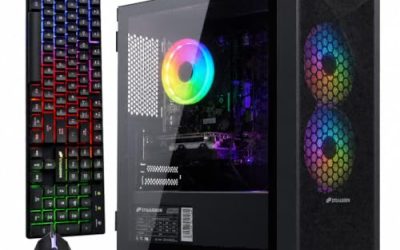
This is the tower for people who keep a lot open and a lot saved. The title lists an Intel i5 processor, 32GB of RAM and a 1TB SSD, along with Windows 11, a Wi-Fi adapter, and a keyboard and mouse in the box. Thirty-two gigabytes is generous for office work and leaves room for accounting software, a browser with dozens of tabs and a video call at once.
A tower also gives you the most room to grow over its life. Extra drives, a graphics card or a memory upgrade are all easier in a full-size case than in a compact one, and thermal headroom is better for long days. The title does not name the exact processor model, so look at the product page before assuming how recent the chip is.
- 32GB of RAM is far above the usual office baseline and suits heavy multitasking.
- A 1TB SSD stores a large archive of documents, photos and project files locally.
- Keyboard, mouse and a Wi-Fi adapter are included, so the setup works out of the box.
- The title says only “i5,” so the processor generation is unconfirmed.
- Tower size takes more desk or floor space than a compact box.
Skip it if desk space is tight or you want a verified recent Core model. Compared with the Lenovo all-in-one next, you get more memory and storage but must supply a monitor.
Lenovo IdeaCentre 24″ Business All-in-One
An all-in-one removes the clutter of a separate tower, monitor and cable bundle. The listing shows a 24-inch display described as FHD IPS and anti-glare, 16GB of RAM, a 512GB SSD, an Intel 8-core processor, WiFi 6 and Windows 11. For a front desk, a reception area or a small clinic, that is one device, one power cable and a neat footprint.
The anti-glare screen is a quiet advantage in bright rooms, where a glossy panel would reflect windows and overhead lights. The trade is repair and upgrade flexibility: the screen and the computer age together, and you cannot swap the display independently the way you can with a tower.
A practical note for managers is that an all-in-one reduces the number of items on an asset list. One serial number, one power supply and one warranty claim cover the whole desk, which simplifies tracking in a growing business.
- Display, computer and cabling are in one unit, which keeps the desk tidy.
- FHD IPS anti-glare screen is comfortable for long document sessions.
- 16GB of RAM and a 512GB SSD cover the typical office workload.
- The screen cannot be replaced or reused if the computer is retired.
- The title does not name the processor model, only an 8-core count.
Skip it if you want multiple monitors or plan to upgrade components later. Against the HP Pro 400 G9 next, this one wins on tidiness while the HP wins on named processor and expandability.
HP Pro 400 G9 SFF Desktop
The Pro 400 G9 is the most clearly specified machine here, which makes it easy to evaluate. The title lists a Core i5-14500 with a boost of up to 5.0 GHz, 16GB of DDR5 memory, a 512GB SSD, Windows 11 Pro and ports including HDMI, DisplayPort and USB-C. It is the sort of configuration that suits a bookkeeper, a manager or a back-office worker who needs a dependable all-rounder.
The Windows 11 Pro mention matters to businesses. The Pro edition adds management and security features such as joining a work domain and drive encryption, which a Home edition lacks, so a small business planning to manage several computers will find it easier to work with.
- A named recent processor, the i5-14500, gives clear performance expectations.
- DDR5 memory and a 512GB SSD form a modern, balanced base.
- Windows 11 Pro and USB-C, HDMI and DisplayPort suit an office environment.
- 16GB is adequate but not generous for heavy multitasking.
- Small form factor limits large expansion cards.
Skip it if you need lots of internal storage or a large graphics card. It sits close to the ProDesk 400 G9 further down, so the choice often comes down to which configuration is stocked.
HP ProDesk 600 G3 Desktop Mini with 21.5″ Monitor
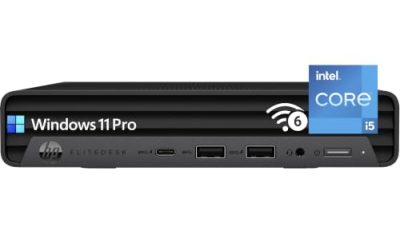
This is the complete-setup bargain. The title lists a mini business PC together with a 21.5-inch FHD monitor, a quad-core Intel i5-6500T, 16GB of DDR4 memory, a 256GB SSD, DisplayPort, Wi-Fi and Bluetooth. For an employee who needs a basic desk, it removes the separate monitor purchase.
The processor name is the thing to weigh. The i5-6500T is a sixth-generation chip, which means it is older, and Microsoft’s official Windows 11 requirements list newer processor generations. The title is cut off after “Windows,” so confirm which version ships and how it was installed before you rely on it.
If you consider it, treat it as a short-horizon purchase for a role with simple software. It shines as a temporary seat, a training station or a desk where the user only needs a browser and a few documents, and it is less appealing as the standard machine for an entire office that expects several years of updates.
- A monitor is included, so the package works as a complete desk.
- 16GB of DDR4 is plenty for ordinary office applications.
- A mini chassis uses little desk space.
- A sixth-generation processor is old and may not meet official Windows 11 requirements.
- A 256GB SSD fills quickly if you store local files.
Skip it if you want a long service life or need the latest security features. Compared with the HP OmniDesk below, it is the frugal choice, while the OmniDesk looks toward a newer platform.
HP OmniDesk M03 Business AI Desktop
The OmniDesk M03 listing is a configurable one. It names an Intel Ultra 7-265 processor, DDR5 memory in 16GB, 32GB or 64GB options, PCIe SSD options of 512GB, 1TB or 2TB, Wi-Fi 6 with Bluetooth, and HDMI. Because the title offers choices, pay attention to which combination you actually select before checking out.
The title also makes comparison claims against another processor; treat those as promotional language and look to the specifications instead. The Core Ultra 7 family is a recent Intel line, so this is the option for a buyer who wants the newest platform in the guide rather than the lowest cost.
- Memory and storage can be selected up to 64GB and 2TB, giving real long-term headroom.
- A recent processor family supports newer software and operating system updates.
- DDR5 and PCIe storage make the platform modern.
- The range of options means the cost and performance depend on your choice.
- Promotional comparisons in the title are not a substitute for specifications.
Skip it if you want a fixed, simple configuration with clear value. Next to the KAMRUI mini PC, it is the high-capability end of the guide, with the KAMRUI at the light-use end.
KAMRUI GK3PLUS Mini PC
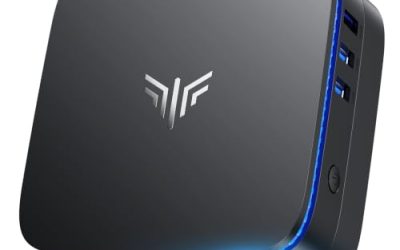
KAMRUI’s mini PC is the smallest and lightest option here. The title lists Windows 11 Pro, an Intel N3350 processor, 8GB of RAM, a 256GB SSD, triple display output via two HDMI ports and a VGA port, Wi-Fi and Bluetooth. It is positioned for light business tasks such as running a point-of-sale screen, a digital sign or a single-purpose terminal.
The N3350 is an entry-level processor, so this machine suits modest tasks and not heavy multitasking. Its strength is the triple display output, which makes it flexible for a dashboard, a menu board or a monitoring station that needs several screens but little power.
Because the brand is less established in business hardware than the HP and Lenovo names, plan on checking the warranty terms and driver availability. A small, quiet box that works well for a menu board is a sensible purchase, while the same box as a main workstation is a risk.
- Triple display outputs, including two HDMI ports and one VGA, are unusual at this size.
- Windows 11 Pro is listed, which helps with business management.
- A very small footprint fits behind a monitor or on a shelf.
- Entry-level N3350 processor limits multitasking and demanding software.
- 8GB of RAM can feel tight with many browser tabs.
Skip it for daily multitasking, accounting suites or video editing. It differs from the final pick, which is a fuller desktop with more headroom.
HP ProDesk 400 G9 SFF Desktop
The ProDesk 400 G9 closely mirrors the Pro 400 G9 above. The title lists a Core i5-14500, 16GB of RAM, a 512GB SSD, Wi-Fi, support for up to three displays, a wired keyboard and mouse, and an RJ-45 network port. The keyboard and mouse in the box and the three-display claim set it apart from the other i5-14500 listing.
The title says “16GB RAM + 512GB SSD” but does not say DDR5, so check that detail if memory generation matters to you. The hardware is otherwise the same class, which means the decision between the two HP small-form-factor machines is mostly about availability and accessories.
- Connects up to three displays, which suits a multi-window workflow.
- Wired keyboard and mouse are included in the package.
- A wired RJ-45 port provides a stable network link.
- Memory type is not stated in the title.
- Small form factor limits large internal upgrades.
Skip it if you already own a keyboard and mouse and would rather have the Windows 11 Pro edition confirmed, as the Pro 400 G9 does. Both HP machines are reliable all-rounders.
Who Needs a Business Desktop at This Budget
A business-class desktop justifies its cost when downtime hurts. A consumer machine may do the same tasks on day one, but business models usually emphasize manageability, serviceability and longer availability of parts.
Notice what this budget does not require: a graphics card, a huge power supply or exotic cooling. Money goes further when it buys a balanced machine, with memory and storage in proportion to the processor, rather than one standout spec propped up by weak parts elsewhere.
Small offices with a few employees
For a team of three to ten, consistency matters. Buying the same model for everyone simplifies spare parts, imaging and support. The HP small-form-factor machines are the natural fit, while the all-in-one suits a reception desk.
Standardizing also helps with onboarding. A new hire can be handed a machine that is already set up the same way as everyone else’s, and a failed unit can be swapped for a spare in minutes. That predictability is worth more than a small saving on a mismatched machine.
Home-office professionals and freelancers
If you work alone and handle video calls, design files or client data, a tower with 32GB and a large SSD gives you the most capability. Pair it with a good monitor and a backup drive.
Freelancers should also think about backup and uptime. A single computer is a single point of failure, so a second drive or cloud backup is more important than a faster processor. If a client deadline depends on the machine, favor a mainstream model with easy-to-find parts.
Single-purpose roles
Point-of-sale, signage and monitoring tasks need very little power but may need many displays. A compact mini PC such as the KAMRUI covers that need at the lowest footprint and power draw.
These roles are also the best place to use the cheapest hardware that meets the job. A machine that runs one application all day does not need a flagship processor, but it does need stable drivers and a reliable power supply, so avoid mystery brands where the manufacturer offers no software updates.
How to Choose a Business Desktop
Processor generation and class
For office work, a recent Core i5 or Ryzen 5 class processor is the practical target. Newer generations are supported longer by Windows updates and have better efficiency. Avoid very old parts, such as sixth-generation Intel chips, unless the machine is clearly positioned as a stopgap. Entry-level processors like the N3350 suit single tasks but struggle with large spreadsheets and many browser tabs.
Think about the software you run rather than the label on the chip. Accounting packages, customer databases and web-based tools are rarely limited by raw speed, but they do slow down on very old processors when many things run at once. A recent mid-range chip also draws less power and runs quieter, which matters in a small office where the computer sits near people all day.
Memory capacity and type
Sixteen gigabytes is the comfortable minimum for business use today, and 32GB suits heavy multitaskers or anyone running virtual machines. Eight gigabytes works for a kiosk but feels tight on a general-purpose desktop. DDR5 is newer than DDR4 and tends to come with newer platforms, but capacity matters more than the generation for everyday work.
Memory is also the cheapest way to extend a machine’s useful life. A desktop with an open memory slot can be upgraded when needs change, while a machine with soldered or hard-to-reach memory cannot. Ask whether the model has free slots before you commit, particularly with the compact formats.
Storage size and speed
An SSD is non-negotiable. For a main drive, 512GB is a practical floor and 1TB gives breathing room for local archives. A 256GB drive fills up quickly once the operating system, updates and applications settle in. Keep a backup plan whatever the size, using external drives or cloud storage.
NVMe-style PCIe drives are faster than older SATA models, but for ordinary office tasks the difference is barely noticeable. What you will feel is the move from a spinning disk to any SSD. If the title lists a hard drive alongside an SSD, treat the hard drive as bulk storage, not as the drive that makes the computer feel quick.
Windows edition, security and management
Windows 11 Pro adds features such as joining a work domain, remote management and drive encryption. If you manage several machines or handle sensitive client data, make sure the edition is listed as Pro. Also check that the system has a modern security chip, which most recent models include.
Businesses also benefit from a firmware-level security chip and straightforward backup options. Turn on drive encryption, keep automatic updates enabled and set up a standard user account for daily work, leaving the administrator account for changes. These steps cost nothing and prevent common problems.
Ports, displays and networking
Count the monitors you will use and check the video outputs: HDMI and DisplayPort are standard, while VGA is a sign of older equipment. A wired RJ-45 port gives a more stable link than Wi-Fi for shared files and video calls. USB-C is useful for modern docks and phones.
Think about the future desk layout too. A dock or a USB-C monitor can turn a single cable into power, display and peripherals, which is a real convenience if employees share desks or move between rooms. A machine with a USB-C display output opens that option, while one without it does not.
Warranty, serviceability and what to ignore
Business desktops from established brands usually have easier access to parts and drivers. Check the warranty length, who provides it and whether it covers the computer or only the seller’s return window. Ignore flashy AI branding in titles and focus on the processor, memory, storage and ports, which determine how the machine behaves day to day.
Where budget machines cut corners is easy to spot: no wired network port, a single display output, proprietary power bricks and sparse documentation. None is fatal for a single-purpose box, but together they raise the long-term cost of owning the machine. Look for clear model names, since they let you find manuals and drivers years later.
Tower, Small Form Factor, All-in-One or Mini PC
The comparison most business buyers face is a shape question. The table summarizes the formats in this guide.
| Format | Example in this guide | Strength | Weakness |
|---|---|---|---|
| Tower | HP Business Tower | Most room to upgrade | Takes the most space |
| Small form factor | HP Pro 400 G9, HP ProDesk 400 G9 | Balanced size and expandability | Limited for large cards |
| All-in-one | Lenovo IdeaCentre 24″ | Tidy, one-cable setup | Display tied to the computer |
| Mini PC | HP ProDesk 600 G3 Mini, KAMRUI GK3PLUS | Smallest footprint | Less cooling and upgrade room |
When a compact format is the right call
If desk space is tight, if the computer sits in public view or if you manage many machines, a small form factor or all-in-one reduces clutter and simplifies cabling. Mini PCs are best when the monitor and mounting position are fixed and the work is light.
Compact machines also tend to be quieter, because they are designed for office environments. If the computer sits near customers or in a meeting room, the lower noise level is a real benefit, and the smaller power supply reduces the electricity used over a long working day.
When a tower is still worth it
A tower makes sense if you expect to add storage, swap parts or run heavier software over the machine’s life. It also tends to run cooler and quieter under load, which matters if the computer works all day.
Noise and heat are the other tower advantages. Larger cases move air with bigger, slower fans, and a processor that is not squeezed into a tiny enclosure rarely needs to ramp up. For a desk where the machine runs from morning to evening, that steadiness is a quiet benefit.
Setup, Compatibility and Upgrade Tips
What to check before buying
Confirm the Windows edition, the processor model and the memory type on the product page, because titles are often shortened. Verify that your monitors use the same ports the computer offers, and that you have the right adapters for older VGA screens. Consider whether the computer needs a built-in Wi-Fi adapter or whether your office is wired.
If several people will share the same image, think about how you will deploy it. Business-class models from major brands publish driver packs and imaging guides, which makes setup of five or ten identical machines far quicker than doing each one by hand.
What to upgrade first
Memory and storage are the first upgrades worth considering. If the computer ships with 8GB or a small drive, increasing either gives the biggest improvement in daily use. Small form factor and mini machines usually allow memory and storage swaps, while all-in-ones are more restrictive.
If you buy a configurable model such as the OmniDesk, choose the memory and storage you need at the outset, since later changes may be harder. For fixed configurations, make a note of the slot layout so you know whether a second drive or an extra memory module is possible.
Common compatibility traps
Watch for older processors that do not officially support Windows 11, as they may run it through workarounds that limit updates. Check for proprietary power supplies and cases that restrict standard replacement parts. Also verify that the keyboard and mouse included are wired or wireless according to your preference, and that a wireless receiver does not take your only free USB port.
Another trap is peripheral compatibility. Older printers, scanners and card readers may rely on drivers that only exist for certain Windows editions, so check your essential devices before you retire the old computer. Keeping the previous machine on a shelf for a few weeks is a cheap safety net.
Which One Fits Your Situation
A small accounting firm needing steady, manageable PCs
The HP Pro 400 G9 SFF, with its i5-14500, DDR5 and Windows 11 Pro, is the strongest fit for consistency across several desks.
A reception desk that must look tidy
The Lenovo IdeaCentre 24″ all-in-one gives a single device with an anti-glare screen for front-of-house use.
A freelancer handling large files and many apps
The HP Business Tower with 32GB of RAM and a 1TB SSD offers the most capacity for demanding multitasking.
If you would rather have a named, recent processor than a generic i5, the HP Pro 400 G9 is the alternative, trading memory for certainty.
A shop counter or a signage screen
The KAMRUI GK3PLUS, with triple display outputs, is built for light single-purpose roles, while the HP ProDesk 400 G9 suits an employee who runs three monitors.
Both are modest purchases compared with a full tower, which is the point: a single-purpose role should not carry the cost of a workstation.
Common Mistakes
- Buying an old processor generation because the rest of the specification looks generous.
- Assuming Windows 11 means Windows 11 Pro, and finding out later that management features are missing.
- Choosing 8GB of memory for a general-purpose desktop that will run many browser tabs.
- Overlooking monitor ports and discovering the computer cannot drive the screens you own.
- Paying for AI branding when the title does not state the processor model or memory type.
- Ignoring the warranty source and relying only on a seller’s return window.
Related guides
- Replacement Cables For Gaming Mice And Headsets
- Nvidia Control Panel Best Settings For Gaming
- How To Test Gpu Stability After Overclocking
Frequently Asked Questions
Is 16GB of RAM enough for a business desktop?
For most office work, yes. It handles documents, email, video calls and many browser tabs comfortably. Choose 32GB if you run virtual machines, large spreadsheets or design tools.
Do I need Windows 11 Pro?
Pro is worth having if you manage several computers, join a work domain or want drive encryption. A single user doing basic tasks may not need it. Check the listing, since some titles say only Windows 11.
Is an all-in-one a good business choice?
It is excellent for tidy, space-limited desks and reception areas. The downside is that the display and computer cannot be replaced separately. It suits buyers who value neatness over upgradability.
Can a mini PC replace a full desktop?
For light tasks, yes. Models with entry-level processors struggle with heavy multitasking, so choose a mini PC with a stronger processor if your work is demanding. The smallest units are best for signage and single applications.
Are older processors a problem for Windows 11?
They can be. Microsoft’s official requirements list newer processor generations, and sixth-generation chips fall outside them. Machines with such parts may run Windows 11 through workarounds or stay on an older release, so confirm before buying.
How much storage do I need?
A 512GB SSD is a good working minimum, and 1TB suits those who store archives locally. A 256GB drive can work if you rely on cloud storage. Always keep a backup regardless of size.
Final Words
At under 1000 dollars, the smartest move is to buy for your role rather than for the biggest number on the box. A named recent processor, 16GB or more of memory, a 512GB or larger SSD and the right Windows edition cover most offices. Choose the tower for capacity, the small form factor for balance, the all-in-one for tidiness and the mini PC for single tasks. Verify the details the title leaves out, and the machine you choose should serve reliably for years.