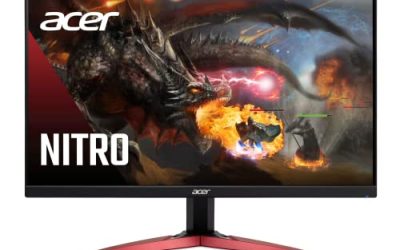
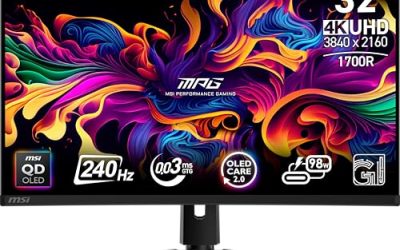
The best 144Hz gaming monitor under $250 is usually a 24- to 27-inch 1080p or 1440p IPS or fast VA panel with Adaptive-Sync, a 1 ms (MPRT) or 4 ms (GtG) response claim, and a DisplayPort input. At this price, panel type and resolution matter more than headline refresh rate, because almost every model in the bracket reaches 144Hz or 165Hz.
This guide explains which spec classes are worth paying for, what your graphics card must deliver to use 144Hz, and how to pick between a 24-inch 1080p screen and a 27-inch 1440p one without overspending.
Quick comparison of the main picks
| Pick | Best for | Key specs | Price range |
|---|---|---|---|
| Best overall: 27-inch 1440p IPS, 144-165Hz | Mixed gaming and desktop use | 2560×1440, IPS, Adaptive-Sync, sRGB ~99% | Usually $200-$250 |
| Best budget: 24-inch 1080p IPS, 144-165Hz | Entry GPUs, competitive shooters | 1920×1080, IPS, 1 ms MPRT claim | Usually $100-$160 |
| Best for contrast: 27-inch 1080p or 1440p VA, 144-165Hz | Dark single-player games | VA, 3000:1 contrast typical, curved options | Usually $130-$230 |
| Best for esports: 24.5-inch 1080p, 180-240Hz | Players who already hit 200+ FPS | IPS or fast TN, DisplayPort, height-adjustable stand | Usually $150-$250 |
Best overall: a 27-inch 1440p IPS at 144-165Hz
A 1440p IPS monitor is the strongest all-round buy under $250 because it adds roughly 78% more pixels than 1080p while keeping the refresh rate you are paying for. Text is sharper, game worlds look cleaner, and IPS panels hold colors at wide viewing angles, which helps if you also edit photos or watch video.
The trade-off is GPU load. Running 2560×1440 at 144 frames per second needs a graphics card in the class of a mid-range current-generation card, such as a GeForce RTX 4060 Ti or Radeon RX 7700 XT class or better, for modern titles at high settings. If your card is older or entry level, you will often sit at 70-100 FPS, which still looks smooth with variable refresh but does not use the panel fully.
Look for Adaptive-Sync support over DisplayPort, a stated FreeSync or G-SYNC Compatible range that reaches down to at least 48Hz, and an overdrive menu with several levels. Manufacturers’ spec sheets often list a 1 ms response time measured as MPRT with backlight strobing, which differs from the 4-5 ms gray-to-gray figure that better reflects normal operation.
Best budget: a 24-inch 1080p IPS at 144-165Hz
A 24-inch 1080p screen is the right choice when your graphics card is a GTX 1660 class, an RX 6600 class or older, or when you play competitive shooters where frame rate matters more than detail. Pixel density at 24 inches and 1080p is about 92 PPI, which is acceptable for games and general use, though text looks softer than on a 1440p panel.
The main trade-off is image quality headroom. At this price you may get a basic stand with tilt only, a 6-bit plus FRC panel, and modest brightness around 250-300 nits. If you can find one with height adjustment or a VESA 100×100 mount, a cheap monitor arm fixes ergonomics for under $30.
Best for contrast: a VA panel at 144-165Hz
VA panels typically offer native contrast near 3000:1, compared with roughly 1000:1 for IPS, so blacks look deeper in dark games and movies. Many curved 27-inch models in this range use VA, and they are popular for single-player and racing games.
The trade-off is motion clarity. Some VA panels show dark smearing in fast scenes, especially if overdrive is set too low, and a too-high overdrive creates inverse ghosting. Check published panel measurements before buying, and set overdrive to the middle level rather than the maximum.
Best for esports: a 180-240Hz 1080p screen
If your system already averages 200 FPS in your main game, a 180Hz or 240Hz 1080p monitor under $250 is a better match than 144Hz. The frame time at 240Hz is about 4.2 ms, against 6.9 ms at 144Hz, a gain of roughly 2.7 ms per frame. That is small, but it is measurable for players who play ranked shooters daily.
The trade-off is that you give up resolution and sometimes color accuracy, and the gain disappears if your CPU or GPU cannot feed those frames.
How to choose: a worked calculation
Match the monitor to the frame rate your hardware can actually deliver. Use this simple check: take your typical FPS in the games you play at the target resolution and compare it with the refresh rate.
- If you average 60-90 FPS at 1440p, a 144Hz screen still helps through variable refresh, but a 1080p panel will let you reach 120+ FPS.
- If you average 120-165 FPS at 1080p, 1440p at 144Hz is probably the better upgrade if your GPU has headroom.
- If you average 200+ FPS in esports titles, consider 180-240Hz.
Bandwidth is rarely a concern here. At 2560×1440 and 144Hz with 8-bit color, the signal needs roughly 15-16 Gbit/s once blanking is included, which fits inside the DisplayPort 1.2 limit of 17.28 Gbit/s but exceeds what HDMI 1.4 can carry. That is why a DisplayPort cable, or an HDMI 2.0 connection, is needed for 1440p at 144Hz.
Spec cheat sheet for the price bracket
| Spec | Minimum worth buying | Nice to have |
|---|---|---|
| Refresh rate | 144Hz | 165Hz or higher |
| Panel | IPS or VA, not TN | Fast IPS with 4 ms GtG or better |
| Brightness | 250 nits | 350 nits |
| Variable refresh | FreeSync / G-SYNC Compatible | Range down to 40Hz or lower |
| Inputs | 1 DisplayPort 1.2 + 1 HDMI | Two DisplayPort or HDMI 2.1 |
| Stand | Tilt | Height, swivel, pivot, VESA mount |
| Color coverage | ~95% sRGB | ~99% sRGB and factory calibration |
Settings that make a 144Hz monitor actually run at 144Hz
- Connect with the DisplayPort cable that came in the box, or a certified HDMI 2.0 cable. The reason: a cheap or old HDMI cable can silently cap you at 60Hz.
- Open Windows display settings, choose Advanced display, and set the refresh rate manually. Windows often defaults to 60Hz on a new screen.
- Enable Adaptive-Sync in your graphics driver and in the monitor menu. It removes tearing without the input lag of classic V-Sync.
- Cap frame rate a few FPS below the maximum, for example 141 FPS on a 144Hz screen, so variable refresh stays active.
- Set overdrive to the middle level first. The reason: the highest setting often overshoots and creates bright trails.
What to skip at this price
Avoid monitors that advertise HDR without a real local dimming system. At under $250, HDR400 labeled screens rarely deliver a visible improvement and often look washed out. Skip TN panels unless you only care about response time, because color shift off-axis is obvious on a desktop. Also be careful with unnamed brands that list unrealistic 0.5 ms response figures; the manufacturer’s own spec sheet should show whether the number is MPRT or GtG.
Finally, think about screen size and desk distance. A 27-inch 1080p screen has only about 82 PPI, so text looks coarse at normal viewing distance. If you want 27 inches, choose 1440p; if you want 1080p, stay at 24-25 inches.
Frequently Asked Questions
Is 144Hz worth it over 60Hz?
Yes, for games where your frame rate regularly exceeds 100 FPS. Motion looks clearer and input feels more responsive. Even for desktop use, scrolling and cursor movement look smoother, and the price gap is now small.
Can I use 144Hz over HDMI?
You can at 1080p with HDMI 1.4 or later, and at 1440p with HDMI 2.0. Older HDMI 1.4 ports on some monitors cannot carry 1440p at 144Hz, so check the manufacturer’s spec sheet or use DisplayPort.
Should I choose 1080p or 1440p under $250?
Choose 1440p if your graphics card can hold at least 100 FPS in your games at that resolution. Choose 1080p if you play competitive titles on an entry-level card or want the highest possible frame rate for the money.
Do I need G-SYNC or is FreeSync enough?
FreeSync monitors that are listed as G-SYNC Compatible work with NVIDIA cards over DisplayPort, so a dedicated G-SYNC module is not needed in this price range. Enable the feature in the NVIDIA Control Panel.
Is a curved monitor better for gaming?
A curve can feel more immersive on a 27-inch or larger screen, mostly on VA panels. It is a preference, not a performance gain, and it can make desk setups with two monitors slightly awkward.
Related guides
More from Amazon
Programs that pair well with the guide above. Offers and eligibility are set by Amazon and may change.
A free business account with business pricing and bulk-buying tools for work, shop or home office.
Create a business accountFree shipping on eligible items, Prime Video and more. Eligible new members can start with a free trial.
Start a Prime free trialAudiobooks and podcasts to listen to on the go. Eligible new members can start with a free trial.
Try Audible freeAd-free music streaming. Eligible new subscribers can start with a free trial.
Try Music Unlimited freeAs an Amazon Associate we earn from qualifying purchases.