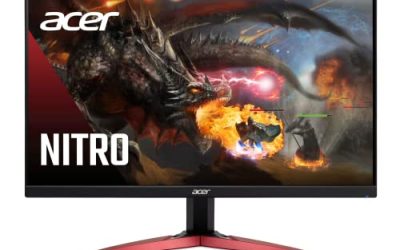
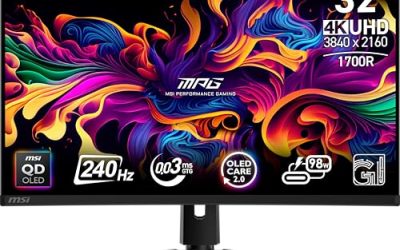
The best 220Hz monitor is, in practice, a 200Hz to 240Hz gaming monitor, because true 220Hz refresh rates are uncommon and are mostly found as an overclock setting on certain 1080p and 1440p panels rather than as a headline spec. If you search for “220Hz” you are really shopping for a high-refresh esports display, and the better question is which resolution and panel type your graphics card can actually feed at 200+ frames per second. This guide treats “220Hz” as that real-world buying query and shows how to choose.
The difference between 220Hz and its neighbours is smaller than the marketing implies. At 220Hz each frame lasts about 4.55 ms, compared with 4.17 ms at 240Hz and 6.06 ms at 165Hz. Moving from 165Hz to 220Hz saves about 1.5 ms of frame time, which competitive players can notice, but only if the GPU, CPU and game engine really deliver that many frames.
Quick comparison of the picks
| Pick | Best for | Key specs | Typical price range |
|---|---|---|---|
| 1080p 240Hz fast IPS (24-25 in) | Best overall for esports | 1920×1080, 240Hz, 1 ms GtG class response, adaptive sync, DisplayPort 1.4 | $180-$300 |
| 1440p 240Hz IPS or VA (27 in) | Best balance of sharpness and speed | 2560×1440, 240Hz, HDR400-class, DisplayPort 1.4 | $300-$500 |
| 1440p OLED at 240Hz or higher (27 in) | Best motion clarity | QD-OLED or WOLED, around 0.03 ms response, DP 1.4 or HDMI 2.1 | $450-$800 |
| 1080p 200Hz-class budget panel | Best budget | 1920×1080, 180-200Hz, adaptive sync, HDMI and DisplayPort | $110-$170 |
| Overclockable 165Hz panel that reaches about 200-220Hz | Best if you want 220Hz specifically | Native 165-180Hz, OC option in the OSD, results vary by unit | $150-$280 |
Prices are general ranges and change with promotions. Refresh rates, response times and OC options should be confirmed on each monitor’s manufacturer spec sheet, because the same model name can be sold with different panels over time.
Best overall: a 24-25 inch 240Hz fast IPS
A 1080p fast IPS display at 240Hz is the sweet spot for shooters such as Counter-Strike 2, Valorant and Apex Legends. At 1080p your graphics card can push 200+ frames per second in these games without a flagship GPU, and the 24-25 inch size keeps the pixel density near 90-92 PPI, which looks sharp enough for competitive play. Choose one with DisplayPort and a stated adaptive-sync range down to at least 48Hz.
The trade-off is desktop sharpness. Text and web pages look softer than on a 27 inch 1440p panel, so it is less comfortable for mixed work and gaming.
Best balance: a 27 inch 1440p 240Hz
A 1440p panel at 240Hz is the best match for a mid-range or better GPU. At 27 inches the density is about 109 PPI, which is the point where games look clearly sharper than 1080p. You do need a card strong enough to hit high frame rates, so this class suits RTX 5070-tier and RX 9070-tier graphics cards and above in esports titles with competitive settings.
The trade-off is cost and GPU demand. Running AAA games at 1440p will rarely reach 220+ fps, so the extra refresh headroom is mostly useful in lighter titles.
Best motion clarity: a 1440p OLED
OLED panels have response times around 0.03 ms, which gives a motion clarity that IPS cannot match even when the refresh rate is the same. Several 27 inch 1440p OLED monitors refresh at 240Hz or 360Hz, and they make the 220Hz number irrelevant because you are above it. The trade-off is brightness for full-screen white content, a risk of image retention with static HUD elements if you ignore the manufacturer’s care features, and a higher price.
Best budget: a 1080p 180-200Hz panel
If your budget is below $170, a 1080p monitor with a 180-200Hz refresh rate gets you most of the benefit. The jump from 60Hz to 144Hz is large, and the jump from 144Hz to 200Hz is smaller, so the budget route is a rational choice. The trade-off is usually weaker colour gamut and fewer ports.
Best if you want exactly 220Hz: an overclockable panel
Some monitors allow a manufacturer-approved refresh-rate overclock in the on-screen menu, taking a native 165Hz or 180Hz panel up to around 200-220Hz. The result depends on the individual unit, and you may see skipped frames, “frame skipping” or a slight loss of colour accuracy. Test with a frame-skipping pattern in a browser after you enable it, and revert if you see stutter.
Worked example: cables and bandwidth for 220Hz
A monitor can only show 220Hz if the cable and GPU port carry enough data. Raw video data in gigabits per second is width x height x refresh rate x bits per pixel, plus a few percent for blanking intervals.
| Resolution and refresh | Raw data at 8-bit colour | With about 5% blanking | Fits in HDMI 2.0 (14.4 Gbps)? | Fits in DP 1.4 (25.9 Gbps)? |
|---|---|---|---|---|
| 1920×1080 at 220Hz | 10.9 Gbps | about 11.5 Gbps | Yes | Yes |
| 2560×1440 at 220Hz | 19.5 Gbps | about 20.4 Gbps | No | Yes |
| 2560×1440 at 240Hz | 21.2 Gbps | about 22.3 Gbps | No | Yes (8-bit) |
| 3840×2160 at 220Hz | 43.8 Gbps | about 46 Gbps | No | Only with DSC compression |
The calculation shows why cable choice matters. At 1080p the cheaper HDMI 2.0 link is enough, but at 1440p and 220Hz you need DisplayPort 1.4 or HDMI 2.1. At 4K, even DisplayPort 1.4 needs Display Stream Compression, which some monitors and graphics cards support better than others. Use the DisplayPort cable that came with the monitor.
Decision matrix: match your GPU and games to a monitor
| Your situation | Choose | Reason |
|---|---|---|
| Competitive shooters, mid-range GPU | 1080p 240Hz, 24-25 in | GPU can sustain 200+ fps |
| High-end GPU, mixed games | 1440p 240Hz, 27 in | Sharper image and still fast |
| Single-player and esports mix | 1440p OLED | Best motion and contrast |
| Tight budget | 1080p 180-200Hz | Cheapest meaningful upgrade over 144Hz |
| Console only | 120Hz HDMI 2.1 display | Consoles cap at 120Hz |
How to choose: four checks before buying
- Measure your actual frame rate. Turn on your game’s frame counter. If you average 120 fps, a 220Hz monitor will not look different from a 144Hz one.
- Check the response-time claim. A “1 ms” label is often measured with overdrive set to an aggressive mode. Look for independent reviews that show the best overdrive setting.
- Confirm adaptive sync. G-Sync Compatible or FreeSync support removes tearing when your frame rate falls below the refresh rate.
- Check ports. You want DisplayPort 1.4 for PC and HDMI 2.1 if you also use a console.
Settings to get the full refresh rate
- In Windows display settings, open Advanced display and select the highest refresh rate. Windows often defaults to 60Hz after a first connection.
- Enable the monitor’s overdrive at the middle setting first, then raise it only if you see no inverse ghosting.
- Cap your frame rate a few frames below the refresh rate if you use adaptive sync with V-Sync, so you stay inside the variable refresh window.
Frequently Asked Questions
Is there a real 220Hz monitor?
A few monitors offer 220Hz as an overclocked option, but most gaming monitors are sold at 144Hz, 165Hz, 180Hz, 200Hz, 240Hz or higher. Check the manufacturer’s spec sheet to see if 220Hz is native or an OSD setting.
Is 220Hz noticeably better than 144Hz?
Frame time drops from about 6.9 ms to 4.5 ms, which competitive players can notice in fast aiming. Casual players often find the 144Hz to 240Hz difference small compared with the jump from 60Hz to 144Hz.
Do I need a powerful GPU for 220Hz?
Yes. You need frame rates near 220 fps, which is realistic in esports titles at 1080p or 1440p with competitive settings but unrealistic in demanding AAA games without upscaling or frame generation.
Which cable do I need for 220Hz at 1440p?
Use DisplayPort 1.4 or HDMI 2.1. Standard HDMI 2.0 cannot carry the roughly 20 Gbps required at that resolution and refresh rate.
Will 220Hz help my console?
No. Current consoles output up to 120Hz, so a 240Hz monitor will only run at the console’s maximum. Choose a 120Hz HDMI 2.1 display instead.
Related guides
More from Amazon
Programs that pair well with the guide above. Offers and eligibility are set by Amazon and may change.
A free business account with business pricing and bulk-buying tools for work, shop or home office.
Create a business accountFree shipping on eligible items, Prime Video and more. Eligible new members can start with a free trial.
Start a Prime free trialAudiobooks and podcasts to listen to on the go. Eligible new members can start with a free trial.
Try Audible freeAd-free music streaming. Eligible new subscribers can start with a free trial.
Try Music Unlimited freeAs an Amazon Associate we earn from qualifying purchases.