
Our Top Picks
 Sandisk 1TB Optimus GX C50 Storage Expansion Card1TB2.18 x 0.3 x 1.24 inches0.06 PoundsCheck on Amazon


Top 3 picks at a glance
The Short Answer
For most people, 1TB of NVMe storage is the practical minimum for a new laptop, desktop, or game console expansion. It gives you room for Windows or macOS files, everyday programs, photos, and a moderate game library without requiring constant cleanup.
Choose 500GB only for a light-use computer, a secondary boot drive, or a small-form-factor device with limited physical space. Choose 2TB if you play several large games, edit photos or video, work with large design files, or want to keep a computer for years. 4TB and larger drives make sense for serious content creators, large media collections, and high-end gaming PCs with room for multiple drives.
As an Amazon Associate we earn from qualifying purchases at no extra cost to you.




Capacity is only one part of the answer to “how much NVMe storage space do I need.” You must also confirm the drive’s physical format, or “form factor,” and make sure there is enough clearance for a heatsink. The most common consumer format is M.2 2280: a narrow stick measuring about 3.15 inches long. Before ordering, check your device manual or open the storage compartment to verify which lengths, connection types, and heatsink heights it supports.
As of 2026, 1TB PCIe 4.0 NVMe drives with heatsinks commonly fall around $170 to $235 in the premium console-focused examples listed here, while a 2TB premium option can approach $470. Prices vary substantially by speed, brand, included heatsink, licensing, and retailer, so buy the capacity you will realistically use rather than paying for speed or branding you cannot take advantage of.
Standard Sizes
M.2 drive names describe their dimensions. For example, “2280” means the drive is 22 mm wide and 80 mm long. Width is listed first, followed by length. Nearly all full-size consumer NVMe drives are 22 mm wide, but lengths vary. A drive must match a mounting point in your laptop, motherboard, or console enclosure.
| M.2 Size | Dimensions (mm) | Dimensions (inches) | Typical Use |
|---|---|---|---|
| M.2 2230 | 22 × 30 mm | 0.87 × 1.18 in. | Handheld gaming systems, compact tablets, and very small laptops |
| M.2 2242 | 22 × 42 mm | 0.87 × 1.65 in. | Compact laptops, mini PCs, and some embedded systems |
| M.2 2260 | 22 × 60 mm | 0.87 × 2.36 in. | Some laptops and older compact desktop hardware |
| M.2 2280 | 22 × 80 mm | 0.87 × 3.15 in. | Most desktop PCs, many laptops, and compatible PlayStation 5 expansion bays |
| M.2 22110 | 22 × 110 mm | 0.87 × 4.33 in. | Workstations, servers, and selected enterprise-oriented systems |
Physical length is not the only compatibility issue. An M.2 slot can support NVMe drives, SATA M.2 drives, or both; they are not interchangeable in every device. Most current performance drives use the NVMe protocol over PCIe. You should also check whether your system supports PCIe Gen 3, Gen 4, or Gen 5. A newer drive can often work in an older compatible slot, but it will generally operate at the older slot’s available speed.
Heatsinks need special attention. A bare M.2 2280 drive is usually only a few millimeters thick, while a preinstalled heatsink can make it much taller. A console or laptop storage bay may have a tight cover, so measure vertical clearance before choosing a drive with a tall metal cooler. Do not stack a preinstalled heatsink underneath a motherboard’s included M.2 cover unless the manufacturer specifically says it is safe.
How to Measure Your Space
- Identify the device and exact model. Find the model number on the bottom of a laptop, the motherboard box, or the system information screen. Check the manufacturer’s storage specifications before opening anything.
- Turn the device off completely. Shut down, disconnect power, and remove accessible batteries where applicable. For a desktop, switch off and unplug the power supply.
- Locate the M.2 slot or expansion bay. On a desktop motherboard, the slot is usually between PCIe slots or under a flat metal cover. On laptops, it may sit under the bottom panel. On a compatible PS5, it is inside the dedicated M.2 expansion bay.
- Measure the mounting length. Look for the small screw post positions marked 2230, 2242, 2260, 2280, or 22110. If markings are absent, measure from the socket to the screw post. A 2280 space needs about 80 mm, or 3.15 inches, from connector to mounting point.
- Measure width and height clearance. Most standard drives are 22 mm (0.87 inch) wide. Use a ruler or caliper to check for nearby cables, graphics cards, case panels, and covers. Measure the gap above the drive location if you plan to use a heatsink.
- Confirm the interface. Read the manual for terms such as “PCIe x4,” “NVMe,” “M-key,” and supported PCIe generation. Do not assume every M.2-shaped slot accepts an NVMe SSD.
- Check available slots before replacing a drive. If your computer has a second M.2 slot, you may be able to add storage instead of cloning or replacing your existing boot drive.
By Room or Use Case
Home Office Laptop or Desktop
A 1TB NVMe SSD is a strong all-around choice for household documents, schoolwork, web browsing, video calls, accounting files, and standard software. After formatting, a 1TB drive does not present as a full 1,000GB of usable space, and operating systems, updates, backups, and recovery files consume additional room. Keep roughly 10% to 20% of the drive free for smoother maintenance and future updates.
Move to 2TB if the computer stores large photo libraries, local backups, virtual machines, or years of family videos. For a basic office machine, 500GB can work, but it leaves little flexibility once files accumulate.
Gaming PC
For a gaming PC, start at 1TB if you typically keep five to 10 games installed at once. Many modern games require 50GB to 150GB each, and a few can exceed 200GB with optional content. A 2TB drive is the better long-term size for someone who keeps a broad library installed, uses game mods, records gameplay, or shares the PC with other players.
If your motherboard has two or more M.2 slots, a sensible arrangement is a 1TB boot drive plus a separate 2TB game drive. This can simplify future upgrades and lets you replace or expand storage without moving the operating system.
PlayStation 5 Storage Expansion
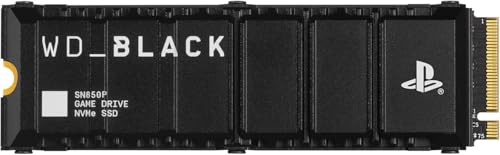
Compatible PS5 internal expansion drives generally use the M.2 2280 size, although the console bay supports certain other M.2 lengths. Check Sony’s current requirements for supported dimensions, interface, cooling, and capacity before purchase. A drive such as the 1TB WD_BLACK SN850P or a comparable 1TB PCIe 4.0 model offers room for a useful rotation of games. Based on the example products, premium 1TB console-ready drives can cost about $170 to $235, while a 2TB premium model may be closer to $470.
Choose 2TB if you regularly download large titles and do not want to shuffle games between internal storage and external storage. Make sure a heatsink-equipped drive fits inside the bay with its cover installed.
Xbox Series X or Series S
Xbox Series X and Series S consoles use dedicated expansion cards rather than standard user-installed M.2 NVMe sticks. That means an M.2 2280 PS5 or PC drive cannot simply be inserted into an Xbox expansion slot. The example 1TB SanDisk Optimus GX C50 expansion card is listed at around $240, illustrating that console-specific storage can cost more than a comparable bare PC drive.
For an Xbox household with a small rotating game library, 1TB is usually the sensible expansion target. Consider 2TB if several people use the console or you prefer to keep many optimized Series X|S games ready to play.
Photo, Video, and Creative Work
Creative work can fill storage faster than expected. A 2TB NVMe drive is the practical starting point for RAW photo editing, music production, CAD work, or regular 4K video projects. Choose 4TB or more if the drive will hold active video footage, project caches, exports, and large asset libraries.
Fast NVMe storage improves loading and scratch-disk tasks, but it is not a backup. Keep a second copy of important files on an external drive, network storage, or a secure cloud backup service.
Common Sizing Mistakes
- Buying capacity without checking form factor. A 2280 drive will not fit a device designed only for a 2230 or 2242 drive.
- Confusing M.2 with NVMe. M.2 describes the physical shape; NVMe describes the storage protocol. Verify both.
- Ignoring heatsink clearance. A drive can be the right length and still prevent a laptop or console cover from closing.
- Filling the drive completely. Leave free capacity for updates, downloads, temporary files, and normal system maintenance.
- Paying for unsupported speed. A high-end PCIe Gen 5 drive may not deliver its maximum potential in a Gen 3 or Gen 4 slot.
- Using internal storage as the only backup. An SSD can fail, be lost, or be damaged. Important data needs another copy.
FAQ
Is 1TB enough NVMe storage?
Yes, 1TB is enough for most home computers and moderate gaming libraries. It is the best starting point for buyers who want breathing room beyond the operating system and daily programs. Choose 2TB if you keep many large games or media projects locally.
What does M.2 2280 mean?
M.2 2280 means the drive is 22 mm wide and 80 mm long, equal to approximately 0.87 by 3.15 inches. It is the most common NVMe SSD size for desktop PCs and many laptops.
Can I put any NVMe SSD in my laptop?
No. Your laptop must have an M.2 slot that supports NVMe, and the drive must match the allowed physical length and height. Check the laptop manual for supported M.2 sizes, PCIe generation, and single-sided or double-sided drive limitations.
Should I buy a drive with a heatsink?
Use a heatsink when your device supports one and the drive will handle sustained gaming, transfers, or creative workloads. Many desktop motherboards include an M.2 heat spreader already. In that case, a bare drive may fit better. For consoles and tight laptop bays, confirm the manufacturer’s exact clearance requirements before choosing a heatsink-equipped model.









