
Our Top Picks
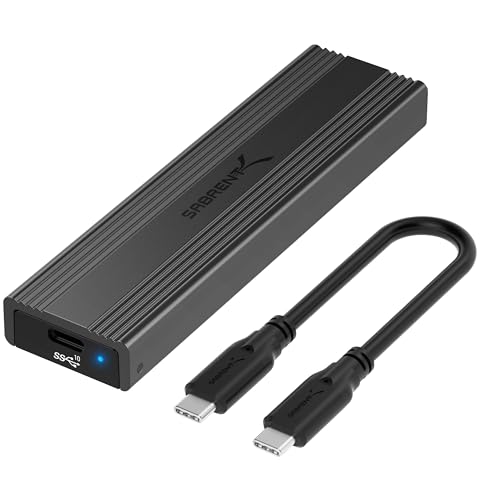 SABRENT Tool-Free NVMe & SATA M.2 SSD Enclosure10Gbps NVMe + SATA4.59 x 1.24 x 0.5 inches0.2 poundsCheck on Amazon

The Short Answer
Yes — upgrading from SATA to NVMe is worth it if your computer feels slow during everyday tasks like booting Windows, launching programs, or loading large files, and if your motherboard has an M.2 NVMe slot. If your machine already boots in under 15 seconds and your workload is mostly browsing and documents, you can skip it. The one condition that makes this decision simple: check whether your motherboard supports NVMe before buying anything. A desktop board from roughly 2016 onward almost always does; many older laptops do not.
What You Actually Get
NVMe drives connect directly to the PCIe bus instead of the SATA controller, and that changes the ceiling dramatically. A SATA SSD tops out around 550 MB/s because of the SATA III interface limit. A PCIe 3.0 NVMe drive typically delivers 3,500 MB/s sequential reads, and PCIe 4.0 drives reach 7,000 MB/s or more. That is a six-to-thirteen-fold jump on paper.
As an Amazon Associate we earn from qualifying purchases at no extra cost to you.


In real use, you will not feel a 6x difference. Opening a Word document that takes 0.4 seconds on SATA might take 0.25 seconds on NVMe. Where you genuinely notice the change: boot times dropping from ~20 seconds to under 10, large game installs and file transfers finishing in a fraction of the time, video editing timelines scrubbing smoothly with 4K footage, and compiling code or loading massive Photoshop projects noticeably faster. Expect to pay roughly $50–$70 for a quality 500GB NVMe drive, $80–$120 for 1TB, and $130–$200 for 2TB as of early 2026 — often less than comparable SATA drives, which have become the pricier niche product.
Physically, an M.2 2280 NVMe stick measures 22mm wide by 80mm long and weighs about 7–10 grams — no cables, no drive bay needed. SATA 2.5-inch drives are 100mm x 70mm x 7mm and around 45–50 grams. Installation takes five minutes with a screwdriver, though high-performance PCIe 4.0 drives may include a small heatsink you should install. Power draw is modest: NVMe drives idle around 25–50 milliwatts in low-power states and peak near 4–8 watts under load, roughly comparable to SATA.
Pros
- Dramatically faster sequential speeds — 3,500 to 7,000+ MB/s versus SATA’s 550 MB/s ceiling
- Noticeably snappier boot times, application launches, and large file operations
- No cables or drive bays required; the stick mounts flat on the motherboard
- Often cheaper per gigabyte than SATA SSDs at current prices
- Lower latency and better random I/O, which matters for multitasking and virtual machines
- Frees up a 2.5-inch bay and SATA ports for additional storage
Cons
- The felt improvement over a SATA SSD is modest for browsing, email, and office work
- Older motherboards and laptops may lack an M.2 slot or NVMe boot support
- High-end PCIe 4.0 drives can run hot and throttle without a heatsink
- Migrating your operating system requires cloning software or a clean install, which takes 30–90 minutes
- M.2 slots share PCIe lanes with other components on some boards, occasionally affecting GPU or SATA performance
- Old data on the SATA drive you retire does not transfer itself — you need a way to clone or copy it
Who Should Buy It
Upgrade if you do any of the following: edit video or photos with large files, play modern games with long load screens, work with virtual machines or containers, compile software, or simply want the fastest possible boot and load times for under $100. It is also the right call if your current SATA drive is aging — if it is more than five years old or nearing capacity, replacing it with NVMe solves two problems at once.
Who Should Skip It
Skip it if your computer is used mainly for web browsing, streaming, and office documents — a healthy SATA SSD already handles those tasks near-instantly. Skip it if your motherboard has no M.2 NVMe slot (check the spec sheet or manual before ordering). And skip it if you run a desktop from before 2015 or a budget laptop with a soldered, non-upgradeable storage chip, where the upgrade simply is not possible or the adapter-route cost outweighs the benefit.
Cheaper Alternatives
| Option | Cost | Trade-off |
|---|---|---|
| Keep the SATA SSD, add RAM instead | $30–$80 for 8–16GB | Fixes slowdown from memory swapping rather than storage; no help for load times |
| Fresh clean install on a new budget SATA SSD | $35–$60 for 500GB–1TB | Same 550 MB/s ceiling, but fixes drive clutter and aging-drive slowdown cheaply |
| USB external NVMe enclosure for projects and scratch disks | $27–$55 (enclosure) plus drive | No internal install needed; ~1,000 MB/s over USB 3.2 — faster than SATA, slower than internal NVMe |
| Clone to NVMe using a docking station, then swap drives | $55–$75 (dock) plus drive | One-time tool cost, but lets you clone SATA to NVMe without reinstalling Windows |
On that last point: enclosures and docks are the practical bridge between the two worlds. Something like the SABRENT EC-SNVE, a tool-free M.2 enclosure with USB 3.2 Type-C at around $27, turns a bare NVMe drive into a fast external drive — useful for cloning your SATA drive before the swap, or for keeping the old drive as portable backup. A step up is a cloner dock like the GRAUGEAR docking station at roughly $55, which copies drives offline at the push of a button with no computer involvement. If you plan to migrate your system, budgeting for one of these removes the most annoying part of the upgrade.
FAQ
Will I really notice the difference from SATA to NVMe?
For booting, game loading, and large file transfers — yes, clearly. For opening emails or browsing — no, a good SATA SSD already feels instant. The more demanding your workload, the more the upgrade pays off.
Can my older computer use an NVMe drive?
Check two things: whether the motherboard has an M.2 slot, and whether that slot supports PCIe/NVMe (some only support SATA-mode M.2 drives). Desktops from about 2016 onward usually qualify. Boot support requires a UEFI BIOS; very old Legacy-BIOS systems may not boot from NVMe at all.
Do I need to reinstall Windows when upgrading?
No. You can clone your existing drive to the NVMe drive using free software or a cloning dock, then swap drives. A clean install is still worth considering if your current system is cluttered — it takes longer but starts you fresh.
Do NVMe drives run hot?
PCIe 3.0 drives rarely overheat in a ventilated case. Fast PCIe 4.0 drives can hit 70–80°C under sustained load and throttle without a heatsink, which typically costs $5–$15 or comes included with the drive. For desktop use, a basic motherboard heatsink is usually enough.









