Every SSD and hard drive quietly logs its own health through S.M.A.R.T. attributes, but you need a monitoring tool to read them. CrystalDiskInfo and Hard Disk Sentinel are the two most common picks, and while they read the same underlying data, they present it very differently. This guide compares both so you can pick the one that fits how closely you want to watch your storage.
As an Amazon Associate we earn from qualifying purchases at no extra cost to you.


Our Top Picks
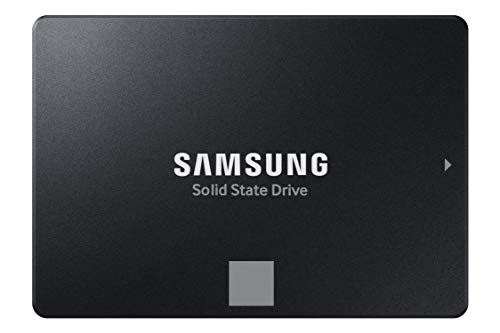 SAMSUNG 870 EVO SATA SSD 500GB 2.5” Internal0.5TB3.94 x 2.76 x 0.27 inches0.19 PoundsCheck on Amazon


Top 3 picks at a glance
What each tool actually does
CrystalDiskInfo is a lightweight, free, open-source utility that shows raw and normalized S.M.A.R.T. values, drive temperature, power-on hours, and total bytes written. It gives a simple color-coded verdict: blue for Good, yellow for Caution, red for Bad. Hard Disk Sentinel goes further, converting raw attributes into a single Health and Performance percentage, estimating remaining lifetime, and logging trends over weeks and months.
Feature comparison
| Feature | CrystalDiskInfo | Hard Disk Sentinel |
|---|---|---|
| Price | Free | ~$20-35 (Pro); free trial |
| Health readout | Good / Caution / Bad | 0-100% with lifetime estimate |
| Background monitoring | Basic (resident mode) | Continuous, with alerts |
| Temperature alerts | Yes (email/sound) | Yes, more granular |
| Historical logging | Limited | Extensive graphs |
| NVMe support | Good | Good |
| Learning curve | Very low | Moderate |
When CrystalDiskInfo is enough
For most gamers and enthusiasts running one to three drives, CrystalDiskInfo covers everything you need. Open it once a month, check that every drive reads Good, glance at the temperature (you want NVMe drives under about 70°C under load), and look at the Total Host Writes value against the drive’s rated TBW. A 1TB TLC SSD is typically rated for 600TBW, so if you have written 40TB in two years, you are nowhere near wearing it out. The resident mode can sit in your tray and pop a warning if an attribute crosses a threshold.
When Hard Disk Sentinel earns its price
If you run a NAS, a home server, or a workstation with six or more drives, the percentage-based health score and trend graphs make it much easier to catch a drive that is slowly degrading. Watching reallocated sector count creep from 0 to 5 to 20 over a month tells a clearer story than a single snapshot. The estimated remaining lifetime is a rough model, not a guarantee, but it is useful for planning replacements before failure. The paid version also handles scheduled surface scans and more sophisticated email alerting.
Reading the attributes that matter
Whichever tool you use, a handful of attributes carry most of the warning signals. On hard drives, watch Reallocated Sector Count, Current Pending Sector Count, and Uncorrectable Sector Count; any non-zero value that keeps rising is a red flag. On SSDs, watch Media Wearout Indicator (or Percentage Used on NVMe) and Available Reserved Space. A drive at 90% wear still works, but it is time to plan a swap.
Building a simple monitoring habit
The best tool is the one you actually use, so build a light routine rather than obsessing over software. A workable rhythm for most people is a monthly glance at every drive plus resident background alerts turned on. Note the Total Host Writes figure each month; a sudden jump can reveal a runaway process hammering a drive. Watch temperatures during summer or after moving your PC, since a shifted heatsink or clogged fan shows up as a rising trend first. For SSDs, record the Percentage Used value quarterly so you can project when the drive will reach end of rated life, giving you months of lead time to budget a replacement. Both tools export or log data, so keeping a short spreadsheet of key numbers over time turns raw snapshots into a maintenance record. That record is what separates a planned, painless swap from a 2 a.m. emergency, and it costs nothing but a few minutes each month.
FAQ
Can I run both tools at the same time?
You can install both, but avoid having two utilities poll S.M.A.R.T. constantly in the background at once, as they can occasionally conflict or double-report temperatures. Use one as your resident monitor and open the other only when you want a second opinion.
Do these tools work on external USB drives?
Sometimes. Many USB-SATA bridges pass S.M.A.R.T. data through, but some cheaper enclosures block it, and most USB flash drives expose nothing. NVMe drives in USB4 or Thunderbolt enclosures usually report health fine; basic USB 3.0 adapters are hit or miss.
Bottom line
Choose CrystalDiskInfo if you want a free, no-fuss health check for a handful of drives and are comfortable interpreting a few raw values. Choose Hard Disk Sentinel if you manage many drives, want a single percentage score, or need trend logging and lifetime estimates to plan replacements. Both beat flying blind, and running either one monthly is one of the cheapest forms of data insurance you can get.









