
A cheap PCIe graphics card can be a sensible upgrade, but “cheap” covers very different needs: a card for display output, an older model for light gaming, or a budget GPU that can run current games at modest settings. Start with your workload, monitor resolution and PC’s power supply—not the lowest price you can find.
As an Amazon Associate we earn from qualifying purchases at no extra cost to you.

Our Top Picks
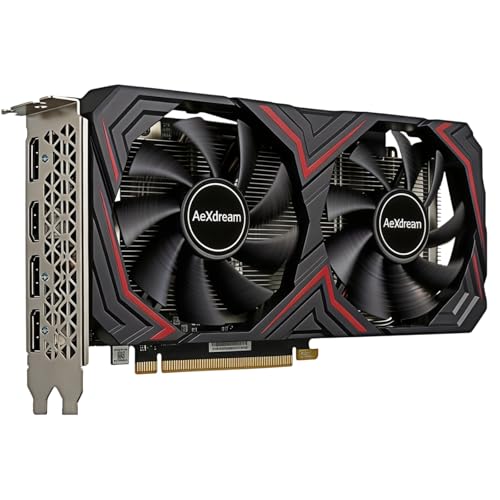
 GIGABYTE GeForce RTX 3050 WINDFORCE OC V2 6GStandard7.5 x 4.4 x 0.1 Inches0.88 PoundsCheck on Amazon

Choose by what you need it to do
If you mainly browse, stream video or use office software, your processor’s integrated graphics may already be enough. A separate card is useful if your CPU lacks integrated graphics, you need more display connections, or your existing card has failed. For those jobs, a basic low-profile graphics card can solve the problem without paying for gaming performance you will not use.
For gaming, set expectations before shopping. Entry-level cards are best suited to 1080p, often with medium or low settings in demanding games. Older or used cards may cost less, but can draw more power, run hotter, lack warranty coverage or struggle with newer features. A budget card is not automatically a bargain if it forces you to replace your power supply or gives you performance you cannot use.
Cheap PCIe graphics card options
| Option | Best for | Main trade-off | Check before buying |
|---|---|---|---|
| Basic display card | Video output, office work, older PCs | Little gaming capability | Ports, card height and PCIe slot availability |
| Entry-level new GPU | Casual 1080p gaming and a warranty | Limited settings and performance in demanding games | Power connector, PSU requirements and case clearance |
| Used midrange GPU | More gaming performance for a tight budget | Unknown wear, shorter support and possible repair risk | Return policy, temperatures, fan noise and power draw |
New or used: where the savings come from
A new entry-level card costs more per frame than a used card in many cases, but you get a known condition and usually a retailer return window and manufacturer warranty. That matters if you are buying for a family PC or do not want to troubleshoot. Compare new budget 1080p graphics cards against current prices for used alternatives, rather than assuming the cheapest listing is good value.
Used cards can make sense when the seller allows returns and the price is low enough to offset the risk. Ask for the exact card model, photos of the ports and power connectors, and—if possible—a short test under load. Watch for unstable output, artifacts, fans that grind or stop, and a card that shuts down when gaming. Avoid listings that hide the model or use stock photos only. A card sold “untested” should be priced as a possible repair project, not as a working bargain.
Check compatibility before you buy
PCIe is broadly backward-compatible: a modern graphics card can usually operate in an older PCIe x16 slot. That does not guarantee a practical fit. Check the motherboard slot, case length and thickness, and whether a compact or low-profile card is required. Small office PCs may use proprietary power supplies or lack the space and airflow for a full-size gaming card.
Then check power. Some basic cards draw power from the slot; gaming cards may need one or more PCIe power connectors and a suitable PSU. Do not rely on a cheap adapter to make an undersized or old power supply work. If the PSU cannot meet the card’s requirements, the system may crash under load, or the upgrade may be unsafe. Also confirm your monitor’s input: the card needs a compatible HDMI, DisplayPort or other output, or an appropriate adapter.
Memory, features and realistic performance
Video memory capacity matters, but it does not tell you how fast a card is. A larger memory figure cannot compensate for a weak GPU, and cards with the same name can vary by design. Look for independent gaming tests at your resolution and in the games you play. Pay attention to average frame rates and frame-time consistency, not just a single best-case result.
For a new gaming card, consider driver support, upscaling options and hardware video features alongside raw speed. AMD, Intel and NVIDIA each offer different software and feature sets, and support varies by card generation. Do not pay extra for ray tracing if you expect to turn it off to keep games smooth. For older games, esports titles or a second PC, a cheaper card may be perfectly adequate; for new demanding releases, the lowest tier can mean frequent setting cuts or an unsatisfying frame rate.
A quick buying checklist
Before ordering, confirm the exact model and price, then check these points:
- Does it fit the case, including its height, length and thickness?
- Can the power supply provide the required wattage and connectors?
- Will it run the games or applications you actually use at your target resolution?
- Does it have the display outputs your monitor needs?
- For used cards, is there a real return option if it arrives faulty?
If the card is only for display output, prioritize physical fit, ports and reliability. If it is for gaming, compare tested performance and total upgrade cost. That may include a power supply or case change, which can erase the apparent savings.
FAQ
Will any PCIe graphics card work in my PC?
Most PCIe cards are compatible with PCIe x16 slots across generations, but case space, power supply, connectors and firmware can still be barriers.
Is a cheap graphics card enough for 1080p gaming?
It can be enough for older games and lighter titles. Demanding games may require low settings, upscaling or a more capable card; check benchmarks for the games you play.
Should I buy a used graphics card?
It can offer better performance per dollar if it has a clear model, a fair price and a return option. Skip untested listings unless you are comfortable with repair risk.
Do I need a graphics card if my PC has integrated graphics?
Not necessarily. Integrated graphics are often fine for everyday tasks and video playback. Buy a separate card when you need specific ports, more graphics performance or a replacement for failed hardware.



