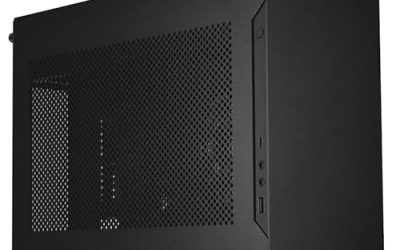
Our Short List of 3

- Best for: A compact first airflow build where the front ports stay within easy reach.
- Case type: Compact ATX mid-tower
- Front I/O: 1x USB 3.2 Type-A, 1x USB 3.2 Type-C, 1x headset jack
- Included fans: 2 x 120mm
- Radiator support: 360mm front, 240mm top

- Best for: A balanced first build where proven airflow and tidy cable routing matter as much as the front ports.
- Case type: Mid Tower
- Front I/O: USB 3.1 Type-C port, USB 3.0 port, combination audio and microphone jack
- Included fans: Two CORSAIR 120mm AirGuide fans
- Radiator support: 360mm in front, 280mm in the roof

- Best for: A builder who plugs in several devices at once and wants the front ports moved to the most convenient spot.
- Case type: Mid-tower
- Front I/O: 2 x USB 3.0 Type-A, 1 x USB Type-C, audio jack
- Included fans: Two 160mm PWM fans at the front, one 140mm PWM fan at the rear
- Radiator support: 360mm front, 360mm top, 240mm bottom
All 4 Picks at a Glance
| Product | Specs | Action |
|---|---|---|
| NZXT H5 Flow 2024 |
| Check price on Amazon |
| Corsair 4000D Airflow |
| Check price on Amazon |
| Lian Li Lancool 216 RGB |
| Check price on Amazon |
 Montech AIR 903 MAX |
| Check price on Amazon |
A mid tower case decides how often you crawl behind your PC. When the only free USB ports sit on the rear panel, every flash drive, headset dongle, and phone cable turns into a reach around the back of the desk, and a case tucked under that desk makes the chore worse. Front USB access changes the daily routine instead of the benchmark chart, so the port layout on the front panel deserves the same attention as airflow or glass.
This guide is for builders who plug things in and out all day, for first-time builders who want the ports they actually use within arm’s reach, and for anyone moving a build onto a desk where the front panel becomes the control center. Every case below is a mid tower with front USB ports shown on its Amazon listing, and the port mix, fan count, and clearance figures come from the listing and the matching model specification, so the five can be compared on the same terms.
Our Top Picks
- Lian Li Lancool 216 Mid-Tower Airflow Case-3 PWMMid Tower"18.94 x 9.26 x 19.36 inches15.9 poundsCheck on Amazon
Top 3 picks at a glance
Quick Picks
As an Amazon Associate we earn from qualifying purchases.
| Product | Best for | Key spec from title |
|---|---|---|
| NZXT H5 Flow 2024 | A compact first airflow build | 2 x 120mm fans included |
| Corsair 4000D Airflow | A proven balanced build | Two included 120 mm fans |
| Lian Li Lancool 216 RGB | Maximum stock airflow | Dual front 160MM PWM fans |
| Montech AIR 903 MAX | A roomy build with big parts | 3X 140mm ARGB PWM fans pre-installed |
| NZXT H6 Flow | A panoramic showpiece build | 3 pre-installed 120mm fans |
How to Choose
Count the Front Ports First
Start with the front panel, because that is the whole point of this shortlist. Look for the mix of USB Type-A and USB Type-C ports, not just the total count, since a phone, a headset dongle, and an external drive rarely share one connector shape. Two Type-A ports plus one Type-C covers most desks, while a single Type-A beside a Type-C suits a builder who has already moved to newer cables. Also note where the ports sit: top-edge ports suit a case on the floor, front-edge ports suit a case on the desk, and a low strip near the base can hide behind a monitor stand. The right count in the wrong place still sends you reaching.
Check the Motherboard Headers
A front USB port only works when the motherboard has a matching internal header, so open the board manual before ordering the case. Front USB Type-C needs a USB 3.2 Type-C header on the board, and front USB Type-A ports need a USB 3.0 header, and an older or entry-level board may offer one and not the other. When the header is missing, that front port stays dead unless an adapter or add-in card is fitted, which adds wiring and a part to buy. Builders reusing an older board should treat this check as a deciding factor, while anyone buying a new board can simply pick one with both headers and forget the issue.
Match Airflow and Clearance to the Build
Front USB access means little when the case cannot cool the parts inside it, so read the clearance figures next. A mesh front panel feeds the intake fans directly, and the number and size of included fans decide whether extra fans are needed on day one. Compare the maximum graphics card length against the card you own or plan to buy, and do the same for CPU cooler height and radiator support when an all-in-one cooler is part of the plan. A compact mid tower saves desk space but trims card and cooler room, while a wider mid tower swallows long cards and tall coolers with space left over for cables.
Think About Where the Case Will Sit
Placement shapes which front panel works best, so picture the finished build in its real spot. A case on the desk puts the front ports at hand height and turns the panel into a small hub for drives and headsets, while a case on the floor needs ports on the top edge or high on the front so they stay reachable. Dust filters matter more on the floor, where the intake pulls in carpet dust, and a tempered glass side panel only shows off the build when the case sits where it can be seen. Measure the desk or floor space first, then let the port position follow the location.
The 5 Best Options
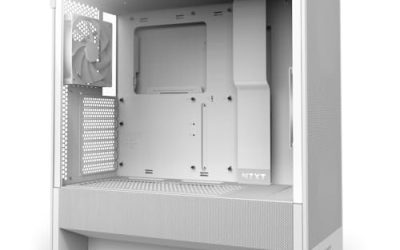
NZXT H5 Flow 2024
- Best for: A compact first airflow build where the front ports stay within easy reach.
- Case type: Compact ATX mid-tower
- Front I/O: 1x USB 3.2 Type-A, 1x USB 3.2 Type-C, 1x headset jack
- Included fans: 2 x 120mm
- Radiator support: 360mm front, 240mm top
A compact first airflow build where the front ports stay within easy reach.
Confirm it is still sold before buying, and check the motherboard has a USB Type-C header or the front Type-C port will stay unused.
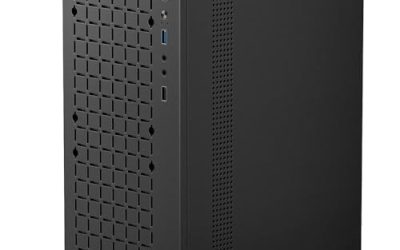
The H5 Flow 2024 is the compact pick for a builder who wants front USB access without giving up half the desk. Its front panel carries one USB Type-A port and one USB Type-C port beside a headset jack, so a flash drive and a modern cable can live up front at the same time. Two 120mm fans arrive in the box, and the perforated panels and PSU shroud keep air moving toward the graphics card. Radiator support reaches 360mm at the front and 240mm at the top, which covers most all-in-one coolers a first build is likely to use.
Corsair 4000D Airflow
- Best for: A balanced first build where proven airflow and tidy cable routing matter as much as the front ports.
- Case type: Mid Tower
- Front I/O: USB 3.1 Type-C port, USB 3.0 port, combination audio and microphone jack
- Included fans: Two CORSAIR 120mm AirGuide fans
- Radiator support: 360mm in front, 280mm in the roof
A balanced first build where proven airflow and tidy cable routing matter as much as the front ports.
Confirm it is still sold before buying, and check the motherboard has a USB Type-C header, since the front Type-C port needs one to work.
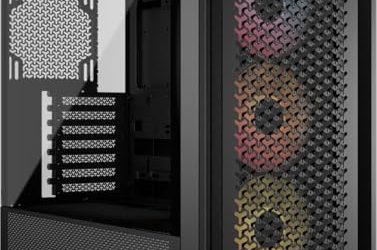
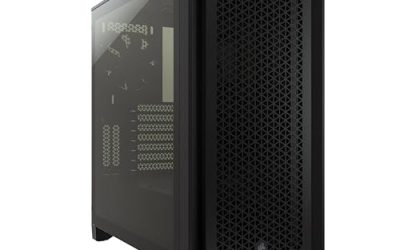
The 4000D Airflow is the steady choice for a builder who wants front USB access in a layout that has been refined over several years. Its front panel puts a USB 3.1 Type-C port and a USB 3.0 port beside a combination audio jack, so the ports you reach for most often sit in one row. Two 120mm AirGuide fans come included, and the steel front panel is built for airflow rather than looks alone. Cable routing runs through a single RapidRoute channel with room behind the motherboard tray, which keeps the interior tidy even in a first build.
Lian Li Lancool 216 RGB
- Best for: A builder who plugs in several devices at once and wants the front ports moved to the most convenient spot.
- Case type: Mid-tower
- Front I/O: 2 x USB 3.0 Type-A, 1 x USB Type-C, audio jack
- Included fans: Two 160mm PWM fans at the front, one 140mm PWM fan at the rear
- Radiator support: 360mm front, 360mm top, 240mm bottom
A builder who plugs in several devices at once and wants the front ports moved to the most convenient spot.
Confirm it is still sold before buying, and measure the desk first, since this case runs deeper than a compact mid tower.
The Lancool 216 RGB suits a builder who wants the most front USB ports in this group and the strongest stock airflow to go with them. Its front panel carries two USB 3.0 Type-A ports and one USB Type-C port, and the whole front I/O module can be moved from the top of the panel to the lower front, which is rare at this size. Two large 160mm fans sit at the front with a 140mm fan at the rear, and the case takes up to ten fans in total. Radiator support covers 360mm at the front and the top, so cooling upgrades stay open.
Montech AIR 903 MAX
- Best for: A spacious build with a long graphics card where three front USB ports stay free for daily use.
- Case type: E-ATX mid tower
- Front I/O: 1 x USB Type-C, 2 x USB 3.0, microphone and audio jacks
- Included fans: 3 x 140mm ARGB PWM fans, 1 x 140mm PWM fan
- Maximum graphics card length: 400mm
A spacious build with a long graphics card where three front USB ports stay free for daily use.
Confirm it is still sold before buying, and check the motherboard has a USB Type-C header so the front Type-C port is live.
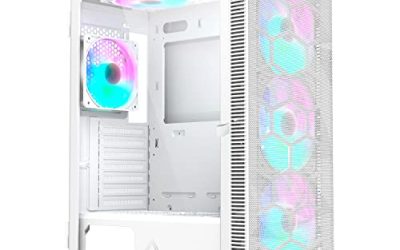
The AIR 903 MAX is the roomy pick for a build with long graphics cards and tall coolers that still needs front USB access. Its front panel offers one USB Type-C port and two USB 3.0 ports, so three devices can stay connected without reaching around the back. Three 140mm ARGB fans fill the front and a fourth 140mm fan handles the rear, which means the airflow path is complete on arrival. Graphics card clearance reaches 400mm and CPU cooler clearance reaches 180mm, and the case supports E-ATX boards, so large parts fit without a fight.
NZXT H6 Flow
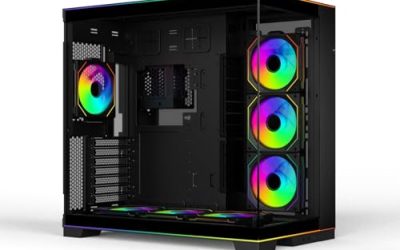
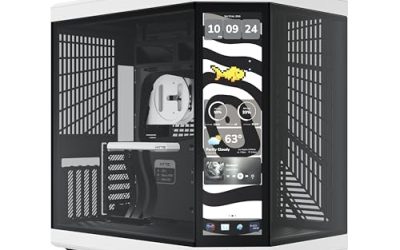
The H6 Flow is the showpiece pick, with a dual-chamber layout and panoramic glass that puts the build on display while the front ports stay busy. Its front I/O sits along the bottom front edge and carries two USB Type-A ports and one USB Type-C port beside a headset jack, which suits a case standing on the desk at eye level. Three 120mm fans come pre-installed and angled for airflow, and the top takes a radiator up to 360mm. Seven expansion slots and support for ATX, Micro-ATX, and Mini-ITX boards keep the interior flexible for later changes.
Specs
- Case type: Compact dual-chamber mid-tower
- Front I/O: 2 x USB 3.2 Type-A, 1 x USB 3.2 Type-C, 1 x headset jack
- Included fans: 3 x 120mm
- Radiator support: 360mm top, 120mm rear
- Expansion slots: 7
- Model number: CC-H61FB-01
Best for: A panoramic desk build where the front ports sit low on the front edge and stay easy to reach.
Watch out for: Confirm it is still sold before buying, and note the front ports sit low, so a case on the floor makes them harder to reach.
ASIN: B0C89FCDFP
Which One Fits Your Situation
You Plug Drives In and Out All Day
Pick the Lian Li Lancool 216 RGB when the front panel is a working tool rather than a decoration. Three front USB ports cover a flash drive, a headset dongle, and a phone cable at once, and the movable I/O module lets the ports sit where your hand naturally falls. The big stock fans keep the build cool while the ports stay busy, so nothing about the setup fights the way you work.
Your Case Sits on the Floor
Pick the Corsair 4000D Airflow when the tower lives under the desk. Its front ports sit high enough to reach from a chair, and the mesh steel front keeps air flowing even when the case sits close to a wall or carpet. The single cable channel also keeps the interior tidy, which matters when the case is rarely opened and dust builds up unnoticed.
You Are Building for the First Time
Pick the NZXT H5 Flow 2024 when the build needs to be simple and compact. One Type-A and one Type-C port cover the common cables, two included fans and clear radiator support remove early guesswork, and the small footprint leaves desk space for a monitor and keyboard. Check the board headers once, then the front panel simply works.
You Have a Long Graphics Card
Pick the Montech AIR 903 MAX when card length rules the shortlist. Clearance for a 400mm card and room for an E-ATX board leave space for the parts that matter, while three front USB ports keep daily devices connected. The four included fans mean cooling is sorted before the build starts, so the long card is the only thing to measure twice.
Common Mistakes
- Buying for the port count alone and skipping the motherboard header check, which leaves a front Type-C port dead.
- Placing a case with low front ports on the floor, where the ports end up behind a desk leg.
- Forgetting to compare graphics card length against the case clearance before ordering both parts.
- Blocking the front intake with a desk wall or a stack of books, which starves the fans the case relies on.
- Assuming every USB Type-C port on a front panel runs at the same speed, when the generation depends on the board header behind it.
Frequently Asked Questions
Do I need a front USB Type-C port on a mid tower case?
A front Type-C port helps when phones, external drives, and newer headsets already use that connector, since it keeps one modern cable up front instead of hunting for an adapter. When every device still uses Type-A, two Type-A ports serve just as well. Match the port to the cables you already own, and treat Type-C as a bonus rather than a must-have.
Will the front USB ports work with any motherboard?
No, each front port needs a matching internal header on the motherboard. Front Type-C needs a USB 3.2 Type-C header, and front Type-A ports need a USB 3.0 header, so a board without one leaves that port unused. Check the board manual before ordering the case, and pick a board with both headers when buying new parts together.
How many front USB ports are enough?
Three front ports suit most desks: two Type-A ports for a flash drive and a headset dongle, plus one Type-C port for a phone or external drive. Two ports work when only one device is plugged in at a time, while a single port forces constant swapping. Count the devices that stay connected during a normal session, then add one spare for the drive that arrives unannounced.
Is front USB Type-C faster than front USB Type-A?
Not by shape alone, since speed comes from the USB generation and the motherboard header behind the port. A Type-C port wired to a newer header moves data faster than an older Type-A port, while a Type-C port on an older header runs at the same pace as its Type-A neighbor. Read the generation in the case and board specifications instead of judging the connector by its shape.
Related guides
More from Amazon
Programs that pair well with the guide above. Offers and eligibility are set by Amazon and may change.
A free business account with business pricing and bulk-buying tools for work, shop or home office.
Create a business accountFree shipping on eligible items, Prime Video and more. Eligible new members can start with a free trial.
Start a Prime free trialAudiobooks and podcasts to listen to on the go. Eligible new members can start with a free trial.
Try Audible freeAd-free music streaming. Eligible new subscribers can start with a free trial.
Try Music Unlimited freeAs an Amazon Associate we earn from qualifying purchases.