Our Short List of 3
All 4 Picks at a Glance
| Product | Specs | Action |
|---|---|---|
 1. Samsung 990 PRO 2TB | Check price on Amazon | |
 2. WD Black SN850X 2TB | Check price on Amazon | |
 3. Samsung 870 EVO 1TB | Check price on Amazon | |
 5. Crucial MX500 1TB | Check price on Amazon |
The best laptop SSD hard drives are the ones that fit your laptop’s slot, stay cool under load, and end the storage shuffle for good. A laptop is not a desktop: the drive bay is small, the cooling is limited, and the wrong drive can throttle, drain the battery, or simply not fit. This guide covers the two upgrades that matter. Modern laptops take an M.2 NVMe drive, a slim stick that slots directly onto the board, while older laptops take a 2.5-inch SATA drive that replaces a spinning hard disk. Both are covered here, with the form factor stated for every pick so you can match the drive to your machine before ordering.
Five drives lead the field. The Samsung 990 PRO 2TB is the fastest all-round NVMe upgrade, the WD Black SN850X 2TB is the gaming-tuned alternative with strong sustained performance, the Samsung 870 EVO 1TB is the SATA pick that revives older laptops, the Crucial P3 Plus 2TB is the value NVMe choice for large libraries, and the Crucial MX500 1TB is the dependable SATA drive for everyday machines. Each one below is described with its interface, speed, form factor and the laptop it suits best.
Our Top Picks
Top 3 picks at a glance
How to Choose
1. NVMe or SATA: check the slot first
The first step is not speed, it is fitment. Open your laptop’s specifications or the existing drive and find out whether the slot is M.2 NVMe, M.2 SATA, or a 2.5-inch SATA bay. An M.2 NVMe drive will not work in an M.2 SATA slot, and a 2.5-inch SATA drive will not fit where only an M.2 slot exists. Most laptops from the last five years use M.2 NVMe, while older machines and some budget models still use 2.5-inch SATA. If your laptop has both, the M.2 slot is the faster upgrade and the 2.5-inch bay is the capacity upgrade.
2. Form factor and single-sided layout
M.2 drives come in lengths, and 2280 is the standard for laptops, meaning 22 millimetres wide and 80 long. Shorter 2230 and 2242 drives fit handhelds and some ultrabooks but not a standard laptop slot. Just as important is whether the drive is single-sided, with all chips on one face, because many laptop slots have no clearance for chips on the underside. The 2TB models in this guide are single-sided, which is why they suit laptops, while some high-capacity drives are double-sided and belong in desktops. Check both the length and the sidedness before ordering.
3. Generation: Gen3, Gen4 or Gen5
NVMe drives are rated by PCIe generation, and each generation roughly doubles the ceiling. Gen3 tops out near 3,500 megabytes per second, Gen4 near 7,500, and Gen5 near 14,000. A Gen4 drive in a Gen3 slot runs at Gen3 speed, and a Gen5 drive in a Gen4 slot runs at Gen4 speed, so buying above your slot wastes money. Most laptops in use today have Gen3 or Gen4 slots, which makes a good Gen4 drive the sweet spot, while Gen5 suits only the newest machines. For everyday use, the difference between a fast Gen3 drive and a top Gen4 drive is smaller than the difference between any SSD and a spinning hard disk.
4. Capacity: buy more than you need
Storage fills faster than anyone expects, between operating system updates, applications, photos and games. A 1TB drive is the minimum worth installing today for a primary laptop, and 2TB is the comfortable choice that ends the habit of deleting files to make room. Larger drives also tend to last longer and sustain write speeds better, because they have more flash to spread the work across. If the budget forces a choice between a faster 1TB drive and a slower 2TB drive, take the 2TB drive: capacity you use every day beats speed you notice only in benchmarks.
5. Power efficiency and heat
A laptop drive runs on battery and shares a small thermal envelope with the processor, so efficiency matters in a way it never does on a desktop. An efficient drive draws less power at idle and generates less heat under sustained writes, which keeps the fans quiet and the battery lasting longer. Drives with a DRAM cache are faster and more consistent, but they draw a little more power, while DRAM-less designs are efficient and fine for everyday use. In a thin laptop, a drive known for cool running is worth more than a drive with the highest benchmark number.
6. Endurance and warranty
Endurance is measured in terabytes written, or TBW, and it tells you how much data the drive is rated to write over its life. A 2TB drive rated at 600 TBW will outlast most laptops many times over, while a low-end drive rated at 200 TBW is still ample for normal use. The warranty is the more practical figure: five years is the standard for good drives in this class, and it signals the maker’s confidence. Keep the firmware updated and leave a little free space on the drive, and endurance will not be a concern for the life of the laptop.
Top Picks
1. Samsung 990 PRO 2TB
The Samsung 990 PRO 2TB is the best all-round laptop SSD upgrade, because it pairs near-maximum Gen4 speed with strong efficiency and a slim single-sided layout. It reads at up to 7,450 megabytes per second over PCIe 4.0, uses a 2TB M.2 2280 form factor that fits standard laptop slots, and its power efficiency is among the best in its class, which matters for battery life and heat in a thin chassis. The drive carries a DRAM cache, so sustained writes and heavy multitasking stay consistent, and its endurance rating is generous for a 2TB drive. It is the pick for a primary laptop that does a bit of everything: work, media, and games. The caveats are that it is a Gen4 drive, so it will not reach its full speed in a Gen3-only slot, and it is a premium drive, so budget builders may prefer the Crucial P3 Plus below. Confirm the single-sided 2TB layout suits your slot before ordering.
2. WD Black SN850X 2TB
The WD Black SN850X 2TB is the gaming-tuned alternative, built for sustained loads and large game installs. It reads at up to 7,300 megabytes per second over PCIe 4.0, comes in a 2TB M.2 2280 layout, and its firmware is tuned for the long sequential writes of game downloads and the random reads of level loading. The 2TB model uses a single-sided board, which is the version laptop owners should buy, because the variant with a heatsink attached is made for desktops and consoles and will not fit a laptop slot. It is the pick for a gaming laptop where large installs and frequent updates are the norm. The caveats are that the heatsink variant is easy to buy by mistake, since listings sit side by side, so check the model number carefully, and that its power draw is slightly higher than the 990 PRO, so battery life on the go is a touch shorter.
3. Samsung 870 EVO 1TB
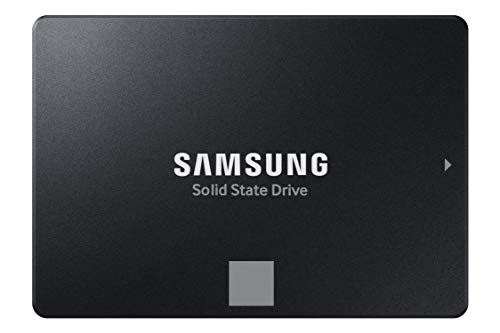
The Samsung 870 EVO 1TB is the SATA pick, and it is the drive that revives older laptops. It uses a 2.5-inch SATA III form factor, reads at up to 560 megabytes per second and writes at up to 530, which is the practical ceiling for SATA, and it is many times faster than the spinning hard disk it replaces. Boot times, application launches and file searches all change character with this upgrade, and the drive runs cool and silent with no moving parts. It is the pick for any laptop with a 2.5-inch bay: older business machines, budget laptops, and machines kept alive for a second life. The caveats are that SATA is far slower than NVMe, so it cannot match the drives above in raw speed, and it is a 1TB drive, so heavy media libraries will still need external storage. For its job, though, it is the most reliable upgrade in this guide.
4. Crucial P3 Plus 2TB
The Crucial P3 Plus 2TB is the value NVMe pick for laptops that need capacity more than peak speed. It reads at up to 5,000 megabytes per second over PCIe 4.0, comes in a 2TB M.2 2280 layout, and uses QLC flash to keep the cost down while delivering far more speed than any SATA drive. It is the pick for a laptop that stores large photo libraries, video projects or game collections, where 2TB of fast storage matters more than the last few hundred megabytes per second of benchmark speed. The drive is efficient and runs cool, which suits thin laptops. The caveats are that QLC flash writes more slowly once the cache fills during very large transfers, and its endurance rating is lower than the Samsung and WD drives above, so it suits everyday and media use better than heavy professional write workloads.
5. Crucial MX500 1TB
The Crucial MX500 1TB is the dependable SATA drive for everyday laptops. It uses a 2.5-inch SATA III form factor, reads at up to 560 megabytes per second, and pairs a DRAM cache with solid endurance and a five-year warranty. It is the pick for a family laptop, a school machine, or an older business laptop that needs a reliable, quiet upgrade without any fuss. Installation is a straight swap for the old hard disk, and cloning software is available from the maker to move the system across. The caveats are the same as any SATA drive: it is slower than NVMe, and 1TB is a modest capacity for a media-heavy machine, so pair it with external storage if the library is large. For reliability per unit of cost, it is hard to beat.
Comparison Table
| Drive | Interface | Form factor | Read speed | Best for |
|---|---|---|---|---|
| Samsung 990 PRO 2TB | PCIe 4.0 NVMe | M.2 2280, single-sided | Up to 7,450 MB/s | Best all-round laptop upgrade |
| WD Black SN850X 2TB | PCIe 4.0 NVMe | M.2 2280, single-sided | Up to 7,300 MB/s | Gaming laptops, large installs |
| Samsung 870 EVO 1TB | SATA III | 2.5-inch | Up to 560 MB/s | Reviving older laptops |
| Crucial P3 Plus 2TB | PCIe 4.0 NVMe | M.2 2280 | Up to 5,000 MB/s | Value capacity for big libraries |
| Crucial MX500 1TB | SATA III | 2.5-inch | Up to 560 MB/s | Dependable everyday SATA upgrade |
Which One Is Right for You?
Start with the slot. If your laptop takes M.2 NVMe, the Samsung 990 PRO 2TB is the default for a primary machine, with the best blend of speed, efficiency and endurance. If the laptop is mainly for games, the WD Black SN850X 2TB is tuned for exactly that workload, but buy the version without a heatsink. If capacity matters more than peak speed, the Crucial P3 Plus 2TB gives you the same 2TB for less, with the trade-off of slower large writes. If your laptop has only a 2.5-inch bay, the Samsung 870 EVO 1TB is the faster SATA pick and the Crucial MX500 1TB is the dependable alternative. And if you are choosing between a faster 1TB drive and a slower 2TB drive, take the 2TB drive: room you use every day beats speed you notice only in benchmarks.
Frequently Asked Questions
How do I know if my laptop takes NVMe or SATA?
Check the laptop’s specifications page for the storage section, or open the existing drive and read its label. An M.2 stick is a small circuit board, while a 2.5-inch drive is a flat rectangle about the size of a deck of cards. The maker’s support page usually lists the slot type and the maximum supported capacity, and that page is the most reliable source.
Will a Gen4 SSD work in a Gen3 laptop?
Yes. A Gen4 drive in a Gen3 slot runs at Gen3 speed, and a Gen5 drive in a Gen4 slot runs at Gen4 speed. The drive works normally, it simply cannot exceed the slot’s ceiling. That makes a good Gen4 drive a safe buy even for an older laptop, since it will run at the fastest speed the machine supports and can move to a newer machine later.
Do I need a heatsink on a laptop SSD?
No, and in most laptops a heatsink will not fit. Laptop M.2 slots have no clearance for the tall heatsinks sold for desktops and consoles, and the drives in this guide are chosen partly because their single-sided layouts run cool enough without one. Buy the version without a heatsink, and leave the slot cover in place for airflow.
Should I clone my old drive or install fresh?
Cloning copies everything, including settings and applications, and it is the fastest route to a working machine. A fresh install is cleaner and removes years of accumulated clutter, but it means reinstalling applications and restoring files from backup. If the old system is healthy, clone it; if it is slow or unstable for reasons beyond storage, install fresh.
Disclosure: As an Amazon Associate, we may earn from qualifying purchases.
Related guides
More from Amazon
Programs that pair well with the guide above. Offers and eligibility are set by Amazon and may change.
A free business account with business pricing and bulk-buying tools for work, shop or home office.
Create a business accountFree shipping on eligible items, Prime Video and more. Eligible new members can start with a free trial.
Start a Prime free trialAudiobooks and podcasts to listen to on the go. Eligible new members can start with a free trial.
Try Audible freeAd-free music streaming. Eligible new subscribers can start with a free trial.
Try Music Unlimited freeAs an Amazon Associate we earn from qualifying purchases.