
The Intel Core i7-13700K is still a strong gaming CPU. Its 8 performance cores and 8 efficiency cores provide enough headroom for high-refresh 1440p gaming, while its PCIe support and platform flexibility make it compatible with every current mainstream graphics card. The best GPU for it depends less on avoiding a bottleneck and more on your monitor, games, resolution, and budget.
For most owners, the sensible target is a fast 1440p card such as the Radeon RX 9070 XT or GeForce RTX 5070 Ti. Cheaper cards are perfectly reasonable for 1080p, while premium models make sense for 4K or demanding ray-traced games.
Our Top Picks
 ASUS PRIME Radeon RX 9070 XT 16GB GDDR6RX9070XT|OC|Black12.3 x 5.1 x 2 inches3.3 poundsCheck on Amazon
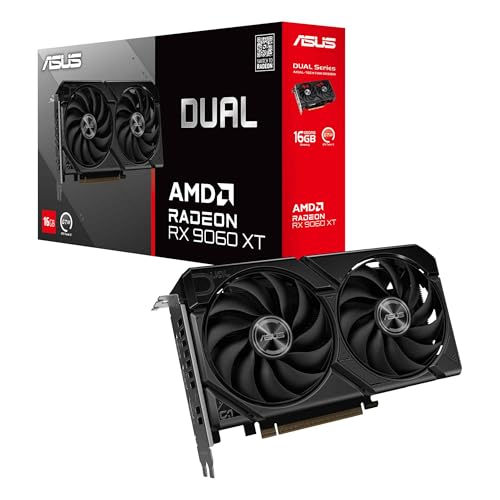 ASUS Dual Radeon RX 9060 XT 16GB GDDR6RX9060XT|16GB|Black8 x 4.7 x 1.9 inches1.3 poundsCheck on Amazon

Quick picks
| GPU class | Best for | What to expect with the 13700K | Main drawback |
|---|---|---|---|
| Radeon RX 9060 XT 16GB or similar | 1080p and affordable 1440p | High frame rates without overspending | Less ray-tracing performance than NVIDIA’s alternatives |
| GeForce RTX 5070 | Balanced 1440p gaming | Excellent feature support and strong CPU/GPU balance | 16GB-class alternatives may offer better long-term VRAM value |
| Radeon RX 9070 XT | High-refresh 1440p and entry-level 4K | A very good match for the 13700K at demanding settings | Ray tracing and upscaling may favor NVIDIA in some games |
| GeForce RTX 5070 Ti | Premium 1440p and practical 4K | Plenty of performance before the CPU becomes a concern | Price can approach higher-end cards |
| GeForce RTX 5080 | High-end 4K | Suitable for maximum settings and high refresh rates | Expensive, and not always fully utilized outside 4K |
Best overall: Radeon RX 9070 XT
The RX 9070 XT is one of the strongest pairings for a 13700K if your priority is traditional rasterized gaming. It has the performance to drive high-refresh 1440p monitors and can handle 4K well when you use sensible settings or upscaling. Its 16GB of VRAM is also useful for newer games with large texture pools.
This is the option I would target for a new 1440p gaming build when its price is close to competing 16GB cards. The 13700K has enough performance to keep it busy in most games, especially at 1440p and 4K. At 1080p, however, the CPU can become the limit in esports titles, so buying this card for a 240Hz monitor is only worthwhile if you actually play games that can use the extra frame rate.
The compromise is ray tracing. AMD’s current cards are much better at ray tracing than older Radeon generations, but NVIDIA remains the safer pick for heavy path tracing, CUDA-dependent software, and games where DLSS is substantially better implemented than the available alternatives.
Best NVIDIA choice: GeForce RTX 5070 Ti
The RTX 5070 Ti is a strong fit for buyers who want high-end 1440p performance, useful 4K capability, and NVIDIA’s wider software support. DLSS, strong ray-tracing performance, broad creator-app compatibility, and mature encoding features can justify its price even when a Radeon card offers similar conventional frame rates.
Choose it over the RX 9070 XT if you play a lot of ray-traced games, use applications that benefit from CUDA, stream regularly, or want NVIDIA’s feature set. It is also a more comfortable choice for 4K ray tracing, although demanding titles may still require upscaling and frame generation.
Do not buy it automatically. If you mainly play rasterized games and the Radeon card is substantially cheaper, the cheaper option is often the better purchase. The 13700K will not make the RX 9070 XT a poor match; the difference is primarily features, game support, and pricing.
Best value: Radeon RX 9060 XT 16GB
For a 1080p or moderate 1440p system, a 16GB RX 9060 XT-class card is enough for many buyers. It is a better match for a 144Hz 1080p monitor than a premium card, and it avoids paying for performance that your display may never show. Look for 16GB Radeon RX 9060 XT graphics cards when comparing current prices.
The 16GB version is preferable to a lower-memory model if the price difference is reasonable. Extra VRAM does not magically make a midrange GPU fast, but it gives you more flexibility with high-resolution textures and reduces the chance of stuttering in demanding games. The card is still not designed to make every new title run at 4K ultra settings.
This is also the sensible choice if you are reusing a 1080p display, have a limited power supply, or would rather save money for more storage. With the 13700K, some competitive games may become CPU-limited at very high frame rates, but that is not a problem for ordinary single-player gaming.
Best for 4K: GeForce RTX 5080
If you have a 4K, 144Hz monitor and want high settings with ray tracing, the RTX 5080 is the more appropriate class of GPU. The 13700K can support it well at 4K because the graphics card carries most of the workload at that resolution.
At 4K, the difference between processors is usually smaller than it is at 1080p. That means you do not need to replace the 13700K just because you are buying a powerful GPU. You may see a CPU limit in simulation games, large multiplayer matches, or very high-refresh competitive titles, but a platform upgrade is not a prerequisite for a high-end 4K card.
The danger is overspending. If your monitor is 1440p 60Hz or 1440p 144Hz, an RTX 5080 may deliver diminishing returns. A GeForce RTX 5070 Ti or RX 9070 XT may provide the experience you want while leaving money for a better monitor, larger SSD, or quieter cooling.
Compatibility and buying checks
The 13700K does not impose a special graphics-card limitation. Check the rest of the system instead:
- Power supply: verify the recommended wattage, available PCIe connectors, and whether the unit is a reputable modern model. A high-end card paired with an old or borderline PSU can cause crashes, black screens, or shutdowns.
- Case clearance: measure GPU length, thickness, and power-connector clearance. Some cards occupy three or more slots and can block expansion slots or restrict front radiator space.
- CPU cooling: the 13700K can run hot under heavy loads. A strong air cooler or capable liquid cooler helps maintain stable boost clocks, particularly if motherboard power limits are left unrestricted.
- Memory: 32GB of system RAM is a sensible target for a modern gaming PC. Insufficient RAM can look like a GPU problem through hitching and background-task slowdowns.
- Monitor resolution: buy for the display you use now, not an imagined future upgrade. A 4K card is wasted on a 1080p 75Hz monitor unless you plan to replace that monitor soon.
Which GPU should you buy?
Buy the RX 9060 XT 16GB if you want good 1080p value or affordable 1440p gaming. Choose the RX 9070 XT if you want the strongest conventional performance per dollar in the upper-midrange and do not depend heavily on ray tracing. Pick the RTX 5070 Ti when NVIDIA’s ray tracing, DLSS, CUDA, or encoding features matter to you. Move to the RTX 5080 only when a 4K high-refresh display justifies the cost.
Before ordering, compare the actual prices of several card models. Factory overclocks rarely justify a large premium, and an oversized cooler does not improve frame rates much if the cheaper version already runs quietly. A two- or three-fan card from a reliable manufacturer with a suitable warranty is usually the better buy than the most expensive model on the shelf.
FAQ
Will the i7-13700K bottleneck an RTX 5080?
Usually not at 4K, where the GPU does most of the work. A CPU limit is more likely at 1080p, very high refresh rates, or in simulation and competitive games that heavily stress the processor.
Is a 16GB graphics card enough for 1440p?
Yes, 16GB is a comfortable target for current 1440p gaming. It does not guarantee a high frame rate, but it provides useful headroom for large textures and newer games.
Is AMD or NVIDIA better with the 13700K?
Both pair well with the processor. AMD often offers strong rasterized performance and VRAM value, while NVIDIA is usually preferable for ray tracing, DLSS, CUDA applications, and some streaming or creator workloads.
Should I upgrade the CPU before buying a faster GPU?
Usually no. The 13700K remains capable for current gaming. Upgrade the GPU first unless your main games are CPU-limited at your target frame rate or you are moving to an unusually high-refresh 1080p setup.



