
Our Top Picks
 GIGABYTE Radeon RX 9070 XT Gaming OC 16GRADEON9070XT11.34 x 5.2 x 2.2 Inches3.9 PoundsCheck on Amazon
Top 3 picks at a glance
What “1-slot” means
A one-slot graphics card is thin enough to occupy one expansion slot at the rear of a PC case. That can free room for capture cards, network adapters, or other GPUs, and it may be necessary in a compact workstation or server. The catch: a narrow card has less space for its cooler, so it often runs hotter, louder, or slower than a thicker card with the same GPU.
There isn’t a single best one-slot card for everyone. The right choice depends on whether you need modern gaming performance, low-profile dimensions, professional software support, or simply a display output. Check the card’s actual measurements and cooler before buying: “single-slot” describes thickness, not necessarily height or length.
As an Amazon Associate we earn from qualifying purchases at no extra cost to you.


Best for gaming: choose carefully
One-slot cards are a poor fit for a new high-performance gaming build. Mainstream gaming GPUs usually use two or more slots because they need substantial heatsinks and fans. A thin card may technically run a game, but it can be a poor value if it costs more, gets loud, or reduces clocks to control temperature.
If you need a compact gaming card, look for a genuinely single-slot design from a reputable board partner and compare independent thermal and noise tests for the exact model. Don’t assume a low-profile card is also one-slot; many are two slots thick. If your case has room, a conventional two-slot GPU will usually give you better performance per dollar and less fan noise. Browse single-slot graphics cards, then verify the manufacturer’s specifications rather than relying on the search listing title.
Best for workstations and multi-card PCs
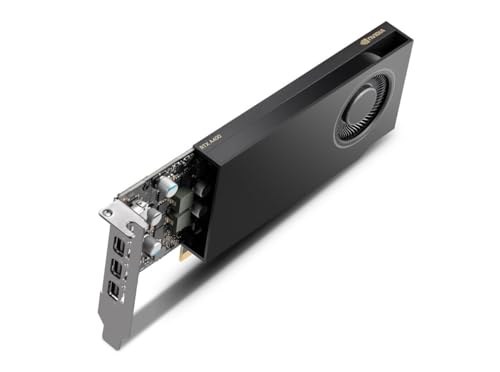
For a workstation, a one-slot card can make sense when you need a modest GPU for accelerated applications, multiple displays, or a system with crowded expansion slots. Professional and entry-level workstation cards are often designed for sustained operation in compact systems, but that doesn’t make every one-slot model fast. Check the software you use for supported features, driver requirements, and certification; a gaming card may be faster for some workloads, while a workstation card may be the safer choice for a validated professional setup.
Before purchasing, confirm the card’s power connector and board power against your power supply, and make sure the case provides enough airflow. In a multi-GPU workstation, adjacent cards can still starve each other of air even if each occupies one slot. Search single-slot workstation graphics cards by the GPU family or application you need, then check the exact card’s compatibility list.
Which type should you buy?
| Option | Best for | Main trade-off | Check before buying |
|---|---|---|---|
| One-slot gaming card | Gaming PCs with a hard slot-width limit | More heat and fan noise; limited choice and value | Game benchmarks, temperatures, noise, and power |
| One-slot workstation card | Compact professional systems and crowded slots | May cost more or deliver less gaming performance | Application support, driver requirements, and certification |
| Low-profile card | Short or slim cases | Low-profile does not mean one-slot | Height, bracket type, length, and cooler thickness |
| Older or used one-slot card | Basic display output or a tight budget | Older features, warranty risk, and uncertain condition | Exact outputs, operating-system support, and return policy |
Fit, cooling, and power: the common failure points
Measure the space in your case, including the area around the PCIe slot. Confirm the card’s thickness, length, and height, and check whether it includes the bracket your case needs. Some small PCs require a low-profile bracket, sold separately on certain cards. Also confirm that the motherboard slot is accessible and that other components won’t block the cooler.
Cooling is the biggest compromise. A small fan may have to spin quickly under load, producing more noise than a larger cooler. In a poorly ventilated case, the GPU can heat-soak, throttle its clocks, or ramp up its fan repeatedly. Keep an intake or exhaust path clear, and favor independent reviews that test the card in sustained workloads—not just short benchmarks. If the case is extremely tight or has no airflow, a passive card may seem attractive, but it can overheat without directed case airflow.
Check whether the card draws power from the PCIe slot alone or needs a separate connector. Slot-powered models are convenient for small systems, but they tend to be limited in performance. Don’t rely on a power-supply wattage estimate alone: check the GPU maker’s guidance, available connectors, and your system’s other components.
When a cheaper card is enough
If you only need a desktop, video playback, or extra monitor outputs, you may not need a powerful GPU. First check whether your processor has integrated graphics and enough display outputs for your setup. If it does, that may be the simplest and cheapest solution. For a PC without integrated graphics, an inexpensive card can handle basic display duties, but verify that it supports your monitor’s resolution, refresh rate, and connector type.
For gaming, avoid buying an old card just because it fits. Compare its performance in the games and resolution you use, and factor in used-card condition, power draw, and whether the seller accepts returns. A cheap card that can’t meet your frame-rate target is not a bargain; equally, paying extra for a workstation GPU makes little sense if all you need is a couple of displays.
FAQ
Are one-slot graphics cards good for gaming?
They can work for gaming, but options are limited and cooling is often the compromise. If your case can fit a thicker card, compare that option before paying a premium for a thin design.
Is a low-profile GPU the same as a one-slot GPU?
No. Low-profile describes the card’s height; one-slot describes its thickness. A card can be low-profile but still occupy two slots.
Can a one-slot GPU overheat?
Yes, particularly in a cramped case with little airflow or during sustained workloads. Check temperature and noise reviews for the exact card and provide clear airflow around it.
Should I buy a used one-slot graphics card?
It can be reasonable for basic display output if the price is low and you can verify its outputs, driver support, and condition. For a workload where downtime matters, a new card with a clear warranty is the safer choice.



