As an Amazon Associate we earn from qualifying purchases.
Choosing a graphics card is less about chasing the fastest chip on a chart and more about matching a card to the monitor in front of you and the games you play. A card that is overbuilt for a 1080p display spends most of its time waiting, while a card that is too weak for a 4K display forces you to turn settings down to keep motion smooth. The right choice sits in the middle: enough headroom for the resolution and refresh rate you own, enough memory for the textures you want, and a power draw your supply and case can handle without drama.
This guide is for first-time builders, upgraders replacing an older card, and anyone moving to a sharper monitor. It walks through the four decisions that matter most — budget share, resolution, video memory, and physical fit — then explains the features that change how games look and feel, so you can spend where it shows up on screen and save where it does not.
How to Choose
Start With Your Total Build Budget
Decide the graphics card share before you fall for a single model. In a gaming-first build, the GPU is usually the largest single share of the parts list, because it does most of the work that sets frame rate and image quality. A useful starting point is to reserve roughly a third to a little under half of the total parts budget for the card, then adjust for the rest of the system. If the processor, memory, storage, case, and power supply are already fixed, the remaining share is your real ceiling. Compare cards inside it, rather than stretching it for every step up the range. Each step up usually buys a smaller gain than the one before it.
Match the Card to Your Resolution
Resolution sets the workload, so it should set the card. At 1080p, the pixel count is modest, and a mid-range card can hold high settings in most games while leaving room for a high refresh rate. At 1440p, the screen carries about 78 percent more pixels than 1080p, so the same game needs noticeably more graphics power to hold the same frame rate and settings. At 4K, the pixel count roughly doubles again from 1440p, and only stronger cards keep demanding games smooth without heavy compromises. Check your monitor first: its native resolution and refresh rate, and whether you plan to upgrade it soon.
Treat VRAM as a Long-Term Decision
Video memory, or VRAM, holds the textures, frame buffers, and other data the GPU needs while it draws each frame. When VRAM runs short, the card has to fetch data from system memory, and that detour shows up as stutter, slow texture loading, or a forced drop in texture quality. The right amount depends on resolution and settings: 1080p play at moderate settings is comfortable with less memory, while 1440p and especially 4K with high-resolution texture packs ask for more. Memory also matters for how long a card stays useful, because games tend to use more of it over time.
Check Power, Size, and Cooling Before You Decide
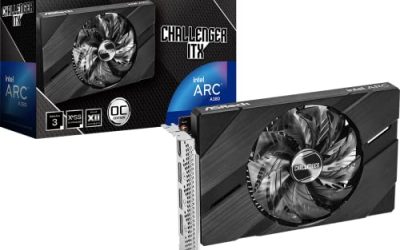
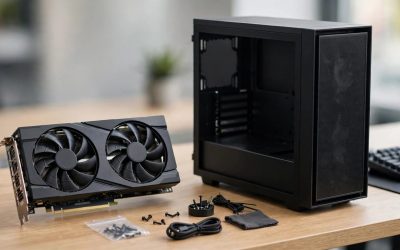
A graphics card is a physical part, not just a line on a specification sheet, and it has to fit the system around it. Start with the power supply: check its total wattage, its age, and the power connectors it provides. A card that needs two eight-pin connectors cannot run properly on a supply that only has one. Next, measure the case. Note the maximum card length it supports, the number of expansion slots the card occupies, and the clearance under it for airflow. A long, thick card can block drive bays or press against a front radiator. A card with a larger heatsink usually runs quieter, while a compact single-fan design can run louder in a small case.
The Key Differences
What VRAM Actually Changes
VRAM changes what a game can keep ready at once, not how fast the graphics processor can work through it. High-resolution textures, larger frame buffers, and complex scenes all take up space, and when that space is available the card can draw the scene without pausing to fetch data. When it is not, the symptoms are specific: textures that pop in late, brief hitches when you turn quickly, and settings that look fine in a still image but fall apart in motion. A slow card gives a low but steady frame rate; a memory-starved card gives an uneven one.
Ray Tracing and Upscaling Are Not the Same Decision
Ray tracing and upscaling are often sold together, but they pull in opposite directions. Ray tracing adds more realistic lighting, reflections, and shadows by tracing light paths through a scene, and it is one of the most demanding effects a card can run. Upscaling does the reverse: it renders the game at a lower internal resolution and reconstructs a sharper image, recovering frame rate that ray tracing or a high native resolution would otherwise cost. The practical question is not whether a card supports these features on paper, but how well it handles them together at your resolution. If you rarely notice lighting effects in motion, that budget is better spent on raw frame rate or more VRAM.
AMD, NVIDIA, and Intel Differ in Features, Not Just Speed
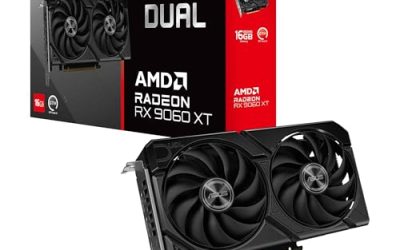
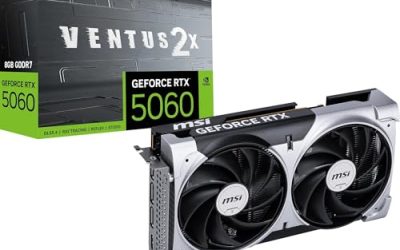
The three GPU makers compete on more than raw speed, and their differences show up in the software around the card. NVIDIA is known for its ray tracing performance, its DLSS upscaling, its encoder for streaming and recording, and its support in creative and machine-learning tools. AMD is known for strong raster performance for the class, its FSR upscaling that works across a wider range of hardware, and its large memory amounts on some cards. Intel, the newest of the three in discrete graphics, is known for competitive value in the entry and mid-range, its XeSS upscaling, and its media engine. Compare the features you will use, and treat brand loyalty as a tiebreaker, not a starting point.
When the CPU Becomes the Limit
A graphics card can only draw as fast as the rest of the system feeds it, and the processor is usually the next limit after the card itself. At 1080p, especially with a high-refresh monitor, the processor works harder: it prepares more frames per second, handles game logic, and manages background tasks. A weak or older processor can hold back a strong card here, leaving the GPU partly idle while frame rates stay flat. At 1440p and 4K, the graphics card does more of the work per frame, so the processor matters less — the same pairing that is processor-limited at 1080p may be perfectly balanced at 1440p.
Which One Fits Your Situation
Competitive Play at 1080p
If your main games are shooters or competitive titles, aim for a card that holds high frame rates at 1080p without needing maximum settings. Turn down the heaviest effects first — shadows, reflections, and post-processing — and keep the settings that help you see clearly. A mid-range card paired with a high-refresh monitor is a better fit here than a top-tier card on a standard 60 Hz display, because the extra frames only help if the monitor can show them.
Single-Player Games at 1440p
If you spend most of your time in story-driven or open-world games at 1440p, favor a card with enough graphics power and VRAM to hold high settings without constant adjustment. This is where memory margin and cooling matter: long sessions at high settings keep the card under sustained load, and a card that stays cool and quiet will feel better than one that is faster on paper but loud in practice. Pair it with a monitor that matches its strengths.
Living-Room Play at 4K
If you play on a large 4K television or monitor, choose a card built for that pixel count and expect upscaling to be part of the plan. Native 4K at maximum settings is the heaviest common workload, so even strong cards benefit from a quality upscaling mode in demanding games. Check the card’s memory and its behavior in the games you play, and make sure the case and power supply in the living-room system can handle it.
A First Build With Room to Grow
If this is your first build and you expect to upgrade the monitor later, choose a card that is comfortable at your current resolution with headroom for the next step. A card that is only just enough at 1080p will feel tight at 1440p, while a card with a little extra power and memory can carry you through a monitor upgrade without a second purchase. Spend the saved effort on a power supply and a case with room to grow.
Common Mistakes
- Buying the fastest card first and pairing it with a low-resolution monitor, so most of its power never shows up on screen.
- Ignoring VRAM and then turning texture quality down in every new game because the card runs out of memory.
- Forgetting to check power connectors, card length, and slot width, and discovering the card does not fit after it arrives.
- Choosing a card for ray tracing alone, without checking how it performs with ray tracing and upscaling together at your resolution.
- Upgrading the graphics card while a much older processor holds it back at 1080p, then wondering why frame rates barely move.
Frequently Asked Questions
How much VRAM do I need for gaming in 2026?
It depends on resolution and settings. At 1080p with moderate settings, a smaller amount is usually enough, while 1440p and 4K with high-resolution textures ask for more. Favor a comfortable margin if you keep cards for several years, because games tend to use more memory over time. Treat VRAM as one part of the decision, alongside the graphics processor itself.
Is a more powerful GPU always better for 1080p?
No. At 1080p the processor and the monitor often become the limit before the graphics card does, especially in competitive games at high frame rates. A stronger card can still help with maximum settings or future games, but the gain is smaller than at higher resolutions. Match the card to the monitor you own, and put the difference toward a higher-refresh display if that is what you are missing.
Do I need a new power supply for a new GPU?
Not always, but check before you buy. Compare the card’s power needs with your supply’s wattage, its age, and the connectors it provides. A supply that is old, low on wattage, or short on the right connectors should be replaced with the card. A quality supply with enough headroom and the right connectors can usually carry a new card without trouble.
Should I choose AMD, NVIDIA, or Intel?
Choose by the features and performance you will actually use at your resolution, not by the brand name. NVIDIA is often chosen for ray tracing, upscaling, and streaming; AMD for strong raster performance and memory in its class; Intel for value in the entry and mid-range. Compare cards in the same class, check driver support for the games you play, and let the total fit decide.
Related guides
More from Amazon
Programs that pair well with the guide above. Offers and eligibility are set by Amazon and may change.
A free business account with business pricing and bulk-buying tools for work, shop or home office.
Create a business accountFree shipping on eligible items, Prime Video and more. Eligible new members can start with a free trial.
Start a Prime free trialAudiobooks and podcasts to listen to on the go. Eligible new members can start with a free trial.
Try Audible freeAd-free music streaming. Eligible new subscribers can start with a free trial.
Try Music Unlimited freeAs an Amazon Associate we earn from qualifying purchases.