As an Amazon Associate we earn from qualifying purchases.
A 2TB external hard drive sounds like a simple fix for a DVR that is always full, but the purchase decision is really about compatibility, not capacity. A drive that works perfectly on a laptop can be ignored, rejected or reformatted by a DVR, and a recorder that writes around the clock treats a drive very differently from a computer that only spins it up for occasional file transfers. Getting the choice right means checking what your recorder accepts before you think about brands or transfer speeds.
This guide is written for cable and satellite DVR owners who need more room for series recordings, cord-cutters using an over-the-air DVR, households running a security camera recorder, and anyone whose built-in DVR drive is full or failing. It explains how DVR recording works, which limits matter most at 2TB, and how to set up a drive so it records reliably instead of dropping shows.
What Makes a Drive Work Well With a DVR
A DVR is a recording appliance first and a computer second. Most recorders take the incoming broadcast or camera feed, compress it and write it to disk in a continuous stream, often while also keeping a live TV buffer that rewrites itself every hour or two. That means the drive is writing almost all the time the recorder is on, and in many homes the recorder is never switched off. A portable drive built for carrying files between computers can do this job, but it was designed for bursts of activity followed by long rests, not for months of steady writing in a warm cabinet next to a set-top box.
The second difference is formatting. A drive bought off the shelf is usually formatted for Windows or Mac, and many DVRs cannot read that layout at all. Some recorders reformat any attached drive automatically, wiping whatever is on it, while others only accept drives formatted in a particular way or refuse drives above a size limit. A few DVRs, particularly older cable boxes, cap external storage at 2TB, which is one reason that capacity is such a common sweet spot. The practical lesson is to treat the DVR manual as the first source of truth: it lists the maximum capacity, the supported connection and whether the USB port is even meant for storage, since on some boxes it is a service port only.
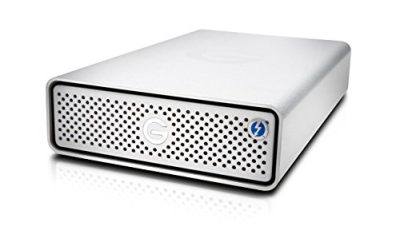
Power is the third factor, and the one that causes the most silent failures. A compact 2TB portable drive draws its power from the USB port, which is convenient until the DVR port cannot supply enough current at spin-up, when the drive needs its largest draw. The result can be a drive that clicks, disconnects mid-recording or vanishes after a reboot. Desktop-style external drives with their own mains adapter avoid that problem entirely, at the cost of an extra plug and a larger box on the shelf. Knowing which type your recorder expects, and how much current its USB port provides, saves more failed recordings than any speed rating ever will.
How to Choose
DVR Compatibility and Formatting Limits
Start with the recorder, not the drive. Check the manual or the manufacturer’s support pages for three facts: the maximum external capacity, whether the USB port supports storage at all, and what happens when a new drive is connected. Some DVRs format the drive themselves and erase everything on it, some accept only drives they have formatted, and a few reject drives over a set size. If your recorder caps storage at 2TB, a larger drive may be recognised at reduced capacity or not at all. Also confirm whether the DVR records to the external drive directly or only archives finished recordings to it, because that decides how heavily the drive is used.
USB Power and the Always-On Problem
A portable 2TB drive is attractive because it needs no mains adapter, but a DVR USB port is not a computer USB port. Some recorder ports deliver less current than a laptop port, and a spinning drive draws its most power in the first seconds after it wakes. If the port cannot keep up, recordings can stop partway through or the drive can drop off entirely. Look for a drive with low spin-up demand, use the short cable supplied with the drive, and avoid chaining it through an unpowered hub. If your recorder offers a choice, a mains-powered desktop drive removes the power question altogether and usually runs cooler during long writes.
Capacity, Recording Hours and the 2TB Ceiling
Two terabytes is a practical size for DVR use because it holds a large library without tripping the capacity limits that many recorders still enforce. As a rough guide, a 2TB drive typically stores several hundred hours of high-definition broadcasts, with the exact figure depending on the channel, the compression the broadcaster uses and whether the recording is standard or high definition. Sports and movie channels tend to use more space per hour than talk shows or news. Before buying, check how full your current drive gets in a normal month, and remember that a DVR also reserves space for its live buffer, so the usable recording space is always a little less than the headline capacity.
Build, Noise and Where the Drive Lives
A DVR drive spends its life in a living room, so the physical details matter more than they would for a drive kept in a drawer. A compact portable drive tucks behind a set-top box and stays out of sight, while a larger desktop drive needs a mains socket and shelf space but usually has better cooling for long recording sessions. A drive that clicks or hums loudly will be noticeable during quiet scenes, and one with no ventilation slots can run hot inside a closed cabinet. Place the drive on a flat, stable surface with air around it, away from the recorder’s heat vent, and use a cable long enough that it is not pulling at the port.
Which One Fits Your Situation
Adding Storage to a Cable or Satellite DVR
Start by confirming your provider allows external storage and which port to use, because some boxes only accept a drive on a specific USB socket. Expect the recorder to format the drive itself, so buy a drive you can dedicate to the DVR and nothing else. A mains-powered desktop drive is the safer pick here, since these boxes often stay on around the clock and their USB ports are not built to power a portable drive reliably.
Recording Over-the-Air TV
Over-the-air DVRs are generally the most flexible, and many accept ordinary portable drives without complaint. A compact USB-powered 2TB drive is usually enough, since these recorders write one or two channels at a time and switch the drive off between recordings. Check whether your DVR needs the drive formatted in advance or does it for you, and keep the drive close to the recorder so the supplied cable reaches without an extension.
Running a Security Camera DVR
Security recorders write continuously, often from several cameras at once, and that workload suits a drive built for steady writing rather than a standard portable model. If your recorder takes an internal drive, a surveillance-rated internal drive is the usual choice; if it takes a USB drive, pick a mains-powered external model and confirm the recorder’s maximum supported capacity first. Keep a spare drive ready, because a camera system that stops recording leaves a gap no later fix can fill.
Replacing a Full or Failing DVR Drive
If recordings are disappearing, playback stutters or the recorder reports disk errors, the drive itself may be wearing out rather than simply full. Check whether your DVR allows a user-replaceable drive at all, since many sealed boxes do not, and note the exact size and connection of the original before buying. Move any recordings you want to keep first if the recorder offers an export or archive option, because swapping the drive usually means starting with an empty library.
Setting Up a 2TB Drive on Your DVR
Before connecting anything, copy any files off the drive you plan to use, because most DVRs erase an attached drive when they prepare it. Check the recorder manual for the right USB port and any capacity limit, then connect the drive with its supplied cable and switch the recorder on before the drive if the manual suggests that order. When the recorder asks whether to format the drive, confirm it, then wait for the process to finish without switching anything off; interrupting a format is one of the easiest ways to end up with a drive the recorder refuses to see.
Once the drive is recognised, record a short test programme and play it back before you trust the setup with anything important. Check that the recording survives a recorder restart, since a drive that disappears after a reboot usually has a power problem rather than a formatting one. If the recorder lets you choose where new recordings go, point it at the external drive and confirm that scheduled series recordings land there. Leave the drive connected and powered: repeatedly unplugging a DVR drive can corrupt the recording index, and a recorder that cannot find its drive may fall back to internal storage without warning.
Finally, think about what happens when the drive fills up. Most DVRs delete the oldest watched recordings first, but the exact rule varies, so check the storage settings and protect any recordings you want to keep. If your recorder supports archiving to a second drive, that is a useful way to keep a library of films or series without tying up the main recording drive. And keep the drive’s own paperwork: if it fails inside its warranty period, the maker will usually ask for the serial number and proof of purchase.
Common Mistakes
- Buying a drive before checking the DVR manual — the recorder may cap external storage below 2TB, reserve its USB port for service only, or require a mains-powered drive, and any of those turns a good drive into a useless one.
- Using a drive that already holds files you care about — most DVRs reformat an attached drive and erase everything on it, so copy your files elsewhere before the first connection.
- Running the drive through an unpowered USB hub or a long extension cable — the extra resistance can starve the drive at spin-up, causing dropped recordings and disconnects that look like drive failure.
- Hiding the drive inside a closed cabinet with no airflow — a drive writing around the clock builds up heat, and sustained heat shortens its life and can cause errors during long recordings.
- Assuming any USB port will do — on some recorders only one port supports storage, and plugging the drive into the wrong one leaves the DVR blind to it while the drive itself looks fine.
Frequently Asked Questions
Can any 2TB external hard drive work with a DVR?
No. A DVR accepts only drives that match its rules on capacity, connection and formatting, and many recorders reformat an attached drive to their own file system. A drive that works on a computer can still be rejected if it is over the recorder’s size limit, draws more power than the USB port supplies, or uses a layout the recorder cannot read. Always check the recorder manual first.
Does a DVR need a USB 3.0 drive, or is USB 2.0 enough?
For recording, USB 2.0 is usually fast enough, since a single high-definition stream needs only a small fraction of its bandwidth. A USB 3.0 drive is still the better buy because it is widely available, backward compatible with older ports and faster when you move recordings to a computer. The connection version matters far less than whether the recorder recognises the drive and can power it.
How many hours of TV can a 2TB DVR drive hold?
A 2TB drive typically holds several hundred hours of high-definition television, but the exact number depends on the channel and the compression used. Standard-definition recordings take far less space per hour, while sports and film channels use more. Your recorder may also reserve part of the drive for its live TV buffer, so treat any hours figure as a rough guide and watch the storage meter during the first month.
Will the DVR erase my drive when I plug it in?
Often, yes. Many DVRs format a newly attached drive before they will use it, and formatting erases everything on the drive. A few recorders ask first, and a few only read drives they formatted themselves, but you should assume the contents will be lost. Copy anything you want to keep to another drive before connecting it, and dedicate the DVR drive to recording alone.
Related guides
More from Amazon
Programs that pair well with the guide above. Offers and eligibility are set by Amazon and may change.
A free business account with business pricing and bulk-buying tools for work, shop or home office.
Create a business accountFree shipping on eligible items, Prime Video and more. Eligible new members can start with a free trial.
Start a Prime free trialAudiobooks and podcasts to listen to on the go. Eligible new members can start with a free trial.
Try Audible freeAd-free music streaming. Eligible new subscribers can start with a free trial.
Try Music Unlimited freeAs an Amazon Associate we earn from qualifying purchases.