An external hard drive can hold years of photos, documents, music, and work files in one small box, and that convenience carries a clear danger: one drop, one theft, or one dead drive can erase the only copy of files that matter to you. The best online backup for external hard drives keeps a second copy in a remote location, so a local loss does not become a total loss.
Households with several computers need a license that covers more than one machine, single-computer owners need a simple plan that protects one drive well, and photo collectors need cloud room for large libraries. The five picks below were chosen from names and specs on Amazon pages, with Acronis Cyber Protect Home Office 2023 tiers for different device counts and cloud sizes, plus AOMEI Backupper PRO for a lifetime license on two computers.
Quick Picks
As an Amazon Associate we earn from qualifying purchases
| Product | Best for | Key spec from title |
|---|---|---|
| Acronis Cyber Protect Home Office 2023 Essentials 3 PC/Mac | Three computers in one household | 3 PC/Mac, 1 Year, pure Backup |
| Acronis Cyber Protect Home Office 2023 Advanced 500 GB Cloud-Space 1 PC/Mac | One computer with a large cloud copy | 500 GB Cloud-Space, 1 PC/Mac, 1 Year |
| Acronis Cyber Protect Home Office 2023 Security 50 GB Cloud-Space 1 PC/Mac | One computer with security plus cloud backup | 50 GB Cloud-Space, 1 PC/Mac, 1 Year |
| Acronis Cyber Protect Home Office 2023 Essentials 5 PC/Mac | Five computers in one household | 5 PC/Mac, 1 Year, pure Backup |
| AOMEI Backupper PRO | Two computers with a lifetime license | 2 PCs, lifetime license, Win 11 and 10 |
How to Choose
External drive coverage
Check that the software you pick can include an external hard drive in its backup set, not only files stored on the main internal drive of your computer. Some plans focus on documents and photos on one machine, while others let you add a plugged-in drive and keep its contents in the same backup plan. Look for clear wording on the Amazon page about external drive support, and confirm that the drive you use most often can stay connected during scheduled backups. If your drive is unplugged often, pick software that resumes cleanly when the drive returns, so a missed session does not leave new files unprotected for weeks.
Cloud copy and local image
Decide whether you want a cloud copy, a local image, or both, because each one solves a different problem. A cloud copy protects you when fire, theft, or flood takes the computer and the drive beside it, while a local image lets you restore a whole machine quickly to the same hardware or to new hardware. The Acronis tiers in this guide combine full image backup with cloud room in different amounts, so match the cloud size to the files you cannot replace. Photo and video libraries fill cloud room quickly, while documents and spreadsheets need far less room.
Device count and license term
Count every computer you want to protect before you pick a license, and include laptops that travel with family members as well as the desktop at home. A one-computer license suits a single owner with one machine and one external drive, while a three-computer or five-computer license suits a household that shares files across several machines. Check the license term too, because most of the Acronis picks here run for one year, while the AOMEI pick uses a lifetime license for two computers. A longer term can suit a stable household, while a one-year term can suit someone who wants to reassess each year.
Restore ease and scheduling
A backup only earns its keep on the day you need a file back, so weigh restore ease as heavily as backup speed or storage size. Look for quick recoveries that restore an entire system to the same hardware or to new hardware in just a few clicks, and for file-level restore that lets you pull back one folder without restoring everything. Scheduling matters too: automatic backups that run on a set routine protect files you add between sessions, while manual-only backup depends on memory and habit. Pick a routine you can keep, and confirm that the software can run it without constant attention.
The 5 Best Options
Acronis Cyber Protect Home Office 2023 Essentials 3 PC/Mac
This Essentials tier suits a household that wants solid image backup for three computers without paying for cloud room it may not use. It covers three PCs or Macs for one year, and it backs up files, photos, applications, and software settings to a local device through a user-friendly dashboard. Full image backup means a dead drive does not force a fresh install of every application, and quick recoveries restore the entire system to the same hardware or to new hardware in just a few clicks.
Specs
- Full image backup to a local device through a user-friendly dashboard
- Quick recoveries: restore your entire system to the same or new hardware in just a few clicks
- Protection from cyberthreats: safeguard your backup and device files against ransomware and cryptomining attacks
- Adapted for the work-from-home environment: protection for videoconference app (Zoom, Webex, Microsoft Teams) and vulnerability assessments
- 3 PC/Mac, 1 Year, Windows, Mac, Android, iOS, pure Backup
- Activation Code by email
Best for: A household with three computers that wants image backup to a local device.
Watch out for: This Essentials tier includes no cloud storage, so you need a local destination for every backup.
Acronis Cyber Protect Home Office 2023 Advanced 500 GB Cloud-Space 1 PC/Mac
This Advanced tier suits a single-computer owner who wants both a local image and a generous cloud copy, with 500 GB of cloud storage for an offsite copy of important data. It backs up a full machine or selected files to a local device or to Acronis Cloud, and it adds anti-malware protection alongside backup, so one tool covers imaging, cloud backup, and device protection. Quick recoveries restore the entire system to the same hardware or to new hardware in just a few clicks, which matters when a drive fails without warning.
Specs
- 500 GB of cloud storage: always have an off-site copy of your data available for recovery
- Full image backup: never lose precious files, photos, expensive applications, or software settings by backing them up to a local device through a user-friendly dashboard
- Quick recoveries: restore your entire system to the same or new hardware in just a few clicks
- Protection from cyberthreats: safeguard your backup and device files against ransomware and cryptomining attacks
- 1 PC/Mac, 1 Year, Windows, Mac, Android, iOS, Internet Security with Backup
- Activation Code by email
Best for: One computer owner who wants a 500 GB cloud copy plus a local image.
Watch out for: The license covers one computer only, so a second machine needs its own license.
Acronis Cyber Protect Home Office 2023 Security 50 GB Cloud-Space 1 PC/Mac
This Security tier suits a single-computer owner who wants cloud backup and security in one package, with 50 GB of cloud storage for the files that matter most. It combines full image backup with real-time cyberthreat protection, rapid system recovery, and cloud storage for an offsite copy, so documents and photos have a second home away from the desk. The 50 GB cloud allowance fits documents, photos, and key folders well, while larger video libraries may need a bigger tier or a local destination as well.
Specs
- 50 GB secure cloud backup: keep your data safe off-site with cloud storage
- Full image backup: never lose precious files, photos, expensive applications, or software settings by backing them up to a local device through a user-friendly dashboard
- Quick recoveries: restore your entire system to the same or new hardware in just a few clicks
- Protection from cyberthreats: safeguard your backup and device files against ransomware and cryptomining attacks
- 1 PC/Mac, 1 Year, Windows, Mac, Android, iOS, Internet Security with Backup
- Activation Code by email
Best for: One computer owner who wants 50 GB of cloud backup with security built in.
Watch out for: The 50 GB cloud allowance can fill quickly with video, so check your library size first.
Acronis Cyber Protect Home Office 2023 Essentials 5 PC/Mac
This Essentials tier suits a larger household that wants image backup for five computers under one license, without paying for cloud room on every machine. It covers five PCs or Macs for one year, and it backs up files, photos, applications, and software settings to a local device through a user-friendly dashboard. Full image backup protects each machine as a whole, and quick recoveries restore an entire system to the same hardware or to new hardware in just a few clicks, which keeps a multi-computer household moving after a drive failure.
Specs
- Full image backup to a local device through a user-friendly dashboard
- Quick recoveries: restore your entire system to the same or new hardware in just a few clicks
- Protection from cyberthreats: safeguard your backup and device files against ransomware and cryptomining attacks
- Adapted for the work-from-home environment: protection for videoconference app (Zoom, Webex, Microsoft Teams) and vulnerability assessments
- 5 PC/Mac, 1 Year, Windows, Mac, Android, iOS, pure Backup
- Activation Code by email
Best for: A household with five computers that wants image backup to a local device.
Watch out for: This Essentials tier includes no cloud storage, so you need a local destination for every backup.
AOMEI Backupper PRO
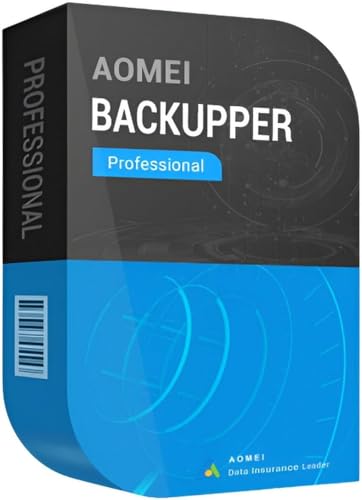
This AOMEI pick suits a two-computer household that wants a lifetime license instead of a yearly renewal, with backup software for Windows 11 and Windows 10. It covers two PCs, and it focuses on recovery in case of malware infection, hard drive failure, or Windows crashes, which are the three moments when a backup proves its worth. A lifetime license can suit a stable pair of computers that will stay in use for years, and it removes the annual renewal decision from your routine.
Specs
- Backup software, recovery in case of malware infection, hard drive failure, or Windows crashes
- For 2 PCs, lifetime license for Win 11 and 10
- Brand Markt + Technik, Manufacturer Markt+Technik, Product Group Software, Category Software
Best for: Two Windows computers that want a lifetime license without a yearly renewal.
Watch out for: This pick is for Windows only, so Mac owners should pick an Acronis tier instead.
Which One Fits Your Situation
One computer and one external drive
If you own one computer and one external drive, pick a one-computer tier that matches your cloud needs. The Advanced 500 GB tier gives a large cloud copy plus a local image, while the Security 50 GB tier gives a smaller cloud copy with security built in. Keep the drive connected during scheduled backups, and check that new photos and documents appear in the backup set. A simple routine beats a complex one you abandon.
Several computers in one household
If several computers share one household, pick a license that covers every machine at once. The Essentials 3 PC/Mac tier suits a small household, while the Essentials 5 PC/Mac tier suits a larger one, and both keep image backup on a local device for each machine. The AOMEI pick covers two Windows computers with a lifetime license. Count laptops as well as desktops, so no machine sits outside the plan.
Photos and documents that must live offsite
If your photos and documents must survive fire, theft, or flood at home, a cloud copy matters more than a local image alone. The Advanced 500 GB tier holds a large library offsite, while the Security 50 GB tier holds key folders and documents. Choose the cloud size that fits the files you cannot replace, and keep a local copy as well for quick restores. An offsite copy is the part that saves you when the whole desk is gone.
After a drive failure on a main computer
If your main computer already suffered a drive failure, or you worry that one is coming, pick software built for full image backup and quick recoveries. The Acronis tiers restore an entire system to the same hardware or to new hardware in just a few clicks, so you do not rebuild every application by hand. The AOMEI pick focuses on recovery after malware infection, hard drive failure, or Windows crashes. Keep a recovery plan written down.
Common Mistakes
- Backing up only the main internal drive and leaving the external hard drive out of the backup set, so the files you care about most have no second copy.
- Picking a one-computer license for a household with three computers, then discovering that two machines have no protection at all.
- Choosing a cloud size that fits documents but not photos and video, then watching the cloud allowance fill up before the library is fully copied.
- Running backups only when you remember, instead of on a set routine, so weeks of new files sit unprotected between sessions.
- Never restoring a single file as a check, so the first restore you attempt is during a real loss, when every delay feels worse.
Frequently Asked Questions
Can online backup cover an external hard drive?
Yes, when the software you pick includes external drives in its backup set. Check the Amazon page for wording about external drive support, and keep the drive connected during scheduled backups so new files join the plan. If the drive is unplugged during a session, reconnect it and let the next session catch up. A plan that covers only the main internal drive will leave your external files unprotected.
Do I still need a local copy if I use online backup?
A local copy still helps, because it restores large files and whole systems much more quickly than a download from a remote server. Use online backup for the offsite copy that survives fire, theft, or flood, and use a local image or a second external drive for fast restores at home. The two copies serve different needs, and together they cover more kinds of loss than either one alone.
How do I restore files from an online backup?
Open the backup software, sign in to your account, and choose the files or folders you want back, or choose a full system restore if the whole machine needs rebuilding. Quick recoveries in the Acronis tiers restore an entire system to the same hardware or to new hardware in just a few clicks. For a single file, restore just that file and check that it opens.
What happens after the license term ends?
Most of the Acronis picks here run for one year, so you will need to renew the license to keep creating new backups after that term. Your existing backup files do not vanish the moment the term ends, but you should renew promptly so protection continues without a gap. The AOMEI pick uses a lifetime license for two computers, so it does not follow the same yearly renewal routine.
Related guides
More from Amazon
Programs that pair well with the guide above. Offers and eligibility are set by Amazon and may change.
A free business account with business pricing and bulk-buying tools for work, shop or home office.
Create a business accountFree shipping on eligible items, Prime Video and more. Eligible new members can start with a free trial.
Start a Prime free trialAudiobooks and podcasts to listen to on the go. Eligible new members can start with a free trial.
Try Audible freeAd-free music streaming. Eligible new subscribers can start with a free trial.
Try Music Unlimited freeAs an Amazon Associate we earn from qualifying purchases.