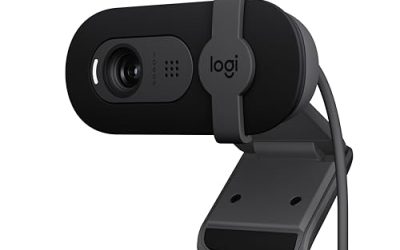
The best webcam for most teens is a 1080p model at 30 frames per second with a built-in privacy shutter and a decent microphone, such as the Logitech C920s, which usually costs $50-$80. If the budget is tight, a 720p or 1080p entry model like the Logitech C270 or Logitech Brio 100 covers school video calls and chatting with friends for $20-$45. Anything beyond that only makes sense if the teen is streaming or making videos.
Quick comparison of the best webcams for teens
| Pick | Best for | Key specs (per manufacturer) | Price range |
|---|---|---|---|
| Logitech C920s HD Pro | Best overall | 1080p/30, autofocus, privacy shutter, dual mics, 78-degree field of view | $50-$80 |
| Logitech C270 | Best budget | 720p/30, fixed focus, single mic, 60-degree field of view | $20-$35 |
| Logitech Brio 100 | Best simple upgrade for school | 1080p/30, auto light correction, built-in privacy shutter, mic | $30-$45 |
| Logitech C922 Pro Stream | Best for gaming streams | 1080p/30 or 720p/60, autofocus, dual mics | $70-$100 |
| Razer Kiyo | Best for dim bedrooms | 1080p/30 or 720p/60, built-in ring light, autofocus | $60-$100 |
| Anker PowerConf C200 | Best for sharp video calls | 2K resolution, AI noise-reducing mics, privacy cover | $30-$50 |
Street prices move often, so treat the ranges as a general guide rather than a promise.
What a teen actually needs from a webcam
A teen webcam spends most of its life on three jobs: video calls for school or tutoring, chatting with friends on Discord or similar apps, and occasionally recording a clip or a stream. None of those need 4K. The things that make a real difference are low-light behavior, microphone quality, a physical privacy shutter, and whether the camera works without installing software on a school or family computer.
Most video-calling apps compress video heavily. A call that goes out at 720p or 1080p is already being squeezed to fit the connection, so a higher-resolution sensor gives smaller gains than people expect. A better lens and better light help far more than extra pixels.
Best overall: Logitech C920s HD Pro
The C920s has been a default recommendation for years because it balances picture quality, autofocus and a plug-and-play USB connection. Per Logitech’s spec sheet it records 1080p at 30 fps, has two microphones, and includes a sliding privacy shutter that covers the lens when the camera is not in use. That shutter matters for parents and teens alike, because it is a simple physical guarantee that does not depend on software.
The main trade-off is that the sensor is older, so in a dim bedroom the picture gets grainy unless there is a lamp in front of the teen. It also lacks the HDR processing found on newer premium cameras. For school and chat it is more than enough.
Best budget: Logitech C270
The C270 is a 720p camera with a fixed-focus lens and a single microphone. It will not impress anyone, but it is clear enough for classroom calls and group chats, and it costs about as much as a pizza. It has no privacy shutter, so a small piece of tape or a clip-on cover is worth adding.
The trade-off is the narrower field of view and weaker audio. If the teen is in a noisy house, a cheap USB headset with a microphone will improve the call more than any camera upgrade.
Best simple upgrade for school: Logitech Brio 100
The Brio 100 sits between the C270 and C920s. Logitech lists 1080p at 30 fps, automatic light correction and a built-in privacy shutter, usually at a price close to the C270. It is a good fit for a laptop with a poor built-in camera, because it simply plugs in and works. Its fixed focus means the teen should sit at a normal arm-length distance rather than leaning in close.
Best for gaming streams: Logitech C922 Pro Stream
If the teen wants to put a face cam on a gameplay stream, the C922 adds 720p at 60 fps, which makes motion look smoother when the teen moves or gestures. It also ships with a trial-style bundle of streaming software on some regions’ packages, though that varies. The extra frame rate matters only for streaming; for ordinary calls the 30 fps C920s looks nearly identical.
Best for dim bedrooms: Razer Kiyo
The Kiyo has a ring light around the lens with adjustable brightness. In a dark room this lifts the face evenly without a separate lamp, which is the single biggest quality improvement for most teens. The trade-off is that the light can feel harsh at the highest setting, and the camera itself is a mid-tier 1080p sensor. A cheap desk lamp aimed at a wall behind the monitor can give a softer result with any camera on this list.
Best for sharp calls: Anker PowerConf C200
The C200 offers a 2K sensor, AI-based noise reduction on the microphones and a privacy cover for a modest price. It suits teens who talk to relatives or take online classes and want a cleaner picture than a 720p unit. The trade-off is that software features are more limited than Logitech’s, and a 2K image is downscaled by most apps anyway.
Worked example: how much bandwidth does a webcam use?
Teens on shared home internet often wonder whether a better camera will clog the connection. Typical video-call apps send 720p video at roughly 1-2 Mbps and 1080p at roughly 2.5-4 Mbps, with variation by app. If a family has a 20 Mbps upload speed and two teens are on calls at the same time at 1080p, that is about 5-8 Mbps of upload, leaving plenty of headroom. On a 5 Mbps upload connection, the same two calls would saturate the line and the apps would drop quality automatically.
| Scenario | Approx. upload needed | Camera choice that makes sense |
|---|---|---|
| One teen, school call at 720p | 1-2 Mbps | C270 or Brio 100 |
| One teen, 1080p chat | 2.5-4 Mbps | C920s or Brio 100 |
| Two teens, 1080p at once | 5-8 Mbps | Any, but limit one to 720p on slow plans |
| One teen streaming gameplay plus face cam | 6-10 Mbps | C922 Pro Stream, with a wired connection |
The takeaway is that the internet plan, not the camera, is often the limit. If the upload speed is below 5 Mbps, a cheap 720p camera with the resolution set to 720p will behave better than an expensive one.
How to choose: a short decision matrix
- School calls only, tight budget: Logitech C270 or Brio 100.
- Calls plus Discord and occasional clips: Logitech C920s.
- Dark room, no lamp: Razer Kiyo, or any camera plus a desk lamp.
- Gameplay streaming: Logitech C922 Pro Stream.
- Parent wants physical privacy: a model with a built-in shutter (C920s, Brio 100, PowerConf C200).
Safety and privacy settings worth setting up
- Use the shutter or a cover. It stops accidental or malicious camera access completely, which is why it is better than relying on the status light alone.
- Check app permissions. In Windows Settings under Privacy and security, review which apps can use the camera and switch off the ones the teen does not need.
- Set the camera position at eye level. A stack of books under a laptop or a small monitor clip gives a more natural angle and a more private-feeling background.
- Tidy the background. Blur or a plain wall prevents sharing the room, address clues or school documents on screen.
- Unplug or cover the camera after use. It is the simplest habit and costs nothing.
Frequently Asked Questions
Is a 1080p webcam necessary for a teenager?
Not strictly. A 720p camera is fine for school and chat, but 1080p gives a sharper picture and is a better long-term buy because many cameras at that tier include autofocus and better microphones. The cost difference is often $15-$30.
Do I need a separate microphone?
Not for casual use. Webcam microphones are good enough for calls in a quiet room, but a headset keeps the voice clearer and cuts down on echo. If the teen is streaming or recording videos, a dedicated USB microphone is a worthwhile upgrade.
Will a webcam work with a Chromebook or school laptop?
Most USB webcams that follow the standard UVC protocol work on Windows, macOS and ChromeOS without drivers. School-managed devices may restrict peripherals, so check with the school’s IT policy first.
Are cheap no-name webcams safe?
It is safest to buy from known brands that publish spec sheets and provide firmware or driver support. Wired USB cameras with a physical shutter are a better privacy choice than unknown cameras that connect through an app or Wi-Fi.
Why does my teen look dark or grainy on calls?
The usual cause is insufficient light on the face. Placing a lamp or window in front of the teen, not behind, fixes most of it. After that, turning off low-light auto-exposure options that lower the frame rate can also help.
Related guides
More from Amazon
Programs that pair well with the guide above. Offers and eligibility are set by Amazon and may change.
A free business account with business pricing and bulk-buying tools for work, shop or home office.
Create a business accountFree shipping on eligible items, Prime Video and more. Eligible new members can start with a free trial.
Start a Prime free trialAudiobooks and podcasts to listen to on the go. Eligible new members can start with a free trial.
Try Audible freeAd-free music streaming. Eligible new subscribers can start with a free trial.
Try Music Unlimited freeAs an Amazon Associate we earn from qualifying purchases.