
The Short Answer
Yes, you need active cooling for a Gen5 NVMe SSD, but only if you plan to subject your drive to sustained, heavy read/write workloads where the drive runs continuously for more than a few consecutive minutes. If you are transfering massive files, processing 8K video files, or running heavy developer compiles, active cooling is non-negotiable. Without it, a Gen5 SSD will quickly exceed its safe operating limit of 70°C, thermal throttle down to legacy Gen1 speeds (around 250 MB/s to 500 MB/s), or suffer an emergency shutdown to prevent permanent silicon damage.
However, if your daily routine consists of casual gaming, office productivity, and standard web browsing, you do not need active fan cooling. For these lighter use cases, a massive, well-engineered passive heatsink paired with decent PC case airflow is more than sufficient to keep temperatures within a safe 50°C to 65°C range.
As an Amazon Associate we earn from qualifying purchases at no extra cost to you. Product prices and availability are accurate as of the date shown and are subject to change.

What You Actually Get
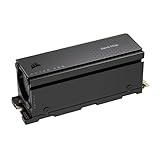
PCIe Gen5 NVMe SSDs represent a massive leap in data transfer performance, pushing sequential read speeds up to 11,700 MB/s and beyond, as seen with high-end drives like the Corsair MP700 PRO ($329.99 for the 1TB version with air cooler). However, this incredible speed comes at a literal physical cost: heat. While older Gen4 drives typically draw between 6 and 9 watts of power under load, Gen5 drives utilizing controllers like the Phison E26 can pull up to 11 to 14 watts. In the compact world of M.2 2280 form-factor storage, dissipating 14 watts of heat from a tiny sliver of silicon is a massive engineering challenge.
When you purchase an active cooling solution—either as an aftermarket add-on like the Thermalright HR10 2280 PRO ($21.90) or pre-installed on premium drives—you are getting a specialized thermal management system. These systems typically consist of:
- A Multi-Tiered Aluminum Heatsink: A heavy metal block, often featuring integrated copper heat pipes, designed to draw heat away from the controller and NAND flash chips.
- A Tiny, High-RPM Fan: Usually measuring between 20mm and 30mm, these miniature fans force cool air through the heatsink fins. They are designed to run at high speeds (often 8,000 to 10,000 RPM) to move enough air to make a difference.
- High-Conductivity Thermal Pads: Double-sided silicone pads that sandwich the SSD, filling the microscopic air gaps between the chips and the metal cooling block.
- Dedicated Power Connectors: A cable that must be plugged into your motherboard’s 4-pin PWM fan header or a SATA power adapter to keep the fan spinning.
This hardware combination drastically changes the thermal behavior of your drive. Instead of spiking to thermal limits within 10 to 15 seconds of a sustained write operation, an actively cooled Gen5 SSD stabilizes at a safe, predictable operating temperature, ensuring your system maintains peak performance indefinitely.
Pros
- Zero Thermal Throttling: Keeps your drive running at its advertised speeds (up to 12,000+ MB/s) even during massive, multi-gigabyte file transfers.
- Extended Hardware Lifespan: High heat is the enemy of flash memory. By keeping the controller and NAND chips well below 70°C, you prevent premature degradation of the silicon.
- Rapid Thermal Recovery: Active airflow cools the drive down to its idle temperature (usually around 35°C to 45°C) within seconds of completing a heavy task, preparing it for the next workload.
- System Stability: Prevents sudden system freezes, blue screens, or drive disconnections caused by the SSD triggering an emergency thermal shutdown when it crosses the 80°C threshold.
Cons
- High-Pitch Noise: The tiny 20mm to 30mm fans required for these coolers must spin at incredibly high speeds to be effective. This can produce a distinct, high-pitched whine that can be irritating in quiet home offices.
- Physical Clearance Issues: Active coolers can stand 30mm to 50mm tall. This height frequently causes physical conflicts with large CPU air coolers, vertical GPU mounts, or the tight spaces inside Mini-ITX cases.
- Cable Clutter: Adding an active cooler means routing another wire across your motherboard to a fan header, which can disrupt a clean, minimalist PC aesthetic.
- Mechanical Points of Failure: Unlike passive metal blocks, fans have moving parts. Over time, these tiny fans can accumulate dust, suffer from bearing wear, and eventually fail, requiring manual replacement or maintenance.
Who Should Buy It
You should absolutely invest in an active cooling solution if you are a creative professional, data scientist, or power user whose daily workflow involves sustained storage stress. If you regularly transfer hundreds of gigabytes of raw footage, compile massive software databases, or work with heavy 3D rendering pipelines, active cooling is a necessity. Looking ahead to 2026, as next-generation software applications and complex local AI models begin to demand continuous, high-speed access to storage, active cooling will become even more critical for keeping high-end workstations stable and efficient.
Additionally, if your computer case is a compact model with limited natural airflow, or if you live in a hot climate without air conditioning, the active airflow from a cooler like the Thermalright HR10 2280 PRO will save your drive from choking on its own heat.
Who Should Skip It
You should skip active cooling if your primary use case is gaming and everyday productivity. While modern games are beginning to use technologies like DirectStorage to load assets directly from the SSD to the GPU, these asset loads occur in short, intense bursts rather than sustained, multi-minute transfers. A quality passive heatsink—such as the heavy metal shield that came pre-installed on your high-end motherboard—is more than capable of absorbing these brief thermal spikes without throttling.
You should also skip active cooling if you are building a small-form-factor (SFF) PC. In a tight Mini-ITX chassis, you simply will not have the clearance required for a tall active cooler, and the added noise from a tiny, high-RPM fan will be much more noticeable sitting right next to you on your desk.
Cheaper Alternatives
If you want a Gen5 SSD but want to avoid the cost, noise, or bulk of an active air cooler, there are several viable thermal management options available:
| Option | Cost | Trade-off |
|---|---|---|
| Motherboard Passive Heatsink | $0 (Included with motherboard) | Relies entirely on your PC case’s internal airflow; will eventually saturate and thermal throttle during continuous write tasks lasting longer than 60 seconds. |
| Aftermarket Heavy Passive Heatsink | $15 – $30 | Takes up significant physical space above the motherboard; does not have a fan to actively clear heat in stagnant air zones. |
| Gen4 NVMe SSD with Passive Cooling | $70 – $150 (depending on capacity) | Caps your sequential speeds at roughly 7,300 MB/s, but draws much less power (6-8W) and runs perfectly cool without active fans. |
FAQ
What temperature is too hot for a Gen5 SSD?
Most Gen5 NVMe SSDs are designed to operate safely between 0°C and 70°C. Once the controller chip crosses the 70°C mark, it will automatically initiate thermal throttling to reduce power consumption and lower temperatures. If the drive reaches 80°C or higher, it will trigger an emergency shutdown to prevent permanent data loss or physical damage to the silicon.
Can I run a Gen5 SSD without any heatsink at all?
No, you should never run a Gen5 SSD completely bare. Because these drives draw up to 14 watts of power under load, a bare drive will overheat and thermal throttle within seconds of booting your operating system, resulting in sluggish performance and potential system crashes.
Are active SSD coolers loud?
Yes, they can be. Because the fans on active SSD coolers are very small (typically 20mm to 30mm), they must spin at very high speeds (up to 10,000 RPM) to move a meaningful amount of air. This high-speed rotation often produces a high-pitched whine that can be audible over your standard PC case fans, especially under heavy workloads.
Does active SSD cooling require a separate power connection?
Yes. Active SSD coolers require power to run their integrated fans. This is typically handled by a standard 4-pin PWM connector that plugs directly into an available system fan header on your motherboard, or via a SATA power adapter connected directly to your power supply.


