
Building or upgrading a Network Attached Storage (NAS) system is one of the most satisfying home infrastructure projects you can undertake. Whether you are setting up a private media server, securing automated backups for your family’s smart devices, or archiving massive creative portfolios, a NAS offers unmatched data sovereignty. However, many homeowners and remote professionals stumble at the very first hurdle: choosing the right mechanical hard drives to populate their enclosures.
The most common mistake buyers make is treating NAS drives like standard desktop hard drives. When shopping for storage, it is incredibly tempting to grab the cheapest external or desktop drive on sale and shuck the casing to use the internal drive. In a 24/7 network environment, this is a recipe for catastrophic data loss. Desktop drives are designed to run for roughly eight hours a day, five days a week, in isolation. Put them in a multi-drive NAS enclosure where they must run constantly, endure ambient heat, and withstand the continuous physical vibrations of neighboring drives, and they will fail prematurely. Knowing what to look for in a nas hard drive is the difference between a seamless, set-it-and-forget-it private cloud and a heartbreaking array failure that wipes out years of digital memories.
As an Amazon Associate we earn from qualifying purchases at no extra cost to you.




Our Top Picks
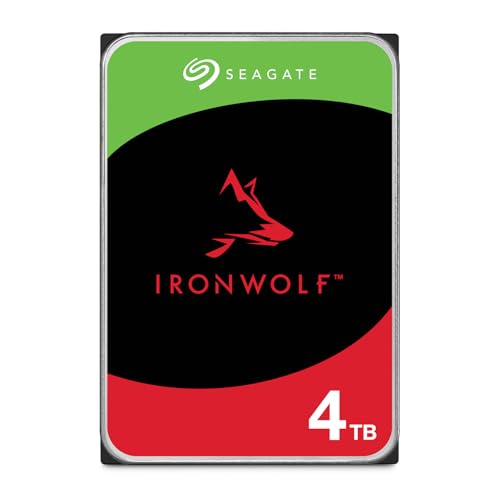 Seagate IronWolf 4TB NAS Internal Hard Drive CMR4TB5.79 x 4.01 x 1.03 Inches1.1 poundsCheck on Amazon


Top 3 picks at a glance
Decide These 3 Things First
Before diving into individual drive specifications, you must define the scope of your storage project. Making these three foundational decisions upfront will dramatically narrow down your options and prevent costly purchasing mistakes.
- Your True Usable Capacity (Accounting for RAID Redundancy): Never buy drives based solely on their face-value capacity. If you buy two 4TB drives, you do not have 8TB of safe storage; in a mirrored setup (RAID 1), you only have 4TB of usable space. You must decide on your RAID configuration first to calculate how many drives you need and at what individual capacity to reach your target storage goal.
- The Physical Slot Capacity of Your Enclosure: Are you buying a sleek, whisper-quiet 2-bay enclosure for a living room media hub, or a robust 4-bay or 8-bay tower for a home office? The number of drive bays directly impacts the mechanical stress on your drives. Some entry-level NAS drives are only rated for enclosures up to 8 bays, while premium enterprise-grade drives can handle 24-bay configurations without physical degradation.
- Your Ambient Noise and Placement Tolerance: Mechanical hard drives make noise. They click, hum, and spin. If your NAS will sit on your desk next to your keyboard, noise levels are a critical comfort metric. If it is tucked away in a ventilated utility closet or structured wiring cabinet, you can prioritize raw performance and speed over acoustics.
1. Physical Size and Form Factor
In the world of NAS storage, the 3.5-inch form factor reigns supreme. While 2.5-inch mechanical drives and modern M.2 NVMe solid-state drives have their place in ultra-compact systems, the standard 3.5-inch mechanical drive offers the best balance of cost, capacity, and durability. A standard 3.5-inch NAS drive measures approximately 4 inches wide, 5.79 inches deep, and 1.02 inches thick, weighing between 1.4 to 1.65 pounds depending on the number of internal platters.
When selecting your drives, ensure your NAS enclosure supports standard 3.5-inch SATA connections. While some specialized hybrid enclosures accommodate 2.5-inch drives, they limit your maximum capacity and significantly increase your cost-per-terabyte. Stick to the 3.5-inch standard for maximum compatibility, easier replacement sourcing, and superior thermal dissipation within the drive bay rails.
2. Recording Technology: CMR vs. SMR
If there is one absolute dealbreaker when learning what to look for in a nas hard drive, it is the underlying recording technology. Mechanical hard drives write data to magnetic platters using one of two methods: Conventional Magnetic Recording (CMR) or Shingled Magnetic Recording (SMR).
CMR drives write data tracks side-by-side without overlapping. This allows for rapid, consistent write speeds, especially during heavy, continuous data transfers. SMR drives overlap data tracks like shingles on a roof to squeeze more data onto a single platter. While SMR drives are cheaper to manufacture, they suffer from agonizingly slow write speeds when forced to rewrite existing data, as they must rewrite adjacent tracks simultaneously. In a RAID environment, where drives must constantly sync and rebuild data, an SMR drive can cause the array to drop completely, resulting in data corruption.
For any NAS application, you must choose CMR drives. Premium models, such as the Western Digital 12TB WD Red Plus (WD120EFGX) or the Seagate IronWolf 4TB (ST4000VNZ06/006), explicitly label their use of CMR technology to give buyers peace of mind during array rebuilds.
3. Construction, Workload Ratings, and Vibration Control
The interior of a multi-bay NAS is a hostile environment for delicate mechanical components. When multiple hard drives spin at thousands of revolutions per minute inside a single metal chassis, they generate harmonic vibrations. If these vibrations are not managed, they cause the drive’s read/write heads to drift off course, resulting in write errors, performance throttling, and physical drive wear.
High-quality NAS drives are constructed with physical reinforcement features that standard desktop drives lack. Look for drives equipped with rotational vibration (RV) sensors. These sensors detect subtle chassis vibrations and instruct the drive’s actuator arm to compensate in real time, maintaining perfect alignment over the data tracks. Additionally, pay attention to the drive’s Workload Rate Limit (WRL). While a standard desktop drive might be rated for a modest 55TB of data transfers per year, dedicated NAS drives are engineered to handle workloads of 180TB to 300TB per year, ensuring they can withstand constant read/write cycles without mechanical fatigue.
4. Performance: RPM, Cache, and Transfer Speeds
Hard drive performance is dictated by two main physical specifications: rotational speed (RPM) and cache size.
Rotational speed generally falls into two categories: 5400 RPM and 7200 RPM. Drives spinning at 5400 RPM, like the Western Digital 4TB WD Red Plus (WD40EFZZ), run cooler, consume less power, and operate with a softer acoustic profile, making them ideal for living room media centers. On the other hand, 7200 RPM drives, such as the Western Digital 12TB WD Red Plus, offer faster data access times and higher sustained transfer speeds, which is vital if multiple users are accessing the NAS simultaneously for file editing or virtualization.
The drive’s cache acts as a temporary high-speed buffer for data waiting to be written to the platters. Cache sizes range from 64MB on budget-friendly drives up to a massive 512MB on high-capacity, premium drives. A larger cache size significantly improves random read and write performance, making the entire NAS feel more responsive when index-searching large photo libraries or handling small, fragmented files.
5. Power Consumption and Thermals
Because a NAS runs 24 hours a day, 365 days a year, electricity costs and heat generation are major factors in your total cost of ownership. As we look ahead to 2026, energy efficiency in home infrastructure is more critical than ever.
A typical 5400 RPM NAS drive consumes roughly 3.2 to 4.8 watts of power during active read/write operations, dropping to 2.3 to 3.0 watts when idling. High-performance 7200 RPM drives require more energy, drawing between 6.0 and 9.0 watts during heavy use, and idling around 5.0 watts. While a few watts of difference sounds negligible, multiplying that difference across a 4-bay or 8-bay array running continuously over several years adds up to a noticeable difference on your utility bill. Furthermore, higher wattage means more heat. If your NAS enclosure has restrictive airflow, choosing cooler-running 5400 RPM drives will prolong the lifespan of both the drives and the NAS motherboard.
6. Price Tiers and Value Propositions
Navigating the pricing structure of NAS drives requires looking past the flat retail price and calculating the cost-per-terabyte. NAS hard drive pricing generally breaks down into three distinct tiers:
- Budget Tier ($80 – $200): This tier includes capacities from 4TB to 6TB, such as the Seagate IronWolf 4TB (ST4000VNZ06/006) priced around $190. These drives are typically 5400 RPM, feature 64MB to 128MB caches, and are optimized for 1-bay to 8-bay setups. They offer an accessible entry point for basic home backup systems.
- Mid-Range Tier ($200 – $350): Spanning capacities from 8TB to 10TB, this tier includes drives like the Seagate 8TB IronWolf (ST8000VNZ04) at around $330. Here, you find a mix of 5400 RPM and 7200 RPM speeds, larger 256MB caches, and enhanced vibration protection, striking a perfect balance between performance and raw capacity.
- Premium Tier ($350 – $600+): Home to massive capacities from 12TB up to 22TB, featuring premium options like the Western Digital 12TB WD Red Plus (WD120EFGX) at around $460. These drives operate almost exclusively at 7200 RPM, boast ultra-large caches (up to 512MB), and are built to handle intensive workloads in enclosures up to 24 bays.
7. Warranty and Data Recovery Services
Even the most robust mechanical drive will eventually fail; it is a matter of “when,” not “if.” Therefore, the manufacturer’s warranty and data protection services are crucial safety nets. Standard desktop drives usually carry a brief 1-year or 2-year warranty. Dedicated NAS drives, by contrast, offer 3-year warranties for standard consumer models and up to 5-year warranties for pro and enterprise-grade models.
Some manufacturers go a step further by bundling data recovery services directly with the purchase. For example, Seagate includes their Rescue Data Recovery Services with their IronWolf line. If a drive suffers physical damage from a power surge, flood, or mechanical failure, the manufacturer will attempt to recover your data in a secure, state-of-the-art cleanroom laboratory at no extra charge, saving you thousands of dollars in professional recovery fees.
Spec Checklist
Use this quick reference matrix to match drive specifications to your budget and performance requirements:
| Specification | Budget Tier | Mid-Range Tier | Premium Tier |
|---|---|---|---|
| Capacity Range | 2TB to 4TB | 6TB to 10TB | 12TB to 22+ TB |
| Recording Tech | CMR (Strictly Avoid SMR) | CMR | CMR (Helium-sealed) |
| Rotational Speed | 5400 RPM | 5400 RPM or 7200 RPM | 7200 RPM |
| Cache Size | 64MB to 128MB | 128MB to 256MB | 256MB to 512MB |
| Workload Rating | Up to 180 TB/year | 180 to 300 TB/year | 300 to 550 TB/year |
| Vibration Sensors | Basic / Software-assisted | Hardware RV Sensors | Advanced Dual-Actuator RV |
| Warranty | 3-Year Limited | 3-Year to 5-Year | 5-Year Limited |
Red Flags to Avoid
When shopping for your drives, keep an eye out for these warning signs that indicate a drive is poorly suited for NAS use:
- Unlabeled Recording Technology: If a manufacturer’s spec sheet does not explicitly state “CMR” or “Conventional Magnetic Recording,” proceed with extreme caution. SMR drives are frequently slipped into budget lines without clear labeling.
- Refurbished Drives Without OEM Warranties: Many online retailers offer “Enterprise OEM Recertified” drives at incredibly low prices. While tempting, these drives often carry short, third-party dealer warranties rather than official manufacturer backing, leaving you stranded if the drive fails.
- No Mention of Vibration Mitigation: If a drive is marketed for “desktop storage” or “external expansion” and lacks any mention of rotational vibration sensors, do not install it in an enclosure with more than two bays.
- Extreme Low-Power “Green” Drives: Drives designed to aggressively spin down to save energy can cause timeout errors in a RAID array, leading the NAS operating system to falsely flag a healthy drive as dead.
FAQ
Can I use a regular desktop hard drive in my NAS?
While a standard desktop drive will physically fit and connect to a NAS, it is highly discouraged. Desktop drives lack the necessary rotational vibration sensors, firmware optimizations for 24/7 operation, and error recovery controls required to survive inside a multi-drive network enclosure. Using them significantly increases the risk of early drive failure and array collapse.
What is the difference between 5400 RPM and 7200 RPM NAS drives?
The primary differences are speed, noise, and power consumption. 7200 RPM drives offer faster data transfer speeds and lower latency, making them excellent for high-performance business applications. However, they run hotter, consume more electricity, and are audibly louder. 5400 RPM drives are quieter, run cooler, and are generally preferred for home media streaming and quiet office environments.
How much storage capacity do I actually need for a home NAS?
To calculate your needs, tally up your current data across all devices and add a 20% buffer for annual growth. Then, double that number to account for RAID 1 mirroring or RAID 5 parity overhead. For example, if you have 3TB of family photos and movies, you will want at least two 6TB or 8TB drives in a mirrored setup to ensure your data is both fully stored and safely backed up.
Do I need SSDs instead of HDDs for my home server?
For raw capacity, mechanical HDDs remain the most cost-effective choice by a wide margin. SSDs are excellent for caching, running virtual machines, or hosting databases where near-instantaneous access times are required. Most modern NAS enclosures support hybrid setups, allowing you to use high-capacity HDDs for bulk storage alongside a small, fast M.2 NVMe SSD for system caching.









