
Upgrading your home office storage setup often leaves you with an extra internal drive gathering dust in a drawer. Or perhaps you have realized that buying an internal solid-state drive (SSD) and pairing it with an external shell is significantly cheaper than purchasing a pre-built commercial portable drive. Creating your own external drive is an excellent way to reduce desk clutter, save money, and customize your storage capacity.
However, many home office decorators and remote professionals make crucial mistakes during this process. They buy a sleek, aluminum shell only to realize their drive physically does not fit. Or, they purchase a plastic enclosure for a high-performance NVMe drive, effectively creating a miniature desk oven that throttles transfer speeds to a crawl. Understanding what to look for in a portable SSD enclosure ensures you get a device that matches your computer’s ports, keeps your desk looking clean, and prevents your drive from overheating.
As an Amazon Associate we earn from qualifying purchases at no extra cost to you.




Our Top Picks
 SABRENT USB-C NVMe Enclosure & Reader10Gbps NVMe Only4.59 x 1.24 x 0.6 inches0.2 poundsCheck on Amazon
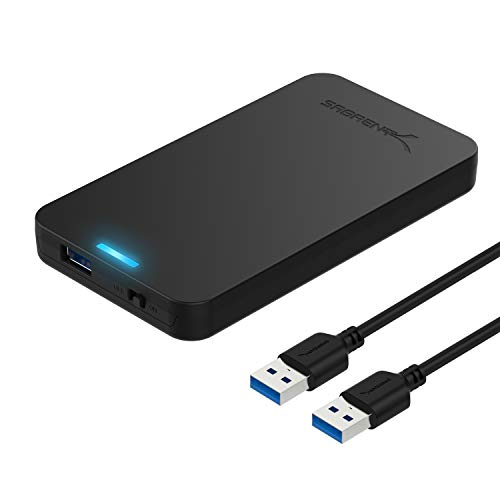 SABRENT 2.5in SATA to USB 3.0 Tool-Free SSD/HDDSATA Black4.9 x 3.1 x 0.5 inches0.1 PoundsCheck on Amazon

Top 3 picks at a glance
Decide These 3 Things First
Before comparing anodized finishes or checking cable lengths, you must establish three baseline parameters. These decisions will instantly filter out ninety percent of the enclosures on the market, saving you from purchasing incompatible hardware.
- Your Existing Drive Type (SATA vs. NVMe): You must know what drive you are putting inside the enclosure. Older, larger drives are typically 2.5-inch SATA drives (shaped like a small deck of cards). Modern, faster drives are M.2 drives (shaped like a stick of chewing gum). Crucially, M.2 drives can use either the older SATA protocol or the much faster NVMe (PCIe) protocol. Read your drive’s label carefully; an NVMe-only enclosure will not recognize an M.2 SATA drive, and vice versa, though some modern enclosures support both.
- Your Computer’s Port Capabilities: Your transfer speed is limited by the weakest link in your hardware chain. If your laptop only has standard USB-A ports rated for 5Gbps, buying an expensive 40Gbps Thunderbolt enclosure is a waste of money. Match the enclosure’s rated speed (typically 5Gbps, 10Gbps, or 40Gbps) to the maximum output of your computer’s fastest port.
- Your Portability vs. Desktop Needs: Decide if this drive will live permanently on your desk as a backup unit or travel with you in a laptop bag. Stationary desktop drives prioritize heavy aluminum bodies and rubber feet to stay anchored. Travel-friendly options require lightweight builds, integrated cable storage, or ruggedized silicone bumpers.
1. Physical Size and Drive Compatibility
The physical footprint of your enclosure dictates both desk organization and hardware compatibility. Drive enclosures generally fall into two categories: 2.5-inch form factors and M.2 form factors.
If you are repurposing an old laptop drive, you will likely need a 2.5-inch enclosure. These devices are standardized to accommodate drives that are 7mm to 9.5mm in height. For example, options like the BENFEI 2.5 Inch SATA to USB Enclosure (around $9) or the SABRENT 2.5in SATA to USB 3.0 Enclosure (around $11) are designed specifically for these dimensions. They typically measure about 5.1 x 3.0 x 0.5 inches and weigh roughly 2 to 3 ounces without the drive installed.
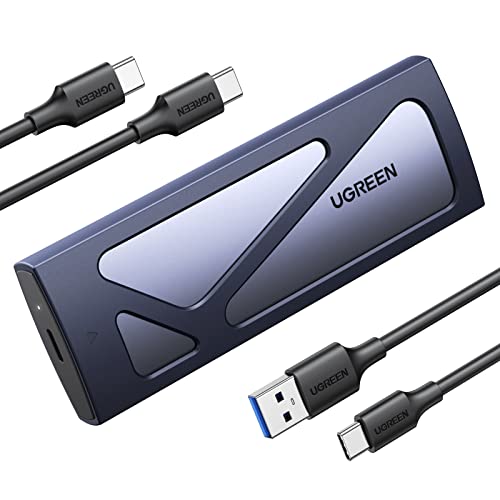
If you are using a modern stick-style drive, you need an M.2 enclosure. M.2 drives come in varying lengths, designated by a four-digit code: 2230 (30mm long), 2242 (42mm), 2260 (60mm), and the industry-standard 2280 (80mm). Ensure your chosen enclosure includes the necessary rubber pegs or brass standoffs to secure your specific drive length inside the chassis. Most M.2 enclosures, such as the UGREEN USB-C M.2 NVMe SSD Enclosure (around $16), support all four sizes, while some ultra-compact travel models only fit the tiny 2230 size.
2. Materials and Heat Dissipation
Solid-state drives get hot under load. When transferring large photo libraries or video files, an NVMe SSD can easily reach internal temperatures exceeding 160°F (70°C). Without proper heat dissipation, the drive will automatically throttle its speed to protect itself from heat damage, rendering your expensive high-speed setup useless.
For high-speed NVMe drives, aluminum is non-negotiable. Metal acts as a giant passive heatsink, pulling heat away from the drive controller and radiating it into the surrounding air. High-quality aluminum enclosures, like the SABRENT USB-C NVMe Enclosure & Reader (around $19), feature grooved exterior ridges to increase the surface area for cooling. They also include thermal silicone pads (typically 0.5mm to 1.5mm thick) that bridge the physical gap between the SSD chips and the metal cover.
Plastic enclosures, such as the BENFEI 2.5-inch model, are perfectly acceptable for SATA SSDs. SATA drives run significantly cooler, rarely exceeding a power draw of 2.5 to 3 watts. For these drives, plastic offers a lightweight, shock-absorbing, and highly affordable housing that does not require thermal pads.
3. Tool-Free Construction vs. Secured Mounting
How often do you plan to swap the drive inside the enclosure? This determines whether you should opt for a tool-free design or a traditional screw-secured build.
Tool-free enclosures use slide-lock mechanism covers, spring-loaded latches, or rubber pull-tabs to secure the drive. This allows you to install or swap a drive in under thirty seconds without hunting for a tiny precision screwdriver. This is highly convenient if you use the enclosure as a diagnostic tool or reader for multiple drives, as seen with the SABRENT EC-PNVO. The downside is that tool-free cases can sometimes feel less structurally rigid, and slide covers can accidentally pop open if dropped from a desk.
Screw-secured enclosures use small Torx or Phillips head screws to lock the drive and thermal plates in place. While installation takes five minutes instead of thirty seconds, these enclosures offer superior physical protection, better structural integrity, and tighter contact between the thermal pads and the aluminum shell. If your drive is destined to live in a travel bag or act as a permanent system backup, a secured enclosure is the safer choice.
4. Performance Protocols, Chipsets, and Power
The internal bridge controller chip is the brain of the enclosure. It translates the drive’s native language (SATA or PCIe/NVMe) into a USB signal your computer can understand. Look for enclosures that explicitly list their controller chipsets (common reliable brands include Realtek, ASMedia, and Intel) and support modern data transfer protocols.
Two essential protocols to look for are UASP (USB Attached SCSI Protocol) and TRIM. UASP allows for parallel data transfers, boosting read and write speeds by up to 70% compared to traditional USB connections. TRIM support ensures your computer can tell the SSD which blocks of data are no longer needed, maintaining the drive’s health and write speeds over time. Both the SABRENT EC-UASP and the BENFEI 2.5-inch enclosure feature optimized UASP support for SATA III drives, capping speeds at a theoretical limit of 6Gbps (practically around 500-560 MB/s).
Power consumption is another critical factor. Most 10Gbps NVMe enclosures operate on standard USB bus power, drawing between 4.5 watts (5V, 0.9A) and 15 watts (5V, 3A). Ensure your computer’s port can deliver the necessary wattage, especially when connecting to older USB-A ports or unpowered USB hubs, which may cap power delivery at 2.5 watts and cause the drive to disconnect mid-transfer.
5. Price Tiers and Budget Mapping
SSD enclosures are highly commoditized, meaning you do not need to spend a fortune to get a reliable, high-performance device. Pricing is largely dictated by speed capabilities, construction materials, and port standards.
- Budget Tier ($8 to $15): Dominated by plastic, tool-free 2.5-inch SATA enclosures. These models, represented by options like the BENFEI 2.5-inch and SABRENT EC-UASP, are perfect for repurposing older mechanical hard drives or SATA SSDs. Speed is capped at SATA III limits (6Gbps).
- Mid-Range Tier ($15 to $35): This is the sweet spot for most home office users. Here you will find durable, aluminum M.2 NVMe enclosures supporting USB 3.2 Gen 2 speeds up to 10Gbps (around 1,000 MB/s real-world speed). Examples include the UGREEN M.2 NVMe Enclosure (around $16) and SABRENT EC-PNVO (around $19). They almost always include thermal pads and dual cables (USB-C to USB-C and USB-C to USB-A).
- Premium Tier ($40 to $100+): Enclosures in this bracket utilize USB4 or Thunderbolt 3/4 controllers. They support speeds up to 40Gbps (around 2,800 to 3,200 MB/s real-world transfer speeds). These are built with thick, heavy-duty aluminum CNC-milled chassis, sometimes featuring built-in active cooling fans. They are designed for professional video editors and power users who transfer multi-gigabyte files daily.
6. Warranty and Brand Support
While an enclosure is a relatively simple electronic device, a failing bridge controller can corrupt your files or damage your SSD. Avoid unbranded, generic enclosures that lack clear warranty policies. Look for established brands that offer at least a 1-year warranty, with some offering extension options upon product registration. Reliable manufacturers provide firmware updates to fix compatibility issues with newer operating systems and offer responsive customer service if your drive fails to mount.
7. Portability and Desktop Ergonomics
From a home styling and workspace perspective, how the enclosure sits on your desk matters. A lightweight enclosure paired with a stiff, thick USB-C cable will constantly be pulled off-balance, dangling awkwardly off the edge of your desk or sitting crookedly next to your laptop. Look for enclosures that include flexible, high-quality cables. If you plan to leave the drive on your desk, choose a model with integrated rubber feet to prevent it from sliding around when you bump your workspace. For travel, look for an enclosure with an integrated loop or a protective silicone sleeve to protect your desk surface and other gear from scratches when packed in a bag.
Spec Checklist
Use this quick-reference table to match your specific storage needs with the appropriate enclosure class before making a purchase.
| Feature / Spec | Budget Class | Mid-Range Class | Premium Class |
|---|---|---|---|
| Price Range | $8 – $15 | $15 – $35 | $40 – $100+ |
| Drive Compatibility | 2.5-inch SATA SSD / HDD | M.2 NVMe (and sometimes SATA) | M.2 NVMe (PCIe Gen 3 or Gen 4) |
| Max Speed Capability | 5Gbps to 6Gbps | 10Gbps | 40Gbps (USB4 / Thunderbolt) |
| Primary Material | ABS Plastic | Anodized Aluminum | CNC-Milled Heavy Aluminum |
| Cooling Method | Passive (Air gap) | Passive (Thermal pads + Metal shell) | Heatsink Fins / Active Fan |
| Included Cables | Usually USB-A to Micro-B or USB-C | USB-C to C & USB-C to A | Certified Thunderbolt / USB4 Cable |
| Best Use Case | Repurposing old laptop drives | Everyday backups, photo editing | 4K video editing, boot drives |
Red Flags
When shopping for an SSD enclosure, look out for these warning signs that indicate a sub-par product:
- No Mention of TRIM Support: If an enclosure does not support the TRIM command, your SSD’s performance will degrade over time as it fills up, significantly shortening the lifespan of your drive.
- USB 2.0 or 3.0 Only (for NVMe): If an NVMe enclosure only supports older USB standards, it is using a cheap, outdated bridge chip. This will choke your fast NVMe drive down to speeds slower than an old mechanical hard drive.
- No Included Thermal Pads for NVMe: NVMe drives require direct physical contact with a heatsink. If an aluminum NVMe enclosure does not ship with thermal silicone pads, pass on it.
- Proprietary or Hard-to-Replace Cables: Avoid enclosures that use uncommon, fragile connectors on the chassis side (such as Micro-B USB 3.0 ports on M.2 enclosures). Stick to universal USB-C connection ports.
FAQ
Can I put any M.2 SSD into any M.2 enclosure?
No. You must match the drive key and protocol. M.2 drives are keyed with physical notches (B-Key, M-Key, or B+M Key) and use either SATA or NVMe protocols. Check the enclosure specifications to ensure it matches your drive’s keying and protocol. However, many modern mid-range enclosures feature dual-protocol compatibility, allowing them to accept both M.2 SATA and M.2 NVMe drives.
Do I need a tool-free enclosure?
Tool-free enclosures are highly convenient if you plan to swap drives frequently. However, if you are building a drive to act as a permanent, long-term backup solution, a traditional enclosure secured with screws is often better. Screw-secured models provide tighter physical contact between the thermal pads, the SSD, and the outer aluminum shell, resulting in slightly better cooling performance.
Why is my NVMe drive running much slower than advertised?
This is usually due to a port bottleneck or a thermal throttling issue. If you connect a 10Gbps enclosure to an older 5Gbps USB-A port, your speeds will be cut in half. Additionally, if you did not install the included thermal pad, your drive will quickly overheat under heavy use and throttle its speeds to prevent damage. As we move closer to 2026, ensure your host computer supports USB 3.2 Gen 2 or USB4 to get the full performance benefits of your enclosure.
Do portable SSD enclosures need external power?
Most standard 2.5-inch SATA and M.2 NVMe enclosures are bus-powered, meaning they draw all the power they need directly from your computer’s USB port. However, if you are using a high-power PCIe Gen 4 drive in a Thunderbolt enclosure, or connecting the drive to an unpowered USB hub alongside other peripherals, the port may not supply enough power, causing the drive to disconnect during heavy data transfers.









