Filling a Synology enclosure looks simple until the drive choice starts to matter: the real decision is not raw capacity, it is whether the drive is built for round-the-clock NAS duty and whether Synology lists it as compatible with your exact model. A desktop drive dropped into a multi-bay unit can vibrate, time out during RAID rebuilds, and leave the volume degraded at the worst possible moment. It can also run hotter than the enclosure’s airflow was designed for, quietly shortening its own life and its neighbours’.
This shortlist is for Synology owners expanding a two-bay home unit, replacing a failed disk in a larger rack or desktop enclosure, or building a fresh array for media, backups and virtual machines. Each pick is a NAS-grade drive selected from the model name and specification fields on its Amazon listing.
Top 3 picks at a glance

Quick Picks
As an Amazon Associate we earn from qualifying purchases.
| Product | Best for | Key spec from title |
|---|---|---|
| Synology HAT3300-4T | Owners who want guaranteed Synology compatibility | 4TB NAS hard drive made for Synology systems |
| Seagate IronWolf Pro 12TB | Busy multi-bay enclosures and heavy shared workloads | 12TB, 7,200 RPM NAS Pro drive |
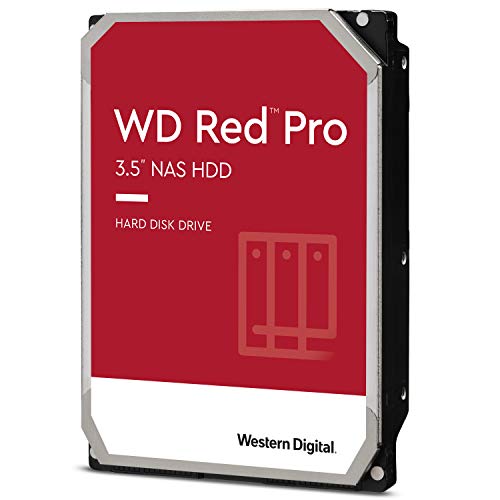
| WD Red Pro 16TB | Maximum capacity per bay in larger enclosures | 16TB, 7,200 RPM CMR NAS drive |
How to Choose
Check Synology’s compatibility list before anything else
Synology publishes a compatibility list for every enclosure, and drives outside it may still work while triggering warnings or losing vendor support. The safest route is a drive Synology itself sells or one the NAS vendors certify for the platform. Before ordering, match the full model number on the listing against the list for your specific DiskStation or RackStation, because approval often applies to one capacity or firmware family and not to a near-identical sibling drive. If your enclosure is a newer Plus or enterprise model, treat the list as a requirement rather than a suggestion, since DSM on those units is the most assertive about flagging unlisted drives during volume creation and support cases.
Buy NAS-grade CMR drives, not desktop SMR models
NAS drives are tuned for vibration from neighbouring disks, error recovery that plays well with RAID controllers, and continuous operation. Just as important is the recording technology: conventional magnetic recording (CMR) keeps write behaviour predictable during rebuilds, while shingled (SMR) desktop drives can slow dramatically when an array resyncs. Every drive in this guide is a NAS model, and the listings for the larger two state CMR explicitly, which is exactly what a Synology volume wants. The difference shows up under sustained writing: a large media ingest or a scrub can push an SMR drive into long pauses while it rewrites shingled bands, whereas a CMR mechanism simply keeps going.
Match rotation speed to the workload
A 5,400 RPM drive runs cooler and quieter, which suits a two-bay unit sitting in a living room that mostly serves files and nightly backups. A 7,200 RPM drive answers faster under concurrent users, surveillance recording or virtual machine storage, at the cost of more heat and noise. Decide where the enclosure lives and who hits it during the day; that answer picks the speed class more honestly than any benchmark chart. Think in terms of simultaneous demands: one person streaming a film barely troubles any drive, but four family members, a photo indexing job and a backup running together reward the faster mechanism.
Plan capacity around bays and RAID, not the headline number
A 16TB drive sounds generous until a two-bay mirror turns it into 16TB usable and a rebuild stretches across a day or more. Count your bays, settle the RAID level first, and remember that Synology volumes are happiest when all members match in size. Buying one oversized drive for a mixed array wastes the extra space, so it is usually better to standardise on a single model and capacity across the whole enclosure. Run the arithmetic before shopping: a four-bay unit in RAID 5 gives you three drives’ worth of usable space, while Synology’s SHR with one disk of redundancy gives the same from matched drives and more flexibility from mixed ones.
The 3 Best Options
Synology HAT3300-4T

This is the low-risk pick: a drive Synology builds for its own enclosures, in the Plus series aimed at home and small-office DiskStations. At 4TB and 5,400 RPM it fits the classic two-bay or four-bay setup used for family photos, documents and media libraries, and firmware updates arrive through Synology’s DSM rather than a separate vendor tool. If your priority is a drive the enclosure recognises instantly, with none of the compatibility guesswork that surrounds third-party disks, this is the straightforward choice.
Specs
- Capacity: 4TB
- Interface: SATA 6 Gb/s
- Rotational speed: 5,400 RPM
- Form factor: 3.5-inch
- Series: Synology HAT3300 Plus, designed for Synology NAS systems
Best for: Synology owners who value guaranteed compatibility over maximum capacity.
Watch out for: 4TB fills quickly in a mirrored pair; check your growth before choosing this size.
ASIN: B0C2MLZR72
Seagate IronWolf Pro 12TB
The IronWolf Pro line is Seagate’s heavier-duty NAS range, and this 12TB model pairs a 7,200 RPM mechanism with rotational vibration sensors that help it stay settled in enclosures with many neighbouring drives. It suits a five-bay or eight-bay DiskStation serving a household or small team, where the array is written to all day rather than idling between backups. The listing also names Seagate’s Rescue data recovery services, a useful extra for drives holding work that exists nowhere else.
Specs
- Model: ST12000NE0008
- Capacity: 12TB
- Rotational speed: 7,200 RPM
- Cache: 256MB
- Interface: SATA 6 Gb/s
- Features from listing: rotational vibration sensors, Rescue data recovery services
Best for: Multi-bay Synology enclosures under sustained, shared workloads.
Watch out for: Confirm the ST12000NE0008 model number against Synology’s list for your enclosure before ordering.
ASIN: B07J3212N5
WD Red Pro 16TB
WD’s Red Pro range targets larger NAS deployments, and the 16TB WD161KFGX is the capacity play in this guide: fewer, bigger drives for enclosures where bay count is the hard limit. The listing states CMR recording and a 512MB cache behind the 7,200 RPM mechanism, a combination aimed at sustained transfers and busy rebuilds. For a media archive, camera footage store or backup target that keeps outgrowing smaller disks, this model stretches each bay further than the other two picks.
Specs
- Model: WD161KFGX
- Capacity: 16TB
- Rotational speed: 7,200 RPM
- Recording technology: CMR
- Cache: 512MB
- Interface: SATA 6 Gb/s
Best for: Larger Synology enclosures where capacity per bay matters most.
Watch out for: A failed 16TB member means a long rebuild; keep a genuine backup outside the NAS.
ASIN: B08L6MM1TM
Which One Fits Your Situation
You run a two-bay Synology in a cupboard at home
Pick the Synology HAT3300-4T. A mirrored pair gives you 4TB of usable space for documents, photos and phone backups, the 5,400 RPM mechanism keeps noise and heat low, and because Synology makes both the drive and the enclosure, compatibility questions simply disappear from the setup. It is also the easiest array to live with: when one drive eventually reports errors, its replacement is the same model, and DSM walks you through the repair without a compatibility debate.
Your five-bay unit serves the whole household or a small team
The IronWolf Pro 12TB earns its place here. Its vibration sensors and 7,200 RPM design are built for bays packed side by side and drives that work all day, and a set of them gives a mid-size enclosure serious room for shared projects, media and machine backups. With several family members or colleagues reading and writing at once, the Pro model’s steadier behaviour under mixed loads is worth more than a small saving on a lighter-duty drive.
You keep outgrowing your archive and bays are the limit
Choose the WD Red Pro 16TB. When the enclosure cannot grow, each bay has to, and this drive’s capacity plus CMR recording keeps large ingest jobs and rebuilds predictable. A set of them turns a four-bay unit into a serious archive for camera originals, project history and full machine images. Just pair it with an off-NAS backup, because no RAID level replaces one, and a single enclosure is still a single point of failure however good the drives are.
You are replacing one failed drive in an existing array
Match what is already spinning before reaching for an upgrade. The replacement should be the same model and capacity as the surviving members, or at minimum the same size and recording technology, so the volume rebuilds without shrinking or surprises. If your array runs HAT3300 drives, replace like with like; if it runs one of the larger models here, do the same. Save the capacity jump for the day you can swap every member, one rebuild at a time.
Common Mistakes
- Dropping a desktop drive into the array because it was cheaper per terabyte, then fighting timeouts and vibration in a multi-bay enclosure.
- Mixing SMR and CMR drives in the same volume, which makes rebuild times unpredictable.
- Assuming a drive family is approved when only one capacity of it appears on Synology’s compatibility list.
- Filling every bay with the largest drives available and leaving no budget for a cold spare or an external backup.
- Ignoring DSM drive health warnings for months because the volume still mounts.
Frequently Asked Questions
Will any SATA hard drive work in a Synology NAS?
Most 3.5-inch SATA drives physically fit and spin up, but Synology only guarantees behaviour for models on its compatibility list, and newer DSM versions warn about unlisted drives. For an array holding data you care about, staying with listed NAS-grade drives like the three above removes a whole category of doubt.
Is CMR really better than SMR for a Synology volume?
For NAS duty, yes. CMR drives write at a steady pace, which matters most during RAID rebuilds and large copies. SMR drives can slow sharply once their cache area fills, stretching a rebuild over far longer than expected, and leaving the volume exposed for longer while it completes. That is why the listings stating CMR were favoured in this guide.
Should all drives in my Synology be identical?
Matching model and capacity is the cleanest setup: the volume uses the full size of every member, rebuilds behave predictably, and keeping one spare on the shelf is simple. Mixed sizes work, but the array effectively treats every drive as the size of the smallest member in most RAID layouts.
How long does a NAS drive typically last in service?
Listings do not promise a working life, and real longevity depends on heat, vibration and workload. A sensible habit is to watch DSM’s health reporting, run the scheduled data scrubbing Synology recommends, and replace drives that start logging errors rather than waiting for a failure. Remember that any single drive can fail early, which is why the backup outside the enclosure matters more than the brand debate.
Related guides
More from Amazon
Programs that pair well with the guide above. Offers and eligibility are set by Amazon and may change.
A free business account with business pricing and bulk-buying tools for work, shop or home office.
Create a business accountFree shipping on eligible items, Prime Video and more. Eligible new members can start with a free trial.
Start a Prime free trialAudiobooks and podcasts to listen to on the go. Eligible new members can start with a free trial.
Try Audible freeAd-free music streaming. Eligible new subscribers can start with a free trial.
Try Music Unlimited freeAs an Amazon Associate we earn from qualifying purchases.