
Slow external-drive transfers can turn a simple backup into an all-day chore. Worse, repeatedly unplugging a drive during a stalled copy, using an underpowered port, or overlooking early drive failure can lead to corrupted files and incomplete backups. Before assuming the drive is broken, work through the basics: connection type, cable condition, available storage, drive health, and the size or number of files being moved.
What You Need
| Item | Why | Optional? |
|---|---|---|
| Computer with USB 3.0, USB-C, or Thunderbolt port | Lets the drive run at its intended connection speed; USB 3.0 ports are often marked “SS” or blue inside. | No |
| Short, known-good data cable | A worn, loose, or USB 2.0 cable can bottleneck a fast external drive. | No |
| Wall-powered USB hub or drive power adapter | Useful for larger desktop drives and power-hungry portable drives that disconnect or slow down. | Yes |
| Drive-health utility built into your computer | Helps check for file-system errors, bad sectors, and warning signs of failure. | Yes |
| Replacement portable SSD | An SSD is often much faster and more durable than an older portable hard drive. A 1TB SanDisk Portable SSD is listed at $159.99. | Yes |
Step-by-Step
-
Check what you are copying first (5 minutes)
Start with the transfer itself. Copying one 20GB video file is usually faster than copying 20GB made up of thousands of photos, documents, or app files. Every small file requires additional file-system work, so a folder with 50,000 tiny files may appear unusually slow even when the drive is functioning normally.
As an Amazon Associate we earn from qualifying purchases at no extra cost to you. Product prices and availability are accurate as of the date shown and are subject to change.
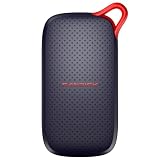 $159.99
Also check free space on both drives. Keep at least 10% to 15% of the external drive empty when possible. A nearly full drive has less room to organize data efficiently, and transfers can become less consistent. If you are moving a large archive, split it into folders of roughly 25GB to 100GB rather than attempting one enormous, mixed-file transfer.
-
Use the fastest port on your computer (5 minutes)
Plug the external drive directly into the computer, not into a keyboard, monitor, unpowered hub, or front-panel port of an older desktop. Those connections may provide less power or operate at slower USB speeds.
Look for a USB 3.0, USB 3.1, USB 3.2, USB-C, or Thunderbolt port. USB-A ports may have a blue plastic insert or an “SS” symbol for SuperSpeed. A USB 2.0 port can severely limit a modern SSD, regardless of the drive’s advertised speed. If your laptop has both USB-A and USB-C ports, test both using an appropriate data-rated cable or adapter.
-
Inspect and replace the cable if needed (10 minutes)
Cables fail more often than many people expect. Look for bent connectors, frayed insulation, a loose fit, or a plug that disconnects when lightly moved. Use the shortest practical cable supplied with the drive, ideally 1 to 3 feet long. Very long cables, inexpensive adapters, and charge-only USB-C cables can reduce performance or cause intermittent connections.
If you have another compatible cable, test it. Make sure it supports data transfer and the correct USB generation. A fast external SSD connected through an older USB 2.0 cable will still perform like a USB 2.0 device. Avoid stacking multiple adapters unless there is no alternative.
-
Restart the drive connection and close background tasks (10 minutes)
Eject the drive properly, unplug it, wait 15 seconds, then reconnect it directly to the computer. Restart the computer if the transfer speed remains unusually low. This clears temporary connection problems and releases programs that may be using the drive in the background.
Pause cloud syncing, photo-library indexing, antivirus scans, video editing software, game launchers, and backup programs while testing. These programs can read from or write to the same drive at the same time, reducing the speed available for your file copy. On a laptop, connect the charger and switch from a battery-saving mode to a normal or performance setting before transferring large files.
-
Check the drive format and file-system health (15 to 30 minutes)
A drive with file-system errors may take a long time to open folders, calculate file sizes, or begin copying. On Windows, use the drive’s Properties menu, then the Tools tab, to run Error Checking. On a Mac, open Disk Utility, select the external drive, and run First Aid. Allow the check to finish before trying another large transfer.
For drives used between Windows and Mac computers, exFAT is often the most practical format because it supports large files and works across both systems. FAT32 has a 4GB maximum individual file size, which can interrupt transfers of movies, disk images, and many project files. Do not reformat a drive until you have copied its contents elsewhere; formatting erases the data.
-
Confirm the drive has enough power (10 minutes)
Portable 2.5-inch hard drives and SSDs usually draw power through USB. Larger 3.5-inch desktop hard drives generally need their own wall adapter. If a drive clicks, repeatedly reconnects, vanishes during transfers, or gets dramatically slower under load, power may be the issue.
Try another direct port first. If you need a hub, choose a wall-powered model rather than a small bus-powered hub. Keep the drive on a hard, flat surface with airflow around it; do not cover it with papers, blankets, or a laptop sleeve during a long copy.
-
Test with one large file, then back up important data (20 minutes or more)
Copy a single large file, such as a 5GB to 20GB video, to the external drive and note whether the transfer starts and stays reasonably steady. Then test a folder containing many small files. If the large file moves normally but the small-file folder is slow, the drive may be fine; the workload is simply more demanding.
If speed stays poor across ports, cables, and computers, copy your most important files off the drive immediately. An older mechanical drive can slow down as it develops read errors, while an SSD with storage problems may become inconsistent or disconnect. In 2026, replacing a questionable drive is usually less costly than recovering lost family photos or work files.

Mistakes to Avoid
- Unplugging without ejecting: Always eject first, especially during or immediately after a transfer.
- Assuming every USB port is equally fast: A fast drive connected to USB 2.0 will be limited by that port.
- Using a charge-only USB-C cable: Some USB-C cables charge devices but offer limited or no high-speed data capability.
- Filling the drive to the last few gigabytes: Leave roughly 10% to 15% free space for smoother operation.
- Formatting before backing up: Reformatting can solve compatibility issues, but it erases existing files.
- Ignoring heat: If the drive is uncomfortably hot, stop the transfer, let it cool, and improve ventilation.
How Often
Check cables and ports whenever transfer speeds suddenly change. Run a basic drive-health or error check every three to six months for a drive used weekly, and before any major backup or move. Keep at least two copies of irreplaceable files: one on the external drive and one in another location, such as a second drive or secure cloud storage.
When to Call a Pro or Replace
Replace the drive or contact a data-recovery professional if it makes repeated clicking, grinding, or beeping sounds; disappears from the computer; asks to be formatted unexpectedly; reports repeated errors; or slows to a crawl on multiple computers with different cables. Stop using a drive that contains important files if it is failing. Repeatedly retrying transfers can make recovery harder.
For everyday backups, consider replacing an aging portable hard drive with a portable SSD. SSDs have no moving parts, are easier to carry, and generally handle large file transfers more smoothly. A 1TB portable SSD is a sensible starting size for documents, photos, and a modest media library; choose 2TB or more for large video collections.
FAQ
Why is my external drive fast at first and then slow?
Some drives briefly write data to a faster cache before settling into a slower sustained pace. Heat, low free space, background tasks, and copying many small files can also cause speed to drop after the transfer begins.
Can a USB hub make an external drive slower?
Yes. An unpowered hub shares both bandwidth and power among connected devices. For best results, connect the drive directly to the computer or use a wall-powered hub designed for data transfers.
Does formatting an external drive make it faster?
It can help if the file system is damaged or poorly suited to your devices, but it is not a first step because formatting erases everything. Back up the drive, check for errors, and confirm cable and port performance before reformatting.
Should I choose an external hard drive or SSD?
Choose a hard drive when you need the most storage for the lowest upfront cost and mainly store backups. Choose an SSD when you regularly move files, travel with the drive, edit media, or want quicker access with fewer moving parts.
