SSDs are better than HDDs for almost everything a PC does because they replace spinning magnetic platters and a moving read arm with flash memory: access times drop from milliseconds to microseconds, bandwidth jumps 10–50×, there’s nothing mechanical to wear out, hear, or break in a fall, and power draw falls sharply. The one metric where a hard drive still wins is cost per terabyte — which is why the sensible 2026 setup is an SSD for your OS and games, with an HDD (if anything) relegated to cheap bulk storage.
As an Amazon Associate we earn from qualifying purchases at no extra cost to you.




Our Top Picks
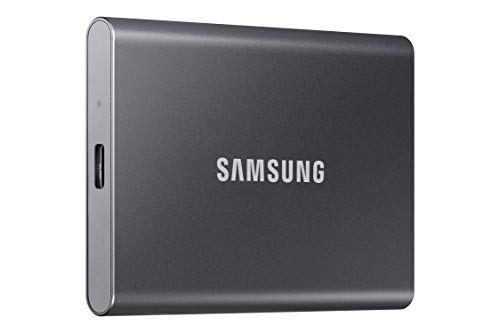
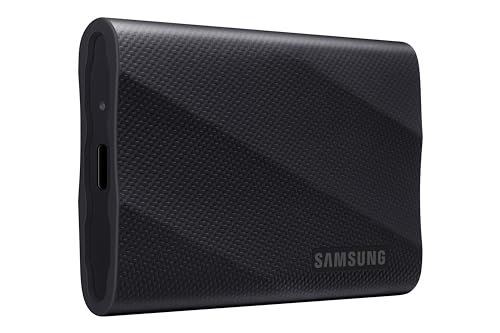


Top 3 picks at a glance
SSD vs HDD at a glance
Here’s how the four common storage classes compare on the specs that actually change what your PC feels like:
| 7200rpm HDD | SATA SSD | Gen4 NVMe SSD | Gen5 NVMe SSD | |
|---|---|---|---|---|
| Sequential read | ~200–270 MB/s | ~550 MB/s | ~7,000–7,400 MB/s | ~14,000+ MB/s |
| 4K random read | ~100–200 IOPS | ~90,000 IOPS | ~1,000,000+ IOPS | ~1,500,000+ IOPS |
| Access latency | ~5–12 ms | ~0.1 ms | ~0.02–0.08 ms | ~0.02 ms |
| Active power draw | ~6–9 W | ~2–4 W | ~5–8 W | ~9–12 W |
| Operating shock rating | ~60–70 G | ~1,500 G | ~1,500 G | ~1,500 G |
| Noise | Audible hum + seek chatter | Silent | Silent | Silent |
| Typical $/TB (2026) | ~$15–25 | ~$50–65 | ~$55–85 | ~$90–140 |
Prices move with NAND supply cycles, but the pattern holds: hard drives cost roughly a third to a quarter of what SSDs cost per terabyte, and lose everywhere else. Here’s why each gap matters in daily use.
The 7 real advantages of SSDs
1. No moving parts — nothing mechanical to wear or break
An HDD is precision machinery: platters spinning at 5,400–7,200 rpm, an actuator arm flicking a read head across them on bearings and motors. Every file request is a physical movement. An SSD is just NAND flash cells and a controller chip — data is read electrically, not mechanically. No motors to fail, no bearings to wear, no head to crash into a platter. That single design difference is the root cause of almost every other advantage on this list.
2. Access times ~100× faster — the “snappy” feeling
Before a hard drive can read a file, it has to move the arm to the right track and wait for the platter to spin the right sector under the head — that’s the ~5–12 ms latency in the table. An SSD answers in ~0.02–0.1 ms. In random small-file work (which is most of what an OS does), the gap is even starker: ~150 IOPS versus ~1,000,000.
Day to day, this is the advantage you actually feel: Windows boots in roughly 10–15 seconds instead of a minute-plus, apps open the moment you click them, alt-tabbing with a nearly full RAM stays fluid because hitting the pagefile no longer stalls the system, and game worlds stop hitching when they pull assets mid-frame. This latency gap — not the big MB/s number on the box — is what makes any SSD feel dramatically faster than any HDD.
3. 10–50× the bandwidth — loads, transfers, and streaming
Sequential throughput is the headline spec, and the math is simple: time = file size ÷ bandwidth. Take an open-world game that needs to pull an ~8 GB chunk of assets off disk to load a level:
- HDD at ~200 MB/s: ~41 seconds
- SATA SSD at ~550 MB/s: ~15 seconds
- Gen4 NVMe at ~7,000 MB/s: ~1.2 seconds
Real load screens are also CPU- and decompression-bound, so the on-screen gap is smaller than the raw ratio — but it’s still routinely the difference between staring at a loading bar and already playing. Microsoft’s DirectStorage API and current game engines now assume SSD-class storage; several major releases in the last few years list an SSD as a hard minimum requirement, not a recommendation. The same math applies to copying a 150 GB game install or scrubbing a video timeline.
4. Shock and drop resistance
A spinning HDD is typically rated to survive ~60–70 G of shock while operating — a sharp bump while it’s reading can slam the head into a platter and brick the drive. SSDs are rated around ~1,500 G. In practical terms: the laptop that gets knocked off a couch, the tower transported to a LAN party, the external drive tossed in a backpack — impacts that routinely kill running hard drives rarely phase an SSD. If you’re asking whether SSDs are more durable than HDDs physically, the answer is yes, by an order of magnitude.
5. Silent operation
An idling HDD produces a constant low hum (~20 dBA class) plus audible seek chatter and clicks under load — and it transmits vibration into the case, which quiet-build fans then have to mask. An SSD makes literally zero noise: no moving parts, nothing to hear. For a quiet gaming build, removing the last mechanical drive removes the last non-fan noise source in the system.
6. Lower power draw and less heat
A 3.5″ HDD pulls ~6–9 W while working and ~4–6 W just sitting idle — plus a startup surge of up to ~25 W on the 12 V rail per drive, which matters when sizing a PSU for a multi-disk NAS. An NVMe SSD peaks around ~5–8 W and drops to ~0.05 W in idle sleep states.
Run the numbers on a desktop with two HDDs spinning 24/7 for storage: ~10 W continuous works out to roughly 88 kWh per year — about $10–20 on your power bill — plus heat your case fans must exhaust. In a laptop, a 2.5″ HDD working at ~1.5–2 W versus an SSD at a fraction of that is a meaningful slice of a light-load system draw, which translates to tens of extra minutes per charge. The one caveat: Gen5 drives run genuinely hot under sustained load and want a heatsink — the rare case where an SSD adds a thermal concern.
7. Smaller, lighter, more flexible form factors
An M.2 2280 stick weighs ~8 g, screws flat onto the motherboard, and needs no cables or drive bay. A 3.5″ HDD weighs 400–700 g and demands a bay, a SATA data cable, and power. That frees up small-form-factor cases, improves front-panel airflow, and enables things like console expansion slots — current-gen consoles spec a Gen4-class drive of roughly 5,500 MB/s or better with a heatsink, which no HDD could ever meet.
Are SSDs actually more reliable than HDDs?
Mostly yes — but they fail differently, and the difference matters.
- HDDs die mechanically. Large-scale storage operators report annualized failure rates around 1–2% for their hard drives. The upside is they often warn you first: SMART errors, growing bad-sector counts, clicking.
- SSDs die electrically. NAND cells have finite program/erase cycles, and controllers or firmware can fail instantly with no warning at all.
The wear-out fear is overblown, and a quick calculation shows why. A typical 1 TB TLC drive is rated for ~600 TBW (terabytes written). Even at a heavy 40 GB written per day, that’s 600,000 ÷ 40 ≈ 15,000 days — roughly 40 years. Most users write a fraction of that, so in practice you will upgrade long before the NAND wears out.
The honest verdict: in normal use, SSDs fail less often and survive physical abuse no HDD could — but when they do die, it’s usually sudden and total. That makes backups non-negotiable regardless of which drive you own. One more nuance: SSDs are poor long-term powered-off archives (client drives are only spec’d to retain data unpowered for about a year near end of life), so for cold storage on a shelf, an HDD or periodically re-powered backup is the safer pick.
Where an HDD still makes sense
- Bulk capacity above ~8 TB — media libraries, backups, NAS arrays — where $15–25/TB beats $55+/TB by a wide margin.
- Powered-off archival storage, for the retention reason above.
- Game library overflow — keep the whole collection on a big HDD and use your launcher to move the game you’re actively playing onto the SSD. Moving an install takes minutes, not a re-download.
Which drive for which job?
| Your situation | Best choice | Why |
|---|---|---|
| OS + daily apps + games you play now | 1–2 TB Gen4 NVMe (Samsung 990 Pro / WD Black SN850X class) | Latency and bandwidth where you actually feel them |
| Older PC with only SATA ports | 500 GB–1 TB SATA SSD | Biggest single upgrade an old machine can get — the ~100× latency win still applies |
| Huge game library on a budget | 2–4 TB budget Gen3/Gen4 NVMe | Games barely notice the difference from flagship drives; capacity matters more |
| 8 TB+ of media/backups/NAS | 7200rpm HDD | Cost per terabyte; speed is irrelevant for playback and backups |
| Laptop | SSD only | Battery life + shock immunity; an HDD is a liability in a machine that moves |
| Console storage expansion | Gen4 NVMe with heatsink meeting platform spec (~5,500 MB/s+) | HDDs can’t meet the bandwidth requirement for native game installs |
FAQ
Will an SSD improve my FPS?
No — frame rate is set by your GPU and CPU. What an SSD fixes is load times, texture pop-in, and the stutter caused by open-world games streaming assets off disk mid-play. Those feel like performance, but they’re separate.
Can I use an SSD and an HDD together?
Yes, and it’s the standard recommendation: SSD for Windows, apps, and current games; HDD for bulk storage and older titles you dip into occasionally.
Is a Gen5 SSD worth it over Gen4?
For gaming, mostly no — real-world load time differences between Gen4 and Gen5 are small, and Gen5 runs hot and costs more per terabyte. Gen5 earns its premium in workloads that move huge files constantly: video editing, scratch disks, large dataset work.
Do HDDs last longer than SSDs?
Neither has a guaranteed lifespan — HDDs die from mechanical wear, SSDs from NAND wear or controller failure, and both typically last many years in normal use. The TBW math above shows write endurance is a non-issue for typical users, so the more useful habit is backing up whatever drive you choose.