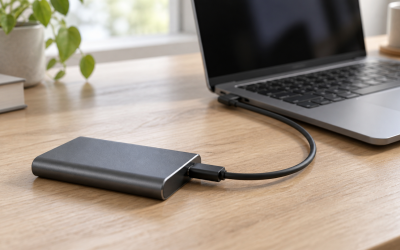
Your USB external SSD randomly vanishes mid-transfer: File Explorer’s copy dialog freezes at some percentage, then throws “The device is no longer available” or Error 0x80070037, and the drive letter disappears from “This PC” until you unplug and reconnect it. On Windows 11, you might also hear the USB disconnect chime while an Event Viewer entry (Kernel-PnP, Event ID 411 or 442) logs the removal. The problem often gets worse with large transfers and seems to disappear entirely when copying small files, which is exactly why it’s so maddening to diagnose.
Handle it sooner rather than later. A drive that disconnects during a write is a corruption risk — every drop mid-copy can leave partial files, a damaged file table, or a partition Windows suddenly wants to “reformat” the next time you plug in. Back up anything critical on the drive before you start, then work through the fixes below in order. Most cases trace back to a handful of well-known culprits, and the majority are solvable in software within 15 minutes.
Likely Causes
| Cause | How to confirm | Fix difficulty |
|---|---|---|
| Windows USB Selective Suspend power-saving the port | Disconnects happen after idle-ish periods or during long transfers; Event Viewer shows surprise removals | Easy |
| Unstable cable or connector | Wiggling the cable triggers disconnects; problem follows the cable, not the PC | Easy |
| Insufficient power delivery (bus-powered SSD on a front-panel or hub port) | Disconnects worsen under load; drive is warm but slow to remount; works on a rear motherboard port | Easy |
| USB controller driver issues or Generic USB Hub misconfiguration | Yellow warning icons in Device Manager; disconnects across multiple drives and ports | Medium |
| Aggressive drive power management or write-cache timing | Disconnects cluster right after transfer bursts finish | Medium |
| Failing enclosure bridge or TRIM/firmware bugs in the SSD itself | Same behavior on a different PC and different cable; SSD toolbox flags firmware updates | Hard |
Fix 1: Disable USB Selective Suspend
What causes it
Windows puts idle USB ports into a low-power suspend state to save energy. When this kicks in during or right after a sustained transfer, some SSD enclosures don’t wake cleanly and drop off the bus entirely.
How to check
Press Windows key + R, type control powercfg.cpl,,3 and press Enter. In the Power Options dialog that opens, expand “USB settings” and then “USB selective suspend setting.” If it reads “Enabled” for your active plan, this is a likely culprit.
What to do
Set “USB selective suspend setting” to “Disabled” for both “On battery” and “Plugged in” (or for desktops, just the single available column). Click Apply, then OK. For good measure, open an elevated Command Prompt (right-click Start, choose “Terminal (Admin)”) and run powercfg /setacvalueindex SCHEME_CURRENT 2a737441-1930-4402-8d77-b2bebba308a3 48e6b7a6-50f5-4782-a5d4-53bb8f07e226 0 followed by powercfg /setactive SCHEME_CURRENT to disable suspend at the profile level.
How to undo it
Return to the same dialog and set it back to “Enabled,” or run the same powercfg command with 1 instead of 0.
Fix 2: Replace or Re-seat the Cable
What causes it
USB-C cables are the most common physical failure point in any external SSD setup. Cheap or worn cables have loose data lines or marginal shielding, and vibration during heavy transfers briefly breaks the connection. A cable can also look fine while one of its data lanes has intermittent contact.
How to check
Start a large transfer (copy a 10+ GB folder onto the drive), then gently flex and wiggle the cable near both connectors. If the drive drops instantly, the cable is the problem. Also inspect the connectors for bent pins, debris, or wobble when plugged in.
What to do
Swap in a known-good cable — ideally the one supplied with the drive, or a short (under 1 meter), high-quality USB 3.2 or Thunderbolt-rated cable. Avoid passive cables longer than 1 meter for Gen 2 speeds, and skip USB hubs entirely. Plug directly into the port.
How to undo it
Reattach your original cable if you want to keep it as a spare; nothing on the system is changed.
Fix 3: Use a Rear Motherboard Port Instead of a Front-Panel Port or Hub
What causes it
Front-panel USB ports on desktop cases route through internal header cables and sometimes deliver less stable power. Bus-powered SSDs pulling 4.5 watts or more can brown out on these ports, especially during write bursts when power draw spikes.
How to check
If the disconnects stop when you move the drive to a port directly on the motherboard’s rear I/O panel, you’ve found your answer. Drives that only misbehave on hubs or front ports point to power, not software.
What to do
Connect directly to a rear USB 3.2 port (usually blue or red, labeled SS). If your enclosure supports USB-C, prefer a dedicated USB-C port over an adapter. If you must use a hub, use one with its own wall power adapter rated for at least 15 watts per port.
How to undo it
Just move the drive back. No settings changed.
Fix 4: Update or Reinstall USB Controller Drivers
What causes it
Corrupted or outdated drivers for the USB host controller, or a stale instance of the device entry for the SSD, can cause enumeration failures under load. This is common after a major Windows update or after using the drive with a different enclosure.
How to check
Right-click Start and choose “Device Manager.” Expand “Universal Serial Bus controllers” and look for yellow warning triangles. Then expand “Disk drives,” right-click your external SSD, choose Properties, and check the “Device status” box for errors like “Code 43” or “Code 10.”
What to do
In Device Manager, expand “Disk drives,” right-click your external SSD, and choose “Uninstall device” (leave the drive plugged in). Then, under “Universal Serial Bus controllers,” right-click each “USB Root Hub” and “Generic USB Hub” entry and do the same. Reboot — Windows reinstalls fresh drivers automatically. If your motherboard uses a third-party controller (ASMedia, Renesas, or VIA), visit the motherboard vendor’s support page for the current USB driver package.
How to undo it
Roll back via Device Manager: right-click the device, choose Properties, then the “Driver” tab, and select “Roll Back Driver” if available, or reinstall the previous driver from the vendor’s site.
Fix 5: Disable Write Caching for the Drive
What causes it
Windows write caching buffers data in system memory before flushing to the drive. Some enclosures mishandle flush commands under load, causing the drive to drop off mid-buffer-write. Disabling caching makes the drive slower in some workloads but more reliable.
How to check
In Device Manager, expand “Disk drives,” right-click your external SSD, choose Properties, then the “Policies” tab. If “Better performance” is selected along with “Enable write caching on the device,” caching is active.
What to do
On the “Policies” tab, select “Quick removal (default)” and uncheck “Enable write caching on the device” if present. Click OK. Also run dfrgui from the Run dialog, select the drive, and click “Change settings” — then confirm automatic optimization isn’t thrashing the drive during transfers. Reboot after changing the policy.
How to undo it
Return to the same Policies tab and reselect “Better performance” with write caching enabled. Always use the “Safely Remove Hardware” icon in the system tray before unplugging when caching is on.
Fix 6: Update the Enclosure or SSD Firmware
What causes it
USB-to-NVMe/SATA bridge chips (commonly from ASMedia, Realtek, or JMicron) occasionally ship with firmware bugs causing surprise removals under sustained load. Manufacturers fix these with firmware updates, especially for TRIM handling and UASP behavior.
How to check
Identify the bridge chip with a tool like Chip Genius or by checking the enclosure model number printed on the casing. Visit the enclosure or SSD manufacturer’s support page and search for your exact model to see whether firmware updates exist. Tools from Samsung, WD, Crucial, and Seagate (Samsung Magician, WD Dashboard, Storage Executive, SeaTools) report firmware versions for their own drives.
What to do
Back up the drive contents first — a firmware update should never be interrupted. Run the vendor’s firmware utility with the drive connected to a rear port, follow the on-screen prompts, and let the drive fully remount before removing it. If the drive is inside an enclosure, some updates require temporarily connecting the bare SSD to a motherboard M.2 slot instead.
How to undo it
Firmware downgrades generally aren’t supported. If the new firmware causes problems, contact the manufacturer’s support channel for a replacement unit or prior version.
Fix 7: Adjust USB Power Management in Device Manager
What causes it
Individual hub and root hub entries have their own power management toggles separate from the global selective suspend setting. Even with selective suspend disabled, per-device settings can put hubs to sleep.
How to check
In Device Manager, expand “Universal Serial Bus controllers,” right-click “USB Root Hub” or “Generic USB Hub,” choose Properties, then the “Power Management” tab. If “Allow the computer to turn off this device to save power” is checked, that hub can be suspended independently.
What to do
Uncheck “Allow the computer to turn off this device to save power” on every USB Root Hub and Generic USB Hub entry. Repeat for your SSD under “Disk drives” if a Power Management tab appears there. Click OK on each and reboot.
How to undo it
Recheck the same boxes on the same tabs. There’s no downside beyond a negligible increase in idle power draw.
Fix 8: Expose the Drive to Windows with a Fresh Volume or Updated File System
What causes it
File system corruption on the SSD itself — from a prior surprise removal — can cause read hangs that mimic a hardware disconnect. The drive stalls so long during a bad sector or corrupt region that the USB bridge times out and resets, appearing as a disconnect.
How to check
Open Command Prompt and run chkdsk X: /f /r (replace X with the drive’s letter). If it reports thousands of errors, file corruption is the likely trigger, not the USB link.
What to do
Back up everything readable first. Run chkdsk X: /f to repair the file system. If errors recur every time you connect the drive, back up whatever remains and reformat: right-click the drive in File Explorer, choose “Format,” select exFAT for cross-platform use or NTFS for Windows-only use, leave “Quick Format” checked, and click Start.
How to undo it
Reformatting is not reversible. Restoring data afterward requires backup copies made beforehand, which is why the backup step isn’t optional.
If Nothing Works
If you’ve ruled out cables, ports, power, drivers, power management, and firmware — and the drive still disconnects on multiple computers — the enclosure’s bridge chip or the SSD controller itself is likely failing. Test the bare SSD directly in a motherboard M.2 slot if it’s an NVMe drive; if it’s stable there, buy a replacement enclosure from a reputable brand. If it disconnects even when mounted internally, the drive itself is dying, and no software fix will save it. At that point, extract your data while it’s still readable, then pursue a warranty replacement — most external SSDs carry 3 to 5 year warranties. By the time you’re shopping, check that any replacement is explicitly rated for sustained write workloads, since thermally throttling budget enclosures remain a leading cause of mid-transfer dropouts well into 2026.
FAQ
Why does my external SSD disconnect only during large file transfers?
Large transfers push sustained power draw, heat, and continuous bus activity. Any weakness — marginal cable contact, insufficient power, aggressive power management, or a firmware bug triggered by sustained load — shows up under these conditions but not during light browsing of small files.
Can a faulty USB port damage my SSD?
Indirectly, yes. Repeated surprise removals during write operations increase the risk of file system corruption and can stress the drive’s controller. The port itself won’t electrocute the SSD, but the resulting corruption and interrupted write cycles degrade reliability over time.
Should I reformat the SSD if it keeps disconnecting?
Only as a last resort after confirming the file system is corrupt. Reformatting addresses software-level corruption but won’t fix hardware issues like a failing cable, weak port, or bad firmware. Always back up first.
Does USB hub usage cause disconnects?
Frequently. Passive (unpowered) hubs split a single port’s 4.5-watt budget across multiple devices, which often starves bus-powered SSDs. If you must use a hub, choose a powered one with at least 15 watts per port and connect the SSD to the highest-output port.