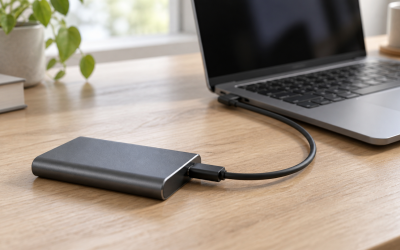
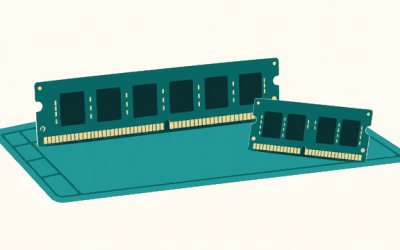
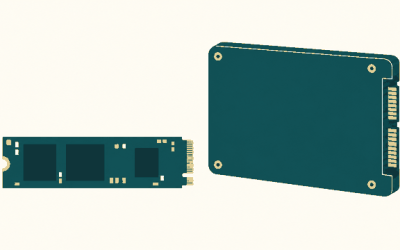
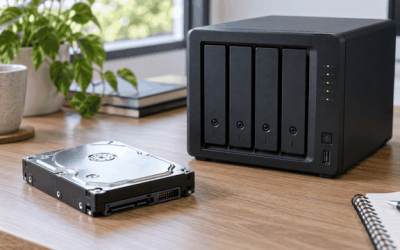
An NVMe SSD should not randomly change its drive letter during normal Windows use. Drive letters are assigned by Windows Mount Manager and are usually retained across restarts. When a letter appears to change, the underlying issue is often one of four things: the SSD is intermittently disconnecting, Windows is seeing the volume as a different device, another drive is claiming the preferred letter first, or a startup/script policy is remapping it.
This matters for PC gaming because launchers, mod managers, save-folder redirects, shader caches, and Steam libraries can all break when a library volume moves from D: to E:. The safest approach is to identify whether the NVMe volume is actually disappearing, merely being reassigned, or being mounted differently. The steps below apply to Windows 10 and Windows 11 systems in 2026.
Most Common Causes
| Cause | Symptom | Likelihood |
|---|---|---|
| Another removable, USB, or network drive takes the preferred letter | The NVMe remains visible, but switches between letters after booting or connecting devices | High |
| Windows Fast Startup or unstable boot-device enumeration | Letter changes after shutdown/startup but not always after Restart | Medium |
| Intermittent NVMe connection, controller reset, or power-management issue | Drive disappears briefly, games freeze, Event Viewer logs disk or NVMe errors | Medium |
| Volume mounting rules, DiskPart scripts, or third-party software | The same letter is reassigned predictably after login, update, backup, or launcher start | Medium |
| Duplicate disk signature, cloned drive, or damaged mount-point database | Windows assigns a new letter after a clone, hardware swap, or recovery operation | Low to medium |
| File-system damage or a failing SSD | Letter changes accompany read errors, missing partitions, RAW volumes, or system crashes | Low, but urgent |
Diagnose Step by Step
1. Confirm whether the letter changed or the drive disconnected
Press Win + X and select Disk Management. Find the NVMe by its capacity, partition layout, and volume label rather than by its current letter. If the volume is present, healthy, and simply has a different letter, this is an assignment conflict or mount-rule problem. If it is missing, shows as Unknown, Not Initialized, Offline, or appears only after several minutes, investigate the hardware and power sections first.
Also open File Explorer and check whether the old letter now belongs to another device. USB card readers, external drives, optical drives, mapped network shares, and virtual drives created by backup or emulation software are frequent letter claimants.
2. Check Disk Management and MountVol assignments
Open Terminal as administrator: press Win + X, then choose Terminal (Admin). Run:
mountvol
This lists volume GUID paths and their current mount points. Look for the relevant letter, such as D:\, and note whether it maps to the expected volume. Then run:
diskpart
list volume
exit
Compare the volume label, size, file system, and letter. If two drives have similar names, rename the volume labels in File Explorer to something unmistakable, such as Games_NVMe and Backup_USB.
3. Review recent disk and NVMe errors
Press Win + R, type eventvwr.msc, and press Enter. Go to Windows Logs > System. Select Filter Current Log and, under Event sources, look for disk, stornvme, storahci, Ntfs, and Kernel-PnP.
Events near the time of the letter change are important. Messages about resets, surprise removal, bad blocks, I/O retries, or a device being removed indicate that Windows may be treating the SSD as newly attached when it returns. Do not dismiss these as a harmless drive-letter issue.
4. Test boot behavior without removable devices
Shut down the PC completely. Disconnect external storage, USB hubs with card readers, docks, and any nonessential USB devices. Leave keyboard, mouse, and display connected. Start Windows and check the NVMe letter. Restart once more using Start > Power > Restart; a Restart performs a fuller device initialization than some shutdown scenarios when Fast Startup is enabled.
If the letter stays stable with external devices removed, reserve a high letter for the NVMe and assign lower or different letters to removable devices.
5. Check power settings, firmware, and physical installation
Open Control Panel > Hardware and Sound > Power Options > Change plan settings > Change advanced power settings. Expand PCI Express > Link State Power Management. Note the current setting before changing anything. On a desktop troubleshooting an unstable NVMe, temporarily set it to Off.
Then inspect the SSD in Device Manager: Win + X > Device Manager > Disk drives. Record the exact model. Check the motherboard vendor’s support page and SSD vendor utility for BIOS and SSD firmware updates. Before reseating an M.2 drive, shut down, switch off the PSU if present, unplug power, and discharge static electricity. Verify the module is fully inserted and secured with the correct standoff.
Fixes by Cause
Another drive is claiming the NVMe letter
What causes it: Windows assigns letters as devices become available. If an external drive, card reader, mapped share, or virtual drive receives D: before the NVMe is mounted, Windows may give the NVMe another available letter.
How to check: In Disk Management, identify which device owns the letter you expected. Check while all external devices are disconnected, then reconnect them one at a time.
What to do: In Disk Management, right-click the NVMe partition and choose Change Drive Letter and Paths. Select Change and assign a less-contested letter such as G:, M:, or R:. Do not use A: or B:. Then change the conflicting removable drive to another letter. For a network mapping, open Command Prompt and run net use to identify mapped letters.
How to undo: Return to Change Drive Letter and Paths and restore the previous unused letter. Update game-launcher library locations before moving a letter that contains installed games.
Fast Startup or inconsistent boot enumeration
What causes it: Fast Startup saves part of the Windows kernel state during shutdown. Some storage configurations enumerate differently after a Fast Startup boot than after a full restart.
How to check: If the letter changes after Shut down but remains correct after Restart, Fast Startup is a reasonable suspect.
What to do: Open Control Panel > Hardware and Sound > Power Options > Choose what the power buttons do. Click Change settings that are currently unavailable, then clear Turn on fast startup (recommended). Save changes and test several cold boots.
How to undo: Return to the same page, re-enable Turn on fast startup, and save changes.
NVMe power-management, firmware, or connection instability
What causes it: A controller reset, poor M.2 seating, outdated firmware, motherboard BIOS bugs, or aggressive PCIe power saving can make the SSD disappear long enough for Windows to remount it.
How to check: Review System log events, watch for temporary drive loss during gaming, and check whether Disk Management refreshes or the volume returns with a different letter. Check SSD health with the manufacturer’s tool and back up important data first.
What to do: Temporarily set PCI Express > Link State Power Management to Off. Install stable BIOS, chipset-driver, and SSD-firmware updates appropriate for your exact hardware. Reseat the M.2 SSD and ensure any thermal pad is not preventing full insertion. Avoid installing an NVMe drive in a slot that shares lanes with a disabled SATA port unless your motherboard manual confirms the layout.
How to undo: Restore the previous Link State Power Management setting. Firmware and BIOS updates generally cannot be rolled back safely, so read release notes and use only the vendor’s supported update process.
Scripts, mount points, or software remapping the volume
What causes it: DiskPart scripts, startup tasks, backup tools, encryption products, virtual-drive software, or old game-library tools can assign letters at logon.
How to check: Open Task Scheduler and review Task Scheduler Library for tasks that run at logon or startup. Look for commands containing diskpart, mountvol, subst, or PowerShell storage cmdlets. Also inspect Settings > Apps > Startup.
What to do: Disable one suspicious non-Microsoft startup item or scheduled task at a time, reboot, and test. If a volume is mounted into a folder instead of a letter, remove that mount point in Disk Management through Change Drive Letter and Paths, then assign one permanent letter.
How to undo: Re-enable the disabled task or startup item. Record every change so you can reverse it cleanly.
Duplicate signatures or damaged volume assignments after cloning
What causes it: Keeping an old cloned disk connected can confuse Windows storage identification. A failed migration or recovery operation can also leave stale mount assignments.
How to check: In Disk Management, look for an offline disk with a duplicate-signature message. If the problem began immediately after cloning, remove the old clone temporarily and boot only from the intended disk.
What to do: Back up data, then use Disk Management to bring the correct disk online and assign its intended letter. Do not initialize, format, or delete partitions merely to fix a letter. If Windows has been repeatedly mounting the wrong clone, disconnect the obsolete clone until its contents are copied or erased intentionally.
How to undo: Reconnect the old disk only after ensuring it will not be used as an active duplicate. Restore its original letter only if no current device needs it.
When to Replace or Reinstall
Replace the NVMe SSD if the letter changes are accompanied by repeated controller resets, SMART or health warnings, uncorrectable read errors, disappearing partitions, file corruption, or a drive that vanishes in BIOS/UEFI. Back up immediately before extended testing. Reinstalling Windows is not the first fix for a simple letter conflict, but it becomes reasonable after confirming stable hardware, removing remapping software, and finding persistent corruption in Windows storage configuration or system files.
Before reinstalling, copy game saves, documents, browser data, encryption recovery keys, and launcher library information. If the NVMe is the Windows boot drive and instability is present, install Windows only after firmware, BIOS, seating, and health checks show the drive is reliable.
FAQ
Can Windows change a drive letter by itself?
Yes, but usually because Windows detects a conflict, a device appears in a different order, or a volume is remounted after disconnecting. A healthy permanently installed NVMe should normally retain its assigned letter.
Is it safe to change the letter of a game drive?
It is safe for the file system, but installed games and launchers may still point to the old path. In Steam, use Steam > Settings > Storage to verify the library folder after the change. Other launchers may need their game-library folder selected again.
Should I assign the NVMe drive letter D:?
You can, but D: is commonly claimed by optical drives, recovery partitions, external storage, and older configurations. A higher unused letter is often more reliable for a dedicated game or media NVMe.
Will CHKDSK fix a changing drive letter?
chkdsk X: /scan can identify file-system issues on the affected volume, but it will not fix a letter conflict, a USB device taking the letter, or an NVMe controller reset. Use it after confirming the correct current letter and after backing up important files.