An Xbox external drive that repeatedly disconnects can interrupt installs, corrupt partially downloaded games, trigger “storage device removed” warnings, or make a library disappear until the next reboot. The fault is usually not the game itself. It is more often a USB cable, insufficient power, a loose port, drive firmware behavior, or a developing disk failure.
This guide applies to Xbox One, Xbox One S, Xbox One X, Xbox Series S, and Xbox Series X consoles using USB storage. In 2026, USB external storage remains useful for Xbox One-era games and for archiving many Xbox Series X|S titles, although most games optimized specifically for Xbox Series X|S must be played from internal storage or an official expansion card.
Most Common Causes
| Cause | Symptom | Likelihood |
|---|---|---|
| Loose, damaged, or low-quality USB cable | Drive disconnects when the console is moved, during downloads, or after vibration. | High |
| Insufficient USB power | Bus-powered portable drive clicks, spins down, or vanishes during game launches. | High |
| Faulty USB port or poor connection | Problem happens only in one console USB port. | High |
| Drive enclosure, cable, or firmware failure | Drive disconnects on both Xbox and PC, especially under sustained transfers. | Medium |
| Overheating external HDD or SSD | Disconnects appear after 20 to 60 minutes of play, installs, or updates. | Medium |
| Failing hard disk or flash storage | Slow game loading, repeated repair prompts, strange noises, or unreadable files. | Medium |
| Corrupted Xbox storage format or game data | Xbox sees the drive but reports errors when opening specific games. | Medium |
| Console software or power-state issue | Drive is missing only after startup, sleep, or an update; reconnecting restores it. | Low to medium |
Diagnose Step by Step
1. Confirm that Xbox is detecting the drive
Press the Xbox button, then go to Profile & system > Settings > System > Storage devices. A working external drive should appear separately from Internal storage. Select it and note its reported capacity and available space.
If the drive is absent, unplug it, wait 30 seconds, and reconnect it directly to the console. Do not use a USB hub, front-panel extension, keyboard USB pass-through, or monitor USB port during our research. If the drive appears and disappears while you are watching the Storage devices screen, start with the cable, power, and port checks below.
2. Check whether the failure follows the cable or port
Power the console fully off first. Hold the Xbox button on the console for about 10 seconds until it shuts down, then unplug the console power cable for 60 seconds. Reconnect power, start the console, and test the external drive in another USB port.
Xbox consoles have USB ports intended for high-speed storage, but a port can wear, collect debris, or develop a weak connection. If the drive works reliably in one port but not another, the original port is the likely problem. If changing ports does nothing, replace the cable before assuming the drive itself has failed.
3. Test the drive without the Xbox
Connect the drive directly to a Windows PC with the same cable, then with a known-good replacement cable if possible. Open File Explorer and leave the drive connected for at least 15 minutes. For a more useful test, copy a large nonessential file to the drive, then copy it back. Watch for Windows disconnect sounds, “USB device not recognized” messages, or a drive letter that vanishes.
For a drive formatted for Xbox games, Windows may show a prompt to format it. Do not accept that prompt. Formatting from Windows removes the Xbox game-storage format and erases the drive. You can still use Device Manager to see whether the USB device repeatedly disconnects: right-click Start, select Device Manager, and expand Disk drives and Universal Serial Bus controllers.
4. Look for power and heat clues
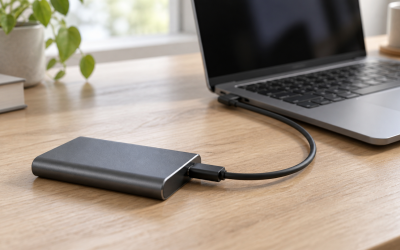
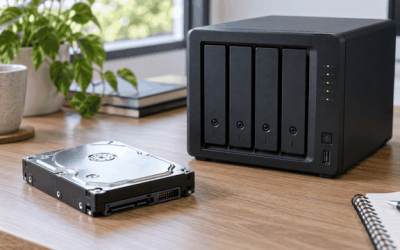
Identify the drive type. A small 2.5-inch portable hard drive or compact portable SSD usually draws all power through USB. A larger 3.5-inch desktop hard drive normally has its own wall power adapter. Bus-powered drives are more sensitive to cable resistance and marginal USB power.
During a failure, carefully check whether the enclosure is unusually hot. Do not open the enclosure. A hard drive should not be placed on carpeting, inside a closed cabinet, directly on top of the console, or against a console exhaust vent. Listen for repeated spin-up sounds, clicking, or a drive that powers down and restarts; those signs point toward power loss or mechanical trouble.
5. Separate a drive problem from a single-game problem
Open My games & apps > See all > Manage > Storage devices and inspect the external drive. If only one game fails to launch while other titles remain visible and playable, the drive may still be connected correctly. Select the affected game, choose Manage game and add-ons, then check whether its installation is complete and whether add-ons are present.
If the entire external library disappears, downloads stop, or the console reports that storage was removed, treat it as a physical connection or hardware issue rather than a game-install issue.
Fixes by Cause
Loose, damaged, or low-quality USB cable
What causes it: USB cables can develop internal breaks near the connectors, loose plugs, or unstable data connections. A cable may still supply enough power to light an enclosure while failing to maintain reliable data transfer.
How to check: Gently touch the connector without forcing it. If the drive disconnects when the cable moves, or if another cable fixes the problem, the cable is defective. Examine both ends for bent metal, crushed insulation, or a connector that does not seat firmly.
What to do: Replace the cable with a short, certified USB 3.x data cable matching the drive’s connector: USB Micro-B, USB-C, or USB-B on some desktop enclosures. Connect it directly to the Xbox. Avoid very long cables; keep the replacement at 1 meter (about 3 feet) or less when practical.
How to undo: Reconnect the old cable only if you need to confirm the diagnosis. Do not continue using it for game storage if it causes even one repeat disconnect.
Insufficient USB power
What causes it: Portable HDDs need more power during spin-up and heavy reads than during idle operation. A worn cable, underpowered enclosure, or additional USB accessories can make the voltage drop enough for the drive to reset.
How to check: Disconnect nonessential USB devices, including charging cables, webcams, keyboards, and wireless accessories that use USB power. Test the drive by launching a game or installing an update. If failures occur during heavy activity but not while idle, power delivery is a strong suspect.
What to do: Use a direct console connection and a new short cable. For a 3.5-inch desktop external drive, verify that its original AC adapter is firmly connected to both the wall outlet and enclosure. If a portable HDD continues to reset, migrate games to a powered desktop external drive or a reputable external SSD with a proper USB enclosure.
How to undo: Reattach other USB accessories one at a time after the drive remains stable. If reconnecting one accessory brings back the issue, leave that accessory disconnected or charge it separately.
Faulty Xbox USB port
What causes it: Repeated plugging, accidental cable pulls, debris, or internal wear can damage a USB port’s contact tension or data pins.
How to check: Test the external drive in every available console USB port using the same known-good cable. Then test another USB storage device in the suspect port. A problem isolated to one port is conclusive enough for normal troubleshooting.
What to do: Use a stable working port and route the cable so it cannot be bumped. With the console powered off and unplugged, inspect the port using a flashlight. Remove only loose surface dust with a dry air blower; do not insert metal tools, liquids, or compressed-air cans held upside down.
How to undo: There is no software change to reverse. If all ports fail with multiple verified devices, arrange console service rather than repeatedly forcing connectors into the ports.
Overheating drive or enclosure
What causes it: Hard drives and SSD controllers can become unstable when enclosed heat builds up. Downloads, game transfers, and backward-compatible game play can keep the drive active for long periods.
How to check: Note whether the disconnect consistently occurs after extended use and whether the drive works again after cooling for 30 minutes. Check that the enclosure is not sitting on the console or receiving hot exhaust air.
What to do: Place the drive on a hard, open surface with several inches of clearance around it. Move it away from the console’s exhaust path. Pause large transfers until it cools, then retry. If an SSD enclosure is hot enough to be uncomfortable to touch for more than a moment, replace the enclosure or use a better-ventilated model.
How to undo: Move the drive back only if the original location has adequate airflow. Do not cover it with fabric or stack devices on it.
Corrupted game-storage format or damaged game installation
What causes it: A disconnect during a game update, installation, or console shutdown can leave files incomplete. Less commonly, the external storage format becomes inconsistent.
How to check: If the drive stays connected but one game shows an installation error, remove only that game first. Go to My games & apps > See all, highlight the game, press the Menu button, select Manage game and add-ons > Uninstall all, then reinstall it to the external drive.
What to do: If multiple games fail and the drive remains stable physically, back up anything important that is not replaceable. Then go to Settings > System > Storage devices, select the external drive, and choose Format for games & apps. Give the drive a recognizable name and let Xbox complete formatting before installing games again.
How to undo: Formatting cannot be undone and erases installed games. Reinstall titles from your library afterward. Saved games normally sync through the Xbox network service when the console is online, but allow synchronization to finish before deleting or formatting storage.
Failing hard drive, SSD, or USB enclosure
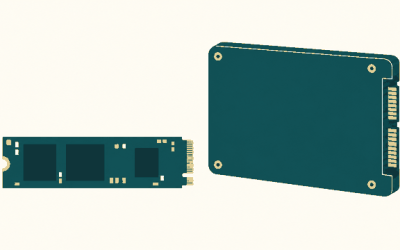
What causes it: Mechanical HDDs wear over time, while SSDs, bridge boards, and USB enclosures can fail electronically. Repeated disconnects across multiple cables and devices usually indicate hardware rather than an Xbox setting.
How to check: Test on a PC and a different console or computer if available. Warning signs include clicking or grinding from an HDD, a drive that vanishes during file copies, severe unexplained slowdowns, repeated format requests, or an enclosure LED that cycles off and on.
What to do: Stop installing or moving games to the drive. Copy any accessible personal files immediately if it is also used for media. For Xbox-only game storage, move games off through My games & apps > See all > Manage > Storage devices if the drive stays connected long enough. Replace the failing unit rather than relying on repeated reformats.
How to undo: There is no reliable undo for a failing drive. If testing proves the disk is healthy but the enclosure is unstable, you may replace only the enclosure, provided the drive is compatible and you understand that Xbox may require reformatting it.
When to Replace or Reinstall
Replace the external drive or enclosure when it disconnects with multiple known-good cables, on more than one host device, or after being moved to a cool, well-ventilated location. Replace it immediately if an HDD clicks, grinds, repeatedly spins down, or disappears during basic file transfers. Do not trust a drive that has required repeated Xbox formatting to remain stable.
Reinstall a single game when the external drive remains visible in Settings > System > Storage devices and only that title has launch, update, or add-on errors. Reformat the whole drive only after connection stability has been verified and multiple titles are affected. Formatting a drive that is physically disconnecting usually wastes time and can make recovery harder.
FAQ
Why does my Xbox external drive disconnect only when I start a game?
Launching a game increases read activity and power demand. That exposes a weak cable, marginal USB power, overheating enclosure, or failing drive that may appear normal while idle. Test with a new short cable and another console USB port first.
Can I use a USB hub for Xbox game storage?
It is best not to use one for troubleshooting or long-term game storage. Connect the drive directly to the console. A hub adds another cable, controller, and power path that can create intermittent disconnects.
Will formatting the external drive fix random disconnects?
Only if the connection is already stable and the problem is corrupted game data or a damaged Xbox storage format. Formatting does not repair a bad cable, failing USB port, insufficient power, overheating drive, or failing disk.
Can I play Xbox Series X|S optimized games from a USB external drive?
Most titles labeled as optimized for Xbox Series X|S must run from the console’s internal storage or compatible expansion storage. USB external drives can store many of those games for transfer later, and they can play supported Xbox One, Xbox 360, and original Xbox titles directly.