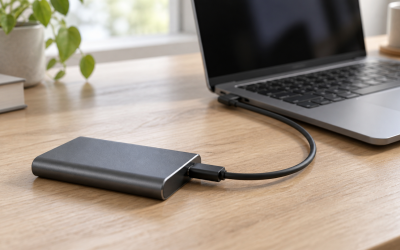
Nothing kills a gaming session faster than plugging in an external drive full of your library and watching Windows ignore it completely. Sometimes the drive doesn’t appear in File Explorer at all; other times it shows a “USB device not recognized” toast, appears with a yellow warning triangle in Device Manager, or shows up in Disk Management but never gets a drive letter. On some systems, the drive disconnects and reconnects audibly every few seconds — that familiar USB chime on repeat.
Before you panic about lost save files or a 200 GB Steam library, take a breath: the vast majority of these failures are caused by cabling, power, driver, or drive-letter issues — all fixable in under 15 minutes without any data loss. Only a small percentage of cases turn out to be actual drive failure, and even then, your first diagnostic steps cost nothing. Work through the fixes below in order; each one is safe to try, and you can stop as soon as the drive reappears.
Likely Causes
| Cause | How to confirm | Fix difficulty |
|---|---|---|
| Faulty or charge-only USB cable | Swap in a known-good data cable; drive instantly appears | Easy |
| Insufficient power from the USB port | Drive spins up but clicks, stutters, or drops when connected to a front-panel or hub port | Easy |
| No drive letter assigned | Drive visible in Disk Management but absent from File Explorer | Easy |
| Corrupt or outdated USB/storage drivers | Yellow warning icon in Device Manager under Universal Serial Bus controllers | Moderate |
| USB power management suspending the port | Drive disconnects after idle, reconnects on activity | Moderate |
| Failing drive or enclosure electronics | Drive fails on multiple PCs, cables, and ports | Hard |
Fix 1: Test a Different Cable and Port
What causes it
Many external drives ship with cables that degrade or break internally, and cheap third-party replacements are often wired for charging only, with no data lines at all. Front-panel case ports and unpowered hubs also supply less current than motherboard ports.
How to check
Look closely at the cable for kinks or a loose connector fit. If the drive clicks repeatedly or spins up and down in a loop, that’s a classic symptom of a data cable that only carries power — the drive has electricity but no communication.
What to do
Swap in the original manufacturer cable if you still have it, or any cable rated for data (USB 3.0 cables are usually marked SS). Plug directly into a rear motherboard USB port on a desktop, or the port closest to the charging circuit on a laptop. Avoid hubs and extension cords entirely during our research.
How to undo it
Nothing to undo — reconnect your original setup once you know which cable and port combination works.
Fix 2: Check Disk Management for a Missing Drive Letter
What causes it
Windows sometimes loses a volume’s drive letter after an unsafe removal, a fast restart, or a conflict with a network drive mapped to the same letter. The partition is healthy; it just has no way to surface in File Explorer.
How to check
Right-click Start and select Disk Management. If your drive appears in the lower pane with a healthy NTFS partition but no letter label above it, this is your problem.
What to do
Right-click the partition on the external drive and select Change Drive Letter and Paths, then Add (or Change). Pick an unused letter like E or F, click OK, and open File Explorer to confirm the drive appears.
How to undo it
Return to the same dialog and select Remove to strip the letter again, or assign a different one. This doesn’t touch any data.
Fix 3: Reinstall the USB Device Drivers
What causes it
Corrupted driver state after a Windows update or an improper ejection can leave the drive enumerating as an unknown device. This is one of the most common causes of the “USB device not recognized” error.
How to check
Right-click Start, open Device Manager, and expand Disk drives and Universal Serial Bus controllers. A device with a yellow triangle, or an entry called “Unknown USB Device (Device Descriptor Request Failed),” points here.
What to do
Right-click the problematic entry and choose Uninstall device. If you see a checkbox for “Delete the driver software for this device,” leave it unchecked. Unplug the drive, restart the PC, then plug it back in — Windows will reinstall fresh drivers automatically. If the drive still fails, repeat and then run Action > Scan for hardware changes.
How to undo it
No manual undo is needed; Windows rebuilds the driver stack on reconnection. Rolling back is only necessary if a new driver update causes issues, via the Driver tab > Roll Back Driver.
Fix 4: Disable USB Selective Suspend and Power Management
What causes it
Windows aggressively powers down idle USB ports to save energy. On some systems this interacts badly with external drives that don’t handle suspension gracefully, causing repeated disconnects.
How to check
Watch the drive in Device Manager or listen for the connect/disconnect chime after a few minutes of inactivity. If it vanishes when idle and reappears on click, selective suspend is the likely culprit.
What to do
Open Control Panel > Power Options > Change plan settings > Change advanced power settings. Expand USB settings > USB selective suspend setting and set it to Disabled for both On battery and Plugged in. Then, in Device Manager, expand Universal Serial Bus controllers, open each USB Root Hub’s Properties > Power Management tab, and uncheck “Allow the computer to turn off this device to save power.”
How to undo it
Return to both locations and re-enable the settings. There’s no downside to leaving them disabled on a desktop, and minimal battery impact on most laptops.
Fix 5: Check and Repair the File System
What causes it
An unsafe removal or a power dip mid-write can corrupt the file system, making Windows mount the volume read-only, hang Explorer when you click it, or refuse to assign a letter at all.
How to check
If the drive appears but folders hang or Explorer freezes when opened, or CHKDSK hasn’t run recently, corruption is plausible. Confirm the drive’s model and letter in Disk Management first.
What to do
Open Command Prompt as administrator (search cmd, right-click, Run as administrator) and run: chkdsk E: /f /r — substituting your drive’s actual letter. Expect /r to take a long time on large drives; run /f alone first if you’re in a hurry. Never run this on your system drive.
How to undo it
CHKDSK repairs in place and can’t be rolled back, but it’s non-destructive to intact data. If it reports deleting files, check the drive for FOUND.000 folders afterward.
Fix 6: Update or Roll Back the Storage Controller Driver
What causes it
A chipset or USB host controller driver update occasionally breaks device enumeration, particularly on older boards or after major Windows feature updates.
How to check
Open Device Manager > Universal Serial Bus controllers and note the host controller names. If the failure started immediately after a Windows Update cycle, driver regression is likely.
What to do
In Device Manager, right-click the host controller (typically listed as “USB xHCI Compliant Host Controller”) and select Update driver > Search automatically for drivers. If that finds nothing, visit your motherboard or laptop manufacturer’s support page, download the latest chipset and USB drivers for your exact model, install them, and restart.
How to undo it
Use the Driver tab > Roll Back Driver on the controller’s properties, or reinstall the previous driver package from the manufacturer’s archive.
Fix 7: Assign the Drive Offline/Online State and Initialize Check
What causes it
Drives occasionally drop into an Offline state in Disk Management, or show as “Not Initialized” after firmware hiccups. Windows refuses to mount an offline disk even when hardware is fine.
How to check
In Disk Management, look at the disk number in the left column of the lower pane. If it says “Offline,” right-click it and check for an Online option. If it says “Unknown” and “Not Initialized,” note that carefully before proceeding.
What to do
For an offline disk, right-click the disk number and select Online. If the drive shows Not Initialized but you know it previously held data, do not initialize — instead run a third-party partition-recovery tool (TestDisk is free) to recover the partition table, since initializing writes a new one and risks data loss.
How to undo it
Right-click the disk and choose Offline to reverse the online action. There is no undo for initialization, which is why the caution above matters.
Fix 8: Rule Out Drive or Enclosure Failure
What causes it
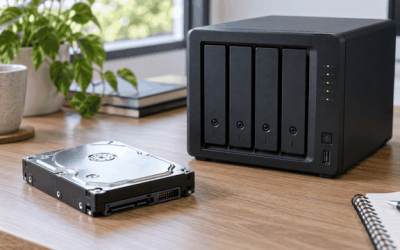
External drive enclosures contain a small USB-to-SATA bridge board that fails more often than the drive itself. The spinning disk inside may be perfectly healthy.
How to check
Test the drive on a second computer with a second cable. If it fails everywhere with every combination, try removing the drive from the enclosure (usually four screws under the shell) and connecting it via a cheap SATA-to-USB adapter or directly to a desktop SATA port.
What to do
If the bare drive works on a direct SATA connection, replace the enclosure or adapter — a $15–$25 part. If the bare drive also fails, and it isn’t detected in the BIOS/UEFI of a desktop it’s connected to, the drive itself has likely failed. At that point, stop powering it repeatedly and use a professional recovery service if the data matters.
How to undo it
Reinstall the drive in its enclosure once you’ve identified the faulty component; nothing needs reversing.
If Nothing Works
If you’ve worked through every fix and the drive remains invisible across multiple PCs, cables, and ports, you’re most likely dealing with hardware failure. Stop repeated power-on attempts, since each cycle can worsen mechanical damage. For irreplaceable data — save files, screenshots, years of configurations — a professional recovery lab is the only safe route; expect costs starting around $300 for basic recovery. If the data is replaceable, the drive has served its life: replace it, and going forward, always use the Safely Remove Hardware icon in the system tray before unplugging, keep a backup of anything irreplaceable, and consider leaving a small secondary copy of your save-game folder (typically under Documents or AppData) synced to cloud storage. Gamers building out their setup in 2026 should also favor externally powered desktop drives over bus-powered portables for large libraries, since stable power delivery eliminates half the problems in this guide before they start.
FAQ
Why does my external drive show in Device Manager but not File Explorer?
This almost always means Windows detects the hardware but can’t mount the volume — usually due to a missing drive letter, an offline disk state, or file system corruption. Check Disk Management first (Fix 2), then the disk’s Online status (Fix 7).
Can a USB hub cause my external drive to disconnect?
Yes. Unpowered hubs split a single port’s 900 mA budget across multiple devices, which spinning drives frequently exceed. Connect the drive directly to a rear motherboard port, or use a powered hub with its own wall adapter.
Is it safe to run CHKDSK on my external drive?
Yes, CHKDSK with the /f flag is non-destructive to intact files and is the correct tool for file system errors. Back up anything critical first if the drive is showing instability, and never run it on a drive you suspect of physical failure.
Why does my drive work on my laptop but not my gaming PC?
Differences in driver state, USB power management settings, or front-panel port wiring usually explain this. Apply Fix 3 and Fix 4 on the problem PC, and test rear motherboard ports before suspecting the drive itself.