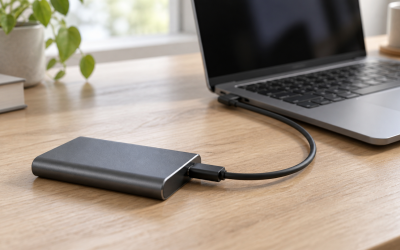
Your USB-C SSD runs fine on the desktop, but ten minutes into a game it vanishes. The game freezes, Windows dings with a disconnect sound, and File Explorer shows the drive as missing or as “Local Disk (D:) is not accessible.” Sometimes it reconnects on its own a few seconds later, sometimes you have to unplug and replug it before it appears again, often with a scan-and-fix prompt.
This is more than an annoyance. If a game is installed on that drive or is actively writing a save, shader cache, or clip, a mid-game disconnect can corrupt save files, invalidate a Steam installation, or trigger file system errors that require a full check disk. Fix it before you continue playing from the drive, and back up any saves to your internal drive now while the SSD still mounts.
Likely Causes
| Cause | How to confirm | Fix difficulty |
|---|---|---|
| Unstable physical connection or insufficient power over USB-C | Disconnects when cable is moved or only on front-panel/USB hub ports; drive works on another port or PC | Easy |
| Windows USB power saving cutting power under load | Disconnects after 5-15 minutes of gaming but not during light browsing; Event Viewer shows USB device reset | Easy |
| Outdated or generic USB/SSD drivers and firmware | Drive shows as “USB Mass Storage Device” in Device Manager; chipset drivers are months old | Moderate |
| Thermal throttling inside the SSD enclosure | Enclosure is very hot to the touch at disconnect; reconnects after cooling for a few minutes | Moderate |
| File system errors or aggressive write caching | Windows prompts to scan and fix the drive on reconnect; CrystalDiskInfo shows warnings | Moderate |
| BIOS / motherboard USB power limits or PCIe link power management | Disconnects persist across all Windows fixes and only under heavy GPU/CPU load | Advanced |
Fix 1: Reseat the Cable, Port, and Enclosure
What causes it
Many disconnects come from marginal power or data contact, not software. Thin, long, or charge-only USB-C cables, loose USB-C connectors, front-panel case headers, and unpowered hubs cannot sustain the 900mA to 1.5A an NVMe enclosure needs during a game load.
How to check
Wiggle the cable gently at both ends while copying a large file from the SSD and watch for a pause or disconnect sound. Open Device Manager, expand Universal Serial Bus controllers, and note if the drive is behind a Generic USB Hub. Test the same cable and SSD on a rear motherboard USB-C port directly, without any adapter or hub.
What to do
Power off the game and close any copy operations. Unplug the SSD, wait 10 seconds, then plug it directly into a rear USB-C port on the motherboard or a rear USB-A 3.2 port with a short, 10Gbps-rated USB-C to USB-A cable under 1 meter / 3.3 feet. If you must use a hub or front panel, use a powered hub with its own AC adapter. For NVMe enclosures with a separate cable, unscrew the enclosure, reseat the M.2 drive at a 20 to 30 degree angle until it clicks, and re-tighten the retaining screw without over-tightening.
How to undo it
Move the drive back to the original port or hub. If disconnects return, that port or hub is the limiter and should be avoided for gaming.
Fix 2: Disable USB Selective Suspend
What causes it
Windows can suspend individual USB ports to save power. During gaming, when the CPU and GPU prioritize performance, Windows may misdetect the SSD as idle between asset loads and cut power for a fraction of a second, which is enough to force a disconnect.
How to check
Press Windows + R, type powercfg.cpl, and press Enter. Next to your active plan click Change plan settings, then Change advanced power settings. Expand USB settings and look for USB selective suspend setting. If it is set to Enabled, it is active.
What to do
In that same Advanced Settings window, set USB selective suspend setting to Disabled for both On battery and Plugged in. Click Apply and OK. Then go to Settings, System, Power, and ensure Power mode is set to Best performance on desktops or Balanced on laptops, not Best power efficiency.
How to undo it
Return to powercfg.cpl, Change advanced power settings, USB settings, and set USB selective suspend setting back to Enabled.
Fix 3: Stop Windows From Turning Off the USB Device
What causes it
Separate from the power plan, each USB Hub and USB Mass Storage Device has its own Allow the computer to turn off this device to save power toggle. If enabled, Windows will power down that specific port after inactivity, even if selective suspend is disabled.
How to check
Press Windows + X, select Device Manager. Expand Universal Serial Bus controllers and Disk drives. Right-click each entry named USB Root Hub (USB 3.0), Generic USB Hub, and USB Mass Storage Device, then choose Properties and look at the Power Management tab.
What to do
On the Power Management tab, uncheck Allow the computer to turn off this device to save power for every USB Root Hub, Generic USB Hub, and for the entry under Disk drives that matches your external SSD. Click OK after each. In Device Manager, also expand Universal Serial Bus controllers, right-click the USB xHCI Host Controller, choose Properties, Power Management, and uncheck the same box if present. Restart the PC.
How to undo it
Reopen each device’s Properties, Power Management, and re-check Allow the computer to turn off this device to save power.
Fix 4: Update Chipset, USB, and SSD Firmware Drivers
What causes it
Generic Microsoft drivers and outdated motherboard chipset drivers handle USB power delivery and UASP poorly. A mismatch can cause the drive to drop when queue depth spikes during texture streaming.
How to check
In Device Manager, under Disk drives, right-click your SSD, choose Properties, Details tab, and set Property to Hardware Ids to confirm the exact model. Under Universal Serial Bus controllers, note if the controller is listed as Generic USB Hub or Intel/AMD USB 3.2 xHCI Host Controller. Press Windows + R, type msinfo32, and check BaseBoard Manufacturer and Product to identify your motherboard.
What to do
Install the chipset driver package from your motherboard manufacturer’s support page for your exact board model, then restart. In Device Manager, right-click the USB xHCI Host Controller, choose Update driver, then Search automatically for drivers. Next, check the SSD or enclosure maker’s support page for a firmware updater tool. Most run as an .exe that detects the drive when connected directly to a rear port. Run the updater with no games open and do not unplug during flashing. After updating, safely eject and replug the SSD.
How to undo it
In Device Manager, right-click the updated controller, choose Properties, Driver tab, and select Roll Back Driver if the button is available. For SSD firmware, there is no safe rollback; keep the update and note the previous firmware version from the updater log at C:\Program Files or the tool’s install folder.
Fix 5: Reduce Heat in the Enclosure
What causes it
Compact USB-C enclosures trap heat. An NVMe drive can exceed 65 to 75 degrees Celsius inside a metal case during sustained reads, at which point the bridge chip disconnects to protect itself. As of early 2026 most budget enclosures still lack thermal pads that fully contact the drive.
How to check
Immediately after a disconnect, carefully touch the enclosure. If it is uncomfortable to hold for more than 3 seconds, it is overheating. For a precise check, install a drive health tool and look at Drive Temperature under S.M.A.R.T. data while running a 5-minute file copy. Sustained readings above 65 degrees Celsius indicate thermal stress.
What to do
Lay the enclosure on its side on a hard surface with airflow, not on carpet or on top of a hot PC case. Add a stick-on aluminum heatsink or thermal pad inside the enclosure so the NAND and controller contact the metal shell. If your enclosure has a built-in cable, ensure the cable is not coiled tightly around it. For long gaming sessions, point a small USB fan at the drive or place it on a laptop cooling pad. In Windows, avoid continuous background writes by pausing cloud sync apps like OneDrive or Dropbox while gaming.
How to undo it
Remove any added heatsink or pad and return the enclosure to its original position. Temperatures will return to prior levels.
Fix 6: Fix File System Errors and Write Caching Policy
What causes it
Repeated unsafe removals leave file system errors that make the drive remount as raw or read-only mid-game. Write caching set to Quick removal can also cause stuttering disconnects if the game engine expects delayed writes to flush instantly.
How to check
Press Windows + X, select Terminal (Admin) or Windows PowerShell (Admin). Type chkdsk D: where D: is your SSD letter, and press Enter without the /f flag to run a read-only scan. Look for errors in file record segments or free space. Then open Device Manager, expand Disk drives, right-click your external SSD, choose Properties, Policies tab, and note whether Quick removal or Better performance is selected.
What to do
Close all games and launchers. In the admin Terminal, run chkdsk D: /f /x and allow it to dismount and fix errors. If Windows asks to schedule at restart, type Y and restart. After the check, go back to Device Manager, Disk drives, Properties, Policies tab. Select Better performance and check Enable write caching on the device, but leave Turn off Windows write-cache buffer flushing unchecked for external drives. Click OK. Always use Safely Remove Hardware from the taskbar tray before unplugging.
How to undo it
Return to Device Manager, Disk drives, Properties, Policies, and set it back to Quick removal. This disables write caching so you can unplug without safely removing, but may slightly lower performance.
Fix 7: Adjust BIOS and PCIe Power Management
What causes it
PCI Express Link State Power Management and BIOS-level USB power delivery can throttle the port when the GPU is under load, starving the USB controller of lanes or power. ErP Ready or deep sleep settings can also cut USB power during high total system draw.
How to check
Press Windows + R, type powercfg.cpl, open Change advanced power settings, expand PCI Express, and check Link State Power Management. If it is set to Maximum power savings, it is aggressively throttling. Restart and press Delete or F2 during boot to enter BIOS and look under Advanced, USB Configuration or Platform Power for settings named XHCI Hand-off, USB Power Delivery, or ErP Ready.
What to do
In Windows advanced power settings, set PCI Express Link State Power Management to Off for Plugged in, then Apply. In BIOS, set XHCI Hand-off to Enabled, set Legacy USB Support to Auto, and set ErP Ready to Disabled if present. Ensure USB power in soft off state is enabled or set to +5V. Save and Exit, usually F10. Re-test with a demanding game for at least 20 minutes.
How to undo it
Re-enter BIOS and restore the previous values, and in powercfg.cpl set PCI Express Link State Power Management back to Maximum power savings or Moderate power savings.
If Nothing Works
Isolate whether the fault is the drive, the cable, or the PC. Test the SSD and its cable on a different computer with a different USB-C port for a full gaming session. If it disconnects there too, replace the cable first with a certified USB 3.2 Gen 2 10Gbps cable under 1 meter, then replace the enclosure. Many enclosures use cheaper bridge chips that fail under sustained load even when the internal SSD is healthy.
If the drive is stable on another PC, the issue is local power or hardware. Try a rear motherboard port that is not sharing bandwidth with the GPU, and consider a PCIe USB-C add-in card with auxiliary SATA power or a powered USB hub that supplies 12W per port. Check Event Viewer by pressing Windows + X, Event Viewer, Windows Logs, System, and filter for Source: USBXHCI or disk errors at the exact disconnect time. If you see controller reset or device not migrated errors even after all fixes, back up the drive immediately with robocopy D:\ E:\Backup /E /R:3 and stop gaming from it until you can replace it, as repeated disconnects under load often precede controller failure.
FAQ
Should I install Steam games on a USB-C SSD for gaming?
You can, but set the SSD to Better performance caching and disable USB power saving first. In Steam go to Settings, Storage, select the external library, and avoid moving games while a game is running. For competitive or open-world games that stream textures constantly, an internal NVMe or SATA SSD will always be more stable than any external USB connection.
Why does my USB-C SSD only disconnect in games and not on the desktop?
Games create sustained sequential reads, high queue depth, and increased total system power draw. That combination raises enclosure temperature and triggers Windows and BIOS power saving at the same time. Desktop use rarely sustains that load long enough to hit the thermal or power limit, so the drive appears normal until you launch a game.
Will formatting the drive fix disconnects?
Formatting only helps if the file system is corrupted. Run chkdsk D: /f /x first. If you do format, use Disk Management, right-click the volume, Format, choose NTFS with Allocation unit size set to Default, and uncheck Quick Format for a full scan. Back up everything beforehand, since formatting erases all data and does not fix cable, power, or heat issues.
Is USB-C more stable than USB-A for an external gaming SSD?
The connector shape does not by itself determine stability. A rear motherboard USB-A 3.2 Gen 2 port at 10Gbps with good power delivery is more stable than a front-panel USB-C header with a poor cable. Choose the port that is directly attached to the motherboard, uses a short certified cable, and shows as a USB 3.2 xHCI Host Controller in Device Manager, regardless of whether it is Type-C or Type-A.