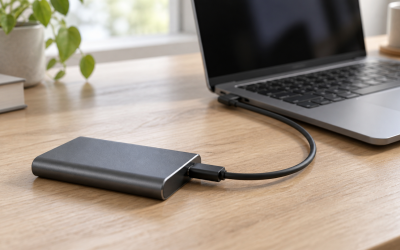
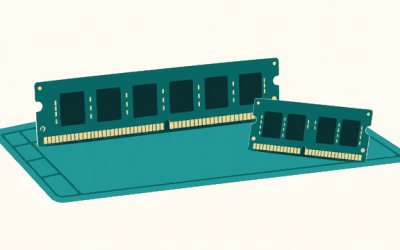
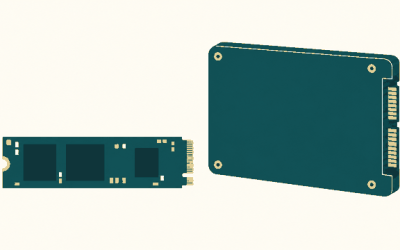
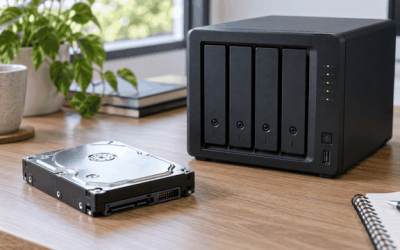
Your secondary SSD vanishing from File Explorer without warning is one of the more unsettling hardware quirks a Windows user can run into. One moment the drive is there with your games, projects, or media library; the next, it’s simply gone from File Explorer, Disk Management, or even your motherboard’s boot menu. Sometimes it reappears after a reboot, sometimes only after a full power cycle, and sometimes it stays missing long enough to convince you the drive has died.
The good news: a drive that disappears intermittently is usually recoverable, and the fix is often software-side rather than a dead SSD. That said, don’t ignore it. Repeated disconnects can interrupt writes, corrupt open files, and in rare cases point to a failing drive or an unstable power connection that you’ll want to catch early. Work through the fixes below in order, starting with the easiest, and you’ll resolve the majority of cases without opening your wallet.
Likely Causes
| Cause | How to confirm | Fix difficulty |
|---|---|---|
| Aggressive Windows or OEM power-saving turning the drive off | Event Viewer shows the drive vanishing after idle periods; drive returns after a reboot or power cycle | Easy |
| Loose SATA data or power cable, or a marginal M.2 screw-down | Drive disappears when you nudge the case or move the PC; reconnecting the drive in BIOS “sees” it inconsistently | Easy |
| Outdated or buggy storage/NVMe driver | Device Manager shows a generic “Standard NVM Express Controller” or a warning icon on the storage controller | Easy |
| Outdated SSD firmware | Manufacturer tool (Samsung Magician, Crucial Storage Executive, WD Dashboard) flags an available firmware update | Moderate |
| Drive overheating and dropping off the bus | Disappears during long transfers or game installs; SSD utility reports temperatures above roughly 70°C | Moderate |
| Failing drive or unstable PSU rail | SMART data shows reallocated sectors or media errors; disappears even when connected to a different port or PC | Hard (replace) |
Fix 1: Disable Power Management on the Drive’s Controller
What causes it
Windows can power down SATA or PCIe links to save energy. When the link doesn’t wake cleanly, the SSD drops off the system until the next reboot. Cheap OEM power plans and some USB-attached enclosures are especially prone to this.
How to check
Open Event Viewer (Win + R, type eventvwr.msc), go to Windows Logs > System, and look for events mentioning the device being removed or a surprise removal around the times the drive vanished. If the drive tends to disappear after the PC has been idle, power management is the prime suspect.
What to do
Open Device Manager (Win + X, then M). Expand IDE ATA/ATAPI controllers (for SATA drives) or Storage controllers (for NVMe). Right-click the controller handling your second drive, choose Properties, open the Power Management tab, and untick Allow the computer to turn off this device to save power. For SATA drives, also open Control Panel > Power Options > Change plan settings > Change advanced power settings, expand Hard disk, and set Turn off hard disk after to 0 (never) on the active plan.
How to undo it
Retick the same boxes or set the hard-disk timer back to its previous value (often 10 or 20 minutes). There’s no downside to leaving it disabled on a desktop.
Fix 2: Reseat Cables and Check the Drive Slot
What causes it
A SATA power or data cable that’s half-seated, kinked, or worn can momentarily lose contact, causing the drive to vanish and reappear. On M.2 drives, a poorly seated module or a missing standoff can cause intermittent contact, especially in cases that flex.
How to check
Power off, flip the PSU switch off, and open the case. Inspect both ends of the SATA cables; if possible, swap in spare cables and try a different SATA port on the motherboard. For M.2 drives, remove the heatsink, unscrew the module, and reseat it firmly at a 30-degree angle before screwing it down.
What to do
Use a different SATA data cable (avoid the cheap flat ones bundled with some cases if you suspect them), a different SATA port, and a different power connector coming directly from the PSU rather than a splintered daisy chain. For M.2 NVMe drives, confirm you’re using the correct standoff height for the slot and that the drive is fully inserted before the screw goes in.
How to undo it
Put the original cables and port back if the change made no difference. Nothing about this fix is persistent.
Fix 3: Update or Reinstall the Storage Drivers
What causes it
A buggy or generic NVMe driver can mishandle power-state transitions (particularly PCIe power states), causing the drive to drop off. Third-party controller drivers can also conflict after Windows feature updates.
How to check
In Device Manager, expand Storage controllers and Disk drives. A yellow warning icon, or your second SSD listed only under a generic “Standard NVM Express Controller,” suggests a driver issue. Right-click the entry, choose Properties, and check the Device Status box.
What to do
First, try the manufacturer’s driver: download the latest chipset/storage driver package from your motherboard vendor’s support page for your exact board model and install it. If that doesn’t help, right-click the drive in Device Manager under Disk drives, choose Uninstall device, then restart — Windows will reinstall a clean copy. For NVMe drives specifically, some users resolve dropouts by letting Windows manage the standard NVMe controller rather than a vendor overlay.
How to undo it
Roll back via Device Manager > Properties > Driver tab > Roll Back Driver, or reinstall a previous version of the vendor package.
Fix 4: Update the SSD’s Firmware
What causes it
SSD vendors occasionally ship firmware with bugs that cause intermittent disconnects under specific conditions (certain power states, heavy write loads, or after long idle). Firmware updates commonly address exactly this symptom.
How to check
Install your drive vendor’s utility — Samsung Magician, Crucial Storage Executive, WD Dashboard, Kingston SSD Manager, or ADATA SSD Toolbox — and check the firmware tab. The tool will tell you the current version and whether an update is available.
What to do
Back up anything important on the drive first, close other applications, and run the firmware update through the utility. Do not power off during the update. For drives without a Windows utility, vendors sometimes offer bootable ISO updaters. This alone has fixed countless “disappearing drive” reports over the years, and tooling has only gotten more reliable heading into 2026.
How to undo it
You generally can’t roll back firmware, which is why backing up first matters. If an update makes things worse, contact the vendor’s support for guidance.
Fix 5: Check Drive Temperatures
What causes it
NVMe SSDs throttle hard when hot, and some controllers drop off the bus entirely rather than throttling gracefully. Drives slotted under a hot GPU with no heatsink are the classic offenders.
How to check
Install CrystalDiskInfo or your vendor utility and watch the drive temperature. Sustained readings above roughly 70°C during load, or throttle warnings, point to heat. Alternatively, watch Task Manager > Performance > the SSD graph during a large file copy — if the speed collapses to near zero and the drive disappears shortly after, heat is likely.
What to do
Fit the motherboard’s M.2 heatsink if you removed it, or buy an aftermarket M.2 cooler (a low-profile finned heatsink is enough for most PCIe 3.0 and 4.0 drives). Improve case airflow so front intakes actually feed air across the motherboard. If the drive sits between a hot GPU and CPU cooler with no airflow, consider moving it to another M.2 slot.
How to undo it
Remove the heatsink or move the drive back, though there’s rarely a reason to.
Fix 6: Disable PCIe/NVMe Power States in BIOS or via Registry
What causes it
Modern power states (ASPM, L1.2 substates) let components idle at near-zero power. Some SSD controllers don’t handle the transition back to active cleanly and drop off the bus.
How to check
If the drive vanishes only after long idle — never during active use — aggressive power-state transitions are the likely culprit.
What to do
Enter your BIOS/UEFI (usually Del or F2 during POST) and look under an advanced or power menu for ASPM (Aggressive Link Power Management) or PCIe Link State Power Management. Set ASPM to Disabled. If you can’t find it in BIOS, open an elevated Command Prompt and run:
powercfg -setacvalueindex scheme_current sub_pciexpress aspm 0 followed by powercfg -setactive scheme_current
As a further step, Control Panel > Power Options > Change advanced power settings > PCI Express > Link State Power Management > set to Off. Expect a small idle-power increase — negligible on a desktop.
How to undo it
Restore ASPM to its previous setting in BIOS or set the Windows value back to Moderate power savings.
Fix 7: Check SMART Health and Rule Out a Failing Drive
What causes it
A drive with failing NAND, a worn controller, or corrupted firmware can periodically drop off the bus before dying outright. Intermittent disappearance is sometimes the last warning you get.
How to check
Run CrystalDiskInfo and check the health status: Good, Caution, or Bad. Look specifically for reallocated sectors, media and data integrity errors, and unsafe shutdown counts climbing rapidly. Also run chkdsk X: /f from an elevated Command Prompt (replacing X with the drive letter) to check the file system, though that won’t catch hardware faults on its own.
What to do
If SMART reports Caution or Bad, back up the drive immediately — image it with a tool like Macrium Reflect if the data matters. Then test the drive in another PC or a USB enclosure: if it still drops out on different hardware, the drive itself is failing and should be replaced while it’s under warranty. Check the vendor’s RMA process; most SSDs carry three to five years of coverage.
How to undo it
Not applicable — if the drive is failing, replacement is the only real fix.
Fix 8: Rule Out the PSU
What causes it
An aging or overloaded power supply can deliver unstable 5V or 3.3V rails, and SATA drives in particular are sensitive to dirty power. This is rare, but worth eliminating if everything else checks out.
How to check
Clues: the drive disappears under heavy system load (gaming plus a big download, for example), other symptoms like spontaneous reboots or USB devices dropping, or an older PSU running a power-hungry GPU. If you have a spare PSU or a friend’s unit, swapping it in is the definitive test.
What to do
First try a different SATA power lead directly from the PSU rather than a splitter or adapter. If problems persist across a PSU swap, the supply is the culprit and should be replaced with a quality unit sized appropriately for your system.
How to undo it
Swap the original PSU back in if it wasn’t the problem.
If Nothing Works
If the drive still vanishes after firmware updates, driver reinstalls, power-management changes, and a physical reseat, isolate it completely: connect the drive to a different PC or into a USB enclosure. If it’s stable there, the problem is your motherboard (a failing SATA port or M.2 slot controller) — try the other slot or, worst case, plan a board replacement. If it drops out even in isolation, the drive is failing; image whatever data you can reach immediately and start an RMA. Either way, stop storing anything irreplaceable on that drive until it’s resolved, and keep a current backup of whatever lives on it in the meantime.
FAQ
Can a disappearing SSD corrupt my data?
Yes. If the drive drops out mid-write, any file being written can end up incomplete or corrupted, and the file system itself can develop errors that require chkdsk. Treat recurring dropouts as urgent, and keep a backup until it’s fixed.
Why does my second SSD disappear after sleep?
Sleep is the classic trigger. During sleep, drives are put into low-power states, and some SSD controllers or drivers fail to reinitialize properly on wake. The fixes in Fix 1 and Fix 6 (disabling controller power management and PCIe link state power management) target exactly this.
Is it normal for an SSD to run hot enough to disappear?
It’s common but not healthy. High-performance NVMe drives under a heatsink can safely reach the low 70s Celsius, but sustained temperatures beyond that can cause throttling or bus dropouts. A heatsink and decent case airflow usually bring it under control.
Should I just reinstall Windows?
Usually not worth it. Reinstalling fixes driver and power-plan issues that Fixes 1 and 3 already address, and it wastes hours. Only consider it if the drive problem started immediately after a Windows feature update and nothing else has worked — and even then, test the drive in another machine first to rule out hardware.