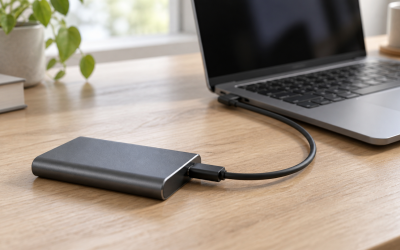
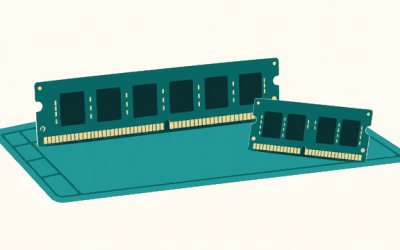
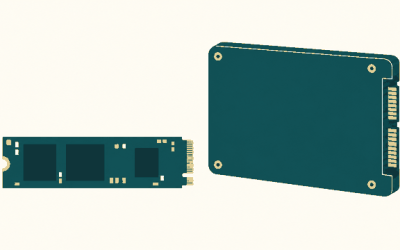
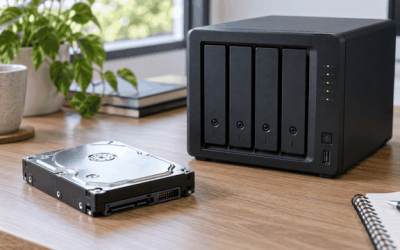
If your PS5 beeps when you plug in an external drive but nothing shows up in Storage, you’re not alone. The symptom is easy to recognize: the console either ignores the drive entirely, flashes a “USB drive’s data is corrupted” error, or shows the drive in Settings but refuses to let you select it. Sometimes the drive appears in Safe Mode but not in the normal interface, or it works on a PC but not on the console. In other cases, the drive disconnects mid-session with a chime and the game you were playing vanishes from the home screen.
The good news is that most of these failures are caused by settings, cables, or formatting mismatches rather than dead hardware, and the majority can be resolved in under 15 minutes. Treat it as moderately urgent: nothing is lost just because the drive isn’t recognized, but installing games to it is off the table until it’s fixed, and repeated failed mount attempts can occasionally corrupt data that was previously fine. Work through the fixes below in order — each one rules out a progressively less common cause.
Likely Causes
| Cause | How to confirm | Fix difficulty |
|---|---|---|
| Drive not formatted as exFAT | On a PC, right-click the drive in File Explorer, choose Properties, and check the File system line | Easy |
| Loose or underpowered USB connection | Wiggle the cable at the console port; try a rear port instead of the front | Easy |
| Drive still formatted for Windows (NTFS) or APFS | PS5 shows “The USB drive is not supported” or doesn’t list it under Extended Storage | Easy |
| Outdated system software | Settings > System > System Software > System Software Update and Settings | Easy |
| Corrupted file system on the drive | Error message mentions corrupted data, or the drive mounts then disconnects repeatedly | Medium |
| Drive exceeds the capacity limit or uses a hub | Drive is larger than 8 TB, or connected through a USB hub or dock rather than directly | Easy–Medium |
Fix 1: Reseat the Cable and Switch Ports
What causes it
The PS5’s front USB-C and USB-A ports are wired through a separate connector on the motherboard, and a slightly loose plug or a charge-only cable (common with phone cables) will prevent data from passing through. The rear USB-A ports are often more reliable for sustained data transfers.
How to check
Look at the cable where it enters the drive and the console. If the connector moves side to side easily, or the drive’s activity light flickers when the cable is touched, the connection is the problem. Also check the cable printing: if it doesn’t say “data” or list USB 3.0/3.1/3.2, it may be charge-only.
What to do
Power the PS5 fully down (hold the power button until it beeps a second time), unplug the drive, then plug it into a rear USB-A port using a cable rated for USB 3.0 or higher at 5 Gbps or better. Power the console back on and wait about 30 seconds for the drive to mount.
How to undo it
Not applicable — moving a cable back to the front port is always possible, and no settings or data are changed.
Fix 2: Confirm the Drive Meets PS5 Requirements
What causes it
The PS5 only accepts external drives between 250 GB and 8 TB, connected over USB 3.0 or faster, formatted as exFAT or FAT32. Drives outside those limits, or drives connected through unpowered hubs, are silently ignored or rejected.
How to check
Check the capacity printed on the drive (or in PC Disk Management, where the raw disk size is shown) and confirm it falls in the 250 GB–8 TB range. Confirm there is no hub, dock, or extension cable between the drive and the console. If the drive has a Y-cable, make sure both plugs are connected — one is for extra power.
What to do
If the drive is too large, too small, or USB 2.0 only, it can’t be used as Extended Storage — replace it. If it’s plugged into a hub, plug it directly into the console. If it’s a bus-powered portable drive with intermittent power draw, use a powered enclosure or a drive with its own power adapter.
How to undo it
Simply move the drive back to its previous setup. No console settings change during this check.
Fix 3: Reformat the Drive as exFAT
What causes it
Most new drives ship formatted as NTFS (Windows) or APFS/HFS+ (Mac). The PS5 can only read game data from exFAT or FAT32, so an NTFS drive will show up in PC tests but never appear in the console’s Extended Storage menu.
How to check
On Windows: right-click the drive in File Explorer > Properties > look at “File system.” If it says NTFS, this is your issue. On Mac: open Disk Utility, select the drive, and check the format listed at the top.
What to do
First, copy anything you want to keep off the drive to a PC — formatting erases everything. Then on Windows: right-click the drive in File Explorer, choose Format, set File system to “exFAT,” set Allocation unit size to “Default allocation size,” and click Start. On Mac: Disk Utility > select the drive > Erase > Format: exFAT > Scheme: Master Boot Record > Erase. Plug it into the PS5, go to Settings > Storage > Extended Storage > select the drive > Format as Extended Storage.
How to undo it
Reformatting back to NTFS or APFS on a PC restores the drive to normal computer use, but the data erased during formatting is only recoverable with file-recovery software and is not guaranteed.
Fix 4: Update the System Software
What causes it
Firmware updates occasionally change how Extended Storage mounts drives, and a console running very old software can fail to recognize newer drive controllers or high-capacity SMR disks. This has been a recurring cause of drives that worked fine suddenly disappearing after a drive swap or a console restore.
How to check
Go to Settings > System > System Software > System Software Update and Settings > Update System Software. If an update is listed, install it. Compare the installed version shown on that screen against the latest version Sony lists in System Software release notes.
What to do
Install the update over Wi-Fi or Ethernet with the drive still connected. If your internet is down, you can sideload it: download the update file to a PC, place it in a folder named PS5, inside a folder named UPDATE, on a USB stick formatted as exFAT or FAT32, insert the stick into the console, and choose Update from USB Storage Device on the same settings screen.
How to undo it
System software cannot be rolled back to a previous version. If the update itself causes a problem with your specific drive, the workaround is to reformat the drive or use Safe Mode’s database rebuild (Fix 5).
Fix 5: Rebuild the Database in Safe Mode
What causes it
The PS5 keeps an internal database of installed games and storage devices. If that index becomes corrupted — after a power cut, an improper shutdown, or a drive disconnecting mid-write — the console can lose track of a drive that is physically fine.
How to check
If the drive appears intermittently, or the console shows the correct storage capacity in one menu but not another, a corrupted database is the likely culprit. If the drive worked normally until a crash or forced power-off, this fix applies.
What to do
Turn off the PS5 completely. Hold the power button until you hear a second beep (about 7 seconds) to enter Safe Mode. Connect a controller with a USB cable and press the PS button. Select “Rebuild Database.” This can take anywhere from a few minutes to an hour depending on how many games are installed. It does not delete your games or data.
How to undo it
No undo is needed — rebuilding the database is non-destructive. The only side effect is that your home screen content library re-sorts by date, so any custom pinning order resets.
Fix 6: Rebuild the Drive’s File System on a PC
What causes it
If the drive was disconnected mid-transfer or lost power during a write, the exFAT file system itself can become corrupted. The PS5 will detect the drive but refuse to mount it, usually with a “USB drive’s data is corrupted” message.
How to check
Plug the drive into a Windows PC. If Windows offers to “scan and fix” the drive, or if File Explorer hangs when opening it, the file system is damaged. You can also run a manual check: open Command Prompt as administrator and type chkdsk X: /f (replacing X with the drive’s letter).
What to do
Back up any recoverable files to the PC first. Then run chkdsk X: /f and let it complete. Safely eject the drive and reconnect it to the PS5. If chkdsk cannot repair it, format the drive as exFAT on the PC (Fix 3) and then format it again as Extended Storage on the console.
How to undo it
If chkdsk or reformatting loses data you needed, stop using the drive immediately and use file-recovery software to attempt a restore. The sooner you stop writing to the drive, the better the recovery odds.
Fix 7: Format as Extended Storage from Safe Mode
What causes it
Sometimes the drive is physically fine and correctly formatted, but the console’s normal-interface formatting routine fails silently, leaving the drive stuck in a half-initialized state that the Storage menu can’t resolve.
How to check
If the drive appears in Safe Mode’s device list but formatting from Settings > Storage > Extended Storage either fails or hangs, the Safe Mode route often succeeds where the standard menu doesn’t.
What to do
Back up any games on the drive first (Settings > Storage > Extended Storage > select the drive > move games back to console storage, or copy saves to a USB stick via Settings > Saved Data and Game/App Settings > Saved Data (PS4) > USB Drive). Then enter Safe Mode (second-beep power-on as in Fix 5) and use the storage-related options there, or return to the standard menu and retry formatting once Safe Mode has refreshed the drive’s state.
How to undo it
Formatting a drive as Extended Storage restricts it to PS5 use until you reformat it on a PC. To release it for normal computer use, plug it into a Windows PC, right-click the drive, choose Format, and select exFAT or NTFS.
Fix 8: Test the Drive in a PC and Replace It
What causes it
Portable drives fail. The most common physical culprits are a worn SATA-to-USB bridge inside the enclosure, failing flash memory in SSDs, or degraded platters/spindle bearings in mechanical drives — especially in bus-powered drives that are a few years old.
How to check
Plug the drive into a PC. On Windows, open Task Manager > Performance > and watch the drive’s activity while copying a file. On Mac, open Disk Utility, select the drive, and run First Aid. You can also check SMART status with CrystalDiskInfo on Windows; look for “Caution” or “Bad” health ratings, reallocated sector counts above zero, or pending sector counts that keep climbing.
What to do
If the drive fails SMART checks or Disk Utility reports unrecoverable errors, retire it from gaming duty. Recover any games by redownloading them to the console’s internal SSD or a replacement drive. For PS4 games stored on Extended Storage, you can simply re-download them; PS5 games always lived on the internal SSD anyway.
How to undo it
Not applicable — if the drive is physically failing, the only remedy is replacement. If CrystalDiskInfo shows “Caution” rather than “Bad,” you may get some remaining life by limiting the drive to cold storage, but don’t trust it for daily play.
If Nothing Works
At this point you’ve ruled out cable, formatting, firmware, and file-system issues, so the failure is almost certainly in the drive itself or, more rarely, the console’s USB controller. Try one more drive — even a small 250 GB USB stick — in the same port. If the stick is recognized, the console is fine and your original drive needs replacing. If no drive of any kind shows up in Settings > Storage > Extended Storage, contact PlayStation Support for a hardware check, since a failed front I/O board or a damaged rear port can cause total USB silence. Before you send the console in, rebuild the database one final time and confirm the issue persists on both front and rear ports with multiple cables.
FAQ
Can I store PS5 games on an external SSD?
You can store them, but you can’t play them from it. PS5-native games must be installed on the console’s internal SSD (or an internal M.2 SSD meeting Sony’s speed requirements) to run. An external drive is useful for archiving PS5 titles you’re not actively playing, and for both storing and playing PS4 games.
Does the external SSD need to be a specific brand?
No. Any drive meeting the capacity (250 GB–8 TB), interface (USB 3.0/5 Gbps or faster), and formatting (exFAT or FAT32) requirements will work. Brand doesn’t matter; consistent sustained speed and a reliable USB bridge matter more than marketing labels.
Why does my external SSD disconnect randomly during gameplay?
The usual culprits are a cable that’s charge-only or too long, a front-port connection that’s slightly loose, a bus-powered mechanical drive drawing more current than the port supplies, or a drive entering an aggressive power-saving sleep state. Try the rear USB-A ports first, then a shorter, data-rated cable.
Will formatting as Extended Storage erase my save files?
Saves aren’t stored on Extended Storage by default — they live on the console’s internal SSD and can be backed up separately via Settings > Saved Data and Game/App Settings. Formatting the external drive erases games and apps installed on it, but your saves are safe unless you deliberately moved them to that drive, which the PS5 doesn’t allow for save data.