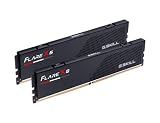
DDR5 gear mode determines how your memory controller’s clock relates to the DRAM’s actual frequency, and getting it wrong costs you real performance in memory-sensitive games. The short version: prioritize stability and latency over headline frequency. Gear 1 (1:1) keeps your memory controller running at the same clock as your RAM, which minimizes latency for gaming. Gear 2 (1:2) lets your memory run much faster but doubles the effective latency of controller-to-DRAM communication, which usually hurts more in games than raw bandwidth helps.
This guide covers exact BIOS settings for both Intel (Gear 1/Gear 2 on LGA 1700 and LGA 1851) and AMD (UCLK:MCLK ratios on AM4 and AM5), how to validate your configuration, and what to do when things go wrong. Everything here assumes you are working from your motherboard’s UEFI/BIOS, accessed by pressing Delete or F2 during POST.
As an Amazon Associate we earn from qualifying purchases at no extra cost to you.

Quick Recommended Settings
| Setting | Recommended value | Why |
|---|---|---|
| Gear mode / UCLK:MCLK ratio | Gear 1 (Intel) or 1:1 (AMD) | Half the memory controller latency versus Gear 2; best for gaming at 1080p and 1440p |
| Memory frequency | DDR5-6000 to DDR5-6400 (AMD AM5) / DDR5-6400 to DDR5-7200 Gear 2 (Intel LGA 1700) | AM5 memory controllers typically max out near 3000–3200 MHz in 1:1; Intel often cannot hold 1:1 past ~3600–4000 MHz, so Gear 2 is unavoidable at high speeds |
| Memory Context Restore / Memory Fast Boot | Enabled (AMD) / Fast Boot (Intel) | Cuts cold-boot memory training from 60–90 seconds to a few seconds |
| EXPO / XMP profile | Enable EXPO on AMD boards, XMP on Intel boards | Applies the kit’s rated frequency, timings, and voltage in one step |
| DRAM VDD / VDDQ | Stick to the profile voltage (usually 1.35–1.40 V) unless tuning manually | Excess voltage adds heat with no benefit unless frequencies rise |
| Controller voltage (VDDG / VDDQ TX on AMD, VDD2 on Intel) | Leave at auto initially; raise in 0.05 V steps only if Gear 1 training fails | The IMC often, not the DRAM, is the limiting factor in 1:1 stability |
Setting-by-Setting
Gear Mode (Intel) / UCLK:MCLK Ratio (AMD)
Set this first. On Intel boards, look under the Tweaker’s Paradise or Overclocking Performance menu, then Memory Features — the exact path varies by vendor. On ASUS boards it is under Ai Tweaker, then Memory Controller; DRAM Frequency; on MSI it is under OC, then Advanced DRAM Configuration; on Gigabyte it is under Tweaker. Select Gear 1 for the lowest latency.
The trade-off: Gear 1 caps how high your DRAM frequency can train reliably. On Intel’s LGA 1700 chips, Gear 1 typically tops out between DDR5-3600 and DDR5-4000 depending on your CPU’s silicon lottery. Above that, the board either fails to POST or throws memory errors under load. Gear 2 allows DDR5-7200 and beyond, but doubles controller latency. For pure gaming at high refresh rates, Gear 1 at a modest frequency usually beats Gear 2 at a high frequency; for productivity or bandwidth-heavy workloads, Gear 2 at DDR5-7200+ can pull ahead.
On AM5 boards, the equivalent is the UCLK:MCLK ratio (ASUS: Ai Tweaker, then UCLK DIV1 Mode set to UCLK=1/1 MEMCLK; Gigabyte: Tweaker, then UCLK/MEMCLK Ratio). Most AM5 memory controllers hit a wall between 3000 and 3200 MHz (DDR5-6000 to DDR5-6400) in 1:1 mode. Newer AGESA versions have loosened this somewhat, but the sweet spot remains DDR5-6000 CL30 for Ryzen 7000 and 9000 chips.
Memory Frequency
Set the DRAM frequency to the highest value that trains stably in your chosen gear mode. Practical targets: DDR5-6000 CL30 1:1 on AM5, DDR5-7200 Gear 2 on Intel 13th/14th-gen desktop chips, and DDR5-8000+ Gear 2 only on Core Ultra (LGA 1851) chips, whose memory controllers are designed for it.
Trade-off: every bump in frequency raises the chance of training failure or WHEA errors on AMD / memory errors on Intel. Increase in DDR5-200 increments and run stability tests between steps.
EXPO / XMP Profiles
Under the same memory menus, enable EXPO (AMD) or XMP (Intel). This loads the JEDEC-extended profile the kit was validated at, including frequency, primary timings (CL, tRCD, tRP, tRAS), and DRAM voltage. Manually typed values are a common source of instability — start from the profile, then adjust frequency or gear mode as needed.
Trade-off: EXPO/XMP voltages (often 1.35–1.40 V) run hotter than JEDEC’s 1.1 V. Ensure case airflow over the DIMMs, especially with tall heatspreaders in restricted cases.
Memory Context Restore (AMD) / Memory Fast Boot (Intel)
Memory training happens every cold boot by default, and DDR5 training is slow — often 60 seconds or more with four DIMMs. On AMD boards, set Memory Context Restore to Enabled (and Power Down Enable to Enabled) under the AMD Overclocking or memory submenu. On Intel boards, enable Fast Boot and, if available, MRC Fast Boot.
Trade-off: with MCR enabled, a failed retrain after a driver or hardware change can leave the board in a no-POST loop. If that happens, clear CMOS (jumper labeled CLRTC, JBAT1, or CMOS_SW depending on vendor, or remove the coin cell for 30 seconds) to restore defaults.
DRAM and Controller Voltages
DRAM VDD and VDDQ: keep at the EXPO/XMP value unless you raise frequency beyond the rated spec. Controller voltages on AMD — VDDG CCD, VDDG IOD, VDDQ TX — and on Intel — VDDQ, VDD2 — affect IMC stability in 1:1/Gear 1 operation. If the system fails to train at Gear 1, bump the relevant controller voltage by 0.05 V (for example, VDDG IOD from 0.90 V to 0.95 V) and retest. Stay at or below roughly 1.10 V on VDDG to avoid excessive SoC heat.
By Hardware Tier
Budget Tier (B660/B760 Intel, B650 AM5, entry CPUs)
Target: EXPO/XMP on, Gear 1 (Intel at DDR5-5600–6400 where it trains; AM5 at DDR5-5200–6000 1:1). Do not chase Gear 2 frequencies on locked Intel CPUs with two-DIMM boards; the latency hit outweighs the bandwidth. Use two DIMMs in the recommended slots (A2/B2 per the motherboard manual — usually the second and fourth slots from the CPU) rather than four.
Mid Tier (Z790, X670E, mid-range CPUs)
Target: DDR5-6000 CL30 1:1 on AM5; DDR5-6400–7200 Gear 2 on Intel Z790. Enable MCR/Fast Boot. If you game at 1080p or 1440p high refresh on AM5, prioritize tightening secondary timings (tRFC down toward 480–560 ns if stable) over raising frequency past the 1:1 limit.
High Tier (Z890 / LGA 1851, X870E, top-bin CPUs, two-DIMM kits)
Target: Core Ultra chips are built for Gear 2 — run DDR5-8000 to 8400 with CUDIMM or high-binned UDIMM kits. On X870E, DDR5-6400 1:1 is the realistic ceiling for most silicon; beyond that, switch to a 1:2 ratio only if your workload is bandwidth-bound. High-tier users should validate with extended stress testing, since marginal 1:1 configs can pass quick tests and still corrupt data.
Common Mistakes
Cold-boot loops after enabling EXPO. Cause: the board fails memory training with the new profile. How to check: the motherboard’s Q-LED / DRAM debug LED stays lit, and the board cycles power repeatedly. What to do: power off, clear CMOS using the onboard jumper, reboot to defaults, then re-apply EXPO and lower the frequency one step (e.g., DDR5-6000 to DDR5-5600). How to undo: clear CMOS again to return to JEDEC defaults.
Gear 2 accidentally selected at low frequency. Cause: some boards default to Gear 2 when frequency is set manually rather than via XMP. How to check: look for the Gear Mode readout in the BIOS memory menu, or run HWiNFO64 and check the Memory Controller clock against the DRAM clock. What to do: set Gear Mode to Gear 1 (Intel) or UCLK:MCLK to 1:1 (AMD) explicitly. How to undo: revert the ratio to auto or your previous value.
Four DIMMs failing to POST at rated speed. Cause: DDR5 dual-rank or high-density kits place heavy load on the memory controller; four DIMMs rarely run at EXPO speeds. How to check: pull two DIMMs and see if the system trains. What to do: run two DIMMs at full speed, or drop frequency 400–800 MT/s with four. How to undo: reinstall the original DIMM count and retrain.
Unstable system blamed on the CPU or GPU. Cause: marginal memory settings produce crashes, WHEA errors, or application exits that look like other failures. How to check: run TestMem5 with the anta777 Extreme profile, or Karhu RAM Test (paid) for at least an hour; on AMD, watch for WHEA Uncorrectable errors in Event Viewer (event ID 18, WHEA-Logger). What to do: reduce frequency one step or loosen tRFC by 20–40 ns until stable. How to undo: restore the last-known-stable profile you saved.
FAQ
Does Gear 2 always mean worse gaming performance?
Not always. Below roughly DDR5-6000, Gear 1 wins almost universally for latency-sensitive games. Above DDR5-7200 on Intel or with CUDIMMs on Core Ultra, the bandwidth gain can offset the latency penalty in bandwidth-heavy titles and in games paired with high-end GPUs where the CPU is the bottleneck. The only way to know for your specific game and resolution is to test both.
What is the best DDR5 speed for Ryzen (AM5)?
DDR5-6000 CL30 running 1:1 (UCLK:MCLK) is the widely accepted sweet spot for Ryzen 7000 and 9000. It matches the infinity fabric’s practical ceiling on most chips while keeping latency low. DDR5-6400 1:1 works on some CPUs with a newer AGESA — try it if your kit supports it, and fall back if you see instability.
Why does my PC take so long to boot with DDR5?
Memory training runs on every cold boot by default and can take a minute or more with two or four DIMMs. Enable Memory Context Restore (AMD) or Fast Boot with MRC caching (Intel) to cache training results. Note that after BIOS updates or hardware changes, expect one slow training boot before the cache rebuilds.
Should I run four sticks or two?
Two sticks are dramatically easier on the DDR5 memory controller and are far more likely to hit EXPO speeds. Four sticks at rated speed frequently fails to train or requires a 400–800 MT/s frequency drop. Buy a two-DIMM kit of the capacity you need rather than four smaller modules, unless you specifically need four DIMM slots filled and are willing to run slower.