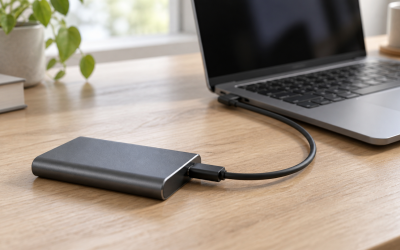
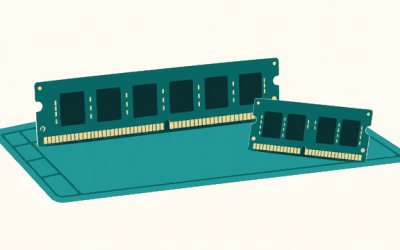
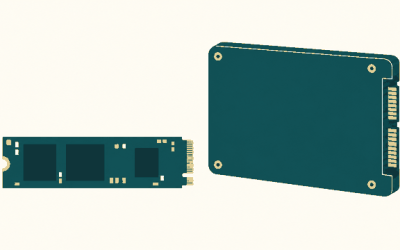
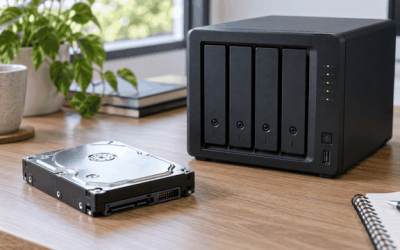
An NVMe SSD that disappears after sleep usually looks like one of two problems: Windows wakes up and File Explorer no longer shows the drive, or the system freezes, reboots, and the drive is missing from Disk Management and sometimes even the BIOS/UEFI setup screen. In gaming PCs, this can mean a game library vanishes, launchers report missing files, or a secondary M.2 drive appears as “offline” until the next full shutdown.
Do not ignore a recurring disappearance, especially if the drive holds saved games, recordings, or important files. A one-time issue after a driver update may be harmless, but repeated dropouts can point to aggressive power management, an outdated SSD firmware revision, a motherboard BIOS problem, overheating, or an NVMe drive beginning to fail. Back up anything important before changing firmware, BIOS settings, or storage drivers. The steps below apply to Windows 10 and Windows 11 systems in 2026.
Likely Causes
| Cause | How to confirm | Fix difficulty |
|---|---|---|
| PCI Express link power saving puts the NVMe controller into a bad low-power state | The drive returns after a full shutdown, and the problem happens only after sleep or hibernation | Easy |
| Windows Fast Startup or hibernation resumes an unstable storage state | The issue is more common after “Shut down” with Fast Startup enabled than after Restart | Easy |
| Outdated or corrupted chipset, storage, or NVMe driver | Event Viewer shows storage resets, or Device Manager reports an unknown or disabled controller | Moderate |
| SSD firmware bug | The manufacturer’s SSD utility reports a firmware update, or release notes mention sleep, resume, or power-state stability | Moderate |
| Motherboard BIOS/UEFI compatibility issue | The drive is absent in BIOS immediately after a failed wake, then returns after power is removed | Moderate |
| Physical connection, heat, or hardware failure | The drive disappears during normal use too, SMART warnings appear, or the M.2 drive runs unusually hot | Moderate to advanced |
Fix 1: Turn Off PCI Express Link State Power Management
What causes it
Windows can reduce PCIe power use while the PC sleeps or sits idle. Some NVMe controllers fail to wake correctly from these low-power PCIe states, leaving the drive unavailable until the system fully powers down.
How to check
If the NVMe drive disappears only after sleep, hibernate, or a long idle period but works normally after a restart, PCIe power management is a strong suspect. This is particularly common with a secondary game-library drive.
What to do
Press Win + R, type powercfg.cpl, and press Enter. Next to your active plan, select Change plan settings, then Change advanced power settings. Expand PCI Express, expand Link State Power Management, and set it to Off. On laptops, set both On battery and Plugged in to Off if the setting is available. Select Apply, then OK, and restart the PC.
How to undo it
Return to the same Advanced settings window and change Link State Power Management back to Moderate power savings, Maximum power savings, or the plan default. This may slightly improve idle battery life on a laptop.
Fix 2: Disable Fast Startup and Test Hibernation
What causes it
Fast Startup saves part of the Windows kernel and driver state to the hibernation file instead of performing a completely clean shutdown. If the NVMe driver or controller state is saved incorrectly, the drive may fail to initialize on the next boot or wake.
How to check
Choose Restart from the Start menu and use the PC normally. Restart performs a full Windows reload, unlike a Fast Startup shutdown. If the issue happens after Shut down but not after Restart, Fast Startup is likely involved.
What to do
Open Control Panel, select Hardware and Sound, then Power Options. Choose Choose what the power buttons do on the left. Select Change settings that are currently unavailable, then clear Turn on fast startup (recommended). Click Save changes.
To test whether hibernation is also causing the problem, open Terminal (Admin) by right-clicking Start and selecting it. Run powercfg /h off. This disables hibernation and removes the hiberfil.sys file from the system drive. Sleep still remains available on most desktop PCs.
How to undo it
Return to the power-button settings page and re-enable Fast Startup. To restore hibernation, open Terminal as administrator and run powercfg /h on.
Fix 3: Change the Sleep Mode and Disable Hybrid Sleep
What causes it
Traditional sleep, hybrid sleep, and hibernation use different power states. Hybrid sleep writes memory contents to disk while also keeping memory powered. On some systems, that transition exposes NVMe resume problems that do not occur with a normal shutdown or a different sleep mode.
How to check
Open Terminal as administrator and run powercfg /a. Windows lists the sleep states supported by your hardware. If the drive fails only after sleeping, test a full shutdown for one night and compare the result.
What to do
Press Win + R, enter powercfg.cpl, and select Change plan settings beside the active power plan. Choose Change advanced power settings. Expand Sleep, then set Allow hybrid sleep to Off. Also set Hibernate after to Never temporarily while testing.
If you use a desktop and reliability matters more than instant wake, set Sleep after to Never for several days. Let the display turn off normally, but shut down the PC manually when finished gaming. If the drive stops disappearing, the issue is tied to sleep-state resume rather than normal storage access.
How to undo it
Go back to Advanced power settings and restore your previous Sleep after, Hibernate after, and Allow hybrid sleep values. Re-enable hibernation first with powercfg /h on if the Hibernate after option is unavailable.
Fix 4: Update Chipset, Storage, and NVMe Drivers
What causes it
The motherboard chipset driver controls PCIe root-complex behavior, while the storage driver manages how Windows communicates with the NVMe controller. A generic, damaged, or old driver can mishandle power-state transitions.
How to check
Right-click Start and select Device Manager. Expand Disk drives and Storage controllers. Look for a yellow warning icon, an “Unknown device,” or a controller that appears only when the drive is working. Then open Event Viewer by pressing Win + R, typing eventvwr.msc, and checking Windows Logs > System for recent warnings from stornvme, Disk, storahci, or WHEA-Logger.
What to do
Download and install the latest chipset package for your exact motherboard or laptop model from its manufacturer’s support page. For AMD systems, this is normally labeled AMD Chipset Drivers; for Intel systems, it may be labeled Chipset, Intel Management Engine, or Intel Rapid Storage Technology.
For the SSD itself, use the drive manufacturer’s management utility to check for an approved NVMe driver or firmware package. Do not install random driver-updater tools. In Device Manager, right-click the NVMe drive, choose Properties, and confirm the device status says “This device is working properly.” Restart after installing chipset or storage software.
How to undo it
If a newly installed storage driver makes the problem worse, open Device Manager, right-click the affected controller or drive, select Properties > Driver, and choose Roll Back Driver if available. You can also uninstall the vendor storage application and restart; Windows will normally load its standard NVMe driver.
Fix 5: Update the SSD Firmware
What causes it
NVMe firmware controls the SSD controller’s low-power modes, error recovery, temperature handling, and resume behavior. Firmware bugs can cause a drive to drop off the PCIe bus after sleep even when Windows itself is configured correctly.
How to check
Open the SSD maker’s official utility and record the model name, serial number, health status, and installed firmware version. Check whether the utility offers a firmware update. Also inspect the drive’s SMART information for critical warnings, media errors, or an unusually high temperature history.
What to do
Back up important data first. Close games, launchers, and disk-intensive programs. Run the manufacturer’s SSD utility as administrator and apply the offered firmware update exactly as instructed. Keep the PC connected to reliable power; on a laptop, connect the AC adapter. Do not force the PC to sleep, restart, or shut down during the update. Restart when prompted, then test sleep and wake several times.
How to undo it
Most consumer SSD firmware updates cannot be safely downgraded. If the update causes a new issue, contact the SSD manufacturer’s support team rather than trying to flash an older file from an unofficial source. Restore data from your backup if required.
Fix 6: Update BIOS/UEFI and Check M.2 Settings
What causes it
Motherboard firmware initializes PCIe devices before Windows loads. Older BIOS/UEFI versions can have compatibility problems with specific NVMe controllers, PCIe power states, or newer SSD capacities.
How to check
Press Win + R, type msinfo32, and note BaseBoard Product and BIOS Version/Date. Compare that version with the current BIOS listed for your exact board or laptop. If the NVMe drive is missing from BIOS after a failed wake, this fix becomes more important.
What to do
Download the correct BIOS file only for the exact motherboard model and revision. Read the manufacturer’s instructions for its built-in update tool, often called EZ Flash, M-Flash, Q-Flash, or Instant Flash. Copy the required BIOS file to a FAT32-formatted USB drive, enter BIOS by pressing Delete or F2 during startup, and use the board’s built-in flash utility.
After updating, load optimized defaults, then reapply necessary settings such as XMP/EXPO, boot order, and fan profiles. In the BIOS storage or PCIe menu, leave the M.2 slot on Auto unless your motherboard documentation specifically requires a manual generation setting. Avoid forcing PCIe Gen4 or Gen5 while troubleshooting; Auto is the safest test setting.
How to undo it
Restore prior BIOS settings from a saved profile if you created one. BIOS downgrades are not always supported and can be risky, so do not downgrade unless the motherboard manufacturer explicitly provides a compatible rollback method.
Fix 7: Reseat the Drive, Check Temperature, and Test Hardware
What causes it
A loose M.2 screw, a poorly seated SSD, a damaged slot, or excessive controller temperature can interrupt the PCIe connection. A failing drive may also disappear intermittently before it stops working entirely.
How to check
First, check Disk Management: right-click Start and select Disk Management. If the drive is absent there and in Device Manager after wake, the issue is below the file-system level. Check SSD health with its official utility. Repeated critical SMART warnings, increasing media errors, or failures during normal use are signs to replace the drive.
What to do
Shut down the PC completely, switch off the power supply if present, unplug it, and hold the case power button for 10 seconds. Remove the M.2 cover, unscrew the retaining screw, and reseat the NVMe drive at roughly a 30-degree angle. Make sure it is fully inserted before lowering it and securing the screw. Reinstall the heatsink with a clean, properly aligned thermal pad; remove any protective plastic film from a new pad.
If the motherboard has another compatible M.2 slot, test the drive there. Check the motherboard manual because some M.2 slots share lanes with SATA ports or PCIe expansion slots. If the problem follows the SSD to another slot, back up immediately and plan to replace the drive. If a known-good SSD fails only in one slot, the motherboard may be at fault.
How to undo it
Reinstall the drive in its original slot if the alternate-slot test does not improve stability. Restore any SATA devices or expansion cards affected by shared-lane configurations. There is no software rollback for a physically failing SSD; replacement is the appropriate undo path.
If Nothing Works
Start by protecting your data. Copy critical files to another physical drive or cloud storage while the NVMe SSD is visible. Then run a clean test: disable sleep and hibernation, use default BIOS settings, remove storage-tuning utilities, and test the drive in another compatible PC or USB NVMe enclosure. If the drive disappears in a second system, it is likely defective. If another NVMe drive works reliably in the same M.2 slot while yours does not, replace or warranty the original SSD.
If the drive disappears only after wake and is missing in BIOS until power is removed, document the motherboard model, BIOS version, SSD model, firmware version, and Event Viewer errors before contacting motherboard or SSD support. Do not initialize, format, or create a new volume on a drive that suddenly appears as unallocated unless you have confirmed that its data is already backed up; doing so can complicate data recovery.
FAQ
Why does my NVMe drive come back after a full shutdown?
A full shutdown removes power and forces the NVMe controller to initialize again. Sleep and hibernation preserve part of the previous hardware or driver state, so a drive that fails only after sleep usually has a power-management, firmware, or resume-state problem.
Can Windows sleep mode damage an NVMe SSD?
Sleep mode normally does not damage an SSD. However, repeated failed wake events, forced power-offs, and file-system interruptions can increase the risk of corrupted game files or unsaved data. The disappearing drive itself should be investigated rather than treated as normal behavior.
Should I disable the “Allow the computer to turn off this device” option?
That checkbox is usually not available for NVMe drives and is more relevant to USB devices and network adapters. For NVMe sleep problems, use PCI Express Link State Power Management, Fast Startup, hybrid sleep, chipset drivers, SSD firmware, and BIOS settings instead.
Is it safe to keep using the PC if the NVMe drive disappears after sleep?
It is usually safe for short-term troubleshooting if the drive returns consistently and SMART health is clean, but keep current backups. Stop relying on the drive for irreplaceable files if it vanishes during normal use, reports SMART warnings, disappears from BIOS, or requires repeated hard shutdowns to return.