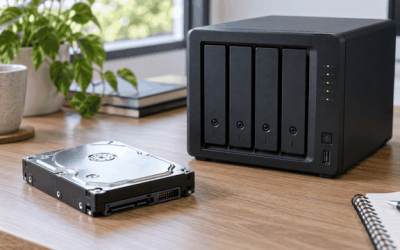
Your NAS drive shows up in the manufacturer’s own desktop app, its web dashboard loads fine when you type its IP address directly, but it has vanished from the Network section of Windows File Explorer. Sometimes the device appears under “Network infrastructure,” sometimes double-clicking it throws up error 0x80070035 (“The network path was not found”) or 0x80004005 (“Unspecified error”), and sometimes the share name simply never populates at all. On macOS it may appear in Finder’s sidebar one day and disappear the next. The NAS itself is almost always healthy — it is discovering and name resolution between your PC and the NAS that has broken.
How urgent is this? If you can still reach the NAS through its web interface or an IP-based path (\\192.168.1.50\share), your data is fine and this is a convenience problem you can live with for a day or two. But do not ignore it for long: a PC that cannot browse the network is also a PC that may silently fail scheduled backups, and guessing at the cause often leads people to disable security features that then stay off. Work through the fixes below in order — they run from a thirty-second service restart to a couple of network-stack rebuilds — and most people are back browsing within the first three. Since Windows networking behavior was reshuffled again by the 2026 feature updates, a few older “just enable SMB1” tips floating around forums are now the wrong move; this guide sticks to what works on current builds.
Likely Causes
| Cause | How to confirm | Fix difficulty |
|---|---|---|
| Function Discovery services stopped or set to manual-only | Press Win+R, type services.msc, check “Function Discovery Provider Host” and “Function Discovery Resource Publication” status | Easy |
| Network profile set to Public instead of Private | Settings > Network & internet > Ethernet (or Wi-Fi) — profile shows “Public network” | Easy |
| SMB signing or insecure-guest-auth blocks the NAS | Error 0x80070035 or “You can’t access this shared folder” referencing guest access when opening \\NAS-NAME | Easy |
| Firewall or third-party antivirus blocking SMB (port 445) | Temporarily disabling firewall makes the NAS appear; Test-NetConnection nasname -Port 445 fails in PowerShell | Moderate |
| Stale NetBIOS/LLMNR name resolution or duplicate IPs | Ping by IP works, ping by name fails or resolves to the wrong address; arp -a shows two devices with the same IP | Moderate |
| Corrupted network stack or obsolete SMB1 client dependency | Shares unreachable after all other fixes; Event Viewer shows repeated SMBClient errors (Event ID 30809/31004) | Hard |
Fix 1: Restart the Discovery Services
What causes it
Windows relies on two “Function Discovery” services to populate File Explorer’s Network pane. Windows updates and aggressive “optimizer” utilities often leave them set to Manual with no trigger, so nothing discovers the NAS even though the network itself is fine.
How to check
Press Win+R, type services.msc, and press Enter. Scroll to Function Discovery Provider Host (FDPHost) and Function Discovery Resource Publication (FDResPub). If either shows a blank Status or Startup type of Manual, this is very likely your problem.
What to do
Double-click each service. Set Startup type to Automatic (FDResPub can stay Automatic if you also want your PC discoverable to others). Click Start, then Apply. Do this for both services, then close Services, press F5 in File Explorer, and give the Network pane up to 60 seconds to repopulate.
How to undo it
Return both services to Manual and stop them. There is no downside to leaving them Automatic on a home network.
Fix 2: Switch the Network Profile to Private
What causes it
After a router swap, ISP change, or a Windows reset, Windows re-detects your connection and defaults it to the Public profile, which blocks network discovery and file sharing by design.
How to check
Open Settings > Network & internet > Ethernet (or Wi-Fi, whichever you use). Under “Network profile type,” if Public network is selected, discovery is off.
What to do
Select Private network. Then go to Settings > Network & internet > Advanced network settings > Advanced sharing settings, expand Private networks, and confirm Network discovery and File and printer sharing are both toggled on. Refresh File Explorer.
How to undo it
Flip the profile back to Public. Only do this on networks you genuinely don’t trust — on your own home LAN, Private is the correct setting.
Fix 3: Map the Share by IP Address
What causes it
Name resolution (NetBIOS, mDNS, LLMNR) is the flakiest layer in Windows home networking. If browsing by name fails but the NAS is fine, bypassing the name entirely both restores access and confirms where the fault lies.
How to check
Open PowerShell and run ping nasname. If the name fails but you can reach the NAS web dashboard at an IP such as 192.168.1.50, name resolution is the culprit.
What to do
In File Explorer’s address bar, type \\192.168.1.50\ (your NAS’s actual IP) and press Enter. To make it permanent, right-click This PC > Map network drive, choose a drive letter, enter \\192.168.1.50\ShareName, tick Reconnect at sign-in, and supply your NAS username and password when prompted. For a name that works everywhere, log in to your router and add a DNS reservation/static lease for the NAS, or add a line to C:\Windows\System32\drivers\etc\hosts like 192.168.1.50 mynas (save as administrator).
How to undo it
Right-click the mapped drive in This PC and choose Disconnect. Delete the line you added to the hosts file.
Fix 4: Allow Insecure Guest Logons (Only for NAS Boxes That Require It)
What causes it
Many budget NAS units ship with shares that allow anonymous/guest SMB access. Since Windows 10 1709, Windows refuses guest SMB connections by default, producing error 0x80070035 or a “guest access” refusal even though the NAS is reachable.
How to check
Try opening \\NAS-NAME. If Windows says the share requires guest access or that the administrator has blocked it, this policy is the blocker. First check whether your NAS offers user accounts — Synology, QNAP, Asustor, and TrueNAS all do, and creating a real user is the better fix.
What to do
Open Settings > Network & internet > Advanced network settings > Advanced sharing settings, expand All networks, and turn on “Enable insecure guest logons” (on Windows 11 Pro, alternatively run gpedit.msc and set Computer Configuration > Administrative Templates > Network > Lanman Workstation > Enable insecure guest logons to Enabled). Better still: on the NAS admin page, create a user, assign read/write permission to the share, and connect with those credentials — then leave guest access disabled.
How to undo it
Toggle insecure guest logons back off, or set the Group Policy entry back to Not Configured. Do not leave it enabled on a network shared with untrusted devices.
Fix 5: Reboot and Refresh the Router and DHCP Leases
What causes it
A rebooted or firmware-updated router can hand out a new IP to the NAS while old leases and ARP caches on your PC still point at the previous address, so name lookups land on nothing.
How to check
In Command Prompt, run arp -a and look for duplicate IPs mapped to different MAC addresses, then run ping nasname and compare the resolved IP against the IP shown on your router’s client list (or the NAS’s own LCD/app).
What to do
Run these commands in an elevated Command Prompt: ipconfig /release, then ipconfig /renew, then ipconfig /flushdns, then arp -d *. Power-cycle the NAS and the router (router off 30 seconds). Finally, in your router’s DHCP settings, assign the NAS a static lease so this doesn’t recur.
How to undo it
Nothing to undo — these commands only clear caches that rebuild automatically within seconds.
Fix 6: Check Firewall, Antivirus, and VPN Interference
What causes it
SMB traffic uses TCP port 445. Third-party security suites, a leftover VPN adapter in “block all” mode, or Windows Defender Firewall rules set to “Block all incoming connections on Public” can silently sever it.
How to check
In PowerShell, run Test-NetConnection 192.168.1.50 -Port 445. “TcpTestSucceeded: False” means something on your PC is blocking SMB. Also check the system tray for any VPN client still connected.
What to do
Disconnect any VPN. In Windows Security > Firewall & network protection > Allow an app through firewall, make sure File and Printer Sharing is checked for the Private profile. If you run a third-party suite, add an allow rule for TCP 445 outbound to your LAN range (e.g., 192.168.1.0/24) or temporarily disable its firewall component to confirm it’s the culprit, then create a permanent exception rather than leaving it off.
How to undo it
Remove the allow rules or re-disable File and Printer Sharing in the firewall app list. Keep your VPN’s kill switch in mind — reconnect the VPN after testing.
Fix 7: Remove Stale Credentials and Reconnect
What causes it
Windows caches one set of credentials per server. If you changed the NAS admin password, or a saved credential is corrupt, access fails with “multiple connections to a server… more than one user name” errors and the share drops off the network view.
How to check
Open Control Panel > User Accounts > Credential Manager > Windows Credentials. Look for entries under your NAS’s name or IP. Also run net use in Command Prompt to see lingering sessions.
What to do
Click each NAS entry and choose Remove. Run net use * /delete /y to clear mapped sessions, then restart the Workstation service in services.msc. Reconnect by entering \\NAS-IP in File Explorer and supplying the current username and password, ticking “Remember my credentials.”
How to undo it
Re-add credentials manually in Credential Manager or simply let Windows save them again at next connect.
Fix 8: Rebuild the Network Stack
What causes it
A failed Windows update, a buggy network driver, or a damaged Winsock/SMB client configuration can leave discovery and SMB broken even when every setting looks correct. This is the last resort.
How to check
You’ve completed Fixes 1–7 without success, and Event Viewer (Windows Logs > System, or Applications and Services Logs > Microsoft > Windows > SMBClient) shows repeated SMB connection errors.
What to do
In an elevated Command Prompt, run in sequence: netsh winsock reset, netsh int ip reset, ipconfig /flushdns, then reboot. Next, in Device Manager > Network adapters, right-click your Ethernet/Wi-Fi adapter, choose Uninstall device (do not tick “delete driver”), and reboot — Windows reinstalls it fresh. Finally, in Settings > Network & internet > Advanced network settings > Network reset, click Reset now; this reinstalls all adapters and restores sharing components to defaults. You will need to rejoin Wi-Fi networks afterward.
How to undo it
Re-enter Wi-Fi passwords and re-apply any custom static IPs or DNS servers after a network reset. There is no way to undo the reset itself, but it only affects network configuration, not your files.
If Nothing Works
At this point, isolate which side is broken. Try reaching the NAS from another device — a phone using the manufacturer’s app, or another PC. If other devices browse it fine, the fault is firmly in your Windows install; a repair install (Settings > System > Recovery > Fix problems using Windows Update, which reinstalls Windows without touching your files) resolves deep SMB client corruption. If nothing on the network can see the NAS, check its own admin page for the SMB service being disabled (on Synology: Control Panel > File Services > SMB; on TrueNAS: Services > SMB), confirm “SMB1” isn’t the only protocol enabled — it’s deprecated and Windows blocks it — and enable SMB2/3 minimum on the NAS side. As a permanent workaround, most NAS vendors’ first-party sync clients (Synology Drive, QNAP Qsync) or an NFS mount bypass Windows browsing entirely and are perfectly reliable daily drivers.
FAQ
Should I enable SMB1 to make my NAS show up?
No. SMB1 is the protocol behind WannaCry-style worm attacks, and modern Windows disables it by default. If your NAS only speaks SMB1, update its firmware or enable SMB2/3 in its admin panel instead. Nearly every NAS made in the last decade supports SMB2 or newer.
Why does my NAS show up on my phone but not in Windows File Explorer?
Phones use the vendor’s app or their own SMB client and don’t depend on Windows’ Function Discovery services or network profile. That combination almost always points to Fixes 1, 2, or 4 on the PC side — a discovery service, a Public profile, or blocked guest logons.
Is a mapped drive letter less reliable than browsing the Network folder?
Yes, it’s actually more reliable. Mapped drives connect directly by path and skip name discovery entirely. Map by IP address with “Reconnect at sign-in” enabled and most browsing problems never bother you again.
Can a Windows update cause this out of nowhere?
Frequently. Feature updates reset network profiles to Public, re-disable insecure guest logons, and occasionally leave Function Discovery services stopped. If the NAS vanished right after an update, run through Fixes 1 through 4 first — one of them usually restores it in minutes.