
Our Top Picks


The Short Answer
Yes — a NAS is worth it for home backup if you have more than one device producing data you’d hate to lose, and you’re willing to spend roughly $130–$400 up front plus the cost of drives. That’s the one condition: a NAS only makes sense if you actually set it up and let it run automatically. Bought and forgotten, or treated as a single external drive with extra steps, it isn’t worth the money. If you just need to back up one laptop, a cheaper option will serve you fine.
What You Actually Get
A NAS (network-attached storage) is a small server that sits on your shelf, connects to your router, and holds one or more hard drives that every device in your house can reach over Wi-Fi or Ethernet. Unlike a USB drive plugged into one computer, it’s always on, always reachable, and doesn’t depend on you remembering to plug anything in.
As an Amazon Associate we earn from qualifying purchases at no extra cost to you.

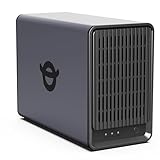
For home backup purposes, here’s what that translates to in practice:
- Automatic backups from every device. Computers, phones, and tablets can all back up to the same box without manual intervention. Phones photos sync in the background the same way they do to a cloud service — just to hardware you own.
- Drive redundancy. Most home NAS units hold two drives, and in a mirrored (RAID 1) setup, one drive can fail completely and your data survives. That’s something no single external drive offers.
- Low ongoing power draw. A modern 2-bay home NAS idles around 8–15 watts, which works out to roughly $10–$20 per year in electricity at typical U.S. rates. Drives add a few watts each.
- Compact footprint. Desktop 2-bay units typically measure around 7–10 inches tall and 5–7 inches wide, weigh 2–4 pounds without drives, and are quiet enough for a living room or office shelf.
- Room to grow. With two 4TB drives mirrored, you get 4TB of usable protected storage — enough for roughly a million photos or a few hundred thousand documents and years of laptop backups.
Current entry-level options are cheaper than most people expect. The Yxk Zero1 2-bay desktop NAS sells for around $130 diskless (you add your own drives), while the UGREEN NAS DH2300, aimed at beginners and phone backup specifically, runs around $230. Add two drives — 4TB NAS-class drives generally run $80–$110 each — and a realistic starting budget is roughly $290–$450 for a complete, redundant home backup system.
Pros
- One-time cost. No monthly fees. Compare that to around $9/month for 2TB of cloud storage — $120 a year, every year.
- True redundancy. Mirrored drives mean a single drive failure doesn’t cost you your photos, documents, or phone backups.
- Set it and forget it. Once configured, backups run on schedule automatically. You never plug in a cable.
- Privacy. Your data lives in your house on drives you own, not on someone else’s servers.
- Speed. Local transfers over gigabit Ethernet commonly hit 100–110 MB/s — restoring a full laptop backup takes minutes, not days of re-downloading.
- Multi-purpose. The same box can stream media, share files between family members, and act as a personal cloud when you’re away from home.
Cons
- Upfront cost. $130–$400 for the unit plus $160–$300 for drives is a real hit compared to a $70 external drive.
- Setup takes effort. Expect 30 minutes to a couple of hours depending on the unit and your comfort with networking. Beginner-focused models like the DH2300 minimize this; bare-bones boxes don’t.
- It’s not a complete backup strategy. A NAS in the same house as your computers can be lost to fire, flood, theft, or a power surge. You still need one offsite or cloud copy of truly irreplaceable files.
- It can fail too. Drives die, power supplies fail, and a NAS that’s been quietly unmirrored for months is a false sense of security. You need to glance at its health status occasionally.
- Requires it to stay on. Backups only happen when the NAS is powered and connected. That’s its design, but it means a small constant power draw and one more always-on device.
Who Should Buy It
- Households with multiple devices. Two adults with laptops plus two phones means four backup sources — exactly what a NAS consolidates well.
- Photographers, video shooters, and hobbyists. If you generate 50GB+ per month, cloud subscription costs climb fast and a NAS pays for itself within two to three years.
- Anyone uncomfortable with the cloud. If storing family photos on someone else’s servers bothers you, local hardware is the honest alternative.
- People who’ve already lost data once. The ~$350 total investment is cheap insurance against a repeat.
Who Should Skip It
- Single-device, light users. One laptop with a few hundred gigabytes of documents? A $70–$100 external SSD plus a free cloud tier covers you.
- People who won’t do any setup. If plugging in a drive is already too much, a NAS’s initial configuration will sit undone in a drawer.
- Anyone expecting it to replace offsite backup entirely. If you won’t maintain a second copy elsewhere, you’re accepting total-loss risk, and a NAS doesn’t fix that.
- Travelers and renters who move often. Frequent moves, shared Wi-Fi you can’t control, and no stable shelf space all make ownership more friction than it’s worth.
Cheaper Alternatives
| Option | Cost | Trade-off |
|---|---|---|
| External hard drive (4–8TB USB) | $70–$150 | Manual backups, single drive, no redundancy, easy to forget |
| Cloud backup service | $60–$120/year | Requires upload bandwidth; restore speeds limited by your internet; ongoing cost forever |
| Cloud storage subscription (2TB) | $100–$120/year | Good for phones and files, awkward for full computer backups; data lives off your premises |
| Two external drives swapped between locations | $140–$300 | Redundancy and offsite protection, but entirely manual and easy to neglect |
Note that the diskless Yxk Zero1 at around $130 narrows the gap considerably — with a single 4TB drive it lands near $220 total, in external-drive-plus-a-half territory while still being network-accessible from every device.
FAQ
Do I still need cloud backup if I have a NAS?
For genuinely irreplaceable files — family photos, tax records, creative work — yes. A NAS protects you against drive failure and accidental deletion, but not fire, flood, theft, or ransomware in your own home. A rough rule is the 3-2-1 approach: three copies, two types of media, one offsite. A NAS is an excellent on-site copy; pair it with an inexpensive cloud service or a drive at a relative’s house for the offsite leg.
How much does a home NAS cost per year to run?
Very little. A typical 2-bay unit with two drives draws 15–25 watts in normal operation, which comes to roughly $15–$30 per year at average U.S. electricity rates. There are no subscription fees unless you choose to add a cloud offsite copy.
Do I need special drives, or will any hard drive work?
Any standard drive will physically work, but NAS-rated drives (such as WD Red Plus or Seagate IronWolf) are built for always-on operation and cost only about $10–$20 more at the 4TB mark. Desktop drives are designed for a few hours of daily use and are more likely to develop issues running 24/7. Given that backups are the whole point, the small premium is worth it.
How long will a home NAS last?
The unit itself commonly runs 5–10 years; drives are the wear item and typically last 3–5 years in continuous service. In a mirrored setup, replacing a failed drive is a swap-and-rebuild process most beginner-friendly apps walk you through. Budget for one drive replacement somewhere in the first five years and you’ll have realistic expectations.









