
Our Top Picks
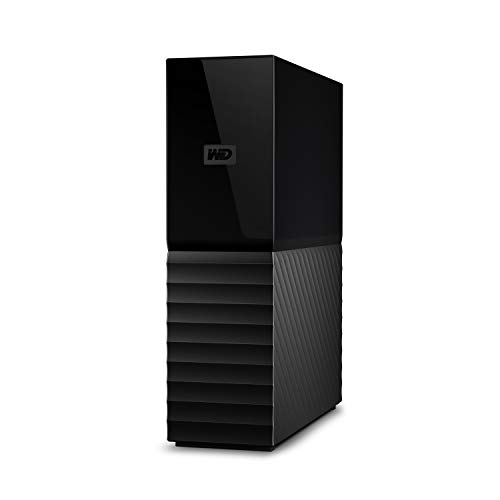 Western Digital 6TB My Book Desktop External Hard6TB3.46 x 8.5 x 6.7 inches2.3 poundsCheck on Amazon
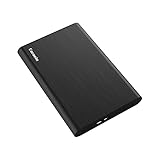
 Caraele 750GB Ultra Slim Portable External Hard Drive750GB4.8 x 3.07 x 0.47 Inches0.4 PoundsCheck on Amazon
The Short Answer
Yes, cloud backup is generally safer than a local external drive backup, provided you have a reliable, high-speed internet connection and use strong, multi-factor authentication. While local external drives offer rapid data transfer speeds and absolute physical ownership, they are highly vulnerable to localized disasters such as home fires, floods, electrical power surges, and physical theft. Additionally, mechanical hard drives can fail unexpectedly due to a simple desk drop. Cloud backup mitigates these physical risks by automatically replicating your data across multiple geographically isolated, secure data centers that are monitored around the clock by enterprise security teams.
However, the safest approach is never an “either/or” choice. True data security relies on the classic 3-2-1 backup rule: keep three copies of your data, stored on two different types of media, with at least one copy kept off-site (in the cloud). Relying solely on a drive sitting on your home office desk leaves your digital life just one spilled cup of coffee or power surge away from permanent loss.
As an Amazon Associate we earn from qualifying purchases at no extra cost to you.

What You Actually Get
To understand why the security profiles of these two storage methods differ so drastically, we have to look at what you actually get when you deploy them in a modern home office. When asking, is cloud backup safer than local external drive backup, you must weigh physical vulnerability against digital accessibility.
With a local external drive backup, you are buying physical hardware. On the higher end, a device like the Western Digital 6TB My Book Desktop External Hard Drive (around $310) sits permanently on your desk. This drive measures approximately 5.5 x 1.9 x 6.7 inches, weighs about 2.1 pounds, and requires an external AC power adapter drawing around 12 to 24 watts during active read/write cycles. It connects via a USB 3.0 cable, offering local transfer speeds up to 5 Gbps. On the budget end, a highly portable drive like the Caraele 750GB Ultra Slim Portable External Hard Drive (around $40) measures a mere 4.7 x 3.1 x 0.4 inches and weighs just 0.3 pounds, drawing its minimal power directly from your laptop’s USB port. Both options give you immediate, physical custody of your files without subscription fees, but they require you to manage the backup schedule and safeguard the physical drive yourself.
With cloud backup, you are purchasing a service rather than physical metal and plastic. Instead of a drive on your desk, you get a background software client that encrypts your files locally using AES 256-bit encryption before uploading them over your home network to remote servers. You get automated, continuous version history (allowing you to restore files from days or weeks ago if you get hit by ransomware) and the peace of mind that your data exists in a facility with industrial-grade fire suppression, redundant diesel generators, and strict biometric access controls. What you do not get is instant recovery; restoring a lost 1TB photo library over a standard 20 Mbps home upload connection can take several days, whereas doing so via a USB 3.0 local drive takes just a few hours.
Pros
- Cloud Backup Redundancy: Your files are distributed across multiple server racks and geographic regions. If one data center experiences a localized blackout or hardware failure, another immediately takes its place without data loss.
- Set-and-Forget Automation: Cloud software runs quietly in the background, backup up files as they change. This eliminates the human error of forgetting to plug in and run a manual external drive backup.
- Physical Disaster Immunity: If your home office suffers a water leak, fire, or burglary, your cloud-stored data remains completely untouched and accessible from any web browser.
- Local Speed and Ownership: Local drives (like the Western Digital 6TB My Book) require no internet connection, charge zero monthly fees, and allow you to transfer huge video files or system images at maximum local hardware speeds.
- Absolute Privacy Control: Keeping your backups on a local drive means your personal documents are never sitting on a third-party server, eliminating the risk of cloud provider data breaches or service discontinuations.
Cons
- Cloud Internet Dependency: If your internet connection goes down, your backup stops. If you have a capped or metered home internet plan, uploading hundreds of gigabytes can result in heavy overage fees from your ISP.
- Recurring Subscription Costs: Unlike a one-time hardware purchase, cloud storage requires an ongoing monthly or annual subscription fee, which can add up to hundreds of dollars over several years.
- Local Physical Fragility: Traditional external hard drives contain spinning platters. A drop of just a few inches while the drive is spinning can scratch the platter, rendering the drive—and your backup—permanently unreadable.
- Ransomware Vulnerability: If a local external drive is kept constantly plugged into your computer, a ransomware attack on your PC can easily encrypt the backup drive right along with your primary system drive.
Who Should Buy It
You should choose Cloud Backup if: You want an automated, worry-free system that requires zero daily management; you live in an area prone to extreme weather, power grid instability, or natural disasters; or you frequently travel with a laptop and need your files backed up continuously from hotel Wi-Fi networks without carrying extra hardware.
You should choose Local External Drives if: You work with massive creative assets like raw 4K video files, multi-gigabyte audio tracks, or massive database files where cloud upload times are bottlenecked by slow internet speeds; you have strict data privacy requirements that prohibit storing sensitive client information in the cloud; or you prefer a one-time hardware investment over recurring annual software fees.
Who Should Skip It
You should skip Cloud Backup if: Your only available internet connection is a slow, metered satellite or cellular hotspot plan where uploading large files is either physically impossible or prohibitively expensive.
You should skip Local External Drives if: You are prone to losing track of physical items, dislike managing cords and desk clutter, or lack the discipline to establish an automated, consistent schedule to run your backups regularly.
Cheaper Alternatives
If purchasing a high-capacity desktop drive or committing to a premium annual cloud subscription feels out of reach, there are several budget-friendly alternative strategies to secure your files without compromising too much on safety.
| Option | Estimated Cost | Trade-off |
|---|---|---|
| Budget Portable HDD (e.g., Caraele 750GB) | around $35 – around $45 (One-time) | Lower storage capacity and slower read/write speeds compared to larger desktop drives; highly fragile if dropped. |
| Free Cloud Tiers (Hybrid Approach) | Check on Amazon | Severely limited storage capacity (usually 5GB to 15GB depending on the provider), requiring you to manually select only your most critical documents rather than backing up your entire computer. |
| “Sneakernet” Offsite Rotation | around $80 – around $100 (Two basic portable drives) | You buy two cheap drives, keep one at home, and leave one at your workplace or a family member’s home, swapping them weekly. It provides physical off-site safety but requires high manual effort. |
FAQ
Can a local external drive get infected with ransomware?
Yes. If your external hard drive is plugged into your computer via USB when a ransomware attack occurs, the malware will scan all connected drives and encrypt your backup files alongside your computer’s main drive. To prevent this, you must physically unplug your external drive as soon as your backup completes, or use specialized backup software that isolates the drive partition.
How long do external hard drives actually last?
On average, spinning mechanical external hard drives have a lifespan of three to five years. Over time, the mechanical parts inside the drive—such as the spindle motor and read/write heads—will naturally wear out, even if the drive is sitting safely on a shelf. Solid-state drives (SSDs) last longer but can still suffer from electronic component degradation over time.
Is it safe to leave my external hard drive plugged in all the time?
Leaving a desktop drive like the Western Digital 6TB My Book plugged in constantly is convenient for scheduled backups, but it exposes the drive to electrical hazards. A severe lightning strike or power surge can bypass your surge protector and fry the drive’s internal controller. It also keeps the drive spun up and generating heat, which can marginally shorten its mechanical lifespan.
What is the most secure backup strategy for a home office in 2026?
The gold standard for data safety heading into 2026 remains a hybrid approach. Use a fast local external drive for daily, rapid system imaging and quick file recovery, combined with an automated, end-to-end encrypted cloud backup service to protect your irreplaceable personal records, photos, and critical work files against catastrophic physical damage, theft, or local hardware failure.









