
Upgrading a laptop with a SATA SSD is one of the most noticeable improvements you can make to an older machine. Startup times, app launches, file transfers, and everyday responsiveness can all improve dramatically compared with a mechanical hard drive. The catch: many buyers focus only on the biggest capacity or the highest advertised read speed, then discover the drive does not fit, lacks the right connector, or offers less long-term value than expected.
The most common mistakes are buying an M.2 drive for a laptop that needs a 2.5-inch SATA drive, assuming every 2.5-inch SSD has the same thickness, choosing too little storage, or paying premium pricing for performance a SATA interface cannot fully use. This guide explains how to choose a SATA SSD for laptop upgrade projects based on the details that actually matter in 2026.
As an Amazon Associate we earn from qualifying purchases at no extra cost to you.


Our Top Picks
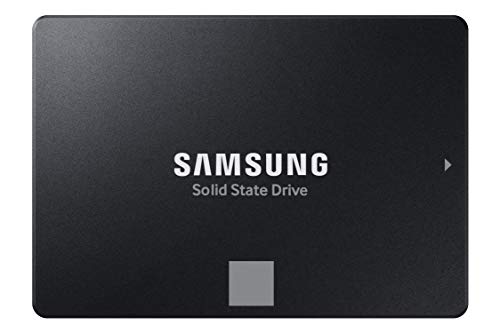


Top 3 picks at a glance
Decide These 3 Things First
- Confirm your laptop accepts a 2.5-inch SATA drive. Most laptop SATA upgrades use a rectangular 2.5-inch drive with SATA data and power connectors. Do not confuse this with an M.2 SATA SSD or an M.2 NVMe SSD. Those are slim circuit-board-shaped drives that fit entirely different slots.
- Check the drive bay height. Nearly all current 2.5-inch SATA SSDs are 7 mm thick, while some older laptop hard drives are 9.5 mm thick. A 7 mm SSD generally fits a 9.5 mm bay, sometimes with a spacer. A 9.5 mm drive will not necessarily fit a 7 mm bay.
- Choose capacity based on your actual files, not just your current free space. An SSD performs best when it is not packed to the limit. Plan to leave roughly 10% to 20% of the drive empty. If your laptop currently holds 380 GB of data, a 500 GB SSD is workable but tight; a 1 TB drive is the more comfortable choice.
Physical Size and Laptop Compatibility
For a conventional SATA laptop upgrade, look for a 2.5-inch SATA III SSD measuring approximately 100 mm long by 69.85 mm wide. The standard 2.5-inch SATA form factor is designed to replace the hard drives found in many laptops made over the past decade or more.
The most important measurement is thickness. A typical SATA SSD is 7 mm high and weighs only about 40 to 60 grams. By comparison, older 2.5-inch hard drives may be 7 mm, 9.5 mm, or occasionally 12.5 mm thick. Check your laptop service manual, remove the existing drive to measure it, or search the exact laptop model before ordering.
A 7 mm SSD in a 9.5 mm drive bay may need a simple plastic spacer, often included with the laptop rather than the SSD. The spacer prevents the drive from shifting inside the bay. It does not affect electronic compatibility.
Also confirm whether your laptop has an accessible drive bay. Some models use a removable bottom panel secured by 6 to 12 small screws. Others require removing the entire lower case. A few thin laptops have soldered storage only and cannot accept any SATA replacement drive.
Capacity: Buy Enough Storage for the Next Few Years
Capacity is usually more important than small differences in sequential speed. SATA III tops out at a practical maximum of roughly 500 to 560 MB/s for sequential reads, so many reputable SATA SSDs feel similarly quick in normal office, browsing, and schoolwork use.
Use these capacity ranges as a practical starting point:
- 250 GB: Suitable for a lightweight laptop used for web browsing, documents, email, and cloud-based storage. After formatting and the operating system, usable working room can feel limited quickly.
- 500 GB: The sensible minimum for many households. It accommodates an operating system, applications, a photo collection, and a modest number of games or media files.
- 1 TB: The best all-around choice for most laptop upgrades. It gives room for large photo libraries, downloaded video, creative software, and multiple modern games.
- 2 TB and above: Best for creators, photographers, local media libraries, or users replacing a laptop drive that already holds 800 GB or more.
A useful rule is to buy at least 1.25 times your currently used storage. If you have 180 GB of files, choose 250 GB only if your needs are stable and most files live in the cloud. If you have 350 GB in use, skip 500 GB if you expect to add photos, videos, or games; move directly to 1 TB.
Performance and Everyday Responsiveness
Every SATA III SSD is limited by the SATA 6 Gb/s interface. Advertised sequential read speeds commonly fall between 500 MB/s and 560 MB/s, while sequential write speeds often range from about 400 MB/s to 530 MB/s, depending on capacity and model.
That means a listing that promises 560 MB/s instead of 520 MB/s is not automatically a better purchase. In routine laptop use, the difference may be difficult to notice. More meaningful considerations include sustained write behavior, available capacity, controller quality, and the drive’s endurance rating.
For a basic office laptop, even an entry-level SATA SSD is a major improvement over a 5,400 RPM hard drive, which may deliver sequential speeds closer to 80 to 140 MB/s and far slower random access. An SSD has no spinning platters or moving read head, so opening files and launching software feels much more immediate.
Look for support for TRIM, which helps the operating system maintain SSD performance over time. Most modern SATA SSDs support it, but it is worth confirming on very inexpensive or obscure models. If your laptop supports SATA III, it will work with a SATA III drive; SATA is backward compatible with older SATA II systems, although speeds will be lower.
Materials, NAND Type, and Internal Construction
Unlike furniture, an SSD’s exterior material is not a major buying factor. Most 2.5-inch SATA SSDs use a lightweight plastic or aluminum shell. Both are normal. An aluminum case may feel more substantial and can help dissipate a small amount of heat, but SATA SSDs generally run cool enough that case material should not drive your decision.
The more important “material” is the NAND flash inside the drive. You may see these labels:
- TLC NAND: A strong choice for most buyers. It generally offers a good balance of price, endurance, and sustained performance.
- QLC NAND: Often less expensive at larger capacities. It can be perfectly adequate for light use, but write speeds may drop more sharply during very large transfers once cache space is exhausted.
- 3D NAND: A common modern construction method that stacks memory cells vertically. It is not, by itself, a quality grade; both TLC and QLC drives can use 3D NAND.
Some drives include DRAM cache, while others are DRAM-less. A DRAM-equipped SATA SSD can offer more consistent performance in heavier workloads, especially when multitasking, moving large folders, or using the drive as a primary system disk. A DRAM-less model may still be a reasonable budget upgrade for web, school, and general household use.
Do not assume a familiar brand guarantees identical internal components across every capacity. Read the product specifications for the exact capacity you are buying, especially if steady write performance or long-term endurance matters to you.
Price Tiers and What You Should Pay
SSD pricing changes frequently, but it is useful to shop by value rather than chase a single sale price. The example prices below illustrate why buyers should compare capacity and warranty, not just the product name.
A 250 GB budget SATA SSD may fall around $25 to $45 in a typical competitive market. A 500 GB model may land around $35 to $65, while 1 TB options commonly span roughly $55 to $100. Premium 1 TB SATA SSDs can cost more, particularly when they include a longer warranty, stronger endurance rating, or established support.
If you see reference pricing such as around $48 for a 250 GB PNY CS900, around $89 for a 500 GB PNY CS900, around $140 for a 1 TB fanxiang S101, or around $320 for a 1 TB Samsung 870 EVO, compare carefully before buying. A very high price does not necessarily translate into a faster experience in a SATA-only laptop. Because the interface limits peak speed, paying several times more for a SATA SSD is rarely justified unless the drive includes a warranty and endurance profile you specifically need.
For most buyers, the value sweet spot is usually a 500 GB or 1 TB TLC SATA SSD with a three- to five-year warranty.
Warranty, Endurance, and Installation Requirements
Look for a warranty of at least 3 years. A 5-year warranty is preferable for a primary laptop drive, especially if you keep computers for a long time. Warranty terms often include a write-endurance limit, typically measured in TBW, or terabytes written.
For perspective, a 1 TB consumer SATA SSD may be rated anywhere from roughly 200 TBW to 600 TBW or more, depending on its NAND type and product tier. Higher is generally better, but everyday users rarely write enormous quantities of data. If you mainly browse, stream, work in documents, and store photos, even a moderate endurance rating can last for years.
Installation is usually straightforward but requires care. You may need a small Phillips screwdriver, a SATA-to-USB adapter or enclosure for cloning, and a 2.5-inch drive spacer if your laptop bay is deeper than 7 mm. Expect 20 to 45 minutes for a simple replacement and longer if you are cloning a full drive.
Before opening the laptop, back up important files. You can either clone the existing drive to the new SSD or perform a clean operating-system installation. Cloning is convenient when the old drive is healthy and the new SSD has enough capacity. A clean installation can be preferable if the laptop has accumulated years of unwanted software or performance problems.
Spec Checklist
| Spec | Budget | Mid | Premium |
|---|---|---|---|
| Form factor | 2.5-inch, 7 mm SATA III | 2.5-inch, 7 mm SATA III | 2.5-inch, 7 mm SATA III |
| Recommended capacity | 250 GB to 500 GB | 500 GB to 1 TB | 1 TB to 2 TB |
| NAND | QLC or entry TLC | TLC preferred | TLC with stronger endurance |
| Sequential read rating | Up to 500 MB/s | Up to 520 to 550 MB/s | Up to 560 MB/s |
| Warranty | 1 to 3 years | 3 to 5 years | 5 years |
| Best for | Basic web, documents, light storage | Most home and work laptops | Heavy use, large libraries, long ownership |
Red Flags
- “SATA” without a clear form factor: Verify that it says 2.5-inch if you are replacing a standard laptop hard drive. An M.2 SATA drive is not interchangeable.
- No stated thickness: Look for 7 mm. Avoid guessing based on product photos.
- Unusually vague specifications: Be cautious when a listing does not state warranty length, NAND type, interface, or manufacturer support details.
- Extremely low capacity for a system drive: A 120 GB or 128 GB SSD can fill quickly after the operating system, updates, applications, and recovery files.
- Paying NVMe-level prices for SATA: A SATA SSD cannot exceed the practical limits of the SATA interface, regardless of marketing language.
- Skipping backup before installation: Cloning and hardware installation both carry avoidable risk when files exist in only one place.
FAQ
Will any SATA SSD work in my laptop?
No. Your laptop needs an available 2.5-inch SATA bay and a SATA data/power connection. Confirm that it does not require an M.2 drive and that the bay accepts a 7 mm-high drive.
Is a 500 GB SSD enough for a laptop upgrade?
For many users, yes. It is enough for an operating system, standard applications, documents, photos, and some games. Choose 1 TB if you store large video files, maintain a substantial photo library, or want more room for future use.
Should I choose TLC or QLC NAND?
TLC is the safer all-purpose choice because it typically offers better endurance and more consistent write performance. QLC can still be a good value for lighter workloads, especially when capacity matters more than frequent large file transfers.
Can I install the SSD myself?
Usually. Many laptop upgrades require only a small screwdriver and 20 to 45 minutes. Back up your data first, consult the laptop’s service instructions, disconnect power, and avoid forcing connectors or screws. If the laptop requires extensive disassembly or has a swollen battery, professional service is the safer option.









