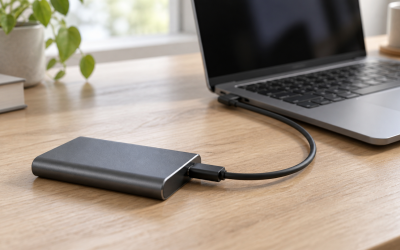
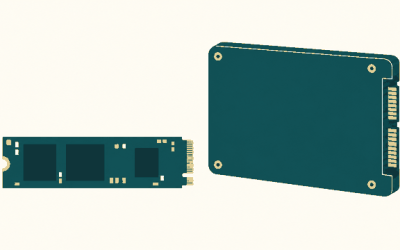
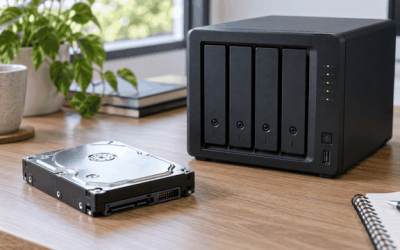
Few PC issues are as frustrating as watching a massive multi-gigabyte game transfer or backup crawl toward completion, only to hear the Windows hardware disconnect chime. The transfer immediately halts with errors like “0x800701B1: A device which does not exist was specified,” “The semaphore timeout period has expired (0x80070079),” or “An unexpected I/O error has occurred.” The drive drops out of File Explorer entirely, only to reappear seconds later as if freshly plugged in.
When an external SSD disconnects mid-transfer, it is actively writing data to flash memory cells. Sudden drops can leave fragmented file allocations, corrupt your drive’s Master File Table (MFT) or partition headers, and render games or project files unreadable. Whether you are using a dedicated external portable drive or an NVMe enclosure over USB-C, resolving this stability issue requires systematically addressing power drops, OS sleep timers, bus bandwidth limits, and driver timeouts.
Likely Causes
| Cause | How to confirm | Fix difficulty |
|---|---|---|
| Windows USB Selective Suspend | Drive disconnects after a fixed period or during bursts of low I/O activity | Easy |
| Insufficient USB Bus Power | Drive disconnects on front panel ports or unpowered hubs during high-power write spikes | Easy |
| Hub Controller Power Saving | Windows Device Manager shows power saving enabled on USB Root Hubs | Easy |
| Drive Removal Policy Conflicts | Drive drops out when write cache overflows or write commands stall | Moderate |
| File System / Partition Corruption | Windows reports the drive has errors, or disconnects at the exact same file/cluster | Moderate |
| Host Controller & Chipset Driver Timeout | Windows Event Viewer logs Event ID 129, 153, or 51 (disk/stornvme/UASP reset) | Advanced |
Fix 1: Disable USB Selective Suspend in Windows Power Options
What causes it
Windows includes a power-saving feature called USB Selective Suspend. It allows the operating system to power down individual USB ports to conserve energy. When high-bandwidth NVMe external SSDs experience momentary pauses between reading and writing data blocks, Windows can mistakenly identify the port as idle and cut power to the drive controller.
How to check
Press Windows + R, type control.exe powercfg.cpl,,3, and press Enter. Expand USB settings > USB selective suspend setting. If it is marked as Enabled, it is actively managing power on your USB buses.
What to do
- In the Power Options advanced settings window, locate USB settings.
- Expand USB selective suspend setting.
- Change the setting from Enabled to Disabled for both On battery (if using a laptop) and Plugged in.
- Click Apply, then click OK.
- Restart your computer to apply the updated power profile to your system’s USB bus.
How to undo it
Reopen control.exe powercfg.cpl,,3, navigate to USB settings > USB selective suspend setting, toggle the value back to Enabled, and click Apply.
Fix 2: Disable Power Management on USB Root Hubs and Controllers
What causes it
Even if global selective suspend is turned off, the individual USB Root Hub devices in Windows Device Manager possess independent power management toggles. The OS driver layer may selectively turn off the hub hardware during sustained transfers to manage thermal output or power draw.
How to check
Open Device Manager by pressing Windows + X and selecting Device Manager. Expand Universal Serial Bus controllers. Right-click a USB Root Hub (USB 3.0), select Properties, and inspect the Power Management tab. If “Allow the computer to turn off this device to save power” is checked, the hub can sleep unexpectedly.
What to do
- In Device Manager, scroll to the bottom and expand Universal Serial Bus controllers.
- Right-click the first USB Root Hub (or Generic USB Hub) and select Properties.
- Click the Power Management tab.
- Uncheck the box labeled Allow the computer to turn off this device to save power.
- Click OK.
- Repeat this process for all entries named USB Root Hub, Generic USB Hub, and USB 3.1/3.2 eXtensible Host Controller that contain a Power Management tab.
How to undo it
Return to each hub in Device Manager, open its Properties > Power Management tab, check Allow the computer to turn off this device to save power, and click OK.
Fix 3: Switch to Direct Motherboard Ports and Upgrade Cable
What causes it
Modern high-speed NVMe enclosures in 2026 draw substantial peak wattage—often between 4.5W and 9W—during sustained write bursts. PC case front-panel ports rely on thin internal extension headers that cause voltage drops and signal degradation. Passive (unpowered) USB hubs split limited motherboard current across multiple devices, causing the SSD’s bridge controller to brown out and reset.
How to check
Observe whether the disconnect occurs exclusively when the SSD is connected to your PC case’s top/front ports, a keyboard pass-through, or a multi-port adapter dongle. If the drive makes an audible click or drops out during high-speed sequential transfers (e.g., above 500 MB/s), current starvation is the primary suspect.
What to do
- Disconnect the SSD from any front-panel port, monitor hub, or unpowered dongle.
- Plug the SSD cable directly into the rear I/O panel of your motherboard. Choose a port labeled with a 10Gbps or 20Gbps icon (often red, teal, or marked with a “10” / “20” superspeed logo) or a direct USB-C port.
- If using a third-party cable, replace it with a certified USB 3.2 Gen 2 (10Gbps) or USB4 cable measuring 3 feet (1 meter) or shorter to minimize electrical impedance.
- If you must use a hub, switch to a dedicated, externally powered USB hub with a standalone 12V/2A wall adapter.
How to undo it
You can move the drive back to other ports if your research demonstrates that power delivery was not the bottleneck.
Fix 4: Adjust the Windows Drive Removal Policy (Write Caching)
What causes it
Windows assigns one of two removal policies to external drives: Quick removal (which disables write caching so you can unplug without ejecting) and Better performance (which enables volatile RAM write caching). If Better performance is enabled but the SSD encounters a latency spike or buffer saturation, Windows may drop the UASP (USB Attached SCSI Protocol) connection. Conversely, if Quick removal struggles with high-queue-depth writes, transfers can time out.
How to check
Press Windows + X and select Disk Management. In the lower graphical pane, right-click the disk header for your external SSD (e.g., Disk 2), select Properties, and go to the Policies tab to see which mode is active.
What to do
- In Disk Management, right-click your external SSD header and select Properties.
- Open the Policies tab.
- If it is set to Better performance, select Quick removal (default) to eliminate write-buffer timeout issues and prevent file system desyncs.
- If it is already on Quick removal and transfers stutter heavily before crashing, select Better performance and check Enable write caching on the device (ensure you always use “Safely Remove Hardware” before unplugging).
- Click OK and restart your PC.
How to undo it
Return to Disk Management > SSD Properties > Policies tab, and switch the selection back to the alternate radio button.
Fix 5: Repair Corrupt File System and Bad Sectors via CHKDSK
What causes it
When an SSD disconnects mid-transfer even once, incomplete file allocation chains and dirty partition flags are left behind. When a subsequent transfer attempts to write to or index these damaged blocks, the drive’s internal controller hits an unhandled exception or endless retry loop, forcing the SSD bridge chip to crash and remount.
How to check
Open File Explorer, right-click the external SSD drive letter, and select Properties > Tools. Under Error checking, click Check. If Windows states “We found errors on this drive that need to be repaired,” file system corruption is present.
What to do
- Press Windows + S, type
cmd, right-click Command Prompt, and select Run as administrator. - Identify your external SSD drive letter (for example,
E:). - Type the following command (replace
E:with your actual drive letter):chkdsk E: /f /r
- Press Enter. If prompted to dismount the volume, type
Yand press Enter. - Allow the scan to progress through all stages. The
/fparameter fixes file table errors, while/rlocates bad sectors and recovers readable information.
How to undo it
CHKDSK is a non-reversible repair utility that cleans damaged file metadata. No undo step is required once the file system structure is reconciled.
Fix 6: Reinstall USB Host Controllers and Enclosure Firmware
What causes it
Corrupted USB eXtensible Host Controller drivers can crash under sustained high-queue-depth I/O, generating Event ID 129 (“Reset to device, \Device\RaidPortX, was issued”). Additionally, outdated bridge firmware on popular SATA/NVMe bridge chips (such as Realtek RTL9210, ASMedia ASM2362, or JMicron JMS583) can suffer from sleep timer bugs that cause the drive to hard-reset during sequential transfers.
How to check
Press Windows + X and select Event Viewer. Navigate to Windows Logs > System. Look for warnings or errors sourced from disk, stornvme, UASPSTOR, or USBHUB3 at the exact timestamp your drive disconnected.
What to do
- Press Windows + X and open Device Manager.
- Expand Universal Serial Bus controllers.
- Right-click your AMD USB 3.10 eXtensible Host Controller or Intel USB 3.20 eXtensible Host Controller and select Uninstall device.
- If prompted, leave “Delete the driver software for this device” unchecked, and click Uninstall. (Your mouse/keyboard may temporarily freeze).
- Restart your computer using your PC case’s physical power button or a keyboard restart shortcut (Alt + F4 on the desktop). Windows will automatically reinstall fresh host controller drivers upon reboot.
- Visit your motherboard manufacturer’s support portal to install the latest Chipset driver package (e.g., AMD AM5/AM4 Chipset Drivers or Intel Management Engine / INF drivers).
How to undo it
Windows automatically reinstalls default Microsoft drivers on reboot. If you installed an updated chipset package, you can roll it back via Windows Settings > Apps > Installed apps.
Fix 7: Disable PCIe Link State Power Management
What causes it
PCI Express Link State Power Management is an Active State Power Management (ASPM) protocol in Windows that puts PCIe lanes to sleep when it believes they are not running at capacity. Because USB 3.2 Gen 2×2 and USB4 controllers interface directly with your system’s PCIe bus, ASPM can put the host controller’s upstream PCIe link to sleep mid-transfer.
How to check
Open the advanced power options menu via Windows + R > control.exe powercfg.cpl,,3. Expand PCI Express > Link State Power Management. If it is set to Maximum power savings or Moderate power savings, PCIe power cuts are permitted.
What to do
- In the Power Options advanced settings dialog, scroll down and expand PCI Express.
- Expand Link State Power Management.
- Click the current setting and change it to Off for both On battery and Plugged in.
- Click Apply, then click OK.
How to undo it
Navigate back to PCI Express > Link State Power Management in control.exe powercfg.cpl,,3, and change the setting back to Moderate power savings or Maximum power savings.
If Nothing Works
If your external SSD continues to disconnect after applying these fixes, test the drive across three key hardware failure points:
- Check S.M.A.R.T. Health Attributes: Download an open-source disk analysis utility such as CrystalDiskInfo. Inspect your external SSD’s health. Look specifically for critical flags on
05 Reallocated Sectors Count,0E Media and Data Integrity Errors, or high temperature alerts. If the drive operates above 70°C, thermal protection may be shutting the controller down. - Isolate the Bridge Chip vs. the SSD: If you are using a tool-free NVMe USB enclosure, remove the internal M.2 SSD. Install it directly onto an open M.2 PCIe slot on your motherboard, or test it inside a different external enclosure. Enclosure bridge controllers fail far more frequently than the actual flash memory modules.
- Cross-Platform Machine Verification: Connect the drive to a secondary PC, laptop, or Mac. Attempt the identical large-file transfer. If the drive drops out across multiple independent systems regardless of the cable used, the internal flash controller or voltage regulator has suffered hardware failure and requires an RMA replacement from the manufacturer.
FAQ
Why does my external SSD disconnect only during large game or video file transfers?
Large sequential file transfers push the external drive to its maximum power draw and maximum thermal output. Small files (like documents) transfer before heat builds up or voltage drops on the USB bus. Sustained multi-gigabyte transfers exhaust internal cache buffers, spike controller temperatures, and expose weak USB power delivery or aggressive power-saving timeouts.
Can a mid-transfer disconnect permanently corrupt my external SSD?
While it rarely damages the physical NAND silicon, an unexpected disconnect during an active write cycle almost always causes logical data corruption. It can corrupt the file currently being written, break directory trees, and leave the partition in a “RAW” unformatted state. Running chkdsk /f or re-initializing the partition in Disk Management is typically required to restore normal operation.
Is it better to format an external SSD as NTFS or exFAT to prevent disconnects?
If you use the drive exclusively on Windows systems, NTFS is significantly more stable. NTFS is a journaling file system, meaning it logs file operations before committing them, allowing rapid recovery if a disconnect occurs. exFAT lacks journaling capabilities; an interrupted write on an exFAT drive frequently corrupts the entire File Allocation Table, requiring a full reformat.
Does connecting a high-speed external SSD to a USB 2.0 port cause disconnects?
Yes. USB 2.0 ports are standard-limited to 500mA (2.5W) of power output, whereas modern NVMe external drives require up to 900mA (4.5W) or 1.5A (7.5W) during peak write states. Connecting a modern external SSD to a USB 2.0 port will frequently cause the drive to brown out, disconnect, and power cycle the moment an intensive write operation begins.