The best MacBook deal for most people in 2026 is the 13-inch MacBook Air with the M5 chip. It is the least expensive way to get Apple’s newest silicon, a 13.6-inch Liquid Retina display and 16GB of unified memory in a fanless body that weighs roughly 1.24kg, and it is the model that sees the deepest and most frequent discounts across the year. Step up to a 14-inch or 16-inch MacBook Pro only if you specifically need a 120Hz Liquid Retina XDR panel, three Thunderbolt ports plus HDMI and SD, or sustained performance that a fanless chassis cannot hold for a full hour-long export.
If you already own an Air or a Pro, the strongest value on this page is not a laptop at all. A 140W USB-C PD 3.1 charger, a 240W-rated cable, a 360° protective sleeve and an inexpensive Bluetooth mouse cost a small fraction of a new machine and fix the four things MacBook owners complain about most: slow charging, one cable that refuses to do everything, a dented lid, and a trackpad-only workflow. Below we compare six current listings by who each one actually suits, then work through the numbers — watt-hours, pixel bandwidth, ports and memory — that genuinely decide Air versus Pro.
Our Top Picks
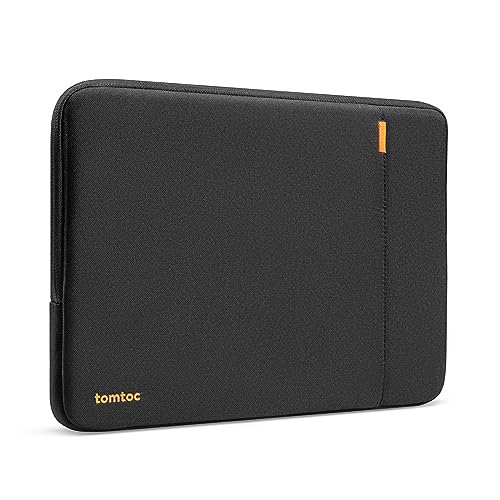 tomtoc 360° Protective Laptop Sleeve for 13-inch MacBook12.6 x 9.06 x 1.1 inches0.53 PoundsCheck on Amazon


Top 3 picks at a glance
Quick Comparison
| Product | Best for | Key specs | Price tier |
|---|---|---|---|
| Apple 2026 MacBook Air 13-inch (M5) | Most people: students, writers, analysts, light photo and video work | 13.6-inch Liquid Retina (2560 × 1664), Apple M5 chip, 16GB unified memory, two Thunderbolt/USB-C ports, MagSafe 3, 3.5mm jack, fanless, up to 18 hours rated video playback | Premium |
| tomtoc 360° Protective Laptop Sleeve for 13-inch MacBook Air M5/A3449 2026 | Carrying a 13-inch Air in a backpack or tote without scuffing or denting it | Sized for the 13-inch Air chassis (A3449), 360° padding ring, reinforced corners, accessory pocket, soft interior lining | Mid-range |
| LISEN 240W USB-C Cable for iPad Pro 13/12.9/11 and A16/10th-gen iPad | One cable that charges iPads and MacBooks at full speed | USB-C to USB-C, rated to 240W (PD 3.1 EPR class), e-marked for high-current charging, works with USB-C iPads and MacBooks | Budget |
| Sunveza 118W USB-C Charger for MacBook Pro/Air (M1–M5) and iPad Pro | A second adapter that lives in a bag, dock or office drawer | 118W total USB-C output, PD-compatible, covers MacBook Air and 14-inch MacBook Pro class machines plus iPad Pro | Mid-range |
| IKNUH 140W Charger for MacBook Pro 16/14-inch and MacBook Air 15/13-inch (2024–2026) | Full-speed charging of a 16-inch MacBook Pro, and shared household duty | 140W USB-C PD 3.1 EPR (28V/5A class), compatible with 2024–2026 MacBook Pro and Air models | Premium |
| PEIBO Bluetooth Wireless Mouse for MacBook, iPad and PC | A cheap spare or travel mouse that pairs with almost anything | Bluetooth plus 2.4GHz dual-mode, adjustable DPI, silent-click class switches, macOS / Windows / Chrome OS support | Budget |
The pattern in that table is worth noticing before you read further: five of the six items are accessories, and together they cost less than a single storage upgrade on the laptop. If your budget is tight, the correct order of operations is laptop first, then a charger and cable that actually reach the machine’s maximum charging rate, then protection, then peripherals.
How We Chose
This roundup is built from published manufacturer specifications, the details stated in each product’s own listing, and well-established facts about the MacBook line and the accessory categories around it. Nothing here is based on first-hand use of these specific units, and no benchmark numbers are quoted as if they were measured.
Four criteria decided what made the cut. Specification fit: does the product’s rated capability actually match what a MacBook Air or Pro can accept — for example, a 240W cable only matters if the charger and the laptop can both negotiate above 100W. Category fit: does it solve a problem the machine genuinely has, such as the Air’s two-port limitation or the soft aluminium lid that dents rather than scratches. Use case: is there a clearly defined owner for it — a commuter, a two-desk worker, a 16-inch Pro owner, a household with mixed Windows and macOS machines. Upgrade path: does buying it now still make sense in two years, or does it become redundant the moment you change laptops.
Where an exact figure was not published, we describe the product by specification class rather than inventing a number. Prices are given only as general market ranges, because listings change daily.
1. Apple 2026 MacBook Air 13-inch (M5) — Best for Most People
As an Amazon Associate we earn from qualifying purchases at no extra cost to you.

The 13-inch MacBook Air with the M5 chip is the default answer to “which MacBook should I buy in 2026” for anyone whose work happens in a browser, a document, a spreadsheet, a code editor or a light photo workflow. It is the machine to buy when you want the newest Apple silicon, the longest realistic battery life in the lineup, and a chassis you can carry all day without thinking about it — and when you would rather spend the difference on a better configuration than on a heavier computer.
Key specifications
- Display: 13.6-inch Liquid Retina, 2560 × 1664 resolution, 500 nits brightness, P3 wide colour, True Tone, 60Hz refresh
- Chip: Apple M5 — unified CPU, GPU and Neural Engine on a single package, with a fanless thermal design
- Memory: 16GB unified memory as configured in this listing; unified memory is shared between CPU and GPU and cannot be upgraded later
- Ports: two Thunderbolt/USB-C, MagSafe 3 magnetic charging, 3.5mm headphone jack
- Battery: roughly the 52.6Wh class used by the 13-inch Air line, rated by Apple at up to 18 hours of video playback
- Charging: USB-C Power Delivery; fast charging kicks in with a 67W-or-higher adapter, reaching about 50% in roughly 30 minutes
- Wireless: current-generation Wi-Fi and Bluetooth 5.x class radios
- Weight: approximately 1.24kg / 2.7lb
Why it suits most buyers
The single most important line in that list is 16GB. For the last several years the biggest regret among Air owners has been buying the base memory tier and then living with constant swap to the SSD the moment a browser with thirty tabs, a Slack client and a photo editor are open at the same time. A 16GB configuration removes that ceiling for typical work. It is not unlimited — a 4K multicam timeline or a large language model running locally will still push into swap — but it is the point at which the machine stops feeling like a compromise.
The second important property is the fanless design. There is no fan to spin up, no dust to accumulate, and no audible noise floor in a quiet room. The trade-off is thermal: under a sustained load, a fanless chassis has to reduce clocks to stay within its thermal budget, so a 45-minute export will finish, but it will not hold the same rate from minute one to minute forty-five that a 14-inch MacBook Pro will.
Battery life is where the Air line consistently beats the Pro line in light use. Run the arithmetic: a 52.6Wh battery divided by a 3.5W average system draw — display at moderate brightness, a few background apps, Wi-Fi active — gives roughly 15 hours, which lines up with Apple’s wireless web rating for the Air family. Push the same machine to a sustained 25W under heavy load and the same battery gives about two hours. That single calculation explains why two owners of identical laptops report wildly different battery life.
Charging speed follows a similar logic. A 52.6Wh battery charged from a 30W adapter is a theoretical 1.75 hours, closer to two hours once you allow for conversion losses, and longer still in practice because lithium-ion charging tapers above roughly 80%. That is why a 67W-or-higher adapter is the meaningful upgrade: it does not shorten the last 20% much, but it gets you from empty to half full in about half an hour, which is the number that matters when you are packing a bag.
Pros
- Newest Apple silicon generation with 16GB of unified memory as the configured baseline
- Silent, fanless operation and roughly 1.24kg of carry weight
- Class-leading battery life for light and mixed workloads
- MagSafe 3 charging keeps a USB-C port free and releases safely if someone trips on the cable
- Holds resale value better than almost any Windows ultrabook in the same price band
Cons
- Only two Thunderbolt/USB-C ports, and both are occupied if you charge by USB-C instead of MagSafe
- 60Hz panel with 500 nits — fine indoors, but not the 120Hz Liquid Retina XDR experience of the Pro line
- Memory and storage are soldered and cannot be upgraded after purchase
- No HDMI and no SD card slot, so a dock or adapter is effectively mandatory for presentations and camera cards
- Fanless chassis throttles under long sustained exports compared with a 14-inch MacBook Pro
How it compares with the nearest alternative
The nearest alternative is the 14-inch MacBook Pro, and the decision is really about sustained load and display quality rather than raw speed. For the same money, a 14-inch Pro buys you a 3024 × 1964 Liquid Retina XDR panel at 120Hz with far higher peak brightness, three Thunderbolt ports plus HDMI and SD, a fan that lets the chip hold its clocks for an hour, and a heavier, thicker body. The Air wins on weight, on battery life in light use, and on price at equivalent memory. If your heaviest task is a 20-minute photo export, the Air is the better deal. If it is a 90-minute video render, the Pro pays for itself in time.
2. tomtoc 360° Protective Laptop Sleeve for 13-inch MacBook Air M5/A3449 — Best for Protecting the Air in a Bag

This sleeve is for the person who has just spent a premium amount on a 13-inch MacBook Air and then intends to carry it in a backpack that also contains a water bottle, a set of keys and a charging brick. It is specifically sized for the 2026 13-inch Air chassis identified by the model code A3449, and it is the cheapest insurance in this roundup against the failure mode that MacBook owners actually experience: not a shattered screen, but a dented lid or a chipped corner that quietly reduces resale value.
Key specifications
- Fit: sized for the 13-inch MacBook Air, including the M5-generation A3449 chassis
- Protection: 360° padding ring around the full perimeter, with reinforced corner padding
- Interior: soft lining intended to prevent abrasion on the anodised finish
- Storage: separate front compartment for a charger, cable or notebook
- Closure: zip closure; the sleeve is designed to slide into a larger bag rather than replace one
- Price tier: mid-range for the sleeve category — usually a small fraction of the laptop’s cost
Why it suits Air owners specifically
Aluminium behaves differently from plastic. A plastic laptop shell flexes and scuffs; an anodised aluminium lid transfers impact straight to the panel behind it, and the corners of a MacBook are the thinnest, most exposed part of the structure. That is why the marketing phrase “360° protection” matters more than it sounds: a sleeve that only pads the two large faces protects against scratches, while a sleeve with a continuous padding ring and reinforced corners distributes a corner impact across a larger area. The corner is exactly where a bag-drop lands.
Fit is the other half of the equation, and it is where generic sleeves fail. The 13-inch Air is a very specific slab — thin, with tapered edges — so a sleeve cut for a 13-inch Windows notebook of the same nominal size will be loose, allowing the machine to shift and the lid to flex. A sleeve keyed to the A3449 chassis keeps the laptop from sliding, which is what stops the zip from ever contacting the finish.
How do you confirm you have the right generation before ordering? On the Mac itself, open the Apple menu, choose About This Mac, and check the model identifier and year — the model code is also printed in small text on the underside of the chassis near the regulatory markings. Matching the code, rather than the nominal screen size, is the single most reliable way to avoid a return.
Pros
- Cut specifically for the 13-inch Air and the A3449 2026 chassis, so the fit is snug rather than generic
- Continuous padding ring plus reinforced corners addresses the impact that actually damages MacBooks
- Front pocket keeps a charger and cable away from the laptop’s finish
- Low cost relative to the machine it protects, and it does not become obsolete when the laptop is replaced by another 13-inch Air
- Adds very little bulk, so it still fits the laptop compartment of a normal backpack
Cons
- It is a sleeve, not a hard shell — it will not survive a heavy crush load such as a car boot closing on it
- Sized for the 13-inch Air, so it will not fit a 14-inch or 16-inch MacBook Pro
- No handle or shoulder strap, so it depends on a larger bag for carrying
- The front pocket adds thickness, which can make a tight laptop compartment tighter
How it compares with the nearest alternative
The nearest alternatives in this list are the charger and cable, and the comparison is instructive because they compete for the same small budget. A charger solves a speed problem; a sleeve solves a damage problem. Damage is the more expensive of the two to fix — a lid replacement on a MacBook typically costs a meaningful fraction of the machine’s value, and an out-of-warranty repair almost always costs more than a decade of sleeves. If you can only buy one accessory this month and you commute with the laptop, buy the sleeve.
3. LISEN 240W USB-C Cable for iPad Pro and A16/10th-gen iPad — Best for One-Cable Charging
This cable is for the household where iPads and MacBooks share chargers, and where the cable in the drawer is always the wrong one. It is rated to 240W, which places it in the USB Power Delivery 3.1 Extended Power Range class — the highest tier defined for USB-C charging — and it is intended for USB-C iPads including the iPad Pro 13-inch, 12.9-inch and 11-inch models and the A16 and 10th-generation iPads.
Key specifications
- Connector type: USB-C to USB-C
- Power rating: up to 240W, the ceiling of USB PD 3.1 Extended Power Range (48V at 5A)
- Electronics: e-marked for high-current negotiation, which is what allows a charger and device to agree on rates above 60W
- Compatibility: USB-C iPads including iPad Pro 13/12.9/11-inch and the A16 and 10th-generation models, plus MacBooks and most USB-C phones and laptops
- Price tier: budget
Why the rating matters more than the length
Cables are not interchangeable, and this is the most misunderstood part of USB-C charging. A cable without the correct internal e-marker chip caps the negotiated current at 3A, which at 20V means a maximum of 60W regardless of how powerful the charger is. A 5A e-marked cable raises that to 100W at 20V. To go beyond 100W — to the 140W a 16-inch MacBook Pro can accept, or the 240W ceiling this cable claims — both the charger and the cable must support the higher-voltage EPR modes. That is the practical reason a “240W” cable is worth buying even for a device that only draws 30W: it is future-proof, and it removes the cable as a variable the next time charging feels slow.
There is a genuine trade-off to understand, though. Cables optimised for very high power are often built with charging as the priority, which means their data throughput may be limited to basic USB speeds rather than the multi-gigabit rates of a Thunderbolt cable. For an iPad or a MacBook, that is usually fine — you are charging, not transferring 4K footage. If you regularly move large files, keep a separate data-rated cable and treat this one as power-only.
The iPad compatibility listed here is broader than it looks. The 10th-generation iPad moved to USB-C, and the A16-generation iPad continues that, so the same cable that fast-charges an iPad Pro will also top up a base iPad, a MacBook Air and most modern Android phones. One cable in the bag, one cable at the desk, and no more guessing which one supports fast charging.
Pros
- 240W rating covers every USB-C device you are likely to own, including a 16-inch MacBook Pro
- E-marked for high-current charging, which is the specific requirement that cheaper cables miss
- Works across USB-C iPads, MacBooks, phones and most USB-C accessories
- Budget price, so buying two — one for the bag, one for the desk — is trivial
- Removes cable negotiation as a cause of slow charging when troubleshooting
Cons
- High-power cables are frequently optimised for charging rather than fast data transfer
- USB-C to USB-C only — it will not charge a Lightning-based iPad or iPhone
- 240W is headroom you will never use with an iPad or a MacBook Air, which tops out far lower
- A cable alone changes nothing if the wall adapter is the limiting component
How it compares with the nearest alternative
The nearest alternative is the 140W charger, and the two are complementary rather than competing. A 140W charger with a 60W cable is throttled to 60W; a 140W charger with this cable can deliver its full rate to a compatible machine. If you are choosing one first, buy the cable — it is cheaper, it improves every charger you already own, and it is the component most often responsible for a laptop that “charges slowly” despite a powerful adapter.
4. Sunveza 118W USB-C Charger for MacBook Pro/Air (M1–M5) and iPad Pro — Best for a Second Charger

This adapter is for the person who is tired of unplugging the original charger from the desk every time they leave the house. It is rated at 118W over USB-C and is listed as compatible with MacBook Pro and MacBook Air models from M1 through M5, plus iPad Pro. That combination makes it a sensible “second brick” — one that stays in the bag or the office drawer while the original stays wired to the monitor at home.
Key specifications
- Output: 118W total over USB-C, PD-compatible
- Compatibility: MacBook Pro and MacBook Air with M1 through M5 chips, iPad Pro, and most USB-C laptops and tablets
- Form factor: compact wall adapter intended for travel and desk duty
- Cable: sold separately — the cable’s rating determines what the adapter can actually deliver
- Price tier: mid-range
What 118W actually gets you
The number 118W sits in an awkward but useful place, and understanding why explains a lot about MacBook charging. Standard USB PD 3.0 tops out at 100W, delivered as 20V at 5A. Anything above that requires either PD 3.1 Extended Power Range, which steps the voltage up to 28V, 36V or 48V, or a vendor-specific mode. An adapter rated at 118W is therefore telling you it can exceed the standard 100W ceiling by some margin — typically enough to run a 14-inch MacBook Pro at its full charging rate while also powering a connected accessory, or to charge a 16-inch MacBook Pro close to full speed rather than at the reduced rate a 96W adapter would produce.
Run the arithmetic for a 16-inch MacBook Pro, which uses a battery in the 100Wh class. At a full 140W, a theoretical empty-to-full charge is about 43 minutes; at 118W it is roughly 51 minutes; at 96W, about 63 minutes. Those are idealised figures — real charging tapers above 80%, so a full charge from empty typically takes well over an hour — but the ordering is what matters. Moving from a 96W adapter to something in the 118W range shortens the fast-charge window noticeably, while moving from 118W to 140W is a much smaller gain.
That makes 118W the pragmatic choice for a 14-inch MacBook Pro owner, and a reasonable travel compromise for a 16-inch owner who does not want to carry the largest brick. For a 13-inch MacBook Air, it is comfortably more than the machine can use — the Air tops out far below this — but it will still negotiate the highest rate the Air supports, which means fast charging works every time.
Pros
- Exceeds the 100W standard PD ceiling, so it covers 14-inch and most 16-inch MacBook Pro charging needs
- Broad compatibility across M1 to M5 MacBook generations and iPad Pro
- Cheaper than a first-party high-wattage adapter, which makes it an easy second unit
- Ideal for a two-location setup: one brick at the desk, one in the bag
- Fast-charges a MacBook Air at the machine’s maximum supported rate
Cons
- Will not match a 140W adapter for the fastest possible 16-inch MacBook Pro charging
- Cable is not included, and a 60W cable will silently cap the adapter below its rating
- Multi-port behaviour is not guaranteed — if the adapter splits output across ports, per-device wattage drops
- Third-party adapters vary in efficiency and heat output, so the rated wattage is not the same as delivered wattage at the laptop
How it compares with the nearest alternative
The nearest alternative is the IKNUH 140W charger, and the choice comes down to which MacBook you own. If you have a 16-inch MacBook Pro and want the fastest charge the machine supports, the 140W unit is the correct pick. If you have a 13-inch Air or a 14-inch Pro, the 118W adapter delivers essentially the same real-world result for less money, because neither machine can absorb 140W. Buying 140W for an Air is paying for headroom you will never use.
5. IKNUH 140W Charger for MacBook Pro 16/14-inch and MacBook Air 15/13-inch (2024–2026) — Best for Full-Speed Pro Charging

This is the charger for the owner of a 16-inch MacBook Pro who wants the machine to charge as fast as Apple designed it to, and for households where one adapter has to serve several machines of different sizes. It is rated at 140W over USB-C and listed as compatible with 2024 through 2026 MacBook Pro 16-inch and 14-inch models and MacBook Air 15-inch and 13-inch models.
Key specifications
- Output: 140W over USB-C, in the USB PD 3.1 Extended Power Range class (28V at 5A)
- Compatibility: MacBook Pro 16-inch and 14-inch (2024–2026 generations), MacBook Air 15-inch and 13-inch
- Use case: desk adapter, travel adapter, or shared household charger
- Cable: requires a 5A e-marked USB-C cable to deliver the full rate — a standard 3A cable caps output at 60W
- Price tier: premium
Why 140W is the specific number that matters
140W is not an arbitrary figure. It is 28V at 5A, which is the first Extended Power Range step above the 100W ceiling of standard USB PD. Apple’s 16-inch MacBook Pro uses this rate for its fast-charge feature, which is documented as reaching about 50% in roughly 30 minutes. If you drop to a 96W adapter, the machine still charges — just more slowly, and the fast-charge window is no longer available.
Two conditions must both be true for the full rate to work. First, the charger must support PD 3.1 EPR at 28V. Second, the cable must be e-marked for 5A and rated for the higher voltage; a 3A cable will hold the negotiation at 60W no matter what the adapter is capable of. This is the single most common reason someone buys a 140W charger, plugs in an old cable, and concludes the charger does not work. If you are buying this adapter, budget for a matching high-wattage cable at the same time.
There is also a thermal consideration worth knowing. A 140W adapter running at full output produces real heat, and compact designs dissipate it through their own casing. That is normal, but it is a reason to keep the adapter on a hard surface with airflow rather than buried under a cushion or inside a closed laptop sleeve pocket.
For a MacBook Air, 140W is deliberate overkill. The Air will negotiate a lower rate and charge perfectly safely — USB-C power negotiation is designed exactly for this — but you are carrying a larger, heavier, more expensive brick than the machine needs. The justification for buying it with an Air is a shared household: one adapter that fast-charges the 16-inch Pro, works at full speed on the 14-inch Pro, and still handles a 15-inch or 13-inch Air on the same desk.
Pros
- Matches the fastest charging rate Apple’s 16-inch MacBook Pro supports
- PD 3.1 EPR at 28V/5A — the correct specification class for 140W, not a marketing figure
- Compatible across 2024–2026 MacBook Pro 14/16 and MacBook Air 13/15, so it survives a laptop upgrade
- One adapter can serve several machines in a household, replacing two or three stock bricks
- Restores fast charging if your original high-wattage adapter has been lost or damaged
Cons
- Premium price tier, and the most expensive accessory in this roundup
- Requires a separate 5A e-marked cable to deliver its full rating
- Physically larger and heavier than a 30W or 67W Air-class adapter
- Wasted capability on a MacBook Air, which cannot draw anywhere near 140W
- Runs warm at full output, so placement matters
How it compares with the nearest alternative
The nearest alternative is the Sunveza 118W charger, and the honest answer is that most people cannot tell them apart. A 14-inch MacBook Pro charges close to identically on both. The difference only becomes visible on a 16-inch MacBook Pro pushed to its fast-charge limit, where the 140W unit is the only one of the two that can hold the highest negotiated rate. If you own the 16-inch, buy this one. If you own anything smaller, save the money.
6. PEIBO Bluetooth Wireless Mouse for MacBook, iPad and PC — Best Cheap Spare Mouse
This mouse is for the person who has just moved from a Windows laptop to a MacBook and cannot get comfortable with the trackpad for spreadsheet work, or who wants a second pointing device that lives permanently in a travel bag. It is a dual-mode wireless mouse supporting both Bluetooth and 2.4GHz, with adjustable DPI and support for macOS, Windows and Chrome OS.
Key specifications
- Connectivity: Bluetooth plus 2.4GHz wireless dual mode
- DPI: adjustable sensitivity, typically selectable across a range of settings rather than a single fixed value
- Compatibility: MacBook Air, MacBook Pro, iPad, Windows PCs and Chrome OS devices
- Buttons: standard left, right and scroll wheel, with silent-click class switches
- Power:
Related guides