Swapping out your laptop’s storage drive is one of the most impactful upgrades you can make. It transforms a sluggish machine into something that boots in seconds, opens applications almost instantly, and handles large files without stuttering. The problem is that the SSD market is crowded, and not every drive makes sense for a laptop. Power consumption, thermal throttling, and form factor compatibility all matter in ways they don’t when you’re dropping a drive into a desktop with room for a heatsink.
This guide focuses specifically on what works well inside laptop chassis. I’ve selected five drives that represent the best options across different budgets and use cases, and I’ve been honest about where each one falls short.
As an Amazon Associate we earn from qualifying purchases at no extra cost to you.



Our Top Picks



Top 3 picks at a glance
What to Look For in a Laptop SSD
Before you buy anything, you need to confirm a few things about your laptop’s compatibility and your actual needs.
- Form factor: Most modern laptops use M.2 2280 drives (22mm wide, 80mm long), but some ultrabooks use the shorter M.2 2230 or 2242 variants. Check your laptop’s manual or open the back panel before ordering.
- Interface: Laptops use either SATA or NVMe (PCIe) over the M.2 slot. If your laptop supports NVMe, a PCIe drive will be dramatically faster. If it only supports SATA, you’ll need a 2.5-inch SATA drive or an M.2 SATA drive.
- PCIe generation: A PCIe 4.0 drive in a PCIe 3.0 laptop will work fine but won’t hit its rated speeds. A PCIe 3.0 drive in a PCIe 4.0 laptop is also fine, just leaves headroom unused. Don’t overspend on Gen5 for a laptop that probably doesn’t support it.
- Power efficiency and thermals: This is the laptop-specific factor that desktop buyers can mostly ignore. A drive that runs hot will throttle in a cramped chassis, and one that draws more power will shorten your battery life. Look for drives with good power efficiency ratings.
- DRAM vs. DRAMless: Drives with dedicated DRAM cache handle mixed workloads (large file transfers, multitasking, virtual machines) more consistently. DRAMless drives are cheaper and can be fine for everyday tasks, but they may struggle under sustained heavy loads.
- Capacity: 500GB is the practical minimum today if you install more than a couple of games or work with media files. 1TB hits the sweet spot for most people. 2TB is worth it if you’re a creator or gamer with a large library.
Top Picks
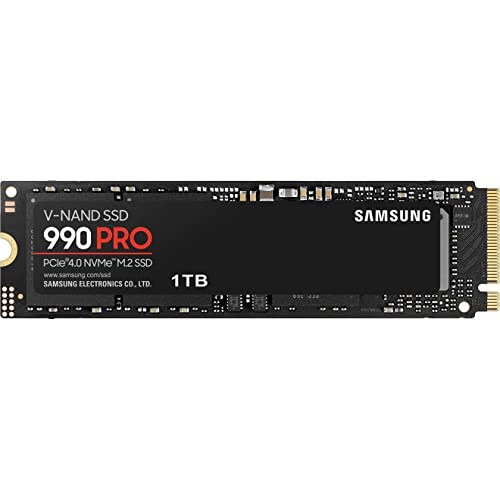
Samsung 990 Pro (PCIe 4.0, NVMe)
Samsung’s flagship remains one of the best overall NVMe drives you can put in a laptop. Sequential read speeds top out around 7,450 MB/s, which means large file transfers and game loads are essentially instant on a system that can feed it data fast enough. The 990 Pro uses a dedicated DRAM cache, which gives it consistent performance during sustained writes and mixed workloads.
For laptops specifically, it runs warm under heavy load. In a thin ultrabook with limited airflow, you may see thermal throttling during extended benchmarks, though real-world gaming and productivity tasks rarely push it to that point. Samsung’s Magician software lets you manage the drive, update firmware, and enable a low-power mode that helps with battery life.
- Pros: Top-tier speeds, excellent endurance ratings, reliable firmware, DRAM cache for consistent mixed workloads.
- Cons: Premium price, can run warm in tight chassis without heatsinks, some early firmware issues (largely resolved now).
SK Hynix Platinum P41 (PCIe 4.0, NVMe)
This is the drive I recommend most often for laptop buyers who care about battery life. The Platinum P41 uses SK Hynix’s in-house controller and NAND, and it’s remarkably power-efficient. In laptop testing, it consistently runs cooler and draws less power than competitors at similar performance levels. That matters when your drive is packed against the battery and the only cooling comes from passive chassis dissipation.
Performance-wise, it sits just behind the 990 Pro in sequential throughput but is essentially indistinguishable in real-world tasks. It includes DRAM, which means sustained write performance stays steady rather than dropping off after the SLC cache exhausts.
- Pros: Best power efficiency in its class, stays cool in tight laptop chassis, DRAM cache, competitive pricing for its performance level.
- Cons: Software ecosystem is sparse compared to Samsung, availability can be spotty in some regions.
check current price on Amazon
WD Black SN770 (PCIe 4.0, NVMe)
The SN770 is a DRAMless drive that punches well above its price. Western Digital uses its own controller and 3D NAND, and the result is a drive that handles gaming, general productivity, and everyday tasks without breaking a sweat. Sequential reads hit around 5,150 MB/s, which is well within what most laptops can utilize.
Being DRAMless means it relies on host memory buffer (HMB) technology for caching. This works well in most scenarios, but if you’re doing sustained large-file transfers or running a virtual machine from the drive, you may see performance dips once the SLC cache fills. For gaming and typical laptop use, it’s a non-issue.
- Pros: Excellent value, low power draw, good sustained performance for the price, well-suited to laptops that don’t have aggressive cooling.
- Cons: DRAMless design can show weakness in heavy mixed workloads, no dedicated software suite beyond basic updates.
Crucial P3 Plus (PCIe 4.0, NVMe)
If you’re on a tight budget and just want to replace a spinning hard drive or a slow older SSD, the P3 Plus gets you PCIe 4.0 speeds at a price that undercuts most competitors. Read speeds around 5,000 MB/s make it feel snappy for everything from boot times to game loading.
The trade-offs are real: it’s DRAMless, endurance ratings are lower than the premium drives here, and sustained write performance after the cache fills is modest. But for a laptop used for web browsing, office work, media consumption, and casual gaming, you will never notice these limitations. It’s the drive I recommend to people who just want a fast upgrade without spending over a hundred dollars.
- Pros: Aggressive pricing for PCIe 4.0, good read performance, widely available, easy to install.
- Cons: DRAMless, lower endurance (TBW) than premium options, write performance drops under sustained loads.
check current price on Amazon
Samsung 870 EVO (SATA, 2.5-inch or M.2)
Not every laptop has an NVMe slot. If you’re upgrading an older machine that only supports SATA, the 870 EVO is still the gold standard. It’s a 2.5-inch SATA drive (or available in M.2 SATA form factor in some markets) with excellent endurance, a dedicated DRAM cache, and Samsung’s software support.
Sequential speeds cap around 560 MB/s because that’s the SATA interface limit, but in a laptop that’s currently running a 7200RPM hard drive or an old SATA SSD, the responsiveness improvement will still feel enormous. This drive is also great as a secondary storage option in laptops that have both an NVMe and a 2.5-inch bay.
- Pros: Proven reliability, excellent endurance, DRAM cache for consistent performance, works in any laptop with a SATA interface.
- Cons: SATA bandwidth limits mean it’s far slower than NVMe options, only makes sense if your laptop lacks M.2 NVMe support.
Frequently Asked Questions
Do I need to clone my old drive or do a fresh install?
You can do either. Cloning software (Samsung Data Migration, Macrium Reflect, or Clonezilla) copies your existing drive to the new one, so your laptop works immediately after the swap. A fresh install of Windows takes longer but avoids carrying over accumulated junk and potential driver conflicts. If your current drive has a lot of issues or you want to start clean, go with a fresh install.
Can I use a desktop SSD in my laptop?
Form factor matters more than the marketing name. If the drive is M.2 2280 with an NVMe interface and your laptop supports that, it will work regardless of whether it was marketed as a “desktop” or “laptop” SSD. The main concern is heat: a drive designed for a desktop with a large heatsink may throttle more in a laptop’s passive cooling environment, but most modern drives handle this fine during typical workloads.
Is it worth paying extra for PCIe 5.0 for a laptop?
Right now, no. PCIe 5.0 drives draw more power, generate significantly more heat, and run much hotter than they need to, which is exactly what you don’t want in a laptop chassis. Performance gains over a good PCIe 4.0 drive are negligible in real-world tasks like gaming or productivity. Wait until Gen5 drives have matured in terms of power efficiency before considering them for a laptop.
Final Thoughts
The best laptop SSD upgrade depends on your budget and what your machine actually supports. If you want the best all-around experience with minimal compromise, the Samsung 990 Pro or SK Hynix Platinum P41 are the top choices. If you want great performance without the premium price, the WD Black SN770 delivers most of what the flagship drives offer for less. If money is the primary concern, the Crucial P3 Plus proves that PCIe 4.0 doesn’t have to be expensive. And if your laptop only has SATA, the Samsung 870 EVO will still make it feel years newer.
Whichever you choose, the installation itself takes ten minutes with a small Phillips screwdriver and a backup of your important files. The difference it makes will be immediately noticeable every single time you use the machine.