The best streaming pc for most people is a single gaming prebuilt with an 8 core processor, 32GB of dual-channel DDR5, an NVIDIA RTX 40 or 50 series card with a hardware NVENC encoder, and a fast NVMe drive. NVENC does the encoding on dedicated GPU hardware, so you rarely need a second computer. Choose 12GB VRAM or more, and an RTX 5070 Ti or higher if you want separate encoders for streaming and recording.
People search for a streaming PC expecting a special category of machine. In 2026 there is no such thing for single-PC streaming: a good gaming desktop with the right graphics card is a streaming PC. What separates good from poor choices is the encoder on the GPU, the amount of memory, and how much CPU headroom the system has when a game, OBS, Discord and a browser all run together. This guide covers those requirements, the encoder facts you should verify, a worked bitrate and upload calculation, and the model lines worth a look. Prebuilt configurations change often, so check the exact specs on the listing before you buy.
Our Top Picks
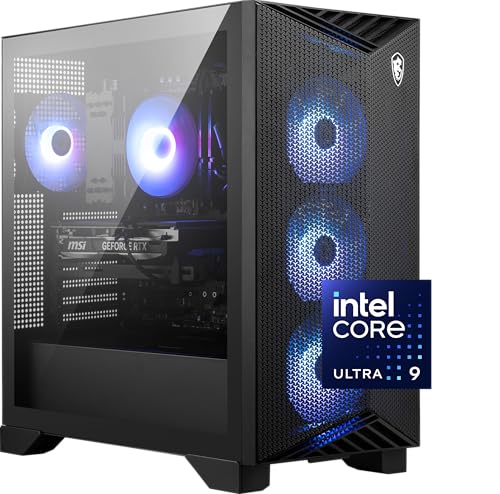 msi Aegis R2 AI Gaming Desktop: Intel Core3271.64 cubic inches19.4 x 9.1 x 19 inches26.9 PoundsCheck on Amazon
 iBUYPOWER Element Gaming PC Desktop Computer Intel Core20 x 9.1 x 17.4 inches36 PoundsCheck on Amazon

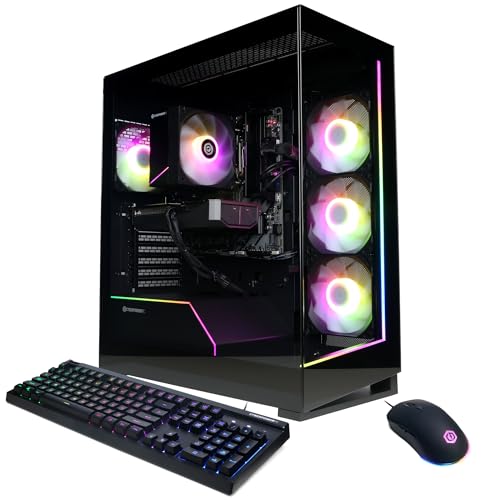
Top 3 picks at a glance
Quick comparison of the picks
| Pick | Best for | CPU class | GPU class | RAM / SSD |
|---|---|---|---|---|
| MSI Aegis R2 line | Best for streaming and recording together | Core Ultra 9 | RTX 5070 Ti 16GB | 32GB / 2TB |
| Skytech Ryzen 7 X3D line | Best for fast games with a stream open | Ryzen 7 X3D | RTX 5070 12GB | 32GB / 2TB |
| Lenovo Legion Tower 5 line | Best for a stable, supported setup | Ryzen 7 X3D | RTX 5070 12GB | See listing |
| Alienware Aurora line | Best for Intel plus Wi-Fi 7 | Core Ultra 7 | RTX 5070 12GB | 32GB / 1TB |
| ZOTAC MEK line | Best compact-looking value | Ryzen 7 9700X | RTX 5070 12GB | 32GB / 1TB |
| iBUYPOWER Element line | Best for multitasking threads | Core i7 14700F | RTX 5070 12GB | 32GB / 1TB |
| CyberPowerPC Gamer Master line | Best entry streamer (with caveats) | Ryzen 7 8700F | RTX 5060 Ti 8GB | 16GB / 1TB |
Specs reflect the classes on the listings we reviewed. Memory and storage can differ between revisions, so confirm them.
How We Chose
This is research-based editorial judgement. We did not use these computers ourselves. We compared spec sheets and store listings with NVIDIA’s encoder documentation and OBS guidance, then ranked model lines by GPU encoder generation, VRAM, CPU core count, memory configuration, cooling and power supply quality, upgrade room, and the warranty and return terms published by the brand or integrator. We favoured systems that keep headroom for the game, OBS and background apps at once, and we flagged configurations with 8GB of VRAM or 16GB of RAM as entry-level compromises.
Why a single PC can stream now
NVIDIA explains in its OBS guide that NVENC is dedicated hardware separate from the rendering engine, so your GPU “can operate normally” while streaming or recording with it, unlike a CPU encoder that takes resources from the game. That is the foundation of single-PC streaming. In practice the encoder is not entirely free: if the GPU is already close to 100 percent usage in a demanding game, the extra work can still cost a few frames. Leaving some GPU headroom with a frame cap or slightly lower settings avoids that.
Encoder facts you should know
- AV1 hardware encoding: per NVIDIA, the RTX 40 and RTX 50 series have full AV1 support, while the RTX 20 and 30 series are limited to H.264 and HEVC.
- Ninth-generation NVENC: NVIDIA says RTX 50 series cards offer about a 5 percent video quality improvement for HEVC and AV1, plus an AV1 Ultra Quality mode that reaches about 5 percent more compression at the same quality.
- Number of encoders: NVIDIA lists three encoders on the RTX 5090, two on the RTX 5080 and RTX 5070 Ti, and one on the RTX 5070. Extra encoders help exports and parallel jobs; one encoder is enough for a normal stream.
- Recording while streaming: in OBS Advanced output mode you can stream in one codec and record in another using separate encoder instances. A card with two encoders is not required for that, but it gives more headroom.
- Platform support differs: YouTube accepts AV1, while Twitch’s Enhanced Broadcasting accepts H.264 and HEVC, and sources disagree about Twitch AV1. We could not confirm Twitch AV1 status, so check Twitch’s official documentation before choosing AV1 for Twitch.
What to look for in each component
CPU: 6 cores minimum, 8 cores comfortable
With NVENC doing the compression, the CPU only has to run the game, OBS and background apps. Guides we reviewed put six cores as a floor and eight as the comfortable target, with higher counts only needed if you plan CPU (x264) encoding. Ryzen 7 X3D chips and Core i7 or Core Ultra 7 chips fit the target. If you play CPU-heavy simulation or strategy games while streaming, a 12 core chip gives extra room.
RAM: 32GB is the practical standard
Sixteen gigabytes is the minimum that streamers report working, but a modern game, Windows, OBS, Discord and a browser can fill it. Choose 32GB in two matched sticks. Single-channel memory reduces bandwidth and shows up as stutter in OBS preview and in games.
GPU: VRAM, encoder generation, and the 8GB trap
OBS scenes, browser sources and games all use video memory. A 12GB card is a good floor for 1440p streaming; 16GB leaves room for 4K scenes and webcam effects. Eight gigabyte cards, including some RTX 5060 Ti variants, can run out of memory when a game and a busy scene compete. Always read the memory line on the listing, because the RTX 5060 Ti exists in 8GB and 16GB versions.
Storage: record on a separate drive
Local recordings at high bitrates are large files. Keep Windows and games on one NVMe drive and record to a second drive if possible. Even a 1TB boot drive fills quickly with recordings, so budget for a second SSD or external storage.
Network: the part people forget
Your upload speed decides what resolution is realistic, not your PC. NVIDIA’s guide pairs an 8 Mbps upload with a roughly 6 Mbps stream at 720p to 1080p, 12 Mbps with about 10 Mbps for 1440p, and 20 Mbps or more with 15 Mbps or more for 4K. Use wired Ethernet rather than Wi-Fi for the streaming PC if you can.
Worked example: how much upload do you need
| Target | Typical bitrate | Upload to have | Why |
|---|---|---|---|
| 720p to 1080p H.264 | about 6 Mbps | 8 Mbps or more | Per NVIDIA’s bitrate table |
| 1440p | about 10 Mbps | 12 Mbps or more | Per NVIDIA’s bitrate table |
| 4K | 15 Mbps or more | 20 Mbps or more | Per NVIDIA’s bitrate table |
A simple rule: keep stream bitrate at about 70 to 75 percent of your real, measured upload speed, which leaves room for other traffic and spikes. At 8 Mbps upload, 6 Mbps is 75 percent. If you also upload clips or run cloud backup during the stream, the margin shrinks. This is a planning rule of thumb, not a platform requirement.
Best picks in detail
MSI Aegis R2 line: best for streaming and recording together
As an Amazon Associate we earn from qualifying purchases at no extra cost to you.
This Aegis R2 configuration combines a Core Ultra 9 285 with an RTX 5070 Ti, 32GB of DDR5 and a 2TB drive. The 5070 Ti has two ninth-generation encoders and 16GB of VRAM, which gives space for 1440p scenes, a webcam, and a local recording running alongside the stream. Air cooling on the listing means checking that the case airflow is good for long sessions.
- CPU: Core Ultra 9, 24 cores
- GPU: RTX 5070 Ti 16GB, two encoders per NVIDIA
- RAM: 32GB DDR5
- SSD: 2TB NVMe
Best for: streamers who record high-quality local copies. Skip if: you only want a basic 1080p stream, where a cheaper model is enough.
Pros: VRAM, encoders, large drive. Cons: cost, air cooling on a hot CPU.
Skytech Ryzen 7 X3D line: best for fast games with a stream open

Skytech’s Ryzen 7 9800X3D and RTX 5070 combination with 32GB of DDR5-6000, a 2TB SSD and an 850W Gold supply favours frame rate. Because X3D chips keep high frame rates in CPU-bound games, the margin left over for OBS is bigger. The RTX 5070 has one encoder, which is enough for a single stream.
- CPU: Ryzen 7 X3D, 8 cores
- GPU: RTX 5070 12GB
- RAM: 32GB DDR5-6000
- SSD: 2TB Gen4
- PSU: 850W Gold per the listing
Best for: competitive and 1440p gamers. Skip if: you want 16GB of VRAM for 4K scenes.
Pros: strong gaming CPU, large PSU. Cons: 12GB VRAM, one encoder.
Lenovo Legion Tower 5 line: best for a stable, supported setup

The Legion Tower 5 with a Ryzen 7 7800X3D, RTX 5070 12GB and 32GB of DDR5 covers the needs of a typical streamer. Lenovo publishes its own service and warranty terms, which suits someone who streams for income and cannot wait on a long repair.
- CPU: Ryzen 7 7800X3D, 8 cores
- GPU: RTX 5070 12GB
- RAM: 32GB DDR5
- SSD: 1TB, confirm on listing
Best for: reliability-minded streamers. Skip if: you plan to swap the case or power supply.
Pros: balanced, supported. Cons: proprietary parts in some revisions.
Alienware Aurora line: best for Intel plus Wi-Fi 7

The Aurora with a Core Ultra 7 265F, RTX 5070, 32GB DDR5, 1TB SSD and Wi-Fi 7 plus 2.5Gb Ethernet is a good fit for people who want a polished prebuilt. Use the Ethernet port for streaming, since wired connections are steadier than Wi-Fi.
- CPU: Core Ultra 7, 20 cores
- GPU: RTX 5070 12GB
- RAM: 32GB DDR5
- SSD: 1TB
Best for: streamers who want an all-in-one polished system. Skip if: you want an easy case and PSU swap.
Pros: 20 threads, wired networking. Cons: custom internals, 1TB drive.
ZOTAC MEK line: best compact-looking value
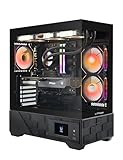
A Ryzen 7 9700X with an RTX 5070 12GB, 32GB DDR5, a 1TB NVMe and a 750W 80 Plus Gold supply is listed here. ZOTAC is a graphics card specialist, so the GPU side is a strength. A 750W supply is adequate but leaves less margin for a later GPU upgrade.
- CPU: Ryzen 7 9700X, 8 cores
- GPU: RTX 5070 12GB
- RAM: 32GB DDR5
- SSD: 1TB NVMe
- PSU: 750W Gold
Best for: 1080p and 1440p streamers on a measured budget. Skip if: you plan to step up to a much larger GPU later.
Pros: balanced specs, named PSU tier. Cons: 750W ceiling, one encoder.
iBUYPOWER Element line: best for multitasking threads

This Element pairs a Core i7-14700F with an RTX 5070 12GB and 32GB DDR5. The 14700F has 20 cores and 28 threads, which helps when OBS, a browser, chat tools and a game compete for CPU time. It is a good option for streamers who multitask heavily.
- CPU: Core i7-14700F, 20 cores
- GPU: RTX 5070 12GB
- RAM: 32GB DDR5
- SSD: 1TB
Best for: multitaskers and variety streamers. Skip if: you prefer the efficiency of AMD X3D chips.
Pros: many threads. Cons: higher power draw, older platform.
CyberPowerPC Gamer Master line: best entry streamer (with caveats)

A Ryzen 7 8700F with an RTX 5060 Ti 8GB, 16GB DDR5 and a 1TB PCIe 4.0 SSD is the entry route. It can stream 1080p with NVENC, but the 8GB VRAM and 16GB RAM are the two compromises discussed above. Plan to add RAM early.
- CPU: Ryzen 7 8700F, 8 cores
- GPU: RTX 5060 Ti 8GB
- RAM: 16GB DDR5, upgrade to 32GB
- SSD: 1TB PCIe 4.0
Best for: new streamers at 1080p. Skip if: you play new games at 1440p with a busy scene.
Pros: low entry point, 8 cores. Cons: 8GB card, 16GB memory.
Decision matrix
| Your situation | Choose | Avoid |
|---|---|---|
| 1080p streams, one game, tight budget | 8 core, 16GB upgraded to 32GB, 8GB to 12GB GPU | Anything below 6 cores |
| 1440p streams plus local recording | 12GB to 16GB GPU, 32GB RAM, second SSD | Single-channel memory |
| YouTube with AV1 | RTX 40 or 50 series | RTX 30 series or older for AV1 |
| Twitch partner, Enhanced Broadcasting | RTX-class GPU, current OBS, steady 12 Mbps upload | Wi-Fi only connection |
| Streaming plus video editing | 16GB GPU, 12+ cores, 64GB RAM later | 8GB graphics cards |
Choosing a codec by platform
The encoder you pick in OBS matters as much as the hardware under it, and the right answer depends on where you stream. The table summarises what the sources we reviewed agree on, and where they do not.
| Platform | Safe default | Better option | Caveat |
|---|---|---|---|
| Twitch (standard) | NVENC H.264, CBR | Enhanced Broadcasting with HEVC on an RTX-class card | Twitch lists OBS 30.2 or newer for Enhanced Broadcasting, per a summary of its help page |
| YouTube Live | NVENC H.264 | NVENC AV1 on RTX 40 or 50 series | YouTube accepts AV1, but viewers on older devices may fall back to other formats |
| Local recording | NVENC H.264 or HEVC | NVENC AV1 for smaller files | Check that your editor can read AV1 before archiving a library in it |
| Kick and others | NVENC H.264 | None confirmed | Read the platform ingest rules first |
The practical advice is to start with H.264 at a sensible bitrate, confirm the stream is stable, and only then experiment with AV1 or HEVC where the platform documents support. AV1 saves bitrate, which matters if your upload speed is the limit, but a stream that viewers cannot decode smoothly helps nobody.
Power, cooling and noise when the PC runs for hours
Gaming for an hour and streaming for five are different thermal problems. Streaming keeps the CPU, GPU and the encoder block busy for long periods, and the room often has a webcam and lights on top. A few checks reduce trouble:
- Prefer a case with a mesh front and at least two intake fans, since a closed glass front restricts airflow.
- A named 750W to 850W 80 Plus Gold power supply is a sensible match for a 12GB or 16GB mid-range card. A listing with no PSU brand is a reason to look at the manufacturer page.
- Check that the model has a tower cooler or liquid cooler on 20-core Intel chips, which draw more power than 8 core X3D chips.
- Put the PC where its exhaust does not blow on you or the microphone, and use a cardioid microphone that rejects fan noise.
What else to budget for
The PC is only part of a streaming setup. Plan for the extras so the PC does not eat the whole budget.
- Second SSD or external drive: for recordings and VODs.
- Wired Ethernet cable and a router that supports it: a stable connection matters more than a few extra frames.
- Microphone and webcam: audio quality drives viewer retention more than resolution does.
- Capture card: only needed for consoles or a second-PC design.
- Monitor space: a second display for chat and OBS keeps the game full screen.
When a second PC still makes sense
A dedicated streaming PC with a capture card still has uses. It isolates the stream from game crashes, supports very heavy overlays and browser scenes, and lets a console feed a PC. For most people playing one PC game and streaming at 1080p or 1440p, a single machine with NVENC is simpler and cheaper. If you stream console games, you need a capture card regardless of which PC you buy.
OBS setup checklist for a single-PC streamer
- Update OBS Studio and the NVIDIA driver. NVIDIA’s guide targets OBS 29.1 or newer for its recommended NVENC settings.
- Choose the NVENC encoder, CBR rate control, a keyframe interval of 2 seconds, and a quality preset such as P6 as NVIDIA suggests.
- Turn on Windows Hardware Accelerated GPU Scheduling, which NVIDIA recommends for balancing encoding and gaming load.
- Cap the in-game frame rate slightly below what the GPU can sustain so encoding has headroom.
- Record in Advanced mode to a second drive, using a separate encoder setting if you want a higher-quality local copy.
Buying guide and red flags
- 8GB VRAM for 1440p streaming: avoid or treat as a 1080p-only machine.
- 16GB of single-channel RAM: avoid. Look for two sticks.
- Proprietary power supply or board: limits later GPU or PSU changes.
- Weak cooling: hot CPUs throttle during long sessions.
- Old-generation GPUs: RTX 20 and 30 series lack AV1 encoding.
- Tiny drives: recordings fill 1TB quickly.
Upgrade path
| Part | First upgrade | Why |
|---|---|---|
| RAM | 16GB to 32GB | Removes swapping when OBS and a game run together |
| Storage | Add a second NVMe or SATA SSD | Dedicated recording drive |
| GPU | Step up in VRAM | More scene headroom and newer encoders |
| Network | Wired Ethernet, better plan | Upload decides the stream quality |
Frequently Asked Questions
Do I need a separate PC to stream?
No. A modern gaming PC with NVENC can game and stream on one machine. A second PC is only worth it for heavy overlays, console capture or crash isolation.
How much RAM do I need for streaming?
Sixteen gigabytes is the minimum that works. Thirty-two gigabytes in two sticks is the practical standard for a game, OBS, Discord and a browser together.
Which GPU is best for streaming?
Any RTX 40 or 50 series card has a strong NVENC encoder with AV1. Pick by VRAM and gaming performance, and choose an RTX 5070 Ti or higher if you want two encoders.
Is AV1 better than H.264 for streaming?
AV1 gives better quality at the same bitrate, and YouTube accepts it. Twitch AV1 status is unclear in the sources we reviewed, so check Twitch’s documentation before relying on it.
How many CPU cores do I need?
Six cores is a floor and eight is comfortable for NVENC streaming. Choose 12 or more if you also edit video or play CPU-heavy games.
Does streaming lower my FPS?
With NVENC the impact is small, but not zero when the GPU is at full load. Capping frame rate or lowering settings slightly restores headroom.
What internet speed do I need?
NVIDIA’s guide pairs 8 Mbps upload with a 6 Mbps 1080p stream and 12 Mbps with about 10 Mbps for 1440p. Use a wired connection.
Sources
- NVIDIA NVENC OBS Guide
- NVIDIA blog, GeForce RTX 50 series video and streaming features
- Puget Systems, NVIDIA GeForce RTX 50 series features for content creators
- Manufacturer and retailer product pages for the model lines above
Last updated: October 2026