The best gaming PC for teenagers is a mainstream 1080p-to-1440p desktop from a brand with clear support, built on a standard power supply and motherboard so it can be upgraded as the teen grows. Look for a current-generation graphics card in the RTX 5060 class with 8GB of VRAM at minimum, a six-core or eight-core CPU, 16GB (preferably 32GB) of dual-channel RAM, and a 1TB NVMe SSD. Check the warranty and return policy, and set up parental controls before the first game launches.
This guide is written for parents and teens shopping together. It explains what a teen actually needs, shows seven model lines worth shortlisting that fit different budgets and household needs, covers school use, and ends with a setup checklist for family-friendly screen-time controls. It is research-based: it draws on manufacturer spec sheets, component quality, upgrade paths, warranty practices and owner feedback. We did not use these PCs ourselves.
Our Top Picks


Top 3 picks at a glance
Quick comparison of the picks
| Pick | Best for | GPU class | CPU class | Memory and storage | Tier |
|---|---|---|---|---|---|
| ZOTAC MEK, Ryzen 5 5500 and RTX 5060 | First gaming PC on a tighter budget | RTX 5060, 8GB | Six-core, older AMD platform | 16GB DDR4, 1TB NVMe | Entry |
| Skytech, Ryzen 5 8400F and RTX 5060 | Balanced starter with a newer platform | RTX 5060 | Six-core, DDR5 platform | 16GB DDR5, 1TB NVMe | Entry-plus |
| CyberPowerPC Gamer Xtreme, i5-14400F and RTX 5060 | Popular 1080p-to-1440p all-rounder | RTX 5060, 8GB | Ten-core Intel | 16GB DDR5, 1TB PCIe 4.0 | Mid |
| msi Codex R2, i5-14400F and RTX 5060 | Clean design from a known component brand | RTX 5060 | Ten-core Intel | 16GB DDR5, 1TB | Mid |
| HP OMEN 16L, Ryzen 7 8700F and RTX 5060 | Teens who also do school and creative work | RTX 5060 | Eight-core AMD | 32GB, 1TB | Mid |
| Lenovo Legion Tower 5i, Core Ultra 7 265F and RTX 5060 Ti | Longer lifespan and more power | RTX 5060 Ti | Core Ultra 7 | Check listing for memory and storage | Upper-mid |
| Alienware, Core Ultra 7 265F and RTX 5060 Ti | Brand-name support and 1440p headroom | RTX 5060 Ti | Core Ultra 7 | 16GB DDR5, 1TB | Upper-mid |
Tier words only: prices change often, so compare current listings before you decide. Memory sizes on the graphics cards in the Ti models vary between 8GB and 16GB variants; confirm the VRAM on the page you are looking at.
How We Chose
- Spec sheets: we compared listed CPU, GPU, RAM, storage and power supply details, looking for configurations that match a teenager’s likely games and screens.
- Component quality: single-stick RAM, vague power supplies and tiny coolers disqualified a system.
- Upgrade path: standard parts and spare slots rate higher than proprietary designs.
- Warranty and returns: established brands that publish support terms were preferred.
- Owner feedback: we considered common themes in owner discussions, such as noise and software bloat.
- Not used by us: this is research-based. We did not use the products.
What a teenager really needs from a gaming PC
Teens play a mix of free-to-play competitive games, open-world titles, sandbox games and whatever their friends are playing this term. Most of those run well on a mainstream graphics card at 1080p, and many at 1440p. The rest of the decision is about the household: noise, space, safety, budget, and how long the computer must last.
Six factors that matter
- Graphics card class. An RTX 5060-class card with 8GB of VRAM handles 1080p well in current games. A step up to the RTX 5060 Ti class, ideally with 16GB, gives more headroom for 1440p and for games a few years from now.
- Enough system memory. 16GB in two sticks is the minimum. 32GB suits teens who stream, edit video, or keep many things open for schoolwork.
- Storage. 1TB NVMe is the practical minimum; large games fill smaller drives quickly. A spare M.2 slot lets you add capacity later.
- Warranty and support. A teenager will not troubleshoot a dead PC well. Choose a seller with a clear warranty and returns page and a support channel you can reach.
- Upgrade path. Standard-size power supply and motherboard let you replace the graphics card later instead of the whole PC.
- Noise and heat. A PC in a bedroom must be quiet enough to sleep near. Mesh-front cases cool well but let noise out; check owner feedback for fan noise.
The best model lines to shortlist
ZOTAC MEK Gaming PC (Ryzen 5 5500, RTX 5060)
As an Amazon Associate we earn from qualifying purchases at no extra cost to you.
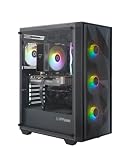
The ZOTAC MEK line pairs a six-core Ryzen 5 5500 with an RTX 5060 8GB, 16GB of DDR4 memory, a 1TB NVMe SSD and a 650W 80 Plus Gold power supply, according to the listing. Gold efficiency and a named wattage are good signs for a first PC. The platform is older, so the upgrade path on the CPU side is shorter than on newer DDR5 boards, but for 1080p play it is more than adequate.
Best for: a first PC on a tighter budget where 1080p is the target. Skip if: you want to keep the PC for five or more years of 1440p play.
Pros: modern graphics card, Gold power supply, 1TB NVMe. Cons: DDR4 and older CPU platform, 16GB only.
Skytech Gaming PC (Ryzen 5 8400F, RTX 5060)

This Skytech configuration uses a Ryzen 5 8400F on a DDR5 platform, an RTX 5060, 16GB of RAM, a 1TB NVMe SSD and a 650W Gold power supply per the listing. DDR5 gives a better long-term path than the older DDR4 builds, and Skytech is a long-established prebuilt seller with a wide range, which makes comparing tiers simple. Check the RAM is dual-channel before you buy.
Best for: a teen who wants a modern platform without paying for a higher GPU. Skip if: you want a large brand’s support network.
Pros: DDR5 platform, Gold PSU, SSD included. Cons: six cores only, 8GB graphics card.
CyberPowerPC Gamer Xtreme (Core i5-14400F, RTX 5060)

The CyberPowerPC Gamer Xtreme line is one of the most common prebuilt families. The configuration here pairs an Intel Core i5-14400F with an RTX 5060 8GB, 16GB of DDR5 and a 1TB PCIe 4.0 SSD. The ten-core i5 handles gaming and school multitasking together, and CyberPowerPC publishes upgrade and warranty information on its site. As with all 8GB cards, it is a 1080p-first machine that can handle 1440p at moderate settings.
Best for: an all-round family PC. Skip if: you need a very quiet case or a premium design.
Pros: DDR5, PCIe 4.0 SSD, strong CPU. Cons: 8GB VRAM, older Intel generation.
msi Codex R2 (Core i5-14400F, RTX 5060)

MSI is a well-known motherboard and graphics card maker, which tends to translate into sensible internal part choices. The Codex R2 listing shows an i5-14400F, RTX 5060, 16GB DDR5, 1TB SSD and an 80 Plus Gold power supply, with ARGB lighting. Component-brand desktops often have easier part swaps than proprietary-design systems, though you should confirm the power supply is a standard size before planning a major GPU upgrade.
Best for: families who prefer a recognisable component brand. Skip if: you want 32GB of RAM out of the box.
Pros: Gold PSU, DDR5, well-known brand. Cons: 8GB graphics card, 16GB memory.
HP OMEN 16L (Ryzen 7 8700F, RTX 5060)

The OMEN 16L from HP is a compact desktop with an eight-core Ryzen 7 8700F, RTX 5060, 32GB of RAM and a 1TB SSD, with Windows 11 Pro in the listing. For teens who also do coding, video editing or multi-tab research, the eight cores and 32GB of memory help. HP has a large support network, which parents may prefer. Compact cases can limit the size of graphics card you can fit later, so check clearance before planning an upgrade.
Best for: school work plus gaming. Skip if: you want to upgrade the GPU to a very large card later.
Pros: 32GB, eight cores, compact size, large brand support. Cons: proprietary elements can limit upgrades.
Lenovo Legion Tower 5i (Core Ultra 7 265F, RTX 5060 Ti)

The Legion Tower 5i sits a step above the entry builds, with an Intel Core Ultra 7 265F and an RTX 5060 Ti. Lenovo has a broad support presence, and a full-size tower generally leaves more room for later upgrades than a compact desktop (confirm the power supply and case clearance on the listing). Check the VRAM (8GB or 16GB) and the RAM and storage on the specific listing, because Lenovo sells several configurations under this name.
Best for: a teen who will keep the PC through high school and into college. Skip if: your budget needs to stay in the entry tier.
Pros: stronger GPU class, fits 1440p, large-brand support. Cons: configuration varies by listing.
Alienware Gaming Desktop (Core Ultra 7 265F, RTX 5060 Ti)

Alienware is Dell’s gaming brand, and the listing pairs a Core Ultra 7 265F with an RTX 5060 Ti, 16GB of DDR5, a 1TB SSD and 2.5Gb Ethernet. Dell’s support organisation is a selling point for parents who want a clear phone or chat route when something goes wrong. Check the VRAM size in the listing and confirm what is covered under warranty, since terms for brand-name desktops vary by region and configuration.
Best for: a longer-lasting 1440p machine with strong support. Skip if: you want the most standard, easily swapped parts.
Pros: brand support, DDR5, wired networking. Cons: usually priced above equivalent component-brand builds.
Which pick fits which household
| Your situation | Start with | Why |
|---|---|---|
| First gaming PC, a younger teen, tight budget | ZOTAC MEK or Skytech 8400F | Enough for 1080p, simple parts, Gold power supply |
| You want one PC for years, with a 1440p monitor planned | Lenovo Legion Tower 5i or Alienware | Ti-class graphics and larger-brand support |
| Homework, coding or video projects as well as games | HP OMEN 16L | Eight cores and 32GB of RAM |
| You prefer a known component maker | msi Codex R2 or CyberPowerPC Gamer Xtreme | Intel ten-core CPU and DDR5 |
| Small bedroom, noise matters | HP OMEN 16L or the msi | Smaller footprint or a cleaner airflow design; confirm noise in owner feedback |
| Teen will keep upgrading | msi Codex R2 or Lenovo Legion Tower 5i | Full-size tower layouts leave room for later parts |
Questions to ask before you pay
- Is the memory two sticks, and is it DDR4 or DDR5?
- Is the graphics card 8GB or 16GB, or another size?
- Is the power supply a standard size, and what is its wattage and efficiency rating?
- Is there a spare M.2 slot and a free RAM slot?
- What does the warranty cover, for how long, and who handles repairs?
- What is the return window if the PC arrives damaged or noisy?
- Does the PC come with Windows installed and activated?
- Does the case have front mesh or other airflow, and is it quiet in owner feedback?
Do not forget the monitor and accessories
A teenager needs a monitor, keyboard, mouse and headset before a gaming PC is usable, and these are often not included. A 24 or 27 inch monitor with 144Hz or higher refresh makes a 1080p PC feel smoother, and 27 inch 1440p suits the Ti-class builds. Check that the monitor cable matches the ports on the graphics card (DisplayPort or HDMI) and set the refresh rate in Windows display settings after setup. A headset with a microphone supports voice chat and remote classes, and a standard wired keyboard and mouse are fine until your teen develops preferences.
Safety, ratings and healthy habits
The hardware is only part of choosing a PC for a young person. Check the age ratings on games before you install them, and review each game’s online chat and purchase settings. Many popular games include voice or text chat with strangers and in-game purchases, which can be turned off or limited in the game’s own settings. Microsoft Family Safety can limit time on specific apps but, as its own documentation notes, cannot reach inside every game’s chat. Talk about what to do if someone online is unkind or asks for personal details, and keep the PC in a shared room if that suits your household. Encourage breaks, sleep and homework first; setting the expectation up front is easier than adding rules later.
Prebuilt, build-it-together or wait?
A prebuilt gives you one purchase, one warranty and a working system on day one. Building together with your teen costs more time and needs careful parts selection, but teaches skills and can yield a more upgradeable machine. Waiting is rarely necessary: graphics cards and desktops change on a rolling basis, and a PC bought in a given year is good for several years of play. If you are unsure, buy a solid mainstream prebuilt with a standard power supply and motherboard, and let your teen take on upgrades as a project later.
Buying guide: what each budget tier realistically buys
| Tier | What you can expect | Typical trade-off |
|---|---|---|
| Entry | RTX 5050 or older mid-range card, six-core CPU, 16GB RAM, 1TB SSD | Older platform, 1080p only, shorter lifespan |
| Entry-plus and mid | RTX 5060 class, six- to ten-core CPU, 16GB-32GB RAM, 1TB SSD | 8GB VRAM limits 1440p texture settings |
| Upper-mid | RTX 5060 Ti class or similar, eight-core or better CPU, 16GB-32GB RAM | Check whether the Ti is 8GB or 16GB |
| High | RTX 5070 class, strong CPU, 32GB RAM, 1TB-2TB SSD | More than most teens need; pair with a 1440p monitor |
Red flags
- A graphics card name with no VRAM size.
- One stick of RAM, or no mention of dual-channel.
- No wattage or efficiency rating on the power supply.
- A very large claim like “beats” a higher card without naming games and settings.
- No clear warranty or return text on the listing.
- Used or renewed parts when you want a first PC you can rely on.
- Used graphics cards from older generations, such as GTX 16-series, in a PC advertised as current.
Gaming and schoolwork on the same PC
Most gaming desktops are excellent for school. The eight-core CPUs and 32GB of memory in the stronger builds handle research tabs, video calls, document editing, and light video or photo projects. Some practical points:
- Separate accounts. Create a standard Windows account for the teen and an administrator account for the parent. Standard accounts cannot install software or change system settings without a parent’s password.
- Separate storage. Keep schoolwork on a cloud service or a second drive so a game reinstall never touches assignments.
- Webcam and microphone. Most gaming desktops include neither; add a USB webcam and headset for remote classes.
- Monitor choice. A 24 or 27 inch 1080p or 1440p monitor works for both. Raise the refresh rate to 144Hz or higher in Windows settings for gaming.
Parental controls and screen time
Microsoft Family Safety is a free, built-in tool for Windows 11 and Xbox. According to Microsoft’s description and setup guides, the child needs their own Microsoft account in your family group. Then, from the family dashboard, you can set daily device screen time and app and game limits, and apply content filters for web browsing in Microsoft Edge. Guides recommend giving the child a standard account instead of an administrator account, because administrators may be able to bypass some limits. You do not need Windows 11 Pro for these features.
- Create a Microsoft account for your teen and add them to your Microsoft family group.
- Make sure the account on the PC is a standard account.
- Open the family dashboard, select the teen, choose Windows, and set screen-time allowances for each day.
- Turn on app and game limits for specific titles, with allowed hours.
- Review activity reports together, and adjust limits as trust grows.
No parental control system is perfect, and a determined teen may find ways around it. Combine tools with conversation about when and how long they play, and where the PC lives in the house.
Upgrade path table
| Part | When to upgrade | What to check first |
|---|---|---|
| RAM | If the PC has 16GB and the teen starts streaming or editing | Number of free slots and DDR4 versus DDR5 |
| SSD | When the library outgrows 1TB | A free M.2 slot |
| Graphics card | After two to four years, as games get heavier | Power supply wattage and case clearance |
| CPU | Rarely; only if the motherboard socket has newer chips | Socket type and BIOS support |
| Power supply | Together with a large GPU upgrade | Standard size and connector types |
Frequently Asked Questions
How much PC does a teenager need?
Most teens are well served by an RTX 5060-class graphics card, a six- or eight-core CPU, 16GB-32GB of RAM, and a 1TB SSD for 1080p play. Choose a Ti-class card if you plan to play at 1440p or keep the PC for years.
Should I buy a prebuilt or build one with my teen?
A prebuilt is simpler and comes with one warranty. Building together is a great learning project, but it takes time and the parts must be chosen carefully. If you build, use a spec list from a reputable guide.
Is 8GB of VRAM enough for a teenager?
For 1080p and competitive games, yes. For 1440p with high textures and for longevity, 12GB-16GB is safer, which is why the Ti-class models in this list are worth considering if the budget allows.
Is a gaming PC good for school?
Yes. Gaming desktops handle schoolwork easily. Add a webcam and headset for remote classes, use a standard Windows account for the teen, and keep schoolwork backed up to the cloud.
Can parents limit gaming time on Windows?
Yes. Microsoft Family Safety lets parents set daily screen time and app and game limits for a child account on Windows and Xbox. The child needs their own Microsoft account, and a standard account works best.
Prebuilt gaming PC or gaming laptop for a teenager?
A desktop gives more performance per dollar and is easier to upgrade and repair. A laptop suits students who move between rooms and school. If the PC stays in one room, a desktop is the stronger choice.
How long will a teen’s gaming PC last?
Three to five years before settings need to come down in the newest games, and longer for esports. More VRAM, 32GB of RAM and a standard power supply extend that time.
Sources
- Tom’s Hardware, best PC builds for gaming (2026) and GPU buying guidance
- Tom’s Guide, best gaming PC overview (2026)
- Microsoft Family Safety and Xbox Family Settings documentation
- Manufacturer product pages: CyberPowerPC, msi, HP, Lenovo, Alienware, ZOTAC, Skytech
Last updated: October 2026