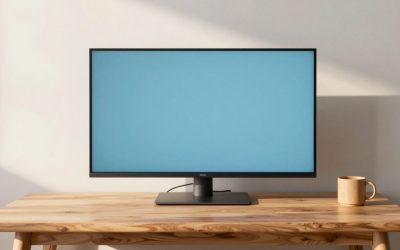
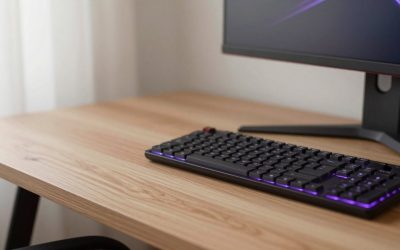
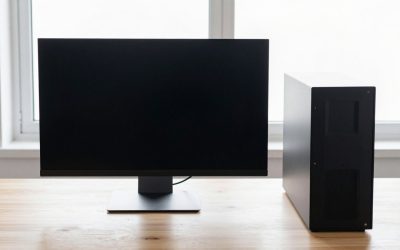
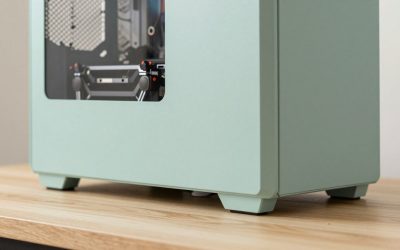
The best gaming pc and monitor bundle is the one where the monitor matches the graphics card, not the one with the most items in the box. Pair an RTX 5060 class card with a 1080p or 1440p monitor at 144Hz to 180Hz, pair an RTX 5070 class card with 1440p at 165Hz or higher, and avoid any bundle that puts a 60Hz panel or a 4GB graphics card at the centre. Gigatech’s Titan 3 and SAAV’s RX 9060 XT bundle are the strongest listings in the store; the cheaper bundles are workable only if you accept their limits.
A gaming PC and monitor bundle is attractive for one reason: it removes a decision. You get a desktop, a screen and often a keyboard and mouse in one order, ready to plug in. The risk is that bundle sellers choose the monitor to hit a price, not to suit the graphics card. This guide explains what to check in any bundle, what the monitor specs actually mean, and which bundle listings in the store make sense. Where a listing does not state the monitor model or panel type, we say so rather than guess. Configurations and bundle contents change often, so read the listing’s contents section before buying.
Our Top Picks
Top 3 picks at a glance
Quick comparison of the bundle picks
| Pick | PC class | Monitor in listing | Best for | Main trade-off |
|---|---|---|---|---|
| Gigatech Titan 3 bundle | Ryzen 5 5500, RTX 5060, 16GB DDR4 | Monitor included, model per listing | Best-balanced 1080p to 1440p bundle | DDR4 and an older AM4 CPU |
| SAAV CORE (RX 9060 XT) | Ryzen 7 5800X, RX 9060 XT 8GB | Curved 27-inch monitor named in listing | Larger screen with a current-generation GPU | 8GB VRAM and a curved panel |
| SAAV CORE (RTX 3050) | Ryzen 5 5500, RTX 3050 6GB | Dual curved 24-inch monitors | Two-screen starter desk | Entry-level GPU |
| MTG Khuno tower and monitor | Core i5 8th Gen, RTX 2060 Super 8GB | 24-inch monitor, RGB keyboard and mouse | Lowest-cost complete setup | Old CPU generation |
| Periphio Castle bundle | Ryzen 5 5500, RX 6500 XT 4GB | Bundle per listing | Light esports on a strict budget | 4GB graphics card |
| Sceptre 27-inch Prime curved | Monitor only | 1500R, 180Hz | Pair-it-yourself high-refresh screen | Basic panel quality |
| Acer KB272 27-inch IPS | Monitor only | 1080p IPS, 120Hz | Cheap, colour-accurate screen | Only 120Hz |
Step one: match the monitor to the graphics card
The graphics card sets how many frames per second you will see; the monitor sets how many you can see. If the monitor is too slow, you waste the card. If the card is too weak for the monitor’s resolution, you get low frame rates at a high pixel count.
| Graphics card class | Sensible monitor | Why |
|---|---|---|
| Entry (RTX 3050, RX 6500 XT) | 1080p, 100Hz to 144Hz | These cards struggle past 1080p; a 4GB card runs out of memory at high texture settings |
| RTX 5060 and RX 9060 XT class (8GB) | 1080p at 144Hz to 180Hz, or 1440p at 144Hz to 180Hz with upscaling | Published guides split between 1080p and 1440p; 8GB VRAM is the limit |
| RTX 5070 class (12GB) | 1440p at 165Hz to 240Hz | Guides call 1440p the sweet spot for this tier |
| RTX 5070 Ti class and above | 1440p at high refresh, or 4K with upscaling | Enough headroom for either |
The guides we read agree on the broad shape: a 27-inch 1440p IPS monitor at 165Hz to 180Hz suits an RTX 5070 well, and it also works with an RTX 5060 if you use upscaling and moderate texture settings. They disagree on whether the 5060 is a 1440p or a 1080p card, so treat 1440p on an 8GB card as acceptable with settings adjusted, not as a free upgrade. Ultrawide 3440×1440 has roughly 30 percent more pixels than standard 1440p, which pushes an 8GB card harder.
Worked example: does the cable support the monitor?
A bundle monitor can look right on paper and still not run at its advertised refresh rate over the cable in the box. The check is pixel rate. Multiply width by height by refresh rate by colour bits.
| Mode | Approximate uncompressed data | HDMI 2.0 (about 14.4 Gbps usable) | DisplayPort 1.4 (about 25.9 Gbps usable) |
|---|---|---|---|
| 1920×1080 at 144Hz, 8-bit | about 7 Gbps | Fits | Fits |
| 2560×1440 at 144Hz, 8-bit | about 12.7 Gbps before timing overhead | Tight, often limited | Fits |
| 2560×1440 at 240Hz, 8-bit | about 21 Gbps before timing overhead | Does not fit | Usually fits at 8-bit |
| 3840×2160 at 144Hz, 8-bit | over 28 Gbps | Does not fit | Needs compression (DSC) |
These figures are approximate and ignore blanking intervals, which add a few percent. The takeaway is practical: for 1440p at 144Hz or more, use the DisplayPort cable, not HDMI 2.0, and check that the bundle includes one. Published references put DisplayPort 1.4 at about 25.9 Gbps of usable bandwidth and HDMI 2.0 at about 14.4 Gbps, and note that 4K 144Hz needs compression on DisplayPort 1.4.
Step two: monitor specs that matter in a bundle
- Refresh rate. Avoid 60Hz. Guides recommend 120Hz or higher, with 144Hz to 180Hz as the practical range for most players.
- Panel type. IPS is the safest all-round choice for colour and viewing angles. VA has stronger contrast, but some VA panels smear in dark scenes. Curved VA panels are common in bundles because they are cheap.
- Adaptive sync. FreeSync or G-Sync compatibility removes tearing. Check the supported range, not just the maximum refresh.
- Response time. Quoted 1ms figures are usually best-case grey-to-grey numbers. Do not treat them as a measure of overall quality.
- Ports. At least one DisplayPort and one HDMI. Check which version of HDMI the monitor has.
- Stand. Many budget monitors tilt only. If you want height adjustment or wall mounting, look for VESA support.
Step three: audit the PC half
A bundle is only as good as its weakest part. Run the same checks you would on any prebuilt.
- Graphics card VRAM. 4GB is a dead end for new games. 6GB is borderline. 8GB is the floor for current 1080p high settings, and 12GB is better for 1440p.
- RAM. 16GB in two sticks is the minimum; check it is dual-channel. Be wary of DDR4 inside a bundle advertised around a current-generation graphics card, a mismatch one buying guide flags.
- SSD. 1TB NVMe is a sensible baseline. A 256GB or 500GB drive fills fast.
- Power supply. Look for a named brand and 80 Plus rating. An unlisted PSU is a warning sign.
- CPU generation. An 8th-generation Intel or old AM4 CPU still plays games, but pairs poorly with a modern GPU.
Step four: read what is actually in the box
Guides on gaming bundles point to the same pitfalls: a base price that reflects the lowest configuration, accessories that look generous but are low quality, and bundles that bury the monitor model. Read the listing for:
- The monitor brand, size, resolution and refresh rate. If the listing says only “24-inch monitor”, treat that as a red flag.
- Whether the keyboard and mouse are wired budget items (usually they are).
- Whether a DisplayPort cable is included.
- Warranty terms for the PC and, separately, the monitor. Bundles often have two different warranty periods.
- The seller’s return policy.
1. Gigatech Titan 3 bundle: best balanced bundle
As an Amazon Associate we earn from qualifying purchases at no extra cost to you.

The Gigatech Titan 3 pairs a Ryzen 5 5500 with an RTX 5060, 16GB of DDR4 and a 1TB PCIe SSD, with Windows 11, Wi-Fi and RGB lighting, and ships with a monitor. The graphics card is the best part of the package for the money, and the RTX 5060 suits the 1080p to 1440p monitors typical of bundles. A comparison guide that includes Gigatech bundles notes their entry bundles include a 24-inch 1080p 100Hz monitor, so confirm the monitor in the exact configuration. DDR4 and the AM4 CPU are the compromise.
- Specs class: Ryzen 5 5500, RTX 5060 8GB, 16GB DDR4, 1TB NVMe.
- Best for: A complete setup that makes sense out of the box.
- Skip if: You want a platform that will accept several CPU upgrades.
- Pros: Current-generation GPU, 1TB SSD, ready-to-use setup.
- Cons: DDR4 and an older CPU socket; monitor model should be confirmed.
2. SAAV CORE with RX 9060 XT: best larger-screen bundle

This SAAV listing pairs a Ryzen 7 5800X with a Radeon RX 9060 XT 8GB and names a curved 27-inch monitor in its title. The Ryzen 7 5800X is a capable eight-core CPU and the 9060 XT is a current-generation card, so the graphics side is a good match for a 27-inch 1080p or 1440p screen. The curved panel is typically a VA type, which favours contrast over motion clarity. Check the monitor’s resolution and refresh rate on the listing, because the title does not give them in the part we could see.
- Specs class: Ryzen 7 5800X, RX 9060 XT 8GB, curved 27-inch monitor.
- Best for: A larger screen without buying a monitor separately.
- Skip if: You want an IPS panel.
- Pros: Eight-core CPU, current GPU class, larger display.
- Cons: 8GB of VRAM; monitor details not confirmed.
3. SAAV CORE with RTX 3050: best two-screen starter

The cheaper SAAV bundle has a Ryzen 5 5500 and an RTX 3050 6GB with dual curved 24-inch monitors. Two screens are useful for streaming, chat and reference material, but the GPU limits you to 1080p at medium to high settings in demanding games. This is a sensible desk for mixed use with some gaming, not a high-refresh gaming setup.
- Specs class: Ryzen 5 5500, RTX 3050 6GB, two curved 24-inch monitors.
- Best for: Gaming plus a second screen for work or streaming.
- Skip if: You mainly want high frame rates in new releases.
- Pros: Two monitors, usable 1080p performance.
- Cons: 6GB graphics card; second monitor takes desk space.
4. MTG Khuno tower: lowest-cost complete setup
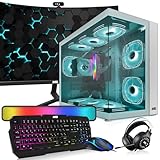
MTG’s Khuno listing is a tower with an 8th-generation Core i5, 16GB of RAM, a 1TB NVMe drive, an RTX 2060 Super 8GB, a 24-inch monitor and an RGB keyboard and mouse. The RTX 2060 Super still handles 1080p, and the complete kit is the cheapest route to a working setup. The age of the CPU and platform is the trade-off: expect it to limit newer games and to offer little upgrade room.
- Specs class: Core i5 8th Gen, RTX 2060 Super 8GB, 16GB RAM, 1TB NVMe.
- Best for: A first complete gaming desk on a tight budget.
- Skip if: You want modern features such as DDR5 or current ray tracing hardware.
- Pros: Everything included, 8GB graphics card.
- Cons: Older platform; the seller is a third-party reseller, so check warranty terms.
5. Periphio Castle bundle: strict-budget esports

The Periphio Castle bundle uses a Ryzen 5 5500, a Radeon RX 6500 XT 4GB, 16GB of DDR4 and a 1TB SSD. The 4GB graphics card is the limitation: it runs older and esports titles well at 1080p but struggles as texture sizes grow. It is a reasonable first machine for light play, and a poor base if you want to play new releases at high settings.
- Specs class: Ryzen 5 5500, RX 6500 XT 4GB, 16GB DDR4, 1TB SSD.
- Best for: Esports titles and older games at 1080p.
- Skip if: You plan to play recent demanding releases.
- Pros: Complete bundle, Windows 11 Home.
- Cons: 4GB of VRAM; monitor model should be checked.
Buying the monitor separately
If a bundle monitor is a mystery, buy the desktop alone and choose a screen yourself. Two monitor listings in the store show the range.
Sceptre 27-inch Prime curved: affordable high refresh

The Sceptre Prime 27-inch curved monitor lists a 180Hz refresh rate over DisplayPort and HDMI, a 1500R curve, 1ms response and built-in speakers. At this tier it is a value pick for pairing with an RTX 5060 class PC. Panel quality, brightness and colour accuracy are typical of budget monitors, so treat the 1ms figure as a best-case claim.
- Best for: High refresh on a small budget.
- Skip if: You care about colour accuracy.
Acer KB272 27-inch IPS: colour on a budget

Acer’s KB272 is a 27-inch 1080p IPS monitor at 120Hz with adaptive sync, 99 percent sRGB, HDMI, VGA and VESA mounting. It is more of an office-first screen with gaming-friendly features. It is a sound match for entry-level cards, and a poor match if you want 144Hz or more.
- Best for: Mixed work and play with accurate colour.
- Skip if: You want a 144Hz or higher panel.
Monitor spec tiers in a bundle
Bundle monitors fall into three rough tiers. Knowing which one you are looking at tells you more than the marketing copy does.
| Tier | Typical spec | What it means in practice | Suits |
|---|---|---|---|
| Basic | 22 to 24 inch, 1080p, 60Hz to 100Hz, TN or VA | Fine for office and casual games, wastes a mid-range graphics card | RTX 3050 or RX 6500 XT class PCs |
| Standard gaming | 24 to 27 inch, 1080p, 120Hz to 180Hz, IPS or VA, adaptive sync | The sweet spot for 8GB cards; smooth motion at sensible cost | RTX 5060 and RX 9060 XT class PCs |
| Enthusiast | 27 inch, 1440p, 165Hz to 240Hz, fast IPS, DisplayPort | Rarely shipped inside a bundle; usually bought separately | RTX 5070 class and above |
Most bundles in the store sit in the basic and standard tiers. That is not a flaw if the PC is at the same tier. The mismatch to avoid is a strong PC with a basic monitor, because you will pay for frame rates you cannot see.
After you unbox: settings that make the bundle work
- Use the right cable. Plug the monitor into the graphics card, not the motherboard video ports. Use DisplayPort if the monitor has it.
- Set native resolution. In Windows display settings, choose the monitor’s native resolution so text and games are sharp.
- Raise the refresh rate. Windows often defaults to 60Hz. Open Advanced display settings and choose the highest refresh rate listed. Skipping this step is the most common reason a new bundle feels no smoother than the old setup.
- Enable adaptive sync. Turn on FreeSync or G-Sync in the monitor menu and in the graphics driver control panel, then confirm it in a game.
- Install current drivers. Prebuilt systems often ship with older graphics drivers. Download the latest from the graphics vendor.
- Check the monitor menu. Disable aggressive overdrive modes if you see ghosting, and turn off eco modes that cap brightness.
Red flags in bundle listings
- “Gaming monitor” with no refresh rate. If the number is missing, assume it is 60Hz.
- Bundle photos that show a different monitor from the text. Ask the seller or choose another listing.
- Mismatched tiers. A flagship-class graphics card beside a basic panel, or the reverse, means the seller built the bundle around a price.
- Unclear Windows licensing. The listing should state that Windows 11 is installed and activated.
- Accessories used as filler. A headset, mouse pad and webcam add listing length, not value. Judge the bundle by the PC and the monitor.
How We Chose
This is a research-based list; we did not use these machines or monitors. Selection started from the bundle and monitor listings in the site store. We then read published buying guides on gaming PC and monitor bundles, display-interface references and monitor-pairing guides for RTX 5060 and RTX 5070 class cards. We compared bundles on four factors: whether the graphics card suits the monitor’s likely resolution, the age of the CPU platform, the clarity of the monitor details in the listing, and the seller’s stated warranty and return terms. Monitors in bundles are often poorly described, so unconfirmed details are flagged. Rankings are editorial judgement based on specifications, not measurements.
Decision matrix: which setup fits you
| If you mainly play | Aim for | Avoid |
|---|---|---|
| Esports titles at high frame rates | 1080p at 144Hz or more, RTX 5060 class card | 60Hz panels, 4GB cards |
| Single-player games with high settings | 1440p at 144Hz to 165Hz, 12GB card if possible | 8GB card with ultrawide |
| Mixed work and gaming | IPS panel with accurate colour, possibly two screens | Curved VA for colour work |
| Streaming | Two monitors, 16GB RAM or more, decent CPU | Weak CPU platforms |
Bundle or separate: how the choice works out
A bundle wins when the monitor is named, the specifications are acceptable, and the seller’s return policy covers the whole package. Separate parts win when you care about panel quality or want a particular size or refresh rate. A reasonable middle route is to buy a desktop with strong specs and add a monitor from a retailer whose return window is clear. Watch for one trap: a bundle that includes a monitor does not necessarily make the machine better value, because the extra items may be priced into the PC.
Frequently Asked Questions
What is the best gaming PC and monitor bundle?
The Gigatech Titan 3 is the best-balanced bundle in the store, thanks to its RTX 5060 and ready-to-use setup. SAAV’s RX 9060 XT bundle is the pick if you want a larger screen.
Are gaming PC bundles worth it?
They are worth it when the monitor suits the graphics card and the listing names the monitor. They are not worth it when the monitor is an unnamed 60Hz panel or the PC has a 4GB graphics card.
What monitor should I pair with an RTX 5060?
A 1080p monitor at 144Hz to 180Hz is the safest match. A 1440p monitor at 144Hz to 180Hz also works if you use upscaling and keep texture settings moderate, because the card has 8GB of VRAM.
What refresh rate do I need for gaming?
Aim for 144Hz or higher. Guides recommend avoiding 60Hz, and the useful range for most players is 144Hz to 180Hz. A refresh rate does not raise your frame rate, so the graphics card still has to deliver it.
Does the bundle include a keyboard and mouse?
Some do, usually basic wired RGB sets. Check the listing contents, and expect to replace them if you care about feel.
Should I use HDMI or DisplayPort?
Use DisplayPort for 1440p at 144Hz or higher. HDMI 2.0 has about 14.4 Gbps of usable bandwidth, which limits high-refresh 1440p, while DisplayPort 1.4 has about 25.9 Gbps.
Can I upgrade a bundle PC later?
Usually yes if it uses standard parts, but check the power supply wattage and motherboard form factor first. The monitor can be replaced independently at any time.
Sources
Newegg gaming monitor buying guide; XOTIC PC gaming PC and monitor bundles page; Gigatech Gaming bundle buying guide; DisplayPort and HDMI bandwidth references (KTC, Sunbeam Tech); PC Build Helper monitor guides for RTX 5060 and RTX 5070.
Last updated: October 2026