The best NVMe SSD for a laptop is the one that fits your slot, stays cool inside a thin chassis and matches the PCIe generation your laptop actually supports; headline speed comes last. Of the ten listings here, the Samsung 990 EVO Plus and 990 PRO are sensible starting points for a mainstream PCIe 4.0 laptop, the Kingston NV3 and Sandisk Optimus 5100 lean toward value, and the Samsung 9100 PRO only makes sense when your laptop has a PCIe 5.0 slot and cooling to match. Every drive below is a 2280 stick, so measure before you click.
Our Top Picks
Top 3 picks at a glance
Quick picks
As an Amazon Associate we earn from qualifying purchases at no extra cost to you.


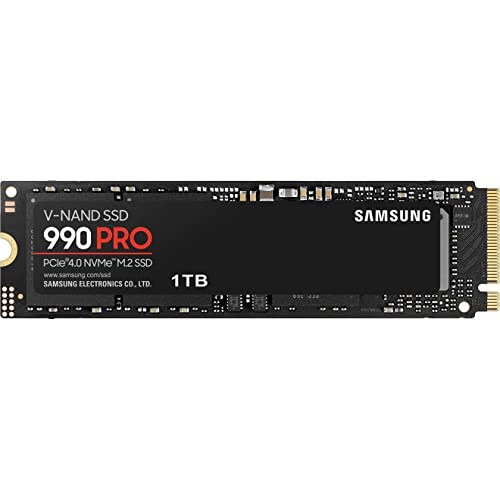


- Samsung 990 PRO 2TB – best for a one-drive high-end laptop
- Samsung 990 PRO 1TB – best for a PCIe 4.0 laptop where 1TB is enough
- Samsung 990 EVO Plus 2TB – best for a general-purpose upgrade with large capacity
- Samsung 9100 PRO 2TB – best only for laptops with a confirmed PCIe 5.0 slot
- Samsung 9100 PRO 1TB – best for the same Gen5 laptops when 1TB is enough
- Sandisk Optimus 5100 1TB – best for a value PCIe 4.0 main drive
- Sandisk Optimus 5100 500GB – best for a secondary or budget machine
- Kingston NV3 1TB – best for a no-fuss PCIe 4.0 refresh
- SIX 1TB with heatsink – best for desktops or tight-budget builds, with a fit warning
- Silicon Power 2TB Gen3 – best for older laptops limited to PCIe 3.0
Comparison table
| Model | Capacity | Interface (per title) | Claimed read | Best for |
|---|---|---|---|---|
| Samsung 990 PRO 2TB | 2TB | PCIe 4.0, M.2 2280 | Up to 7,450 MB/s | High-end Gen4 laptops |
| Samsung 990 PRO 1TB | 1TB | PCIe 4.0, M.2 2280 | Up to 7,450 MB/s | Mainstream Gen4 laptops |
| Samsung 990 EVO Plus 2TB | 2TB | PCIe Gen 4×4 | 5×2, M.2 2280 | Up to 7,250 MB/s | General upgrades |
| Samsung 9100 PRO 2TB | 2TB | PCIe 5.0 x4, M.2 2280 | Up to 14,700 MB/s | Confirmed Gen5 slots |
| Samsung 9100 PRO 1TB | 1TB | PCIe 5.0 x4, M.2 2280 | Up to 14,700 MB/s | Confirmed Gen5 slots |
| Sandisk Optimus 5100 1TB | 1TB | PCIe 4.0, M.2 2280 | Up to 7,100 MB/s | Value main drive |
| Sandisk Optimus 5100 500GB | 500GB | PCIe 4.0, M.2 2280 | Up to 6,600 MB/s | Secondary machines |
| Kingston NV3 1TB | 1TB | PCIe 4.0 Gen 4×4, M.2 2280 | Up to 6,000 MB/s | Simple refresh |
| SIX 1TB with heatsink | 1TB | PCIe 4.0 x4, M.2 2280 | Up to 7,350 MB/s | Desktops, budget builds |
| Silicon Power 2TB | 2TB | PCIe Gen3x4, M.2 2280 | Check the listing | Older PCIe 3.0 laptops |
The ten drives, one by one
Samsung SSD 990 PRO 2TB
This is the flagship PCIe 4.0 drive of the group, and 2TB is the capacity where a single-slot laptop can hold Windows, a real game library and project files without juggling storage. The title lists M.2 2280, NVMe and up to 7,450 MB/s, which is a seller claim for ideal conditions; a laptop’s power limits and thermals will usually keep sustained transfers below it. Check the listing for whether this part number ships bare or with a heatsink, since a bare stick is the safer fit for a laptop bay. The title also frames it for heavy-duty workstations, so it targets sustained use rather than light browsing. Before buying, confirm that your laptop can power and cool a performance-class drive, and keep the manufacturer’s warranty terms handy in case you need a replacement.
- Pros: top-tier Gen4 speed claim; one 2TB drive covers most needs.
- Cons: premium price tier; performance drives can run warm in slim chassis.
Who it’s for: a gaming or creator laptop with a Gen4 slot and no second drive bay. Who should skip it: anyone whose laptop is limited to PCIe 3.0, or who rarely fills 1TB.
Samsung SSD 990 PRO 1TB
Same family and same title claims as the 2TB model above, so think of it as a capacity variant rather than a different drive: PCIe 4.0, M.2 2280, up to 7,450 MB/s. At 1TB the cost of entry falls while the speed class stays put, which suits a mainstream laptop where the extra terabyte would sit empty. Because the model code differs only by capacity, the fit and thermal considerations from the 2TB entry apply unchanged, including the question of whether the listing includes a heatsink. If your laptop already has a spare 1TB drive, a pair of 1TB sticks can be easier to manage than one big volume, as long as the machine has two slots. If it has only one, decide whether 1TB really covers your game library plus Windows updates.
- Pros: same speed class as the 2TB; easier on budgets.
- Cons: 1TB fills quickly with modern game installs.
Who it’s for: Gen4 laptop owners who want a quality main drive. Who should skip it: buyers who need 2TB in a single-slot machine.
Samsung SSD 990 EVO Plus 2TB
The title lists PCIe Gen 4×4 | 5×2, M.2 2280 and up to 7,250 MB/s, and it mentions HMB technology and Intelligent TurboWrite 2.0, which are Samsung’s labels for host-memory buffering and its write cache. The “5×2” wording appears to describe a link option that uses two Gen5 lanes; the title does not explain it, so check the listing and manufacturer page before relying on it. The title also pitches the drive as a storage upgrade for PCs and laptops, which fits its role here. Because the title advertises compatibility with both PCs and laptops, it is the Samsung option most obviously aimed at upgrade buyers. Read the manufacturer page for endurance and warranty figures, which the title does not give, and compare them with the 990 PRO before paying for capacity.
- Pros: speed claim close to the 990 PRO; marketed explicitly for laptop upgrades.
- Cons: HMB means it borrows system memory rather than carrying its own cache chip; 2TB is a high price tier.
Who it’s for: general laptop upgrades where capacity matters. Who should skip it: workloads that hammer sustained writes all day.
Samsung SSD 9100 PRO 2TB
This is the PCIe 5.0 x4 option, with a title claim of up to 14,700 MB/s, roughly double the Gen4 drives here. That ceiling only appears if the slot is Gen5; in a Gen4 laptop the drive falls back to the slot’s speed while still carrying a Gen5 price and heat profile. Few thin laptops are built to cool a Gen5 drive, so confirm both slot support and clearance for the version you are buying, including whether it ships with a heatsink. The title pitches it for AI computing, gaming and heavy-duty workstations, which are workloads that justify a Gen5 drive only on desktops or on high-end mobile workstations with proper cooling. Read the manual for your laptop’s maximum power draw per slot before ordering.
- Pros: highest speed class in the roundup; 2TB capacity.
- Cons: wasted without a Gen5 slot; heat and power draw are a concern in laptops.
Who it’s for: a workstation-class laptop with a documented Gen5 slot. Who should skip it: almost everyone else.
Samsung SSD 9100 PRO 1TB
The 1TB sibling of the model above, with identical title claims: PCIe 5.0 x4, M.2 2280, up to 14,700 MB/s. It is a capacity variant, so the same caution applies. For a laptop, the 1TB version keeps the cost of a Gen5 experiment lower, which is the main argument for it. If you are not certain your laptop has a Gen5 slot, the Gen4 Samsung drives deliver more usable value per dollar spent and per watt drawn. Think about whether paying Gen5 money for 1TB makes sense when the same budget could buy a 2TB Gen4 drive. For most buyers the extra capacity is more useful than extra peak speed, and it generates less heat inside a closed chassis.
- Pros: Gen5 speed class at a lower capacity.
- Cons: needs a Gen5 slot to matter; thermal management is on you.
Who it’s for: early adopters with a verified Gen5 laptop slot. Who should skip it: anyone running a Gen3 or Gen4 slot.
Sandisk Optimus 5100 1TB
The title lists PCIe 4.0, M.2 2280, up to 7,100 MB/s read and up to 6,700 MB/s write. The write figure is the interesting part, since many value drives advertise much lower write numbers. Treat both as seller claims. The listing says nothing about a heatsink, which is generally a plus for fitting into a laptop. This is the drive to look at if you want Gen4 performance without paying the Samsung premium. Because the series is newer, independent coverage and long-term buyer feedback may be thin. Compare the warranty period and endurance rating with the Samsung and Kingston options, and keep the order flexible in case you need to return it.
- Pros: strong claimed write speed; 1TB is a practical size.
- Cons: newer product line, so check reviews for real-world behavior.
Who it’s for: value-minded Gen4 laptop owners. Who should skip it: buyers who want a long-established brand track record for this specific series.
Sandisk Optimus 5100 500GB
The 500GB variant of the drive above, with a title claim of up to 6,600 MB/s read and up to 5,600 MB/s write, both lower than the 1TB model. That pattern is common: smaller drives often have fewer NAND chips working in parallel. It makes sense for a backup laptop, a work machine that stores files in the cloud, or a child’s school laptop where games are not a factor. If you buy this size, plan to keep large files on an external drive or in cloud storage. A drive that stays under roughly 80 percent full keeps its speed better, which leaves about 400GB of usable room for Windows, apps and files.
- Pros: lowest entry cost in the roundup; still PCIe 4.0.
- Cons: little headroom; lower claimed speeds than the 1TB version.
Who it’s for: secondary machines with light storage needs. Who should skip it: a main gaming or editing laptop.
Kingston NV3 1TB
The title says M.2 2280, PCIe 4.0 Gen 4×4 and up to 6000 MB/s, with model number SNV3S/1000G. It has the lowest read claim among the Gen4 drives here, which matters less than it sounds because many laptop workloads are limited by random access and thermals rather than peak sequential speed. Kingston’s NV line is positioned as a mainstream option, but the title gives no endurance or controller details, so check the datasheet. It is a sensible pick when your laptop’s slot is Gen4 but the machine is a work or study device where the difference between 6,000 and 7,000 MB/s will not be noticed. Check the listing for the sales channel and warranty before checkout.
- Pros: simple, mainstream upgrade; Gen4 interface.
- Cons: lowest top-end claim among the Gen4 options; endurance details are not in the title.
Who it’s for: a no-fuss refresh of an aging laptop. Who should skip it: creators moving large files all day.
SIX NVMe M.2 SSD PCIe 4.0 1TB with Heatsink
This listing deserves caution. The title claims PCIe 4.0 x4, M.2 2280, reads up to 7,350 MB/s and a heatsink, and it markets the drive for PS5 storage expansion as well as laptops and desktops. The heatsink is useful in a console or desktop but can prevent a laptop’s bottom cover from closing. The brand is not one we can say much about from the title, so check the warranty terms and recent buyer feedback before relying on it for important data. The title also mixes use cases, naming PS5, laptop and desktop in one line, which is a sign to verify compatibility on the product page rather than assume it. If you want a drive for a laptop and a heatsink at the same time, look for a low-profile version instead.
- Pros: Gen4 claim at 1TB; heatsink included for desktops and consoles.
- Cons: heatsink height is a likely laptop fit problem; lesser-known brand.
Who it’s for: a desktop or console build that happens to share the listing’s compatibility claims. Who should skip it: most thin laptops.
Silicon Power 2TB NVMe M.2 PCIe Gen3x4
The title lists PCIe Gen3x4, M.2 2280 and model SP002TBP34A60M28, but gives no speed figure, so check the listing for ratings. Gen3 is the right match for older laptops whose slots cannot use Gen4, and a Gen3 drive in such a laptop avoids paying for speed the slot cannot deliver. It is also the oldest design here, which usually means lower power draw and less heat than a Gen5 drive, a quiet advantage in a small chassis. The model code suggests a 2TB capacity with a Gen3 controller; check the datasheet for sequential speeds, endurance and warranty. For a Gen3 laptop, the practical gains come from capacity and a clean Windows install more than from any difference in rated speed.
- Pros: 2TB capacity for an older laptop; modest heat expected from a Gen3 design.
- Cons: slower than every other drive here; no speed claim in the title.
Who it’s for: owners of PCIe 3.0 laptops who want more space. Who should skip it: anyone with a Gen4 or newer slot.
How we picked these
We started from the ten listings supplied for this keyword and kept only M.2 2280 NVMe drives. We then compared what each title states about capacity, PCIe generation, claimed speeds and any heatsink, and noted where a listing is silent. Our notes draw on published specifications, manufacturer documentation and buyer reviews. Nobody on the team used or measured these units. Speeds are seller claims, not results, and specific model facts beyond the title are marked “check the listing”.
What to look for in a laptop NVMe SSD
Slot size and physical fit
Most mainstream laptops use an M.2 2280 slot, meaning 22 mm wide and 80 mm long. Thin and compact models sometimes use 2230 or 2242 drives instead, and some accept only single-sided drives because there is no clearance beneath the board. Another trap is the slot interface itself: a few older models have M.2 slots that accept only SATA. Open the service manual before buying and confirm the supported length, key and sides of the board.
PCIe generation your laptop supports
NVMe drives are backward compatible, so a Gen5 drive works in a Gen3 slot, but it runs at the slot’s speed. Roughly speaking, Gen3 x4 tops out near 3,500 MB/s in practice, Gen4 x4 near 7,000 MB/s, and Gen5 x4 near double that. In daily laptop use you rarely hit these numbers, because responsiveness depends more on random access and the controller than on the peak sequential figure printed on the box.
Heat, throttling and battery draw
Laptops have little airflow around the SSD, and the bottom cover often traps heat from the CPU and GPU as well. High-end drives slow themselves down when they overheat, and Gen5 drives are the most prone. A cooler-running Gen4 or Gen3 drive can outperform a hotter one over a long copy. Higher-performance drives also draw more power, which can nibble at battery life. Skip tall add-on heatsinks unless the manual shows spare clearance, and prefer a thin factory label or the laptop’s own shield.
Capacity, endurance and cache type
Choose capacity by workload, not by price per terabyte alone. Keep 10 to 20 percent of any SSD free, because full drives slow down. Endurance is rated as TBW, terabytes written, and the warranty period is a good proxy for confidence. Drives that use HMB, host memory buffer, borrow a small slice of system RAM in place of a dedicated cache chip; that works well for ordinary use but can lag under sustained heavy writes.
Software, cloning and security
Plan the migration before you swap, because the drive itself is the easy part. Cloning to a new drive needs a USB-to-M.2 enclosure or a second slot. Update the laptop’s BIOS first, since some models need current firmware to see newer controllers. If the laptop uses Intel RST or VMD mode, the Windows installer may need a storage driver. Back up recovery keys if BitLocker is on, because a clone can trigger a recovery prompt.
A pre-purchase checklist
| Check | Where to find it | What the answer means |
|---|---|---|
| Slot length | Service manual or spec sheet | 2280 fits every drive here; 2230 or 2242 means none of them will |
| PCIe generation | Manufacturer spec page | Gen3 favors the Silicon Power; Gen4 favors most others; Gen5 is the only case for the 9100 PRO |
| Single or double-sided | Manual, forums for your exact model | Thin laptops may reject a double-sided stick |
| Spare M.2 slot | Opened bottom panel or manual | Two slots mean you can keep the old drive |
| Cover clearance | Measure heatsink height | Decides whether the SIX heatsink version fits |
Mistakes buyers make
- Paying for Gen5 in a Gen4 laptop. The drive runs at the slot’s speed, so the premium buys nothing and adds heat.
- Ignoring the heatsink. Consumer heatsinks add height. A bottom cover that will not close is a real risk.
- Trusting peak speed alone. Sustained behavior, thermals and random access matter more for everyday use.
- Skipping the manual. Slot length, sides and SATA-only slots are the most common cause of returns.
- Forgetting the backup. A clone that fails with no backup means a long weekend of reinstalling.
- Buying the wrong capacity for the price. A 500GB drive saves little over 1TB per gigabyte and runs out of room within a year of game installs and updates.
Verdict
For most Gen4 laptops, start with the Samsung 990 EVO Plus 2TB or 990 PRO 1TB, then look at the Sandisk Optimus 5100 1TB or the Kingston NV3 1TB if the budget is tighter. Pick the Silicon Power only for a Gen3 laptop and the Samsung 9100 PRO only after you have confirmed a Gen5 slot. If your laptop is very thin, or if battery life matters more than speed, the next step is a drive chosen for efficiency or for its single-sided build, because a mismatch on those two points causes more failed upgrades than a slower sequential speed ever will. Related reading on our site covers a low power NVMe SSD for laptops and the single-sided options for thin laptops.
Related guides
- Nvidia Control Panel Best Settings For Gaming
- How To Test Gpu Stability After Overclocking
- Cpu Cores And Threads For Gaming Explained
Frequently asked questions
Does every M.2 2280 NVMe SSD fit a laptop?
Not automatically, even though the label matches. The slot must be M.2 with the right key and length, and some thin laptops only take 2230 or 2242 drives or need a single-sided stick. Some older models use SATA-only M.2 slots. Check your laptop’s service manual or spec sheet for the supported form factor, interface and maximum capacity before ordering.
Is a PCIe 5.0 SSD worth it in a laptop?
For most laptops, no. Many laptop slots top out at PCIe 4.0 or 3.0, and a PCIe 5.0 drive then runs at the slot’s lower speed while still drawing more power and producing more heat. It only makes sense if your laptop explicitly lists a Gen5 slot and has cooling designed for it.
How much capacity should I buy for a laptop?
One terabyte is a practical floor for a main drive that holds Windows, apps and a modest game library. Choose 2TB if you install several large games or keep video projects locally. A 500GB drive works for a secondary machine, but free space shrinks fast once updates, caches and temporary files accumulate.
Do I need a heatsink on a laptop SSD?
Usually the laptop’s own shield or thermal pad does the job, and a tall add-on heatsink can stop the bottom cover from closing or press on the battery. Bare drives are the safer default. A heatsink version only makes sense if the manual or a teardown shows spare clearance above the slot, so check the height first.
Can I clone my old drive to the new NVMe SSD?
Yes, in most cases. You need a way to connect both drives at once, such as a USB-to-M.2 enclosure, and cloning software that can copy a Windows boot drive. If the laptop has only one M.2 slot, clone through the enclosure, swap the drives, then confirm the laptop boots before wiping the old one.