For most households, the best NAS is a four-bay, diskless unit with 2.5GbE that you fill with drives yourself, and in this set the TERRAMASTER F4-425 and the ACEMAGIC N3A are the two listings whose titles spell out exactly that combination. Synology’s DS425+ and DS423 are the brand-name alternatives if you value a mature app ecosystem, and the BUFFALO LinkStation range suits anyone who simply wants drives already inside and a box that works as shared storage on day one. The ten listings below cover single-bay, two-bay and four-bay designs, so the first job is to decide how much protection and growth you actually need.
One caution before the table: a NAS is shared storage with optional drive-failure protection, not a backup. Keep that distinction in mind for every product below.
Our Top Picks
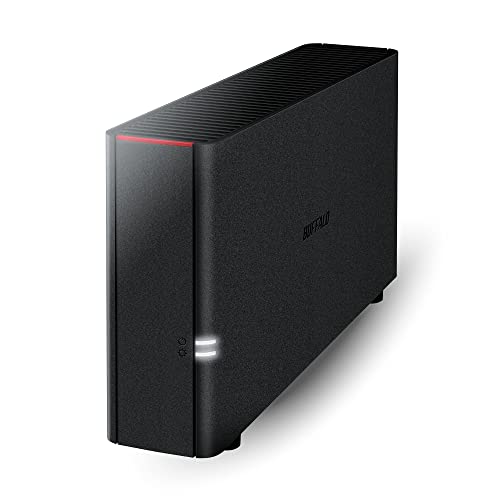 BUFFALO LinkStation 210 4TB 1-Bay NAS Network Attached4TB (1x4TB)9.45 x 3.31 x 8.67 inches2.43 PoundsCheck on Amazon
 BUFFALO LinkStation 220 4TB 2-Bay NAS Network Attached4TB (2x2TB)5.04 x 10 x 8.82 inches1 PoundsCheck on Amazon
 BUFFALO LinkStation 710 4TB 1-Bay NAS Network Attached4TB (1x4TB)8.1 x 3.6 x 5 inches3 poundsCheck on Amazon
Ten home NAS options side by side
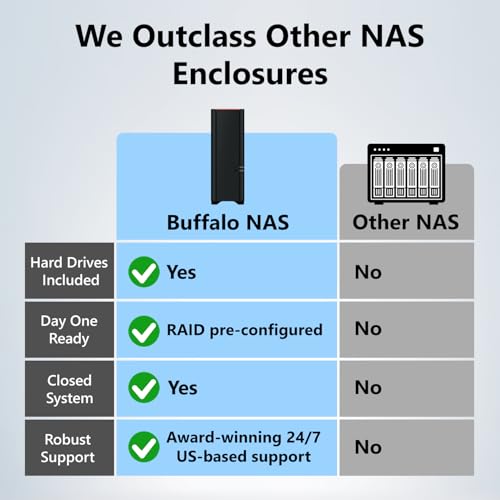
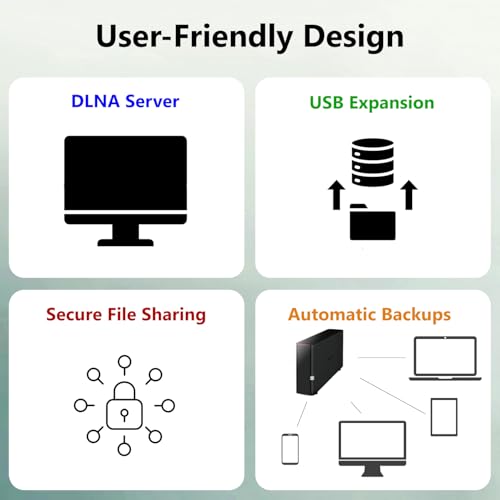
BUFFALO LinkStation 210 4TB 1-Bay NAS Network Attached Storage with HDD Hard Drives Included NAS Storage that Works as Home Cloud or Network Storage Device for Home



As an Amazon Associate we earn from qualifying purchases. Product prices and availability are accurate as of the date/time indicated.
BUFFALO LinkStation 220 4TB 2-Bay NAS Network Attached Storage with HDD Hard Drives Included NAS Storage that Works as Home Cloud or Network Storage Device for Home



As an Amazon Associate we earn from qualifying purchases. Product prices and availability are accurate as of the date/time indicated.

Yxk Zero1 Pro 4-Bay NAS for Private Cloud & Home Media Server (Diskless) | Beginner-Friendly App Setup, Docker & Third-Party OS for Enthusiasts, Intel N100 & 8GB RAM, 2*M.2 SSD Slots, AI Photo Album


As an Amazon Associate we earn from qualifying purchases. Product prices and availability are accurate as of the date/time indicated.

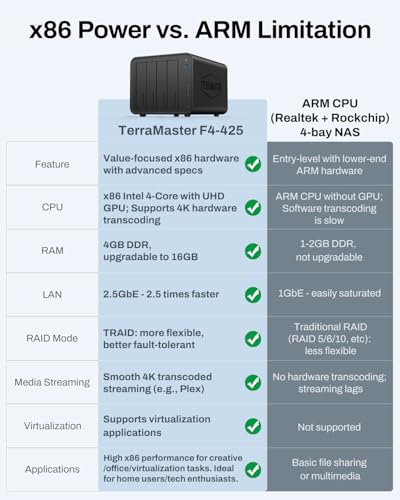
TERRAMASTER F4-425 4-Bay NAS Intel x86 Quad-Core CPU 4GB RAM (Diskless) | 2.5GbE LAN, Network Attached Storage Multimedia Server for Home Users (Diskless)






As an Amazon Associate we earn from qualifying purchases. Product prices and availability are accurate as of the date/time indicated.
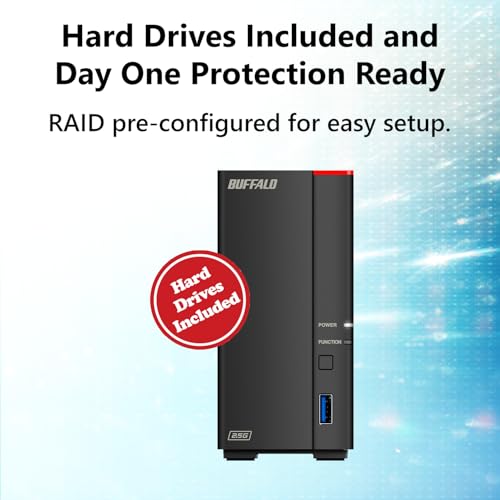
BUFFALO LinkStation 710 4TB 1-Bay NAS Network Attached Storage with HDD Hard Drives Included NAS Storage that Works as Home Cloud or Network Storage Device for Home



As an Amazon Associate we earn from qualifying purchases. Product prices and availability are accurate as of the date/time indicated.

BUFFALO TeraStation Essentials 2025 4-Bay Value Desktop NAS 16TB (4x4TB) with Hard Drives Included


As an Amazon Associate we earn from qualifying purchases. Product prices and availability are accurate as of the date/time indicated.

ACEMAGIC NAS Mini PC N3A 4-Bay Desktop Network Attached Storage Home | Office Backup Hub,Protect Data , Up to 136TB NAS 4×HDD+2×M.2 Slots, Dual 2.5G+1G LAN, 8GB DDR4,128GB PCIe3.0 SSD, Diskless


As an Amazon Associate we earn from qualifying purchases. Product prices and availability are accurate as of the date/time indicated.

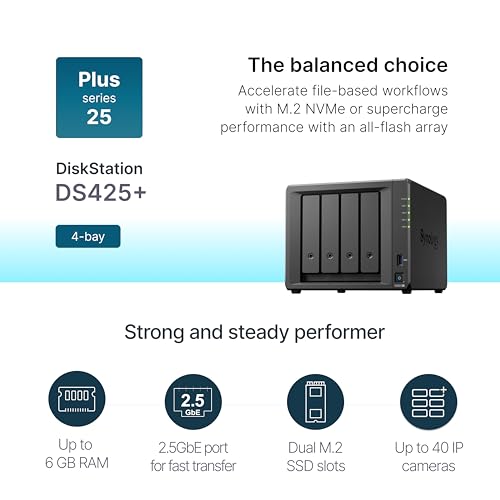
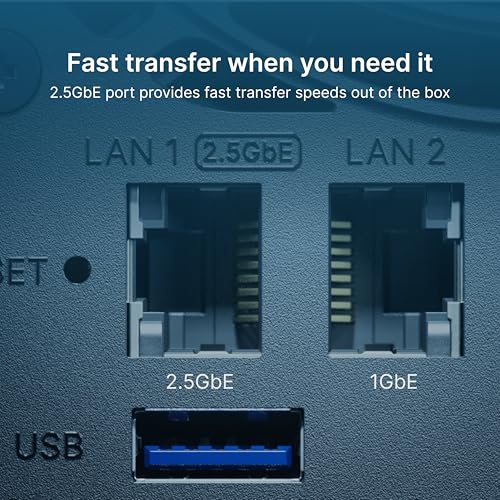
Synology DS425+ Private Cloud Media Server - Stream, Back Up & Share Files (4-Bay Diskless NAS)



As an Amazon Associate we earn from qualifying purchases. Product prices and availability are accurate as of the date/time indicated.

Synology DS423 Family & Business Backup - Secure File Sharing, Photo Vault & Video Surveillance (4-Bay Diskless NAS)


As an Amazon Associate we earn from qualifying purchases. Product prices and availability are accurate as of the date/time indicated.
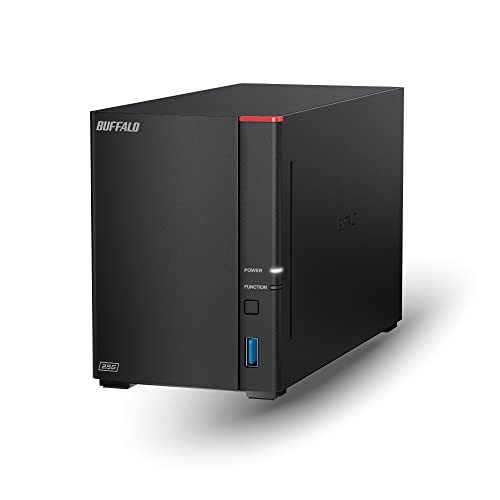
BUFFALO LinkStation 720 4TB 2-Bay Home Office Private Cloud Data Storage with Hard Drives Included/Computer Network Attached Storage/NAS Storage/Network Storage/Media Server/File Server


As an Amazon Associate we earn from qualifying purchases. Product prices and availability are accurate as of the date/time indicated.
| Model | Key point from the title | Price tier | Best for |
|---|---|---|---|
| BUFFALO LinkStation 210 | 1-bay, 4TB, hard drive included | Budget | A simple shared drive and basic home cloud |
| BUFFALO LinkStation 220 | 2-bay, 4TB, hard drives included | Budget | First NAS where two drives are wanted |
| BUFFALO LinkStation 710 | 1-bay, 4TB, hard drive included | Budget | Buyers comparing single-bay LinkStations |
| BUFFALO LinkStation 720 | 2-bay, 4TB, home-office private cloud wording | Mid-range | Small home office file sharing |
| Yxk Zero1 Pro | 4-bay, diskless, Intel N100, 8GB RAM, 2 M.2 slots | Mid-range | Tinkerers who want Docker or another OS |
| ACEMAGIC NAS Mini PC N3A | 4-bay, diskless, dual 2.5G plus 1G LAN, 8GB DDR4, 128GB SSD | Mid-range | Fast network on a mini-PC style box |
| TERRAMASTER F4-425 | 4-bay, diskless, Intel x86 quad-core, 4GB RAM, 2.5GbE | Mid-range | Households that want 2.5GbE and four bays |
| Synology DS423 | 4-bay, diskless, photo vault and surveillance wording | Mid-range | Family backup with a known brand |
| Synology DS425+ | 4-bay, diskless, private cloud media server wording | Premium | Buyers who want the newer Synology name |
| BUFFALO TeraStation Essentials | 4-bay, 16TB (4x4TB) drives included | Premium | Ready-to-run four-bay storage |
Price tiers are relative inside this set and say nothing about the wider market. Always read the current price on the listing.
What is shifting in the home NAS market
Home NAS shopping used to be a two-horse choice: a cheap single-drive box that did little, or a pricey appliance from a specialist brand. The titles in this roundup show the middle is now crowded, and a handful of trends explain why the boxes look so different from each other.
First, 2.5GbE is spreading. Routers, motherboards and mini PCs increasingly include 2.5Gb ports, and two of the ten listings here advertise them in the title. Whether that matters to you depends on the rest of your network, which the networking section below walks through. If you want the deeper comparison with 10GbE, our explainer on 2.5GbE vs 10GbE networking for a home NAS goes further.
Second, low-power x86 processors have moved into diskless boxes. The Yxk and TERRAMASTER titles name Intel processors, which generally means the unit can run containers, transcode some media and behave like a small server, rather than only serving files. The price of that flexibility is more to configure and more to keep patched.
Third, M.2 slots are showing up inside NAS cases. Used as a cache or a small fast volume, they can speed up frequently opened files, though they do not replace the main drives. If you are weighing that, whether NVMe storage is worth it in a home NAS is worth reading first.
Fourth, photo management has become a selling point. Several titles lean on phrases like photo vault, photo album or private cloud. Treat those as feature categories: how the face or object grouping works, whether it runs on the box itself, and whether an account is required are all details to confirm on the listing.
Fifth, the line between a NAS and a mini PC is blurring. Some units are sold as storage appliances with their own software; others, like the ACEMAGIC, are described as a mini PC for NAS duty, which hands you more freedom and more responsibility. A third-party operating system gives you control but also removes the vendor’s safety net.
Finally, security expectations are rising. A box reachable from the internet is an attractive target, so reputable vendors push VPN or relay-style access over open ports. Whatever you buy, plan on firmware updates, unique admin credentials and no direct exposure to the internet unless you know exactly why.
How we picked these
This roundup was built by the editorial team from published specifications, manufacturer documentation and buyer reviews. Nobody on the team used or measured these units. That means every product section below sticks to what each Amazon listing title states, and anything beyond that is marked as something to confirm on the listing before you buy.
We grouped the ten listings by bay count and by whether drives are included, then asked what each combination is genuinely good for. Where two listings look similar, such as the single-bay LinkStation 210 and 710, we say so rather than inventing a difference. Where numbers appear that are not in a title, they are labeled estimates with their assumptions written out.
The ten NAS listings, one at a time
BUFFALO LinkStation 210 (1-bay, 4TB, drive included)
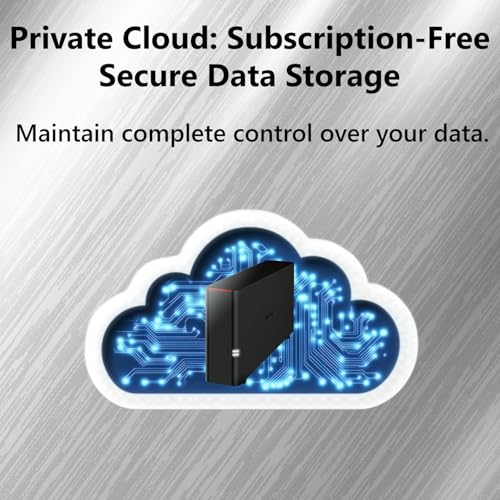
This listing describes a one-bay NAS with a 4TB hard drive already fitted, aimed at use as a home cloud or network storage device. It suits someone replacing a pile of loose USB drives with a single shared location that every device on the network can reach, without buying drives or assembling anything.
A realistic scenario: a couple wants one place for scanned documents, the family photo archive and a copy of the laptop’s Documents folder. A single 4TB drive covers that comfortably, and the plug-in setup keeps the project short.
Pros
- Drive included, so no compatibility research
- Single bay keeps the setup and the shopping list short
- Lowest entry price tier in this set
Cons
- One drive means no protection if that drive fails
- Capacity is fixed unless the listing allows swapping the drive
- Title gives no processor, memory or network-speed detail
Check the listing: network port speed, whether the drive can be replaced by you, what software the box ships with, and how the vendor handles firmware updates.
Ask before buying: if this one drive died tomorrow, where would the second copy of everything on it be?
BUFFALO LinkStation 220 (2-bay, 4TB, drives included)
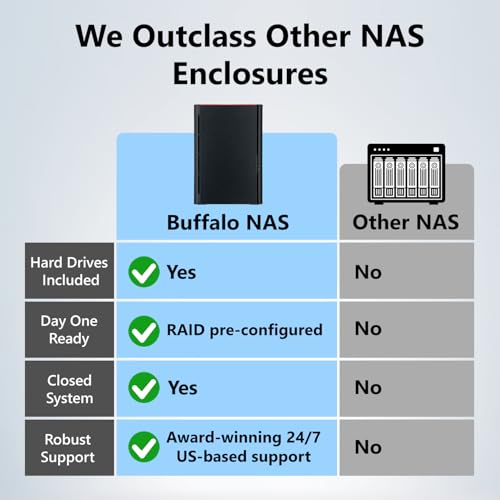
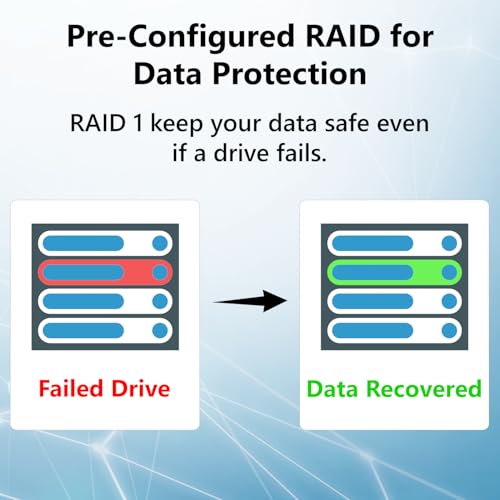
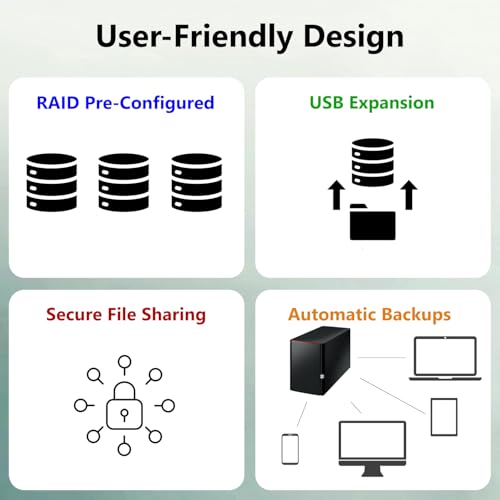
Here the title adds a second bay while keeping the 4TB figure and drives-included wording. It is the entry point for anyone who wants the option of mirroring two drives so that one failure does not take the data with it.
Imagine a freelancer who keeps client files on a laptop and wants an always-on local copy. Two bays make a mirrored arrangement possible, which is a better fit for working files than a single drive. The 4TB label does not say whether that is the total across both drives or the capacity of each, and it does not say how the unit is configured out of the box, so confirm that first.
Pros
- Two bays allow a mirrored layout, if the listing confirms the mode
- Drives included keeps setup short
- Still in the budget tier of this set
Cons
- Mirroring halves usable space, so 4TB total could mean about 2TB usable
- Title does not mention memory, processor or 2.5GbE
- Only two bays limits future growth
Check the listing: whether 4TB is total or per drive, the default RAID mode, hot-swap or tool-based drive replacement, and the warranty period for the included drives.
Ask before buying: does usable space after mirroring still cover my data plus a few years of growth?
Yxk Zero1 Pro (4-bay, diskless, Intel N100)
The title packs in more hardware than any other listing here: four bays, an Intel N100, 8GB of RAM, two M.2 SSD slots, and wording about Docker and third-party operating systems for enthusiasts. It is also sold diskless, with an app-based setup described as beginner-friendly and an AI photo album. This is a small server that happens to hold drives.
The natural buyer is someone who already runs a few self-hosted apps and wants to move them off a noisy old PC. Put photos on the hard drives, a couple of containers on an M.2 volume, and keep the box on a UPS. Our piece on HBA cards and IT mode helps if you later plan to install a different operating system and want direct drive access.
Pros
- Four bays plus two M.2 slots give layout flexibility
- 8GB RAM named in the title leaves room for containers
- Title explicitly mentions Docker and third-party OS support
Cons
- Diskless, so drives are an extra cost
- The title says nothing about network speed
- Smaller brand profile; support and update cadence need checking
Check the listing: LAN port count and speed, which operating system ships on it, how the AI photo album works and whether it runs locally, and warranty terms.
Ask before buying: who will patch this box in two years, me or the vendor?
TERRAMASTER F4-425 (4-bay, diskless, 2.5GbE)
This listing is the cleanest statement of a modern home NAS in the set: four bays, an Intel x86 quad-core processor, 4GB of RAM, a 2.5GbE LAN port, diskless, described as a multimedia server for home users. The 2.5GbE port is the headline, and it makes sense for people who move large video files between a workstation and shared storage.
A typical use: a household with a desktop that has a 2.5GbE port, a laptop on Wi-Fi, and a streaming box on the TV. The desktop gets faster bulk transfers, the others get steady playback, and four bays leave space to start with two drives and add more later.
Pros
- 2.5GbE named in the title
- Four bays with an x86 processor give flexibility
- Diskless lets you choose drive size and brand
Cons
- 4GB RAM is modest if you plan many apps or containers
- No drives included, so the real cost is higher
- Only one network port is named in the title
Check the listing: RAM upgrade options, whether any M.2 or USB expansion exists, the software and app store, and how the vendor lists compatible drives.
Ask before buying: do my computer and my switch actually support 2.5Gb, or will this port sit at gigabit speed?
BUFFALO LinkStation 710 (1-bay, 4TB, drive included)
On paper, this listing reads almost identically to the LinkStation 210: one bay, a 4TB drive included, and the same home-cloud wording. We cannot tell from the title what separates the two, so treat this as a near-duplicate of the 210 until the listing proves otherwise. The model number suggests a different hardware tier, but the title does not say that.
The decision rule is simple. If the product pages for both show the same ports and the same software features, pick whichever is cheaper on the day. If the 710 lists faster networking, more memory or extra features, then the premium may be worth it, but only for something that matters to you, such as faster file copies or app support.
Pros
- Drive included for quick start
- One bay keeps the footprint small
- Budget tier within the set
Cons
- No redundancy with a single drive
- Title does not explain how it differs from the 210
- No network speed, memory or processor information in the title
Check the listing: spec differences against the 210, USB port count, the supported file-sharing protocols and the backup features.
Ask before buying: what exactly does this model do that the cheaper single-bay sibling does not?
BUFFALO TeraStation Essentials (4-bay, 16TB as 4x4TB, drives included)
This is the only four-bay listing in the set with drives already installed: the title says 16TB made of four 4TB drives, described as a value desktop NAS. It sits at the top of the price range here, which makes sense because you are paying for the enclosure and four drives together. It suits buyers who want a larger array without choosing drives, formatting anything or reading compatibility lists.
The 16TB figure is raw capacity. How much you can use depends on the RAID mode: a parity layout across four 4TB drives leaves roughly 12TB of usable space, while mirrored pairs leave about 8TB, and striping with no protection leaves all 16TB at the cost of safety. Usable space also shows slightly lower once the system formats it, because drive makers count in decimal units.
Pros
- Four bays populated from the start
- Choice of protection levels, depending on the modes the listing supports
- No separate drive purchase
Cons
- Highest price tier in this set
- Title does not name network speed, memory or processor
- You inherit whichever drive model ships in the box
Check the listing: the drive model and whether it is a NAS-rated drive, the RAID modes supported, the LAN speed, and the warranty for both the chassis and the drives.
Ask before buying: would the same money buy a diskless four-bay plus drives with faster networking and more memory?
ACEMAGIC NAS Mini PC N3A (4-bay, diskless, dual 2.5G plus 1G)
Calling itself a NAS mini PC, this listing gives four HDD bays, two M.2 slots, eight gigabytes of DDR4 and a 128GB PCIe 3.0 SSD, and it advertises dual 2.5G plus 1G LAN. The “up to 136TB” wording is a theoretical ceiling from the title, not a number to plan around. It is sold diskless, so every storage drive is on you.
Think of it as a compact server for someone who likes the mini-PC approach: use the included 128GB SSD for the system (confirm on the listing), store bulk files on the hard drives, and use the two 2.5G ports in whatever way your network supports, such as one port for a direct computer link and another for the router. The title does not say what operating system it ships with, which matters a great deal for a box described as a PC.
Pros
- Two 2.5G ports plus one 1G port named in the title
- Four HDD bays plus two M.2 slots and a 128GB SSD
- Mid-range price tier for the hardware list
Cons
- Operating system and NAS software not stated in the title
- Diskless, so drives add to the cost
- Mini-PC cooling and drive-vibration behavior need checking against buyer comments
Check the listing: the pre-installed operating system, which drive sizes the vendor supports, how the case ventilates four hard drives, and the warranty and firmware policy.
Ask before buying: am I comfortable being my own NAS administrator, including updates and permissions?
Synology DS425+ (4-bay, diskless private cloud server)
The title frames this as a private-cloud media server for streaming, backing up and sharing files, in a four-bay diskless chassis. Beyond that, it gives no processor, memory or network specifications, so those must come from the listing. It is the most expensive diskless unit in the set, and the brand is the part many buyers are paying for: a well-known software environment and a large user community.
It is a sensible choice for a household that wants phones to back up photos automatically, a laptop to back up on a schedule, and the living-room TV to read from the same place, without maintaining the operating system by hand. The ownership model is closer to an appliance than a hobby server.
Pros
- Four bays, diskless, so drive choice stays with you
- Established brand; typically a large support community
- Title positions it for streaming, backup and sharing in one box
Cons
- Highest-priced diskless option in this roundup
- Title lists no network speed or memory
- Vendors sometimes publish drive compatibility lists you will need to follow
Check the listing: the LAN ports and speeds, memory expandability, M.2 slot presence, supported drive list and the warranty period.
Ask before buying: what do I get on this listing that the DS423 below does not?
Synology DS423 (4-bay, diskless family and business backup)
This one is positioned around family and business backup, secure file sharing, a photo vault and video surveillance, in a four-bay diskless case. The model numbering suggests it sits in a different generation from the DS425+, though the titles do not state that, so check release information on the listing. It lands at the lower end of Synology’s range in this set by price.
It fits a household or small studio whose first priority is backup: two or three computers on schedules, phone photos synced, and perhaps a camera or two if the listing confirms the surveillance features and license limits. The rest is a cost question, because an older model may offer fewer ports or slower networking than newer rivals.
Pros
- Brand-name software environment
- Four bays leave room to grow
- Photo and surveillance uses named in the title
Cons
- Diskless, so drives cost extra
- No network speed or memory in the title
- Camera features may carry limits per license; confirm with the vendor
Check the listing: LAN speed, expansion ports, any camera count limits, and the length of the vendor’s software support for this model.
Ask before buying: does a lower price today come with a shorter software-update horizon?
BUFFALO LinkStation 720 (2-bay, 4TB, home office private cloud)
The title pitches this as a two-bay private-cloud box for a home office, with 4TB and hard drives included, covering media server and file server duties. It is one step up in price from the LinkStation 220, and the title does not say what the extra buys. It suits a small office where two or three people share documents and one person wants to stream music or video from the same place.
The decision framework is the same as with the 220: confirm whether 4TB means the total or each drive, find out the default RAID mode, and decide whether two bays are enough. For a home office with a modest document set, a mirrored pair can be an easy way to survive a single drive failure, as long as backups also go somewhere else.
Pros
- Two bays make mirroring possible
- Drives included
- Title mentions both file-server and media-server roles
Cons
- Priced above the 220 with no stated reason in the title
- Two bays limit future growth
- No processor, memory or network speed in the title
Check the listing: the difference from the LinkStation 220, RAID options, user and permission features, and any remote-access method the vendor provides.
Ask before buying: is the price gap over the 220 covered by something I will actually use?
A buying guide for home NAS shoppers
NAS, USB drive or DAS: what you are really buying
A USB drive connects to one computer at a time and has no intelligence of its own. A DAS, or direct-attached storage, is a multi-drive enclosure that also attaches to a single computer, usually over USB or Thunderbolt; it can offer RAID, but only that one machine sees it. A NAS has its own processor, memory and operating system and sits on the network, so phones, laptops and TVs can reach the same folders at once and backups can run while your computer is asleep. The price of that convenience is a more complicated setup and a device that needs updates.
If one desktop is the only consumer of the data and you want speed, DAS is often simpler and faster. If more than one device needs the same data, or you want automation, NAS wins.
Operating system and apps
The software decides how much of the hardware you can use. Vendor systems bundle backup tools, photo apps and user management into a tidy interface, and they are the easier route for most families. Third-party systems give you more control, support containers and let you design the storage layout yourself, but they put maintenance in your hands. Two listings here mention this directly: the Yxk names Docker and third-party operating systems, and the ACEMAGIC is a mini PC whose software is not specified. For any unit, confirm the update policy, because a NAS that stops getting security updates becomes a liability.
RAID in plain language
RAID combines drives to improve capacity, speed or resilience. A single drive, or a plain concatenation, offers no protection. Striping (often called RAID 0) adds speed and capacity, but any single failure destroys everything. Mirroring (RAID 1) keeps two copies and halves usable space. Parity layouts such as RAID 5 let one drive fail and cost one drive of capacity; RAID 6 and RAID 10 allow more, at a bigger capacity cost. Some vendors offer flexible modes that mix drive sizes, so check which modes each model supports.
For four 4TB drives, the arithmetic looks like this: striping gives 16TB with no protection, a parity layout gives about 12TB, and mirrored pairs or double parity give about 8TB. Parity rebuilds on large drives can take many hours or days, during which another failure would be costly, which is a reason to keep backups outside the box. If you plan to install your own operating system, read about HBA cards and IT mode to understand how drives are presented to the software.
Network speed: 1GbE, 2.5GbE and 10GbE
Gigabit Ethernet tops out around 125 MB/s in theory and roughly 110 MB/s in practice. 2.5GbE is about 312 MB/s in theory and perhaps 280 MB/s in practice, and 10GbE is about 1,250 MB/s in theory. These are estimates; real results depend on cables, switches, drives and protocols. A single hard drive typically reads in the range of 150 to 250 MB/s, so gigabit is the bottleneck for one drive, and 2.5GbE removes most of that limit for single-drive transfers and for parity arrays.
Under those assumptions, copying a 1 TB folder takes about 2.5 hours over gigabit and about one hour over 2.5GbE, while a first 4.7 TB backup takes around 12 hours versus roughly 5. Everything must match: NAS port, computer port or adapter, cable quality and switch. For deeper detail, see 2.5GbE vs 10GbE networking for a home NAS. Streaming needs far less: a high-bitrate 4K disc rip might peak near 100 Mbps, about 12 MB/s, so gigabit could carry several streams at once.
Ports, bays, noise and power
Count USB ports if you want to attach a printer, a UPS signal cable or a backup disk. Check whether drive trays are tool-less, since swapping a failed drive under pressure is easier without a screwdriver. Four spinning drives make audible noise and heat, so shelves in bedrooms or home offices deserve a thought. For power, assume about 5 W per idle drive plus 10 W for the box: a four-drive unit near 30 W, about 263 kWh per year, or roughly $45 at an assumed 17 cents per kWh. A UPS protects against power cuts that can corrupt an array.
Worked example: sizing for a four-person household
Assumptions, all estimates: 40,000 photos at 4 MB each; 60 hours of 4K phone video at about 20 GB per hour; three computers with 400 GB of data each and 1.5 times that to hold older backup versions; and 150 ripped films of 10 GB each.
- Photos: 40,000 x 4 MB = 160 GB
- Video: 60 x 20 GB = 1,200 GB
- Computer backups: 3 x 400 GB x 1.5 = 1,800 GB
- Films: 150 x 10 GB = 1,500 GB
- Total today: about 4,660 GB, or 4.7 TB
Add 30 percent growth over three years and the target is about 6.1 TB of usable space. The 4TB single-bay LinkStations fall short on day one. A mirrored pair of 8TB drives in a two-bay box gives 8 TB usable, which works; four 4TB drives in a parity layout give about 12 TB, which leaves breathing room. That last case lines up with the TeraStation’s 16TB package or any diskless four-bay filled with four 4TB drives. Different assumptions change the answer, so do this sum with your own library before shopping.
Spec checklist: concept, what to look for, why
| Spec concept | What to look for | Why it matters |
|---|---|---|
| Bay count | Two minimum for redundancy, four for growth | Sets protection options and usable space |
| RAID modes | Mirroring and parity named on the listing | Decides how many failures you can survive |
| LAN speed | 2.5GbE if your computer and switch match | Large copies and backups finish faster |
| Memory | 8GB or more if you plan on containers or photo AI | Small RAM limits apps and indexing |
| M.2 slots | Present and clearly described (cache or volume) | Speeds frequently used files |
| Drive compatibility | Vendor list or NAS-rated drives | Avoids warning messages and bad pairings |
| Software support | Stated update policy for the model | Security patches keep a networked box safe |
| Warranty | Terms for chassis and included drives | Drives are the part most likely to fail |
Common problems and first checks
Slow copies usually trace back to the network, not the NAS: check the negotiated link speed on both ends, swap cables, and avoid Wi-Fi for bulk jobs. If the box vanishes from your network, a changed address is the usual cause, so reserve a fixed address in your router. A degraded-array warning means a drive has failed or dropped out; copy the critical data elsewhere before you start a rebuild, then replace the drive with a compatible one. Constant clicking or loud vibration can point to a failing drive or a loose tray.
Mistakes buyers make with home NAS purchases
Treating redundancy as backup. A mirrored pair protects against one drive failing, not against deletion, ransomware or fire. Keep another copy off the box and ideally off the premises.
Reading 4TB as 4TB per drive. Several listings say 4TB without describing the layout. Work out usable space before comparing prices.
Buying bays you cannot fill. A four-bay diskless unit looks cheap until you add four NAS-rated drives. Budget for the whole system.
Ignoring the rest of the network. A 2.5GbE port gives nothing if your computer and switch are gigabit only.
Mixing drive types casually. Pairing desktop-class drives with NAS duty or mixing very different drives can lead to noise, heat or warnings. Follow the vendor’s guidance.
Opening the box to the internet. Exposing a NAS directly by forwarding ports invites automated attacks. Use a VPN or the vendor’s remote-access method with strong, unique credentials.
Skipping a UPS. A power cut during a write can leave an array needing repair. A small battery backup is cheap insurance.
Verdict by use case
Simplest shared drive: the BUFFALO LinkStation 210 or 710, while recognizing the lack of protection. The 710 only makes sense if the listing shows what it adds.
First NAS with a mirrored pair: the LinkStation 220 or 720, after confirming whether 4TB is total or per drive.
Fast home server on a budget: the TERRAMASTER F4-425 for 2.5GbE with four bays, or the ACEMAGIC N3A if you want more network ports and are happy managing the software.
Tinkerers and self-hosters: the Yxk Zero1 Pro, thanks to its N100, 8GB RAM and M.2 slots, with the caveat of checking support.
Brand-name ecosystem: Synology DS423 for backup-first households, DS425+ if you want the newer name and are willing to pay for it.
Ready to run with large capacity: the BUFFALO TeraStation Essentials, provided the price versus a diskless build suits you.
Frequently asked questions
Do I need a NAS, or is an external drive enough?
An external drive is enough when one computer needs one extra copy of its files. A NAS earns its place when several devices need the same files, when you want scheduled backups from more than one computer, or when you want photos and media reachable from a phone or TV without plugging anything in. The trade is setup effort: you configure shares, users and updates yourself. If you cannot name a second device that needs the data, start with a drive and revisit later.
Is a NAS a backup?
No. A NAS with two or more drives set to a redundant mode can survive one drive failing, but it does nothing about deletion, ransomware, a power surge, theft or a fire. Treat the NAS as the primary copy or as the local backup target, then keep a second copy somewhere else, such as a USB drive you rotate or an encrypted cloud copy. The common rule of thumb is three copies, on two kinds of media, with one off-site.
How many bays does a home NAS need?
Two bays is the practical minimum if you want to survive a drive failure, because a pair can mirror each other. Four bays suit households with big photo, video or backup needs, since the extra drives raise usable space and let you choose a parity mode. One bay is only sensible as a simple shared drive with no protection. Count your data, add growth, and check the arithmetic in the sizing section above before choosing.
Is 2.5GbE worth paying for on a home NAS?
It helps only when every link in the chain supports it: the NAS port, a 2.5GbE port on your computer or an adapter, and a switch or router that negotiates 2.5Gb. Then large copies can run roughly two to two-and-a-half times faster than gigabit, drive speeds permitting. If your computers only have gigabit ports and you mostly stream video, gigabit is plenty, since a high-bitrate 4K stream needs a small fraction of the link.
Should I buy a NAS with drives included or a diskless one?
Drives included is the lowest-effort route and avoids compatibility questions, but you accept the manufacturer’s drive choice and capacity. Diskless lets you pick drives rated for NAS duty, buy capacity as you need it and replace one drive at a time, though the total cost is higher and you must check any compatibility list the vendor publishes. Beginners who want a working box in an afternoon tend to prefer included drives; enthusiasts usually go diskless.
Can a home NAS stream video to my TV?
Usually yes, provided the NAS runs a media server app or the TV can read network shares directly. The network is rarely the limit, because even a high-bitrate 4K file needs a small slice of gigabit bandwidth. The limit is more often format support or on-the-fly conversion, which needs processor power. Models with a stronger x86 processor tend to cope better than basic single-bay units; confirm the media features and codec support on each listing.
Should I open my NAS to the internet for remote access?
Avoid direct port forwarding. Automated scans look for exposed NAS login pages constantly, and a single weak password or unpatched flaw can expose everything. Safer choices are a VPN into your home network or the vendor’s relay-style remote-access service, combined with two-factor sign-in where available, unique credentials, automatic security updates and a separate low-privilege account for daily use. If you do not need remote access, leaving it off is the safest option.