Once a photo or video library outgrows a laptop’s internal drive, two paths open up: a portable external SSD you plug in when needed, or a network-attached storage box that sits on your shelf serving files to every device. They solve overlapping problems very differently, and the right pick depends on how much data you have, how many people touch it, and how paranoid you are about losing it.
As an Amazon Associate we earn from qualifying purchases at no extra cost to you.



Our Top Picks


Top 3 picks at a glance
The external SSD approach
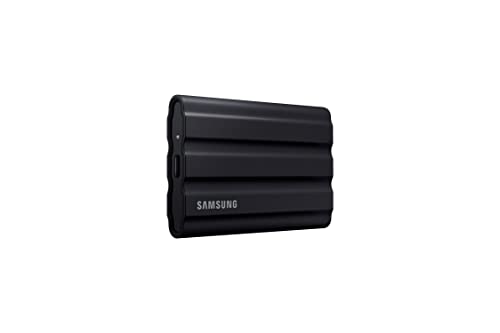
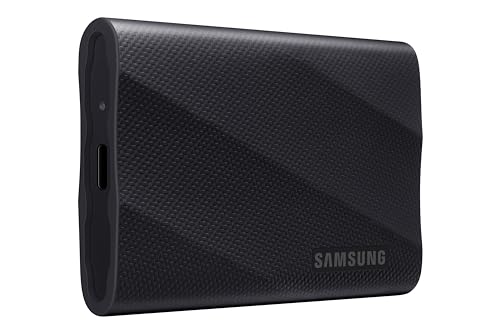
An external SSD is simple, fast, and cheap to start. Plug it into USB-C, drag files across at 400–1,000 MB/s (or faster over Thunderbolt), and unplug. For a single editor working from one machine, nothing beats the immediacy—you can scrub 4K footage straight off a good portable drive. Capacities of 1–4 TB cover most enthusiast libraries, and the whole thing fits in a pocket for off-site safety.
The weaknesses show up as you scale. One SSD is one point of failure; drop it, lose it, or have it wear out and the data is gone unless you kept a second copy. It only serves the device it is plugged into, and juggling multiple drives as the library grows gets messy.
The NAS approach
A NAS is a small always-on server holding two or more drives, usually in a redundant RAID configuration so a single disk failure does not lose data. Every device on your network—laptops, phones, a TV—can reach it at once, and it can run automatic backups, versioning, and even off-site sync to the cloud. For a household or a growing archive measured in tens of terabytes, it is the durable long-term home.
The costs are money, complexity, and speed. A two- or four-bay unit plus drives is a real investment, setup takes an afternoon, and network transfers over gigabit Ethernet top out around 110–115 MB/s—fine for backup, slower than a directly attached SSD for live editing.
| Factor | External SSD | NAS (RAID) |
|---|---|---|
| Typical speed | 400–2,800 MB/s (USB/TB) | ~110 MB/s (gigabit LAN) |
| Built-in redundancy | No | Yes (RAID 1/5/10) |
| Multi-device access | One at a time | Whole network |
| Practical capacity | 1–8 TB | 8–100+ TB |
| Off-site portability | Excellent | Poor (needs sync) |
| Setup effort | Plug in | Moderate |
Match the tool to the job
Choose an external SSD if you are a solo shooter with under ~4 TB, edit directly from the drive, and want grab-and-go off-site storage. Choose a NAS if multiple people or devices need the files, your library is heading past 8–10 TB, or you want automatic, redundant backups running without you remembering to plug anything in.
The strongest setup uses both: edit on a fast external or internal SSD, and let a NAS be the redundant master archive, with a rotating external drive or cloud copy kept off-site. That satisfies the classic 3-2-1 rule—three copies, two media types, one off-site.
Frequently asked questions
Is a NAS a backup by itself?
Not fully. RAID protects against a drive dying, but not accidental deletion, theft, fire, or ransomware. Treat the NAS as your primary store and still keep one copy off-site—an external SSD in a drawer elsewhere or a cloud sync.
Can I edit 4K video directly off a NAS?
Over standard gigabit Ethernet it is marginal for high-bitrate footage. A 2.5G or 10G network with SSD caching makes it viable, but for smooth scrubbing most editors still work from a local SSD and archive to the NAS afterward.
Bottom line
An external SSD wins on speed, price, and portability for one person with a modest library; a NAS wins on redundancy, capacity, and shared access for households and large archives. They are not rivals so much as roles—use the SSD as the fast working drive and the NAS as the safe master, and keep one copy off-site regardless.









