The best live HD webcam for most streamers in 2026 is a 1080p60 model with a large sensor and clean output, such as the Elgato Facecam MK.2 or the Razer Kiyo Pro. A budget 1080p30 camera like the Logitech C920 or C922 is enough for talking-head streams in a well-lit room. Resolution matters less than light, USB bandwidth and whether the camera holds its frame rate when the room gets dim.
As an Amazon Associate we earn from qualifying purchases at no extra cost to you.


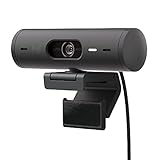
Our Top Picks
 Logitech C920x HD Pro PC Webcam with Microphone1 Pack2.8 x 1.7 x 3.7 inches0.4 poundsCheck on Amazon


Top 3 picks at a glance
Quick comparison of the best live HD webcams
| Pick | Best for | Key specs | Price range |
|---|---|---|---|
| Elgato Facecam MK.2 | Best overall for streaming | 1080p60, uncompressed output, fixed focus, USB 3 | Mid-range |
| Razer Kiyo Pro | Best for dim rooms | 1080p60, large low-light sensor, adjustable field of view, HDR mode | Mid-range |
| Logitech C922 Pro Stream | Best budget all-rounder | 1080p30 or 720p60, autofocus, 78° diagonal view | Budget to mid-range |
| Logitech C920 HD Pro | Best value for casual live video | 1080p30, autofocus, on-camera H.264 | Budget |
| Logitech Brio 100 | Best entry-level for calls and light streaming | 1080p30, fixed focus, narrow view, USB-C | Budget |
| Obsbot Tiny 2 | Best for moving around on camera | 4K30, AI gimbal tracking, voice and gesture control | Premium |
| Insta360 Link 2 | Best for hybrid work and streaming | 4K, gimbal tracking, larger sensor than typical webcams | Premium |
| Elgato Facecam Pro | Best for 4K60 capture | 4K60, uncompressed output, needs USB 3 | Premium |
Specs and street pricing change between regional listings and firmware updates, so confirm details on the manufacturer’s spec sheet before buying.
Best overall: Elgato Facecam MK.2
The Facecam MK.2 is built for streaming rather than meetings. It outputs 1080p at 60 fps and offers uncompressed video over USB 3, so OBS gets a clean image with no hardware-compression artifacts. It has a fixed-focus lens, so it never hunts for focus when you reach for a controller. Settings live in Elgato’s Camera Hub software.
Trade-off: it needs a proper USB 3 port and works best when you tune exposure manually. It also has no built-in microphone, so plan for a separate mic.
Best for dim rooms: Razer Kiyo Pro
Gaming rooms are often lit mainly by monitors, which is the situation where cheap webcams fall apart. The Kiyo Pro pairs a larger sensor with an adaptive light sensor, plus selectable field of view and an HDR option for high-contrast scenes. It is a sensible choice if your lighting is imperfect and you do not want to buy a key light immediately.
Trade-off: HDR mode and the widest view can reduce frame rate or sharpness, so you will want to check each mode against your stream scene.
Best budget: Logitech C922 Pro Stream and C920 HD Pro
The C920 is the long-running baseline for live 1080p video, and the C922 adds a 720p60 mode, which is useful when motion smoothness matters more than pixel count. Both have autofocus, a 78° diagonal field of view and wide software support. They are the cameras to buy if you stream a few times a week and keep a lamp pointed at your face.
Trade-off: their sensors are small, so noise and soft detail show up quickly in dim rooms. They also lean on compressed MJPEG or H.264 output.
Best entry-level: Logitech Brio 100
The Brio 100 is a simple 1080p30 USB-C camera with a fixed-focus lens and automatic light correction. It suits streamers who just want a clean face cam in a corner of the scene and a plug-and-play setup.
Trade-off: the field of view is narrow and there are few manual controls, so it is poor for showing a wide desk or room.
Best for moving on camera: Obsbot Tiny 2
The Tiny 2 is a 4K30 gimbal camera with AI tracking. If you stand, draw, cook, craft or demonstrate hardware on stream, it follows you without a camera operator. Voice and gesture control let you pause tracking or zoom without touching the software.
Trade-off: tracking can occasionally follow the wrong subject in a busy scene. Gaming streamers who sit still gain little from it.
Best for hybrid work and streaming: Insta360 Link 2
The Link 2 also uses a gimbal and AI framing, and it suits people who use one camera for meetings, tutorials and streams. Its 4K output gives you room to crop in for a tighter shot without a visible resolution drop at 1080p stream size.
Trade-off: it is a premium purchase, and much of its value comes from tracking features that sit-down gamers rarely need.
Best for 4K60: Elgato Facecam Pro
If you record or stream a face cam that is also reused for edited video, the Facecam Pro delivers 4K at up to 60 fps with uncompressed output. That is a lot of data, which is why USB wiring matters (see the bandwidth math below).
Trade-off: most live platforms cap you at 1080p anyway, so 4K is mainly an editing and cropping advantage.
How much USB bandwidth live HD video actually needs
Uncompressed video is bandwidth-hungry. A simple calculation is width × height × bytes per pixel × frames per second. YUY2 (4:2:2) uses 2 bytes per pixel.
| Mode | Calculation | Data rate | Fits on |
|---|---|---|---|
| 720p30 YUY2 | 1280 × 720 × 2 × 30 | about 55 MB/s (about 440 Mbps) | Barely USB 2 on paper, not in practice |
| 1080p30 YUY2 | 1920 × 1080 × 2 × 30 | about 124 MB/s (about 1 Gbps) | USB 3 only |
| 1080p60 YUY2 | 1920 × 1080 × 2 × 60 | about 249 MB/s (about 2 Gbps) | USB 3 only |
| 4K30 YUY2 | 3840 × 2160 × 2 × 30 | about 498 MB/s (about 4 Gbps) | USB 3 at 5 Gbps nominal; very tight |
| 4K30 NV12 (1.5 bytes/pixel) | 3840 × 2160 × 1.5 × 30 | about 373 MB/s (about 3 Gbps) | USB 3, with headroom |
USB 2.0 is rated at 480 Mbps, but real throughput is well below that. This is why USB 2 webcams compress to MJPEG or H.264 on the camera, which costs some sharpness and adds artifacts in motion. A USB 3 uncompressed feed avoids that, but only if the camera sits on its own controller. Plug it into a dedicated rear-panel port, not a hub that also carries your capture card, headset and storage.
Match your situation to a pick
| Your situation | Choose | Reason |
|---|---|---|
| Dim room lit by monitors, no key light | Razer Kiyo Pro | Larger sensor and adaptive light handling |
| Fixed seat, controlled lighting, serious streaming | Elgato Facecam MK.2 | 60 fps, uncompressed, manual control |
| Tight budget, bright room | Logitech C920 or C922 | Proven support and enough quality for 1080p30 |
| Only USB 2 ports free | Logitech C920/C922 or Brio 100 | On-camera compression suits USB 2 |
| Stand, move or demonstrate on stream | Obsbot Tiny 2 or Insta360 Link 2 | Gimbal tracking and auto-framing |
| Face cam doubles as video-editing source | Elgato Facecam Pro | 4K60 gives cropping room |
| Small desk, close to the camera | Brio 100 | Narrow field of view keeps the frame tidy |
How to choose: the criteria that matter, with numbers
1. Frame rate under real lighting
At 30 fps the longest possible exposure per frame is 1/30 s, and at 60 fps it is 1/60 s. In dim light a camera in auto mode often lengthens exposure by dropping the frame rate to 15 or 24 fps, so your 60 fps stream turns choppy. Set exposure manually and see if the camera keeps its target frame rate. A bigger sensor gathers more light at the same exposure, so it can keep 60 fps with less noise.
2. Field of view and distance
Visible width at a given distance is 2 × distance × tan(FOV ÷ 2), treating the quoted angle as horizontal. At 0.6 m, a 65° view covers about 0.76 m, enough for your head and shoulders. A 90° view covers about 1.2 m, which shows more of the desk and room. Manufacturers often quote a diagonal angle, so the horizontal view will be narrower than the headline figure.
3. Fixed focus versus autofocus
Autofocus helps if you hold products up to the camera. For a seated face cam, fixed focus avoids focus hunting and is more predictable, provided your seating distance matches the lens’s sharp range.
4. Upload headroom, not just resolution
The webcam feed reaches viewers through your encoder, so your upload speed caps what they see. A rule of thumb is to allocate no more than 70 to 75 percent of measured upload speed to the stream. On a 20 Mbps upload line, that leaves about 14 to 15 Mbps, comfortably above the roughly 6 Mbps that Twitch’s broadcasting guidance suggests for 1080p60. A 4K webcam feeding a 1080p stream costs you nothing extra at that point, but it does not improve what viewers receive.
5. Software and driver quality
Manual exposure, white balance and ISO controls matter more than a high megapixel count. Check that the camera’s companion app saves profiles, and that the camera still works as a plain UVC device in OBS or Streamlabs without background software.
6. Microphone, privacy and mounting
Built-in webcam microphones are generally weaker than a dedicated USB or XLR mic. Look for a privacy shutter if the camera sits on a shared desk, and a standard tripod thread if you want to mount it on an arm.
Quick setup settings that improve any webcam
- Light first: put a soft lamp behind your monitor facing you, or at a 45° angle to your face. This helps more than upgrading the camera.
- Lock exposure and white balance: auto settings shift when game scenes change brightness, causing visible pulsing on your face.
- Pick 1080p30 or 1080p60 deliberately: 60 fps suits fast hand movement and reaction streams, while 30 fps gives cleaner low-light exposure.
- Use a dedicated USB 3 port: plug the camera directly into the motherboard’s rear I/O when running uncompressed formats.
- Place the lens at eye level: an arm or monitor-top mount avoids the unflattering upward angle from a laptop-style placement.
Frequently Asked Questions
Is a 4K webcam worth it for live streaming?
Usually not for gaming streams, because most platforms and viewer connections top out at 1080p. A 4K camera is worth it if you need cropping room, use AI framing, or reuse footage in edited videos. Otherwise, spend the money on lighting and a better microphone.
Is 1080p30 or 1080p60 better for a face cam?
1080p60 looks smoother when you gesture or move, but it needs more light and bandwidth. In a dim room, 30 fps often looks cleaner because each frame can be exposed longer. If your lighting is good, choose 60 fps.
Do I need USB 3 for a streaming webcam?
You need USB 3 for uncompressed 1080p or 4K feeds, since 1080p30 in YUY2 needs roughly 1 Gbps. Compressed MJPEG or H.264 cameras like the Logitech C920 work fine on USB 2. Check the manufacturer’s spec sheet for each mode your camera supports.
Can I use a DSLR or mirrorless camera instead of a webcam?
Yes, many cameras offer a USB webcam mode or can be paired with a capture card over HDMI. You get a better sensor and lens, but also a bigger setup, battery or dummy-battery needs, and a higher cost. A premium webcam is simpler if you want a one-cable solution.
Why does my webcam look blurry or grainy on stream?
The usual causes are low light, which forces high gain and noise, and focus hunting from autofocus. Improve lighting, lock focus and exposure, and make sure the camera is not running a compressed low-bandwidth mode on a shared USB hub. Stream bitrate also affects the image your viewers see, not just the camera.
Does a webcam work with OBS without extra software?
Most USB webcams work in OBS as standard video capture devices. Manufacturer software is only needed for advanced features such as saved profiles, HDR toggles or gimbal control. Some cameras revert to default settings if the companion app is not running, so confirm this after setup.
Related guides
More from Amazon
Programs that pair well with the guide above. Offers and eligibility are set by Amazon and may change.
A free business account with business pricing and bulk-buying tools for work, shop or home office.
Create a business accountFree shipping on eligible items, Prime Video and more. Eligible new members can start with a free trial.
Start a Prime free trialAudiobooks and podcasts to listen to on the go. Eligible new members can start with a free trial.
Try Audible freeAd-free music streaming. Eligible new subscribers can start with a free trial.
Try Music Unlimited freeAs an Amazon Associate we earn from qualifying purchases.


