The best setup for video footage is two tiers: a fast portable SSD such as the Samsung T7 Shield or SanDisk Extreme Portable SSD for shooting and editing, plus a large 3.5-inch desktop hard drive or a NAS with NAS-rated drives (Seagate IronWolf Pro, WD Red Plus) for cheap archive storage. Footage fills drives faster than most people expect, so choose capacity from your recording bitrate first and interface speed second. The sections below show how to do the math and which drive class fits each situation.
As an Amazon Associate we earn from qualifying purchases at no extra cost to you.



Our Top Picks


Top 3 picks at a glance
Quick comparison of the best footage drives
| Pick | Best for | Key specs (per manufacturer) | Price tier |
|---|---|---|---|
| Samsung T7 Shield | Best overall portable SSD for field and editing use | USB 3.2 Gen 2, up to about 1,050 MB/s read, IP65, 1-4 TB | Mid-range |
| Samsung T9 | Fastest portable for high-bitrate editing | USB 3.2 Gen 2×2, up to about 2,000 MB/s, 1-4 TB | Premium |
| SanDisk Extreme Portable SSD | Rugged-ish everyday camera offload | USB-C, up to about 1,050 MB/s class, water and dust resistance rating, 500 GB-4 TB | Mid-range |
| WD My Passport (HDD) | Budget portable backup of finished footage | 2.5-inch HDD, USB 3.x, roughly 100-140 MB/s sustained, up to several TB | Budget |
| Seagate Expansion Desktop / WD Elements Desktop | Cheapest per-terabyte archive | 3.5-inch HDD, USB 3.x, external power, roughly 150-250 MB/s, high-capacity options | Budget to mid-range |
| SanDisk Professional G-DRIVE | Desktop editing and archive with a pro-grade enclosure | 3.5-inch enterprise-class HDD, USB-C, high-capacity options | Mid-range to premium |
| Two-bay NAS (e.g. Synology DS224+) with IronWolf Pro or WD Red Plus | Shared archive with redundancy | RAID 1 mirroring, 1 GbE (about 110 MB/s real-world), NAS-rated drives | Mid-range to premium |
First, calculate how much footage you actually shoot
Storage per hour is bitrate in megabits per second, divided by 8 for megabytes per second, multiplied by 3,600 seconds. Here is the math for common sources, using typical bitrates and Apple’s published ProRes data rates.
| Source | Bitrate | MB/s | Storage per hour |
|---|---|---|---|
| 1080p60 gameplay capture (NVENC, H.264/HEVC) | 50 Mbps | 6.25 | about 22.5 GB |
| 4K60 gameplay capture | 80 Mbps | 10 | 36 GB |
| 4K 24p camera, H.265 (typical 10-bit mode) | 100 Mbps | 12.5 | 45 GB |
| 4K 30p ProRes 422 | about 471 Mbps | about 59 | about 212 GB |
| 4K 30p ProRes 422 HQ | about 707 Mbps | about 88 | about 318 GB |
Worked example: a 10-day trip shot at 3 hours a day in 4K H.265 at 100 Mbps produces 30 hours x 45 GB = 1,350 GB, roughly 1.35 TB. Following the 3-2-1 rule (three copies), you need about 4 TB of total capacity, and a 20 percent headroom margin brings that to nearly 5 TB. Drives also show less usable space than the label says because of decimal-versus-binary reporting, so a 1 TB drive appears as roughly 930 GB.
Second, calculate the speed you need
Speed matters in two places: offloading cards and editing from the drive. Multiply the per-stream data rate by the number of simultaneous video tracks in your timeline. Four layers of ProRes 422 HQ at 88 MB/s each need about 350 MB/s, which is beyond any single hard drive (a 2.5-inch HDD manages roughly 100-140 MB/s sustained, a 7200 rpm 3.5-inch drive roughly 150-250 MB/s on the outer tracks, per typical manufacturer specs). A single stream of 100 Mbps H.265 needs only 12.5 MB/s, so even a slow HDD can play it back, although scrubbing a heavily compressed codec is more demanding on the CPU and random read performance than the bitrate suggests.
The rule of thumb: HDDs are fine for archive and for low-bitrate, single-stream editing, while SSDs are the right choice for multicam, ProRes, RAW, or proxy-free 4K timelines.
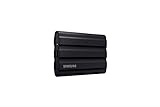
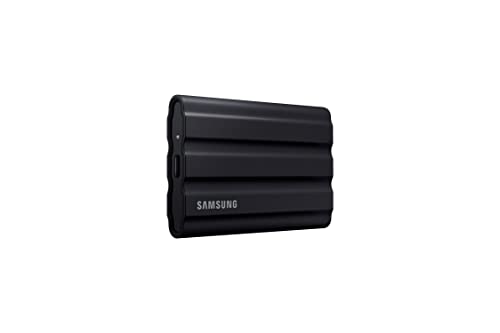
Best overall: Samsung T7 Shield
The T7 Shield is the practical default for creators who travel or shoot outdoors. It has a rubberized shell and an IP65 rating according to Samsung’s spec sheet, USB 3.2 Gen 2 speeds of up to about 1,050 MB/s, and capacities up to 4 TB. That is enough bandwidth for several streams of ProRes 422 and for fast offloading from a camera card. The main trade-off is cost per terabyte, which is several times that of a hard drive, and sustained writes can slow down once the drive’s cache fills on very large copies.
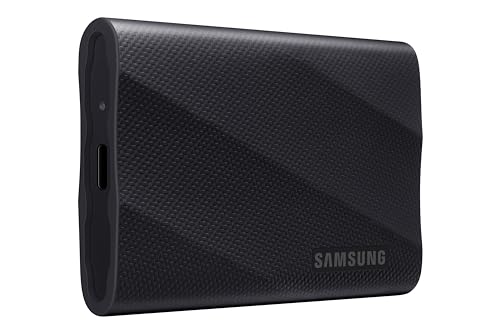
Best for high-bitrate editing: Samsung T9
The T9 uses USB 3.2 Gen 2×2 to reach up to about 2,000 MB/s per Samsung, which helps with RAW and multi-layer 4K or 6K timelines. The catch is that you only get those speeds if your computer has a 20 Gbps USB port. On a standard 10 Gbps port it behaves like a T7-class drive, so check your ports before paying for the premium.
Best everyday option: SanDisk Extreme Portable SSD
SanDisk’s Extreme Portable SSD is a compact drive for offloading camera cards and editing proxy-based projects. It offers USB-C connectivity, a dust and water resistance rating, and capacities up to 4 TB. It suits hybrid shooters who want a small drive in a camera bag. The trade-off is similar to the T7 Shield: you pay a premium per terabyte, so use it as a working drive and not as your permanent archive.
Best budget portable: WD My Passport
A 2.5-inch bus-powered HDD such as the WD My Passport is the cheapest way to make a portable backup of finished projects. It is slower than an SSD and less tolerant of drops while spinning, so it is better kept in a drawer or desk than carried through a shoot. Do not shoot directly to or edit multicam from it.
Best archive per terabyte: Seagate Expansion Desktop or WD Elements Desktop
For storing hundreds of hours of footage, 3.5-inch external drives deliver the lowest cost per terabyte and higher speeds than portable HDDs. They require wall power, they are bulky, and a single drive is a single point of failure. Buy two and keep one copy offline, or use them as the second and third copies in a 3-2-1 plan.
Best pro desktop drive: SanDisk Professional G-DRIVE
The G-DRIVE line pairs an enterprise-class 3.5-inch HDD with a metal enclosure and USB-C. It is aimed at editors who want a single large, sturdy volume for active projects and archive. It is still a mechanical drive, so treat it as a place for archive and light editing, with an SSD scratch drive for heavy timelines.
Best for shared or long-term archives: a NAS with NAS-rated drives
A two-bay NAS such as the Synology DS224+ with two Seagate IronWolf Pro or WD Red Plus drives in RAID 1 keeps a mirrored copy, so one drive failure will not lose footage. Gigabit Ethernet delivers roughly 110 MB/s in real use, enough for archive access and proxy editing but not for several high-bitrate streams. RAID is not a backup, because deletion or ransomware affects both drives, so still maintain a separate offline copy.
Decision matrix: match your situation to a drive
| Your situation | Working drive | Archive drive | Why |
|---|---|---|---|
| Gameplay clips, 1080p60 to 4K60, under 20 hours a month | Internal NVMe SSD or T7-class portable | 2.5-inch or 3.5-inch HDD | Bitrates are low, so capacity matters more than speed |
| YouTube creator, 4K H.265, proxy workflow | Portable SSD, 1-2 TB | 3.5-inch HDD pair or two-bay NAS | Fast scrubbing and cheap long-term storage |
| Wedding or event shooter, multicam 4K | Portable SSD, 2-4 TB (T7 Shield or T9) | Two copies on separate HDDs plus a NAS or cloud copy | Client footage requires redundancy |
| ProRes or RAW editor | Fast SSD with 10-20 Gbps interface | Large HDD or multi-bay RAID | Data rates of 90 MB/s or more per stream exceed HDD capability |
| Travel vlogger, light bag | Rugged portable SSD | Cloud or a second SSD | Drop resistance matters more than raw capacity |
How to choose: the checklist
- Capacity: multiply hours shot by GB per hour, multiply by the number of copies, then add 20 percent.
- Interface: match the drive to your port. A 20 Gbps drive on a 5 Gbps port wastes money.
- Format: exFAT works on both Windows and macOS, but it has no journaling, so eject safely. Use NTFS for Windows-only and APFS for Mac-only, since those formats are safer.
- Drive type: SSD for work in progress, HDD for archive, NAS-rated HDD for always-on systems.
- Redundancy: keep at least two copies of anything you cannot reshoot, with one copy off-site or in the cloud.
- Sustained write speed: look for sustained numbers, not just peak ones, since long 4K offloads can exceed the cache on budget SSDs.
Frequently Asked Questions
Is an SSD or HDD better for video footage?
Use an SSD for active editing and offloading, and an HDD for archive. SSDs handle high-bitrate and multi-stream timelines easily, while HDDs offer far more storage per unit cost. Most creators use both.
How much storage do I need for 4K video?
A typical 4K H.265 recording at 100 Mbps uses about 45 GB per hour, while 4K ProRes 422 HQ at 30 fps uses roughly 318 GB per hour. Multiply your expected hours by the right figure, then multiply by the number of backup copies. A 2 TB drive holds only about 6 hours of ProRes 422 HQ.
Can I edit video directly from an external hard drive?
Yes, if the drive’s sustained speed exceeds the combined data rate of your timeline. A 7200 rpm HDD over USB 3 can handle one or two H.264 or H.265 streams or a single ProRes stream. For multicam or RAW, use an external SSD or use proxies.
Which file system should I format a footage drive with?
exFAT is the best choice if you move the drive between Windows and Mac, and it also works with most cameras. NTFS suits Windows-only use and APFS suits Mac-only use, and both are more resilient against corruption. Always eject the drive properly before unplugging.
Do I need a NAS for video footage?
Not necessarily, but a NAS helps if you have many terabytes, multiple computers, or want automatic mirroring. For a single editor, two external drives and a cloud backup can be simpler and cheaper. Remember that RAID protects against drive failure only, not accidental deletion.
How long do hard drives last for archive footage?
Manufacturers typically design hard drives for a service life of about three to five years of regular use, though many last longer. Do not rely on one drive for irreplaceable footage. Copy archives to new drives every few years and check them periodically.
Related guides
More from Amazon
Programs that pair well with the guide above. Offers and eligibility are set by Amazon and may change.
A free business account with business pricing and bulk-buying tools for work, shop or home office.
Create a business accountFree shipping on eligible items, Prime Video and more. Eligible new members can start with a free trial.
Start a Prime free trialAudiobooks and podcasts to listen to on the go. Eligible new members can start with a free trial.
Try Audible freeAd-free music streaming. Eligible new subscribers can start with a free trial.
Try Music Unlimited freeAs an Amazon Associate we earn from qualifying purchases.


