The best setup for film work is a fast portable SSD for editing, a 7200 rpm HDD or NAS for backups and archive, and a third copy somewhere else. For most filmmakers, a Samsung T9 or similar USB 3.2 Gen 2×2 SSD covers day-to-day editing, and a SanDisk Professional G-DRIVE or a Synology NAS holds the finished and raw footage. One drive alone never counts as safe storage for footage you can’t reshoot.
“Film hard drive” here means storage for video footage: camera card offloads, edit-ready media, and long-term archive. The right drive depends on your codec’s bitrate, how many streams you play back at once, and how many copies you need to keep. The sections below work through those numbers first, then the picks.
As an Amazon Associate we earn from qualifying purchases at no extra cost to you.



Our Top Picks

Top 3 picks at a glance
Quick comparison of the best film drives
| Pick | Best for | Key specs | Price range |
|---|---|---|---|
| Samsung T9 portable SSD | Best overall for editing | USB 3.2 Gen 2×2, up to about 2,000 MB/s, 1/2/4 TB capacities | Mid-range to premium |
| Samsung T7 Shield | Best rugged on-set drive | USB 3.2 Gen 2, up to about 1,050 MB/s, IP65 rated, rubber shell | Mid-range |
| SanDisk Professional G-DRIVE (HDD) | Best archive and backup drive | 7200 rpm, USB-C, large multi-terabyte capacities, about 200+ MB/s sequential | Mid-range |
| WD My Passport (HDD) | Best budget cold storage | Portable 2.5-inch, bus-powered, about 100-130 MB/s typical | Budget |
| Synology DS923+ with NAS-class HDDs | Best for teams and shared projects | 4 bays, optional 10GbE, RAID 5 or SHR redundancy | Premium (enclosure plus drives) |
| Internal 3.5-inch NAS/enterprise HDD (Seagate IronWolf Pro, WD Red Pro, Toshiba N300) | Best bulk capacity per cost | 7200 rpm, CMR, 24/7 rated, about 200-280 MB/s depending on capacity | Mid-range per drive |
Speeds are the manufacturers’ “up to” figures from their spec sheets. Real-world numbers depend on your port, cable, file sizes and drive temperature.
How much storage and speed do you need? A worked example
Start with your codec’s data rate. Apple’s ProRes white paper lists ProRes 422 HQ at 3840×2160, 24p at roughly 707 Mbps. Divide by 8 to get megabytes per second, then multiply by 3,600 seconds.
- 707 Mbps ÷ 8 = about 88 MB/s
- 88 MB/s × 3,600 s = about 318 GB per hour of footage
Now apply that to a small shoot: two cameras, 4 hours recorded per camera per day, 3 shooting days.
- Raw footage: 318 GB × 4 h × 2 cameras × 3 days = about 7.6 TB
- Three copies (working, backup, offsite): about 22.9 TB total
- Add 30-50% for proxies, exports, audio and project files, and you land near 30 TB of total capacity.
Playback bandwidth matters as much as capacity. A multicam edit with three simultaneous 707 Mbps streams needs about 265 MB/s sustained. A single 7200 rpm HDD does about 200 MB/s at best on large sequential reads, and it drops sharply once the heads seek between streams. A 5400 rpm portable drive is worse. An SSD handles this easily, which is why editing should happen on SSD or from proxies.
| Footage type (approx.) | Data rate | Per hour | Minimum drive for editing |
|---|---|---|---|
| 1080p H.264, 50 Mbps | about 6 MB/s | about 22 GB | Any HDD |
| 4K H.265 10-bit, 400 Mbps all-intra | about 50 MB/s | about 180 GB | 7200 rpm HDD for one stream, SSD for multicam |
| 4K ProRes 422 HQ, 24p | about 88 MB/s | about 318 GB | SSD, or a fast RAID |
| 3 streams of 4K ProRes 422 HQ | about 265 MB/s | about 950 GB | SSD with 1,000+ MB/s, or NAS over 10GbE |
Figures are rounded and vary with frame rate and codec flavor. Check your camera’s own bitrate table before buying.
Best overall: Samsung T9 portable SSD
The T9 uses USB 3.2 Gen 2×2 to reach up to about 2,000 MB/s per Samsung’s spec sheet, which clears even multicam 4K ProRes with room to spare. It comes in capacities up to 4 TB. It suits editors who work from a laptop or desktop and want one drive to carry projects between machines.
Trade-off: You only get the top speed on a port that supports Gen 2×2. On a standard 10 Gbps USB port it falls to about 1,000 MB/s, which is still enough for most 4K work. Sustained large writes can also cause thermal throttling, so offload in batches rather than all at once if you see speeds drop.
Best rugged on-set drive: Samsung T7 Shield
The T7 Shield has a rubberized shell, an IP65 rating for dust and splashes, and up to about 1,050 MB/s. That handles 4K camera offloads and most editing from a field laptop. It suits documentary shooters, run-and-gun crews and anyone moving between locations.
Trade-off: It’s slower than the T9 and won’t keep up with heavy multi-stream ProRes. Its main job is protecting footage in transit, with finished work moving to larger storage afterward.
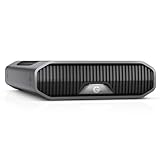
Best archive and backup drive: SanDisk Professional G-DRIVE
The G-DRIVE is a 7200 rpm USB-C hard drive built for creative work, with a metal enclosure and large capacities. A 7200 rpm drive handles single-stream 4K playback and sustained offloads far better than a 5400 rpm portable. It makes a good second copy of raw footage, and a decent place to store finished projects.
Trade-off: It’s mains-powered or bulky compared with a pocket SSD, and it’s still a single mechanical drive. Treat it as one of your three copies, not the only one.
Best budget: WD My Passport
The My Passport is a bus-powered 2.5-inch portable drive. At around 100-130 MB/s typical it’s fine for cold storage of finished projects, H.264 proxies and 1080p work. It suits students and beginners who need cheap capacity.
Trade-off: Don’t edit 4K ProRes from it. 2.5-inch portable drives also tend to be less durable than enterprise 3.5-inch drives, so don’t rely on one for long-term archive without a second copy.
Best for teams and shared projects: Synology DS923+ NAS
A four-bay NAS lets several editors pull from the same footage, and RAID protects against a single drive failure. The DS923+ supports an optional 10GbE upgrade, which matters because gigabit Ethernet tops out around 110 MB/s in practice. That is barely one stream of 4K ProRes. Fill it with NAS-rated 7200 rpm drives such as Seagate IronWolf Pro, WD Red Pro or Toshiba N300 rather than desktop drives.
Trade-off: The enclosure and drives together are a serious investment, and the 10GbE path needs a compatible switch and adapters. Also, RAID is not a backup: it keeps the system running after a drive dies, but doesn’t protect you from deletion, corruption or theft.
Best bulk capacity: internal 3.5-inch NAS or enterprise drives
For a desktop edit rig or a DIY archive, bare 3.5-inch drives give the lowest cost per terabyte. Choose CMR (not SMR) models, which sustain writes better. Drives rated for 24/7 use, such as the IronWolf Pro, WD Red Pro and Toshiba N300 families, typically run about 200-280 MB/s at larger capacities. Pair them with a dock or a USB enclosure for offloads.
Trade-off: They’re noisy and need external power, and they aren’t designed for travel.
Decision matrix: match your situation to a setup
| Your situation | Edit from | Backup / archive | Notes |
|---|---|---|---|
| Solo editor, 1080p or 4K H.264/H.265 | Samsung T7 Shield or T9 (1-2 TB) | G-DRIVE or My Passport | Proxies not required on SSD |
| Solo editor, 4K ProRes or multicam | Samsung T9 (2-4 TB) | G-DRIVE plus offsite copy | Use a Gen 2×2 or Thunderbolt-class port |
| Field shooter, travel-heavy | T7 Shield | Second T7 Shield or HDD at base | Copy before you leave the location |
| Small studio, 2-4 editors | NAS with 10GbE | Second NAS or external HDD rotation | Add SSD cache or proxies for remote editors |
| Budget, lots of old footage | Proxies on any SSD | Internal 3.5-inch HDDs in a dock | Verify every copy with a checksum tool |
How to choose: the criteria that matter
- Interface first: Match the drive to your port. USB 3.2 Gen 2×2 and Thunderbolt give top SSD speeds, while a plain 5 Gbps USB-A port caps around 400-450 MB/s regardless of the drive.
- Capacity: Take your hours of footage times GB per hour, multiply by 3 copies, and add 30-50% headroom. Exceeding about 80% fill on an SSD can reduce sustained write speed.
- SSD vs HDD: SSD for active editing, HDD for the archive. HDDs cost far less per terabyte, so use them for the copies you rarely open.
- Format: exFAT works across Windows and macOS but lacks journaling, so a sudden disconnect can corrupt it. APFS (Mac) or NTFS (Windows) are safer if you stay on one platform.
- Durability: Check the IP and drop ratings from the manufacturer if you shoot outdoors.
- Backup rule: Keep 3 copies, on 2 types of media, with 1 offsite (the 3-2-1 rule).
Frequently Asked Questions
Can I edit 4K video directly from an external hard drive?
Yes, if it’s a 7200 rpm drive and you’re working with a single stream of a moderate-bitrate codec like H.265. For ProRes or multicam, a 5400 rpm portable HDD will stutter, so use an SSD or generate proxies. A good rule of thumb is that your drive’s sustained speed should be at least double the combined data rate of the streams you play.
Is an SSD or an HDD better for filmmakers?
Use both. SSDs are better for editing because they stay fast under multi-stream playback and survive being carried around. HDDs are better for archiving because they cost much less per terabyte, so they suit the backup copies of raw footage.
How many hard drives do I need for a film project?
At least three copies of any footage you can’t reshoot: the working drive, a local backup and an offsite or cloud copy. Don’t delete camera cards until all copies are verified. For the example shoot above, that means roughly 23 TB of raw storage plus working space.
Is a NAS worth it for a solo filmmaker?
Often not for editing, but it can be good for archive and remote access. A NAS on gigabit Ethernet only delivers about 110 MB/s, which won’t handle heavy 4K ProRes. If you do buy one, make sure you add 10GbE or edit with proxies, and still keep an extra backup.
What file system should I use for a film drive?
Use APFS if you’re only on Mac and NTFS if you’re only on Windows, since both are more robust than exFAT. Choose exFAT only when you need to move the drive between both systems. In every case, eject the drive properly before unplugging it.
Do I need Thunderbolt for video editing?
Not for most people. A USB 3.2 Gen 2 port at 10 Gbps delivers about 1,000 MB/s on a good SSD, which covers nearly all single-camera 4K work. Thunderbolt or USB 3.2 Gen 2×2 helps with heavy multicam, high-bitrate RAW or very large file transfers.
Related guides
More from Amazon
Programs that pair well with the guide above. Offers and eligibility are set by Amazon and may change.
A free business account with business pricing and bulk-buying tools for work, shop or home office.
Create a business accountFree shipping on eligible items, Prime Video and more. Eligible new members can start with a free trial.
Start a Prime free trialAudiobooks and podcasts to listen to on the go. Eligible new members can start with a free trial.
Try Audible freeAd-free music streaming. Eligible new subscribers can start with a free trial.
Try Music Unlimited freeAs an Amazon Associate we earn from qualifying purchases.


